




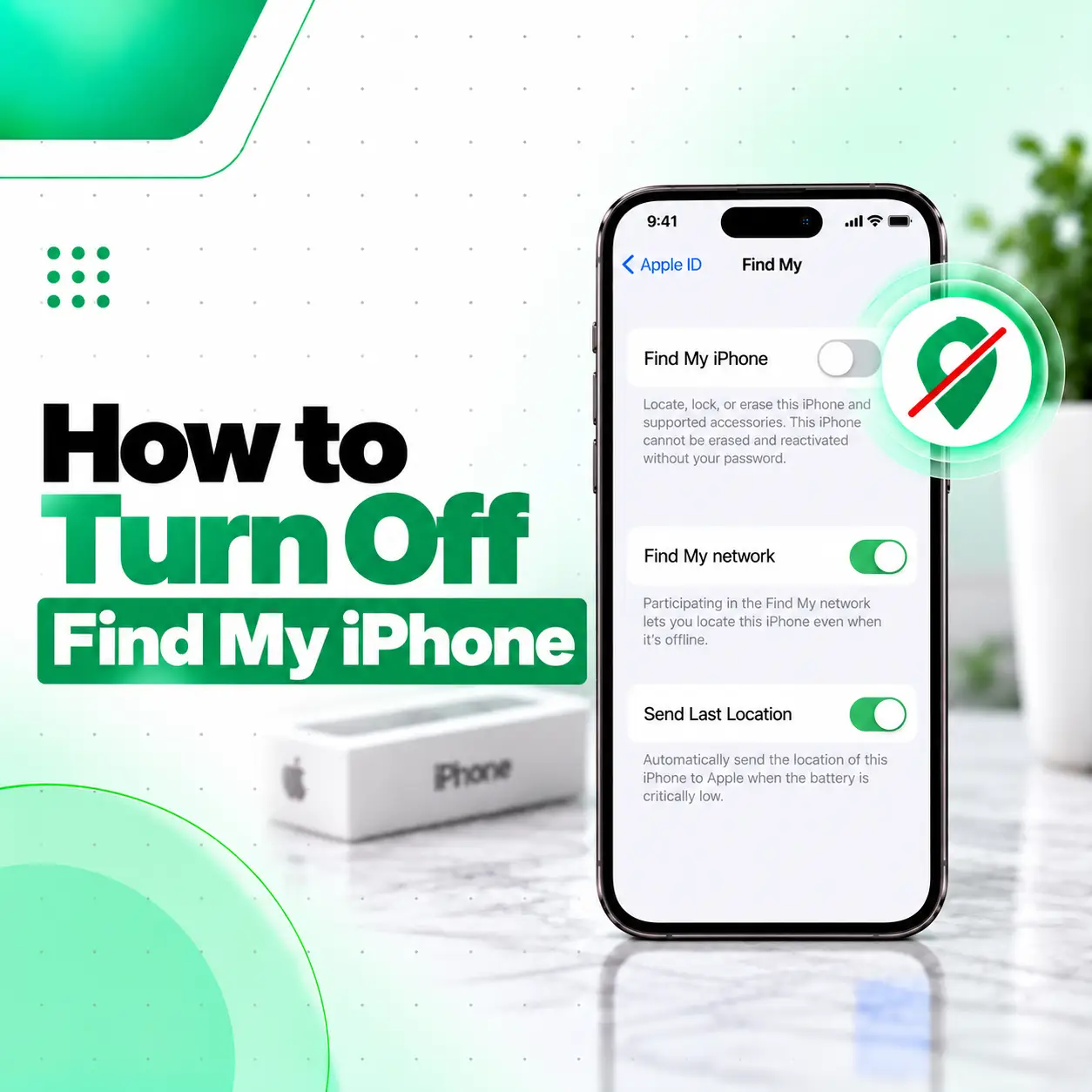
If you need to know how to turn off Find My iPhone, you can normally do it directly from the iPhone through Settings → [your name] → Find My → Find My iPhone, then turn the feature off and authenticate with your Apple Account password.
Turning off Find My is particularly important when you’re preparing an iPhone for repair, sale, trade-in, or giving it to another person. Find My is connected to Activation Lock, which helps prevent someone else from activating a lost or stolen iPhone.
This guide explains the normal method, what happens when you disable Find My, how to handle a device you no longer have, and what to do if you cannot turn the feature off.
How Do You Turn Off Find My iPhone?
The standard method is to open your iPhone’s Settings and disable Find My iPhone under your Apple Account’s Find My settings.
Follow these steps:
- Open Settings.
- Tap your name at the top.
- Tap Find My.
- Tap Find My iPhone.
- Turn off Find My iPhone.
- Enter your Apple Account password when prompted.
- Tap Turn Off.
After completing the process, Find My iPhone will be disabled on the device.
Where Is Find My iPhone in Settings?
The location is:
Settings → [your name] → Find My → Find My iPhone
If you don’t see your name at the top of Settings, the iPhone may not currently be signed in to an Apple Account.
Why Do You Need to Turn Off Find My iPhone?
Find My helps you locate and protect your iPhone if it is lost or stolen. When Find My is enabled, Activation Lock is also associated with the device. Apple explains that the Apple Account password is required before someone can turn off Find My, erase the device, or reactivate it.
You may need to turn off Find My when:
- Selling your iPhone
- Giving your iPhone to someone else
- Trading in the device
- Sending it for certain repair or service procedures
- Preparing the device for transfer to another owner
Apple specifically recommends turning off Find My before selling, giving away, trading in, or servicing a device.
Find My and Activation Lock Are Connected
Turning off Find My on the iPhone also removes Activation Lock from the device. This allows another person to activate the iPhone with their own Apple Account when ownership is being transferred.
This is important when selling or giving away an iPhone. Simply erasing the phone is not the same as properly removing it from your account.
How to Turn Off Find My iPhone Before Selling It?
If you’re selling your iPhone, turn off Find My before handing the device to the buyer.
A practical sequence is:
- Back up important data.
- Make sure you know your Apple Account credentials.
- Turn off Find My iPhone.
- Sign out of your Apple Account if you’re transferring ownership.
- Erase the iPhone according to Apple’s recommended preparation process.
- Confirm that the device is no longer associated with your account.
The important point is that Find My should be removed before the next owner attempts to activate the device.
Why This Matters for the Buyer
If Activation Lock remains associated with the previous owner’s Apple Account, the new owner may not be able to activate the iPhone normally.
Apple states that Activation Lock is designed to prevent another person from using an iPhone that is lost or stolen.
How to Turn Off Find My iPhone Before Repair?
If you’re taking your iPhone to a repair or service provider, check whether Find My needs to be disabled for the service being performed.
Apple’s current service-preparation guidance says that for iOS 26 or earlier, users should turn off Find My through Settings → [your name] → Find My → Find My [Device] when required for service. Apple also notes that in newer iOS versions, a Ready for Repair or Trade-In option may be available through Find My.
Before handing over your device, consider:
- Backing up important data
- Removing sensitive information when appropriate
- Confirming what diagnostic work will be performed
- Asking whether the device needs to be erased
- Keeping your Apple Account password private
A repair technician should not need you to disclose your Apple Account password as a general rule. If authentication is required, you should enter sensitive credentials yourself rather than sharing them unnecessarily.
What If You Don’t Turn Off Find My Before Repair?
Depending on the service and iOS version, a repair provider may not be able to complete certain service procedures if Find My remains enabled.
Apple’s current service guidance notes that, for iOS 26 and earlier, Apple may be unable to service a device if Find My isn’t turned off.
If you are preparing an iPhone for professional repair in Bangladesh, confirm the service requirements with the repair provider before handing over the device.
Does Turning Off Find My Remove Activation Lock?
Yes. When you turn off Find My on an iPhone, Activation Lock is automatically removed.
Activation Lock is a security feature associated with Find My. Its purpose is to help prevent unauthorized activation of a device linked to someone else’s Apple Account.
This is why disabling Find My is especially important when transferring ownership.
What Happens When You Turn Off Find My iPhone?
Turning off Find My means you lose the ability to use Find My to locate, lock, or remotely erase that iPhone if it is subsequently lost or stolen. Apple’s safety documentation warns that disabling Find My and related Find My network features affects your ability to locate or protect the device through Find My.
Before disabling it, make sure you actually need to do so.
For example:
| Situation | Turn off Find My? |
| Keeping your iPhone normally | Usually no |
| Selling the iPhone | Yes |
| Giving it to someone else | Yes |
| Trading it in | Yes |
| Preparing it for a service that requires it | Yes |
| iPhone is lost | No—keep Find My enabled |
Keeping Find My enabled is generally important for the security and recovery of a device you still own and use.
Can You Turn Off Find My iPhone Without the Phone?
If you no longer have the iPhone, you may be able to remove it from your account using Find Devices on iCloud.com, depending on the device’s status and the circumstances.
Apple provides a web-based process through iCloud.com/find for removing a device and, where applicable, removing Activation Lock.
If You Sold or Gave Away the iPhone
If you forgot to turn off Find My before transferring the device, Apple provides a process for removing Activation Lock remotely.
The general process is:
- Go to iCloud.com/find.
- Sign in with the Apple Account associated with the iPhone.
- Select the iPhone.
- Follow the available erase/removal instructions.
- After the device has been erased when required, select Remove This Device.
Be careful with remote erasure. Depending on the process, erasing the device can permanently remove its locally stored content.
What If the iPhone Is Offline?
Apple’s web-based removal process has different behavior depending on whether the device is online or offline. Apple explains that if an offline device is removed in the relevant process, Activation Lock can be removed immediately, while device-list removal may follow a different timeline.
Because the exact options can vary, follow the instructions displayed by Apple’s Find Devices service rather than assuming every device will show the same controls.
What If You Forgot Your Apple Account Password?
You normally need your Apple Account password to turn off Find My directly on the iPhone.
If you cannot remember the password:
- Do not repeatedly guess credentials.
- Use Apple’s official account-recovery options.
- Recover access to your Apple Account.
- Return to the Find My settings.
- Turn off Find My using your own credentials.
Apple’s Activation Lock documentation explains that the Apple Account password is part of the protection used to prevent unauthorized changes to Find My and device activation.
Can a Repair Shop Turn Off Find My for You?
A repair shop should not bypass Apple’s security protections or remove an Activation Lock belonging to another person.
If the iPhone is yours, the appropriate approach is for you, the account holder, to authenticate with your Apple Account and disable Find My when necessary.
If you’re sending an iPhone to a professional repair service, you can usually prepare the device yourself before the appointment.
What About a Used iPhone With Activation Lock?
If you purchase a used iPhone and it asks for the previous owner’s Apple Account during activation, the previous owner needs to remove the device from their account.
You should not rely on unofficial bypass methods.
Apple provides legitimate procedures for removing Activation Lock when the rightful owner can authenticate or, in certain circumstances, provide proof of purchase through Apple’s support process.
What Should You Do Before Sending an iPhone for Repair?
Turning off Find My may be only one part of preparing an iPhone for service.
Before handing over the device, consider this checklist:
- Back up important data.
- Check whether Find My needs to be disabled.
- Remove payment cards or sensitive items from Apple Wallet if appropriate.
- Ask whether the device may need to be erased.
- Keep your Apple Account password private.
- Tell the technician about any existing symptoms.
- Keep track of the device’s physical condition.
- Confirm what will happen to your data during diagnostics.
Apple’s current service-preparation guidance includes backing up the device and removing Apple Wallet cards and passes before service.
Protect Your Personal Information
Your iPhone can contain photos, messages, contacts, documents, passwords, and financial information.
Before professional repair, ask what access the technician actually needs. If the device can be diagnosed without sharing sensitive account credentials, avoid providing them.
If the phone needs to be erased, make sure you have a suitable backup first.
When Should You Seek Professional iPhone Repair?
Turning off Find My is normally a software/account-management task and does not require hardware repair.
However, professional assistance may be useful if you are also dealing with:
- A damaged touchscreen that prevents you from navigating Settings
- A broken display
- Buttons that do not respond
- An iPhone that will not turn on
- Severe water damage
- System problems that prevent normal access to Settings
- A device that requires service preparation but cannot be operated normally
A repair professional can diagnose the physical problem, but Apple Account and Activation Lock ownership must still be handled by the legitimate account holder.
For iPhone repair in Bangladesh, iCareFix can inspect device-related hardware problems and help determine the appropriate repair path without treating account-security protections as something to bypass.
Frequently Asked Questions
1. How do I turn off Find My iPhone?
Go to Settings → [your name] → Find My → Find My iPhone, turn off the setting, enter your Apple Account password, and tap Turn Off. This is Apple’s standard method for disabling Find My directly on the iPhone.
2. Do I need my Apple Account password to turn off Find My?
Yes, when disabling Find My directly from the iPhone, Apple instructs you to enter your Apple Account password before turning the feature off. This requirement helps protect the device and its Activation Lock security.
3. Should I turn off Find My before selling my iPhone?
Yes. Before selling, giving away, or trading in an iPhone, Apple recommends turning off Find My. Doing so also removes Activation Lock, allowing the next owner to activate the device with their own Apple Account.
4. Do I need to turn off Find My before iPhone repair?
It depends on the service and iOS version. Some service procedures require Find My to be disabled. Apple’s current guidance also includes a Ready for Repair or Trade-In process on newer iOS versions. Confirm the required preparation before your appointment.
5. Can I turn off Find My iPhone if I no longer have the phone?
In some situations, yes. Apple provides tools through iCloud.com/find that can allow the account holder to erase and remove a device and, where applicable, remove Activation Lock. The exact process depends on whether the device is online and its current status.
6. What happens if I turn off Find My iPhone?
You will no longer be able to use Find My to locate, lock, or remotely erase that iPhone through Find My if it is subsequently lost or stolen. For that reason, you should generally keep Find My enabled while you still own and regularly use the device.
7. Can a repair shop remove Activation Lock from my iPhone?
A repair shop should not bypass Activation Lock belonging to another Apple Account. If the iPhone is yours, you should authenticate with your own Apple Account and remove the device from Find My. If you have a legitimate ownership issue, Apple provides support procedures for Activation Lock in certain circumstances.
Conclusion
Knowing how to turn off Find My iPhone is important when preparing an iPhone for sale, trade-in, transfer, or certain repair procedures. The normal method is Settings → [your name] → Find My → Find My iPhone, followed by your Apple Account password.
Remember that Find My is also connected to Activation Lock, so it should not be disabled casually on a phone you still use and want to protect. If you’ve already sold or given away the device, Apple provides account-based options for handling the device remotely.
If a damaged screen, unresponsive touchscreen, water damage, or another hardware problem prevents you from preparing your iPhone for service, iCareFix can assess the physical device and explain the appropriate repair options. Account security and Activation Lock, however, should always remain under the control of the legitimate Apple Account holder.