




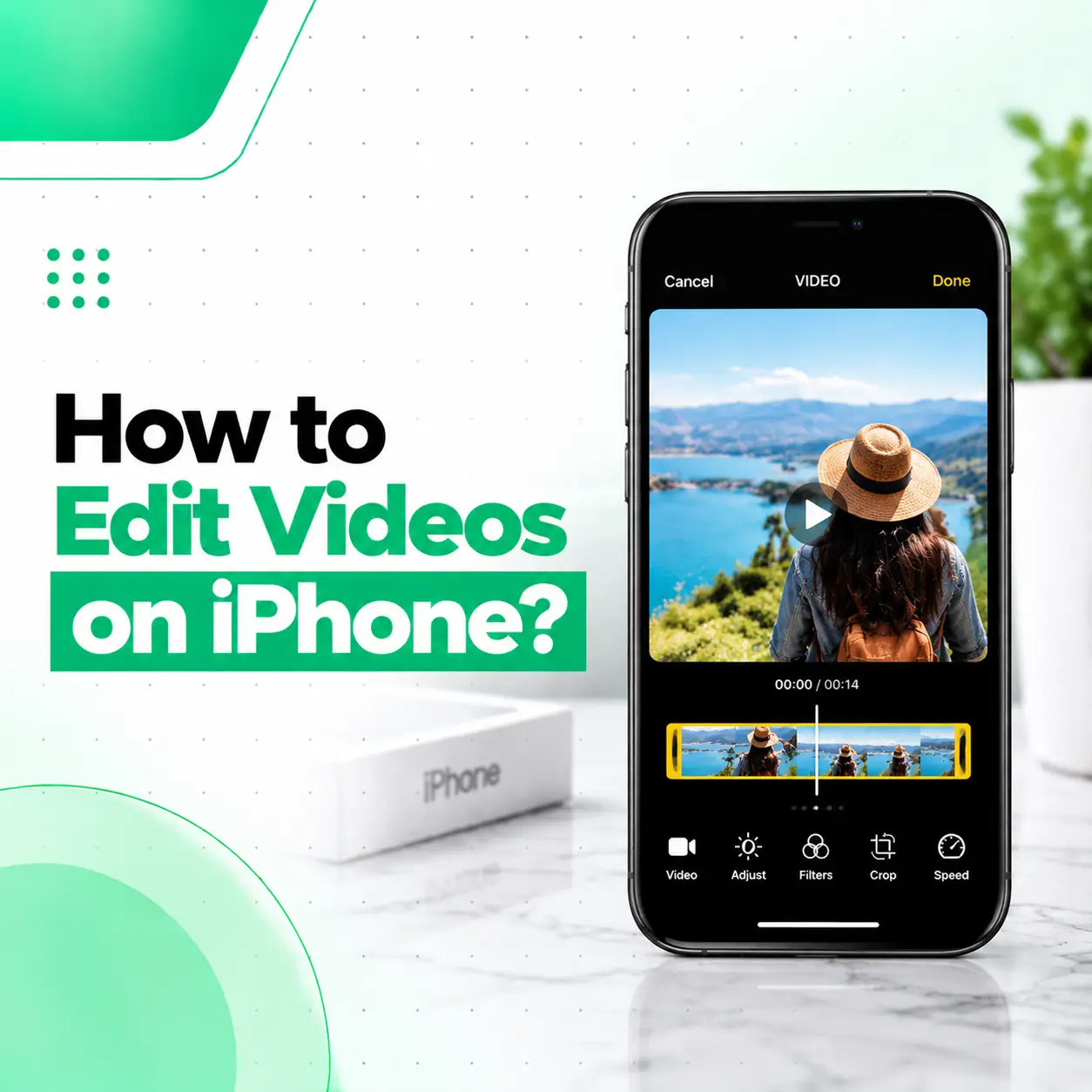
If you want to know how to edit videos on iPhone, you do not necessarily need a separate editing app. The built-in Photos app can handle common edits such as trimming, cropping, rotating, adjusting light and color, applying filters, and changing playback speed. Apple also provides iMovie for more advanced projects involving multiple clips, music, titles, transitions, and timeline editing.
This guide explains both approaches so you can choose the right method for the type of video you want to create. It also covers how to cut unwanted sections, adjust video appearance, edit slow-motion and Cinematic footage, and preserve your original video while experimenting with edits.
Can You Edit Videos Directly on an iPhone?
Yes. You can edit videos directly on an iPhone using the Photos app, without installing a separate video-editing app. For more advanced editing, iMovie provides a timeline where you can arrange, trim, split, and modify multiple clips.
The easiest choice depends on what you need:
| What you want to do | Recommended option |
| Trim the beginning or end | Photos |
| Crop or rotate a video | Photos |
| Adjust brightness and color | Photos |
| Apply a filter | Photos |
| Change playback speed | Photos |
| Make a multi-clip video | iMovie |
| Split clips | iMovie |
| Add titles and transitions | iMovie |
| Add or edit background music | iMovie |
How to Edit Videos on iPhone Using the Photos App
For quick edits, the Photos app is usually the simplest starting point.
Step 1: Open the Video
- Open the Photos app.
- Find the video you want to edit.
- Tap the video to open it.
- Tap Edit.
You will then see the available video-editing controls. Apple currently provides tools for trimming, adjusting, applying filters, cropping, and other video modifications.
Step 2: Trim the Beginning or End
If your video contains unnecessary footage at the beginning or end, trimming is the quickest solution.
- Open the video in Photos.
- Tap Edit.
- Drag either end of the timeline to choose where the video should start and finish.
- Preview the result.
- Tap Done.
- Choose Save Video or Save Video as New Clip.
Save Video keeps the trimmed version, while Save Video as New Clip preserves the original and creates another version with your trim.
Step 3: Crop the Video
Cropping is useful when you want to remove unwanted areas around the edges or change the video’s framing.
- Open the video.
- Tap Edit.
- Select the Crop tool.
- Adjust the frame around the area you want to keep.
- Choose an aspect ratio if needed.
- Tap Done.
The Photos app also supports rotating, flipping, straightening, and changing the perspective of supported photos and videos.
Choosing an Aspect Ratio
The appropriate ratio depends on where you intend to use the video.
- 9:16: Vertical social-media content
- 16:9: Traditional landscape video
- 1:1: Square content
- Freeform: Custom framing
Avoid cropping important subjects too close to the edge, particularly if you plan to reuse the video on different platforms.
How to Adjust Video Brightness and Color on iPhone
If a video looks too dark, too bright, or lacks the appearance you want, you can use the adjustment controls in Photos.
Open the video, tap Edit, and select Adjust. Depending on your iPhone and software version, available controls can include settings such as exposure, brilliance, highlights, saturation, warmth, and tint.
Make a Dark Video Brighter
Increase exposure or related light adjustments gradually rather than pushing every setting to its maximum.
A useful approach is:
- Correct overall exposure.
- Check bright areas for loss of detail.
- Adjust highlights if necessary.
- Fine-tune color and saturation.
- Compare the edited version with the original.
Small adjustments often look more natural than heavily processed footage.
How to Add a Filter to an iPhone Video
You can apply filters directly in the Photos app.
- Open the video.
- Tap Edit.
- Tap Filters.
- Select a filter.
- Adjust its intensity if available.
- Tap Done.
Apple’s current iPhone guidance includes filter effects for videos, although available features can vary by iPhone model and software version.
A filter can change the overall color appearance, but it is usually better to correct exposure and color first before applying a strong stylistic effect.
How to Change Video Speed on iPhone
The Photos app can change playback speed for supported videos. This is particularly useful when you want to slow down suitable high-frame-rate footage or modify the playback of a recording.
To change speed:
- Open the video in Photos.
- Tap Edit.
- Select the video controls.
- Choose the playback-speed option when available.
- Select the desired speed.
- Preview the result.
- Save your edit.
Available speed options depend on the video format and how the original footage was recorded.
How to Edit Slow-Motion Videos on iPhone
If you recorded a video using the iPhone’s Slo-mo mode, you can adjust which section plays in slow motion.
This is useful when you want only a particular moment to appear slowed down rather than applying the effect to the entire recording.
Open the video in Photos, tap Edit, and adjust the slow-motion section using the controls provided for the recording. The available options depend on the original video and iPhone model.
How to Edit Cinematic Videos on iPhone
Cinematic mode provides additional editing controls on supported iPhone models.
After recording a Cinematic video, you can adjust elements such as the focus and the strength of the Cinematic effect. Apple also provides Cinematic editing controls through Photos and iMovie.
This can be particularly useful when the original focus transition did not occur exactly where you wanted.
Adjust Focus in Cinematic Video
Depending on the recording and supported device:
- Open the Cinematic video.
- Tap Edit.
- Select the Cinematic controls.
- Choose the point where you want the focus to change.
- Adjust the effect as needed.
- Preview the result.
- Save the edit.
How to Edit Multiple Video Clips on iPhone
If you want to create a complete video from several recordings, iMovie is more suitable than the basic Photos editor.
iMovie provides a timeline where you can add, arrange, trim, and split video clips. It also supports features such as titles, transitions, soundtracks, and other project-level editing.
Create a Project in iMovie
A basic workflow is:
- Open iMovie.
- Start a new movie project.
- Select the video clips and photos you want to use.
- Add them to the project.
- Arrange the clips in the timeline.
- Trim or split clips.
- Add titles, transitions, or audio where appropriate.
- Preview the finished project.
- Export or save the finished video.
How to Split a Video Clip in iMovie
Splitting is useful when you want to remove a section from the middle of a recording.
- Open your iMovie project.
- Select the clip.
- Move the playhead to the point where you want to make the cut.
- Use Split.
- Select the unwanted section.
- Delete it if necessary.
Apple’s iMovie guide specifically supports splitting clips at the playhead and trimming from the start or end.
How to Change Clip Speed in iMovie
iMovie provides speed controls for individual clips. Apple currently documents a range from one-eighth speed up to twice the original speed for supported iMovie editing workflows.
This gives you more control when creating a sequence from several clips.
How to Edit Video Audio on iPhone
For simple video edits, you may only need the controls available in Photos. For a multi-clip project, iMovie gives you more control over audio.
In iMovie, audio clips can be placed beneath video clips in the timeline. You can move and adjust the duration of audio clips as part of the project.
For example, you can use the timeline to:
- Position background music
- Adjust audio timing
- Shorten an audio clip
- Arrange sound with multiple video clips
- Combine video and audio elements into one project
When using music or other audio, make sure you have the necessary rights to use it, especially for public or commercial content.
How to Keep the Original Video While Editing
If you’re experimenting with an important recording, keeping the original is a good precaution.
When trimming in Photos, choose Save Video as New Clip if you want to retain the original alongside the edited version. Apple also provides a Revert option for supported edits made to the original video.
For important personal or work footage, consider keeping an additional backup before making major changes.
Photos vs iMovie: Which Should You Use?
The answer depends on how complicated your project is.
| Need | Photos | iMovie |
| Trim video | ✓ | ✓ |
| Crop video | ✓ | — |
| Adjust light and color | ✓ | — |
| Apply filters | ✓ | ✓ |
| Change speed | ✓ | ✓ |
| Split clips | Limited | ✓ |
| Combine multiple clips | — | ✓ |
| Timeline editing | — | ✓ |
| Titles | — | ✓ |
| Transitions | — | ✓ |
| Multi-clip projects | — | ✓ |
| Audio timeline editing | Limited | ✓ |
Use Photos for quick corrections and iMovie when you’re building a complete video project.
Common Problems When Editing Videos on iPhone
The Edit Button Is Missing or Options Are Different
Editing controls can vary depending on the video format, iPhone model, and iOS version. Some advanced controls are only available for particular types of footage.
If a specific option does not appear, check whether the video format and device support that feature.
The Edited Video Looks Lower Quality
Cropping heavily can make the final composition appear less detailed because you are using a smaller portion of the original frame.
Similarly, repeatedly exporting and recompressing video through different apps or services can affect quality.
For important footage, keep the original recording and avoid unnecessary conversion steps.
The iPhone Cannot Complete the Edit
If an edit repeatedly fails, check available storage and make sure your iPhone has enough free space for the operation. Restarting the device and updating iOS can also be reasonable troubleshooting steps when an app behaves unexpectedly.
If you experience broader problems such as crashes, overheating, display problems, storage errors, or persistent performance issues, professional phone inspection may be appropriate.
Do You Need a Video Editing App on iPhone?
No. You do not need a third-party app for basic video editing. The Photos app handles common tasks such as trimming, cropping, adjustments, and filters.
A separate editor becomes more useful when you need more sophisticated timeline editing, multiple clips, detailed audio work, titles, transitions, or other specialized features.
When Should You Get Professional iPhone Repair?
Video editing itself normally does not require phone repair. However, hardware or system problems can interfere with recording and editing.
Consider professional inspection if your iPhone:
- Cannot reliably record video
- Produces repeated camera errors
- Has severe camera focus problems
- Shows abnormal video artifacts that also appear in the original recording
- Overheats during ordinary camera use
- Frequently crashes while recording or editing
- Has storage or performance problems that persist after basic troubleshooting
A technician can help determine whether the issue is related to the camera hardware, storage, software, battery, or another component rather than the editing process itself.
Frequently Asked Questions
1. How do I edit videos on my iPhone without downloading an app?
You can perform many basic edits directly in the Photos app. Open the video, tap Edit, and use the available tools to trim, crop, rotate, adjust appearance, change supported playback speed, or apply filters. This is enough for many everyday editing tasks.
2. How do I cut out part of a video on iPhone?
For footage at the beginning or end, open the video in Photos, tap Edit, and drag the timeline handles inward. If you need to remove a section from the middle of a longer project, iMovie is more appropriate because it allows you to split clips at a selected point and remove unwanted sections.
3. Can I crop a video on my iPhone?
Yes. Open the video in Photos, tap Edit, select the Crop tool, and adjust the frame. You can also use supported aspect-ratio options, rotate the video, flip it, or straighten it. The exact controls can vary according to your iPhone and software version.
4. Can I edit multiple videos together on an iPhone?
Yes. iMovie is designed for projects involving multiple clips. You can add recordings to a project, arrange them on a timeline, trim or split clips, and add other project elements such as titles, transitions, and audio.
5. How can I change the speed of a video on iPhone?
Photos can adjust playback speed for supported videos, while iMovie provides speed controls for clips within a project. The available options in Photos depend on the format and how the video was originally recorded.
6. Will editing a video delete my original?
Not necessarily. When trimming in Photos, you can choose Save Video as New Clip to keep the original and create a separate edited version. Apple also provides options to revert certain edits made to videos. Keeping the original is recommended when the footage is important.
7. What should I do if my iPhone has problems recording or editing videos?
First, check available storage, restart the iPhone, and make sure iOS and the relevant app are updated. If the problem continues or is accompanied by camera errors, overheating, crashes, or other hardware symptoms, a professional inspection can help identify whether the issue is software-related or connected to a physical component.
Conclusion
Learning how to edit videos on iPhone is straightforward for most everyday tasks. The Photos app is useful for quick edits such as trimming, cropping, rotating, adjusting light and color, applying filters, and changing supported video speeds. For projects involving several clips, a timeline, audio, titles, or transitions, iMovie provides more editing control.
If the problem isn’t the editing process itself but your iPhone is having trouble recording, processing, overheating, crashing, or showing camera-related problems, professional diagnosis can help identify the underlying cause. iCareFix can assess the device and recommend an appropriate repair option when a hardware or device-related issue is involved.