




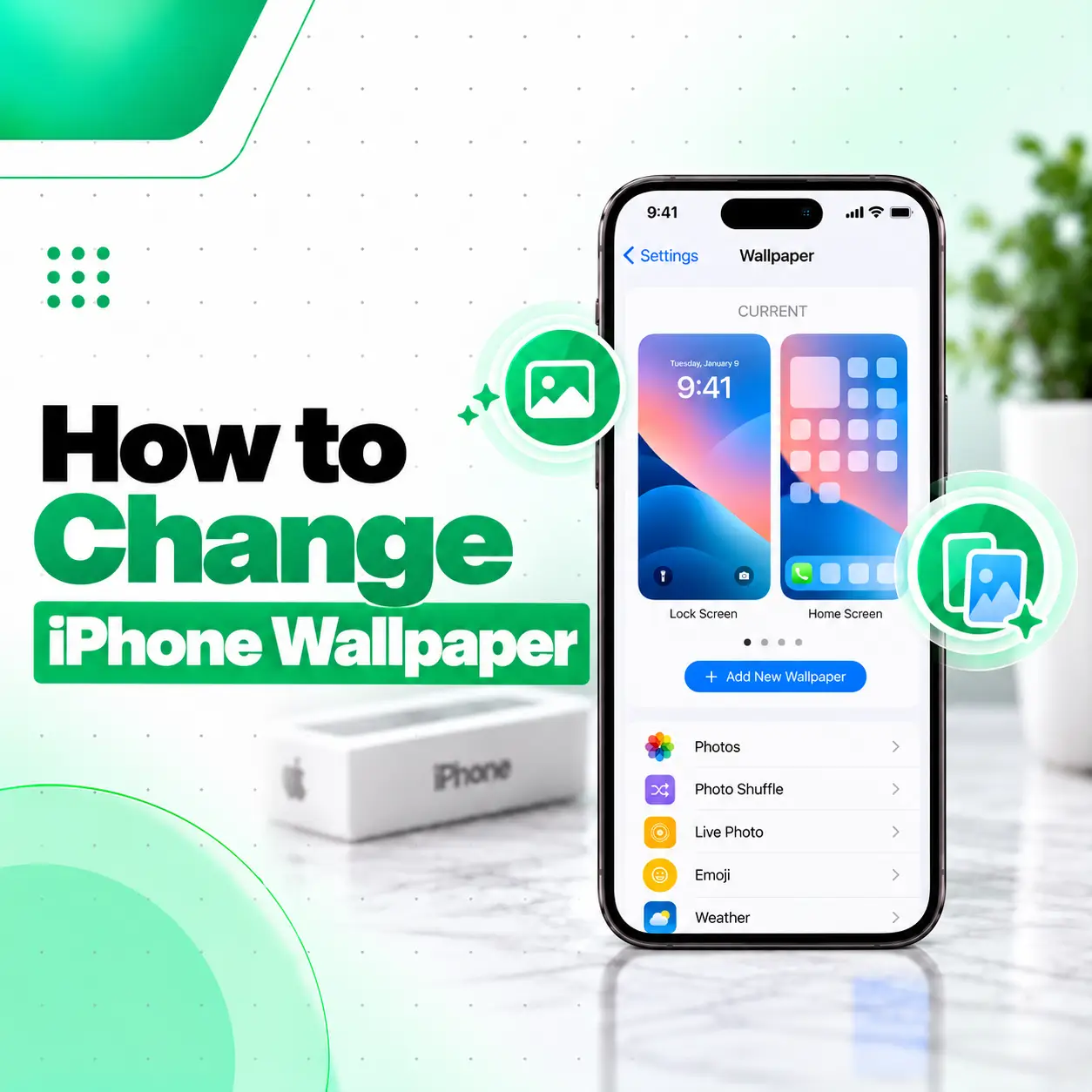
If you want to know how to change iPhone wallpaper, you can do it directly from the Settings app or from the Lock Screen wallpaper gallery. You can use one of your own photos, choose Apple’s built-in wallpaper options, create a Photo Shuffle, and customize the Lock Screen with widgets and other available options.
On current versions of iOS, you can also set the same wallpaper on both screens or customize the Home Screen separately. The exact customization options can vary by iPhone model and iOS version. This guide explains the easiest methods, how to use your own photos, how to set different wallpapers, and what to do if changing the wallpaper doesn’t work as expected.
How Do You Change iPhone Wallpaper?
The easiest method is to open Settings → Wallpaper → Add New Wallpaper, choose a wallpaper, customize it, and then select whether to use it on both screens or customize the Home Screen separately.
Change Wallpaper From Settings
Follow these steps:
- Open Settings on your iPhone.
- Tap Wallpaper.
- Tap Add New Wallpaper.
- Choose an option such as Photos, Photo Shuffle, Emoji, Color, or another available wallpaper category.
- Select your preferred image or wallpaper.
- Customize it if the available options support customization.
- Tap Add.
- Choose Set as Wallpaper Pair to use it for both the Lock Screen and Home Screen.
- Choose Customize Home Screen if you want the Home Screen to have a different appearance.
This is generally the most straightforward method when you want to configure both screens at the same time.
How to Change iPhone Lock Screen Wallpaper?
You can change the Lock Screen directly from the Lock Screen itself without going through the main Settings menu.
Change Wallpaper From the Lock Screen
- Wake your iPhone and go to the Lock Screen.
- Touch and hold the Lock Screen.
- Use Face ID, Touch ID, or your passcode if required.
- Swipe left or right to browse existing wallpaper setups.
- Tap an existing wallpaper to use it, or tap Add New to create another one.
- Choose your preferred wallpaper.
- Customize it if needed.
- Tap Add or Done, depending on the workflow shown.
- Choose Set as Wallpaper Pair or Customize Home Screen.
This method is particularly useful if you have created multiple Lock Screens and want to switch between them quickly.
What Can You Customize on the Lock Screen?
Depending on your iPhone and iOS version, Lock Screen customization can include:
- Wallpaper image
- Clock appearance
- Widgets
- Available controls
- Wallpaper styles
- Focus association
- Supported visual effects
Apple also supports multiple custom Lock Screens, allowing you to switch between different setups.
How to Set Your Own Photo as iPhone Wallpaper?
You can use a photo from your Photos library as your iPhone wallpaper.
Use a Photo From Your Photos App
- Open Settings.
- Tap Wallpaper.
- Tap Add New Wallpaper.
- Select Photos.
- Choose the picture you want to use.
- Adjust the available wallpaper options.
- Tap Add.
- Choose whether to use it as a Wallpaper Pair or customize the Home Screen separately.
Choose a photo with a composition that works well with the Lock Screen clock and widgets. A subject positioned too close to the top of the image, for example, may make the clock or other Lock Screen elements harder to see.
Can You Use Different Photos for Lock Screen and Home Screen?
Yes. After adding a new wallpaper, choose Customize Home Screen instead of simply using the Wallpaper Pair. This allows you to create a separate Home Screen appearance.
For example, you could use:
| Screen | Example |
| Lock Screen | Personal photo |
| Home Screen | A simple color or different photo |
This can make app icons and widgets easier to see without changing your preferred Lock Screen image.
How to Change Only the Home Screen Wallpaper?
If you want to keep your current Lock Screen but change the Home Screen, use the Home Screen customization option associated with your wallpaper.
Customize the Home Screen
After selecting a wallpaper:
- Tap Add.
- Tap Customize Home Screen.
- Select a different photo or available background option.
- Adjust the available appearance options.
- Finish the customization.
Apple also provides Home Screen customization options for app icons and widgets on newer iOS versions.
How to Use Photo Shuffle as iPhone Wallpaper?
Photo Shuffle lets your Lock Screen cycle through multiple selected photos.
To set it up:
- Open Settings.
- Tap Wallpaper.
- Tap Add New Wallpaper.
- Select Photo Shuffle.
- Choose suggested categories or an existing album.
- Alternatively, select photos manually.
- Choose a shuffle frequency such as On Tap, On Lock, Hourly, or Daily.
- Finish the wallpaper setup.
This is useful if you don’t want to use a single photo permanently.
Can You Change iPhone Wallpaper Without Opening Settings?
Yes. On supported iPhones running iOS 16 or later, you can access the wallpaper gallery directly from the Lock Screen.
Touch and hold the Lock Screen to open your wallpaper gallery. From there, you can select an existing wallpaper, create a new one, customize an existing setup, or remove a wallpaper.
If Face ID does not open the wallpaper gallery, Apple indicates that you can touch and hold the Lock Screen again and enter your passcode.
How to Delete an Old iPhone Wallpaper?
On iOS 16 or later, you can remove a wallpaper setup from the Lock Screen wallpaper gallery.
Delete a Wallpaper
- Go to your Lock Screen.
- Touch and hold the screen.
- Authenticate with Face ID, Touch ID, or your passcode if required.
- Swipe to the wallpaper you want to remove.
- Swipe up on that wallpaper.
- Tap the trash/recycle-bin icon.
- Tap Delete This Wallpaper.
Deleting a wallpaper setup is different from deleting the original photo from your Photos library.
Why Can’t I Change My iPhone Wallpaper?
If you cannot change your wallpaper normally, the problem may be related to the way the wallpaper gallery is being accessed, an iOS issue, or differences between your iPhone model and software version.
Try these basic steps:
- Open Settings → Wallpaper directly.
- Check whether Add New Wallpaper is available.
- Restart the iPhone.
- Check whether your iPhone is running a supported iOS version.
- Try a different photo or built-in wallpaper.
- If the Lock Screen gallery does not open, try entering your passcode when prompted.
Apple’s current documentation notes that some wallpaper features are model- or software-dependent.
When the Problem May Need Professional Help
Changing wallpaper normally does not require phone repair. However, if the iPhone has broader touchscreen problems—for example, the screen does not respond correctly to touch, repeatedly freezes, or has physical display damage—the wallpaper issue may be part of a larger device problem.
In that situation, professional iPhone inspection can help determine whether the issue is software-related or connected to the display or touch system.
Does Changing Wallpaper Affect iPhone Performance?
Changing a normal wallpaper does not generally require any hardware modification. However, some newer wallpaper features can have additional processing requirements, and availability varies by device and iOS version.
For example, Apple currently supports certain 3D spatial wallpaper effects on iPhone 12 or later running iOS 26, but only eligible photos can use the effect.
If a particular visual effect is unavailable, that does not necessarily indicate a problem with your iPhone.
How to Choose a Good iPhone Wallpaper?
A good wallpaper should look attractive while keeping important interface elements readable.
Consider:
- Choose a sufficiently high-quality photo.
- Avoid placing the main subject directly behind the clock.
- Use images with enough contrast for icons and text.
- Keep important details away from areas covered by widgets.
- Try different crops before saving the wallpaper.
- Use a simpler Home Screen background if app icons are difficult to see.
For a professional or work-focused iPhone, a less visually busy Home Screen can make apps easier to locate.
When Should You Seek Professional iPhone Repair?
Wallpaper customization itself is a software feature, so a repair shop is usually unnecessary if you simply want to change your background.
Professional inspection becomes more relevant when wallpaper changes are accompanied by hardware or system symptoms such as:
- Touchscreen not responding properly
- Screen flickering
- Display showing lines or unusual colors
- iPhone repeatedly freezing
- Unexpected restarts
- Physical screen damage
- Problems occurring after water exposure
If these symptoms occur together, changing the wallpaper may not address the underlying problem.
For customers in Bangladesh, a professional iPhone repair service can help identify whether the issue is related to the display, touchscreen, software, or another component.
Frequently Asked Questions
1. How do I change the wallpaper on my iPhone?
Go to Settings → Wallpaper → Add New Wallpaper. Choose Photos, Photo Shuffle, Emoji, Color, or another available option, customize it, then tap Add. You can use the wallpaper on both the Lock Screen and Home Screen or customize the Home Screen separately.
2. How do I change my iPhone Lock Screen wallpaper?
Touch and hold your Lock Screen to open the wallpaper gallery. Swipe between your existing wallpapers or tap Add New to create another one. You can then select a photo or built-in wallpaper and customize the available Lock Screen options.
3. Can I use my own photo as an iPhone wallpaper?
Yes. Open Settings → Wallpaper → Add New Wallpaper → Photos, then choose a picture from your Photos library. After selecting the image, you can customize it and decide whether to use it on both screens or create a separate Home Screen appearance.
4. Can I have different wallpapers for my Lock Screen and Home Screen?
Yes. After selecting your new wallpaper, choose Customize Home Screen instead of using the same Wallpaper Pair. You can then select a different photo or background for the Home Screen while keeping your preferred Lock Screen design.
5. How do I change my iPhone wallpaper from the Lock Screen?
On iOS 16 or later, touch and hold the Lock Screen to open the wallpaper gallery. You can select an existing wallpaper or tap the Add button to create a new one. If authentication is required and Face ID does not work, Apple says you can enter your passcode.
6. How do I delete an old iPhone wallpaper?
Touch and hold the Lock Screen to open the wallpaper gallery, swipe to the wallpaper you want to remove, swipe up on it, tap the trash icon, and then tap Delete This Wallpaper. This removes the wallpaper setup from the gallery.
7. What should I do if my iPhone won’t let me change the wallpaper?
First, try changing it through Settings → Wallpaper instead of the Lock Screen gallery. Restart the iPhone and try another photo or built-in wallpaper. If you also have touchscreen problems, freezing, display damage, or repeated system issues, professional diagnosis may be appropriate.
Conclusion
Learning how to change iPhone wallpaper is straightforward. You can use Settings → Wallpaper → Add New Wallpaper, select your own photo or Apple’s available wallpaper options, and then choose whether to apply it to both screens or customize the Home Screen separately. You can also manage multiple Lock Screens, use Photo Shuffle, and customize supported Lock Screen elements.
If the wallpaper feature itself is not working because of a wider touchscreen, display, or system problem, basic wallpaper settings may not solve the issue. In that situation, iCareFix can inspect the iPhone and help identify whether the underlying problem requires software troubleshooting or professional repair.