




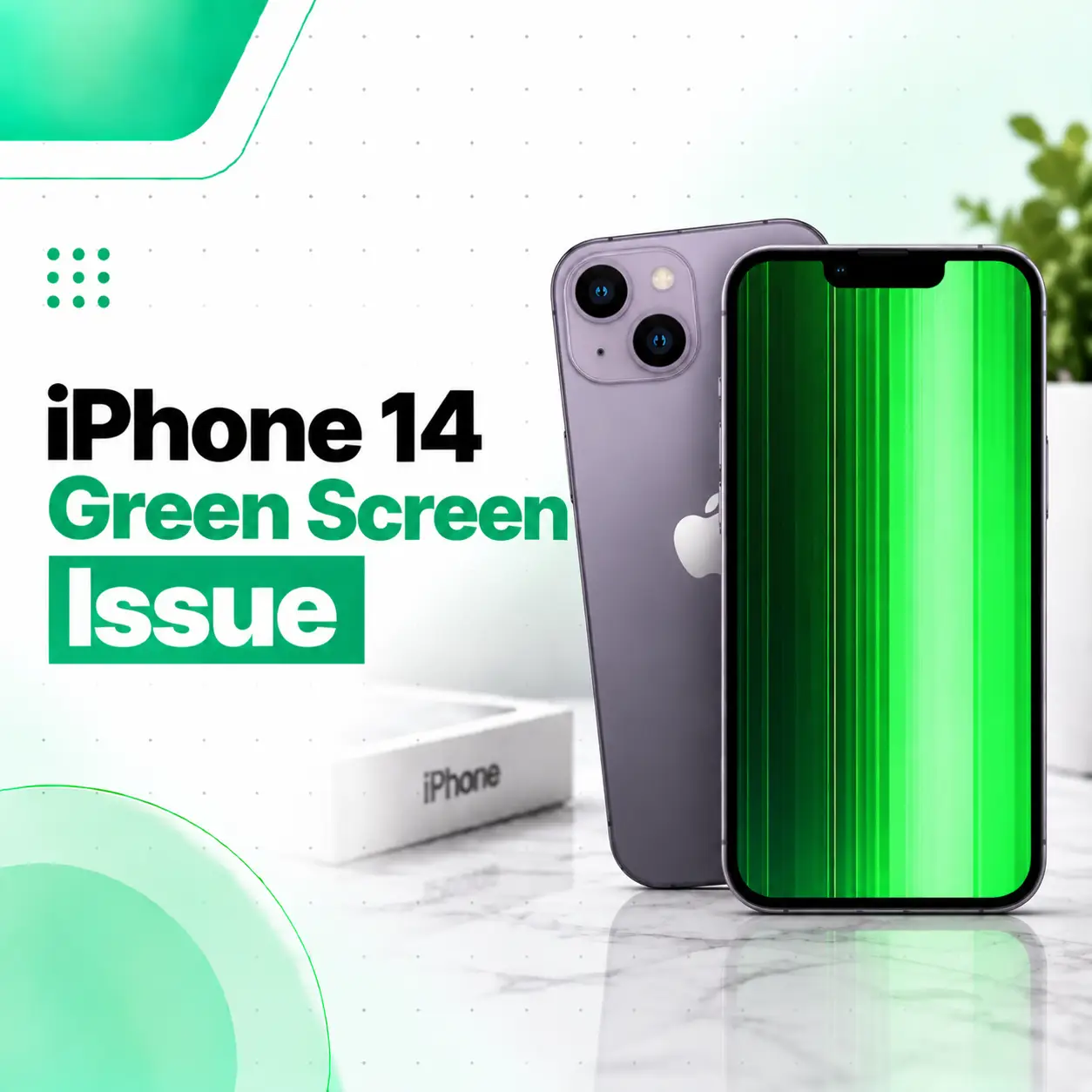
The iPhone 14 green screen issue can appear in several ways: the entire display may turn green, dark areas may develop a green tint, or you may notice persistent green lines across the screen. Not every green-looking display means the screen needs replacement. iPhone settings such as Color Filters, Color Tint, True Tone, and Night Shift can change how colors appear.
However, if the green appearance remains after basic troubleshooting, especially after a drop, pressure, liquid exposure, or previous screen repair, a hardware fault becomes more likely. Display problems can generally be narrowed to software, the display assembly, or the phone’s logic board.
This guide explains what can cause an iPhone 14 green screen, what you can safely check yourself, how technicians diagnose the problem, and what repair options may be appropriate in Bangladesh.
Why Is My iPhone 14 Screen Green?
An iPhone 14 screen can look green because of a display setting, temporary software behavior, or a hardware problem involving the display assembly or its connections.
Common possibilities include:
- Color Filters or Color Tint being enabled
- Night Shift or True Tone changing the display’s appearance
- A temporary software or display glitch
- OLED display damage or failure
- Damaged display flex cable or connector
- Physical impact or pressure
- Liquid exposure
- A problem elsewhere in the display signal path
The important point is that a green screen is a symptom, not a diagnosis. The correct repair depends on what is causing the abnormal display behavior.
Green Tint vs. Green Lines vs. Completely Green Screen
These symptoms can have different causes.
| Symptom | What It May Indicate |
| Mild green tint | Display settings, color behavior, or an emerging display issue |
| Green screen across the entire display | Software, display assembly, or signal-path problem |
| One or more persistent green lines | Possible display or internal connection damage |
| Green screen after a drop | Possible physical display or connector damage |
| Green display after liquid exposure | Possible liquid-related component or connector damage |
| Green screen after a recent repair | Possible replacement-part or connection issue |
Persistent colored lines are particularly worth investigating. Repair troubleshooting resources identify display cables, display failure, and logic-board problems among possible causes of abnormal lines.
What Causes the iPhone 14 Green Screen Issue?
Display Settings or Color Filters
Before assuming that your OLED display has failed, check the iPhone’s display settings.
Apple allows users to change the appearance of the entire screen using Color Filters and Color Tint under Accessibility settings. These settings can intentionally change the hue and intensity of the display.
Check:
Settings → Accessibility → Display & Text Size → Color Filters
If Color Filters is enabled unexpectedly, turn it off and check whether the display returns to normal.
Also check:
Settings → Display & Brightness → Night Shift
Night Shift shifts the display toward warmer colors and can therefore change how the screen appears.
True Tone or Display Color Behavior
True Tone automatically adjusts the color and intensity of the display based on surrounding light. Apple provides an option to turn it on or off from Display & Brightness or Control Center.
True Tone alone does not mean the display is defective. But if the screen suddenly looks dramatically different, checking the setting can help distinguish a normal display adjustment from a genuine fault.
OLED Display Damage
The iPhone 14 uses an OLED-based display, so damage within the display assembly can cause abnormal colors, lines, flickering, or loss of image.
A display can sometimes fail even when the outer glass is not visibly cracked. Repair troubleshooting guidance notes that display failure can occur without obvious external damage.
Damaged Display Flex Cable or Connector
The display connects to the phone through internal flex cables and connectors.
If the phone has experienced an impact or has previously been opened for repair, a damaged cable or connection may affect image quality.
Problems involving display cables can produce colored or blank lines, according to iFixit’s display troubleshooting guidance.
Why a Connector Problem Matters
A display connector transfers electrical signals between the phone and screen.
If the connection is damaged, contaminated, or otherwise faulty, the display may show:
- Green or colored lines
- Flickering
- Missing portions of the image
- Intermittent display problems
- Complete loss of image
A technician should inspect the connection rather than repeatedly reconnecting it without proper tools and procedures.
Physical Impact or Pressure
A drop can damage the display even when the front glass looks intact.
For example, a phone may be dropped on a corner, develop green lines later, and still have no obvious crack across the front. Physical stress can affect the OLED panel or its internal connections.
If the green-screen problem appeared immediately after an impact, hardware inspection is appropriate.
Liquid Exposure
Liquid can affect display connections and other internal components.
If your iPhone 14 became green after contact with water or another liquid, don’t assume that replacing the screen alone will necessarily solve the problem.
Liquid-related damage may require inspection of:
- Display connectors
- Flex cables
- Internal components
- Logic-board areas
- Signs of corrosion
If liquid exposure is suspected, professional inspection is preferable to repeated charging or opening the phone at home.
How to Fix an iPhone 14 Green Screen Issue
Try the least invasive troubleshooting steps first.
1. Check Color Filters
Go to:
Settings → Accessibility → Display & Text Size → Color Filters
Make sure Color Filters is turned off unless you intentionally use it.
Apple confirms that these filters can alter the appearance and hue of the entire display.
2. Check Color Tint
If Color Filters is enabled, the Color Tint option can change the overall hue of the display.
Turn it off and check whether the green appearance disappears.
3. Check Night Shift
Go to:
Settings → Display & Brightness → Night Shift
Turn Night Shift off temporarily and compare the display.
Night Shift intentionally changes display color temperature, so this simple test can help determine whether you’re seeing a normal software-controlled color change.
4. Check True Tone
Go to:
Settings → Display & Brightness → True Tone
Try turning True Tone off temporarily.
True Tone is designed to adapt display color and intensity to the surrounding lighting conditions.
5. Restart the iPhone
A normal restart can clear temporary software behavior.
If the green appearance disappears after restarting but later returns, note when it happens. For example, does it occur:
- At low brightness?
- During specific apps?
- After the phone becomes warm?
- After waking the screen?
- During startup?
- Randomly?
That information can be useful during diagnosis.
6. Force Restart the iPhone 14
If the display is frozen or the phone is behaving abnormally, you can force restart it:
- Quickly press and release Volume Up.
- Quickly press and release Volume Down.
- Press and hold the Side button.
- Continue holding until the Apple logo appears.
If the screen remains green after the phone restarts, continue with the other troubleshooting steps.
How Can You Tell If the Green Screen Is a Hardware Problem?
A persistent green display is more concerning when it continues across different parts of iOS and remains after restarting and checking display settings.
Signs that suggest professional inspection is appropriate include:
- The entire screen remains green.
- Green lines remain permanently visible.
- The display flickers.
- Touch stops working normally.
- The problem appeared after a drop.
- The phone was exposed to liquid.
- The issue started after a screen replacement.
- The screen becomes green during startup.
- Parts of the display turn black or stop showing an image.
A useful distinction is whether the phone itself is functioning while the display is not. If sounds, vibration, notifications, or other functions continue normally while the screen remains abnormal, the display system deserves particular attention.
How Is an iPhone 14 Green Screen Diagnosed?
Professional diagnosis should identify the source of the problem before recommending a replacement.
Visual Inspection
A technician can inspect the phone for:
- Cracked or damaged glass
- Display discoloration
- Green lines
- Black spots
- Screen separation
- Signs of impact
- Signs of liquid exposure
- Previous repair work
Display Testing
The display may be tested for:
- Image quality
- Touch response
- Brightness behavior
- Flickering
- Color abnormalities
- Intermittent failures
Connector and Flex Inspection
The display connection can be examined for physical damage, contamination, or other abnormalities.
This is especially relevant if the issue began after the phone was dropped or repaired.
Software and Settings Check
A technician should also consider software and display settings before concluding that the display must be replaced.
Further Hardware Diagnosis
If the display itself appears functional but the problem continues, the technician may need to investigate the phone’s internal display circuitry or logic board.
What Are the Repair Options for an iPhone 14 Green Screen?
The repair depends on the diagnosis.
Display Connection Repair
If the problem is related to a connector or connection, the repair may focus on that area rather than replacing the entire screen.
The appropriate method depends on the condition of the components.
Screen Replacement
If the OLED display assembly is damaged or has failed, screen replacement may be necessary.
iFixit’s iPhone 14 screen-replacement documentation specifically covers situations where the phone’s display is cracked, touch is not responding, or the device is powered on but does not show a picture.
Board-Level Repair
If testing indicates that the display is not the underlying cause, further diagnosis may be necessary at the logic-board level.
This is one reason professional diagnosis matters: replacing a screen without confirming the fault can result in unnecessary expense.
Does iPhone 14 Screen Replacement Affect True Tone?
It can, depending on the replacement part and repair process.
Apple’s repair ecosystem includes tools and processes for configuring supported replacement parts. iFixit’s current iPhone 14 repair documentation also notes that screen replacement and calibration can affect features such as True Tone and auto brightness depending on the iOS version and repair process.
Before agreeing to a replacement, ask the repair provider:
- What type of display will be installed?
- Is the part genuine, refurbished, or aftermarket?
- Will True Tone remain functional?
- Is calibration required?
- Is there a repair warranty?
- Could other damage affect the result?
This gives you a clearer understanding of the repair before work begins.
How Much Does iPhone 14 Green Screen Repair Cost in Bangladesh?
There is no single repair price that applies to every iPhone 14 green screen issue.
The final cost can depend on the cause and the required repair.
| Cost Factor | Why It Matters |
| Fault type | Software, connector, display, and board faults require different work |
| Display condition | A failed OLED may require screen replacement |
| Part quality | Genuine, refurbished, and aftermarket parts differ |
| Damage severity | Additional damage can increase repair complexity |
| Labor | Complex diagnosis may require more technician time |
| Part availability | Availability can affect replacement cost |
| Previous repair | Poor previous repairs may create additional problems |
| Warranty | Repair coverage can differ between providers |
Because of these variables, a professional inspection is more useful than assuming that every green-screen problem has the same repair cost.
How Long Does iPhone 14 Green Screen Repair Take?
Repair time depends on the diagnosis.
A straightforward display replacement can have a different turnaround time from:
- Liquid-damage diagnosis
- Connector repair
- Intermittent display faults
- Board-level diagnosis
- Parts that need to be sourced
A repair provider can give a more accurate timeframe after determining which component is actually responsible.
Should You Replace the Screen Yourself?
For most users, DIY iPhone 14 screen replacement is not the safest option.
The repair involves opening the device, disconnecting delicate components, transferring or handling parts, and resealing the display. iFixit’s repair guide notes that the procedure requires replacement adhesive and that the device will most likely lose its original IP rating after opening and reassembly.
DIY repair can also create additional problems if:
- A display flex cable is damaged.
- A connector is bent.
- The replacement display is defective.
- Internal screws are misplaced.
- The original fault was not actually the screen.
If you are not experienced with phone repair, professional diagnosis is generally the more controlled approach.
What Should You Do Before Taking Your iPhone 14 for Repair?
If the phone is still usable, prepare it before handing it over.
Back Up Important Data
Back up important photos, contacts, messages, and other files before repair whenever possible.
Document the Problem
Take a photo or video of the green display if the problem appears intermittently.
Record useful details such as:
- When the issue started
- Whether the phone was dropped
- Whether it was exposed to liquid
- Whether the issue appears at low brightness
- Whether touch still works
- Whether the screen was previously replaced
Protect Your Privacy
Before giving your phone to a repair provider, consider what information is stored on the device and what access the technician actually needs.
Where possible, use appropriate device privacy and backup measures rather than sharing unnecessary passwords or account credentials.
How Can You Prevent Future iPhone 14 Display Problems?
No prevention method can eliminate every display failure, but sensible handling can reduce avoidable damage.
- Use a suitable protective case.
- Avoid putting heavy pressure on the screen.
- Protect the phone from hard drops.
- Keep it away from unnecessary liquid exposure.
- Avoid attempting repairs without the right tools and experience.
- Back up important data regularly.
- Have persistent display abnormalities checked early.
If green lines or discoloration appear intermittently, don’t assume that the problem will resolve permanently on its own.
When Should You Visit a Professional Repair Shop?
Professional inspection makes sense when basic troubleshooting does not resolve the issue or when there are clear signs of physical or internal damage.
Consider getting your iPhone 14 checked if:
- The screen remains green after restarting.
- Color settings do not explain the problem.
- Green lines remain visible.
- Touch is affected.
- The problem started after a drop.
- The phone was exposed to liquid.
- The display was recently replaced.
- The problem is getting worse or becoming more frequent.
A technician can determine whether the issue is related to settings, software, the display assembly, its connections, or another internal component.
Frequently Asked Questions
1. Why is my iPhone 14 screen green?
An iPhone 14 can appear green because of display settings such as Color Filters or Color Tint, temporary software behavior, or a hardware problem. Persistent green lines, a completely green display, or symptoms following physical or liquid damage are more concerning for a hardware fault. Apple confirms that display settings can intentionally change the screen’s colors and hue.
2. How do I fix the green screen on my iPhone 14?
First check Color Filters, Color Tint, Night Shift, and True Tone settings, then restart the phone. If the green appearance remains across iOS, especially after a drop or liquid exposure, the issue may involve the display or its connections. At that point, professional diagnosis is more appropriate than repeatedly changing settings.
3. Is the iPhone 14 green screen always a hardware problem?
No. Some green-looking display problems can be caused by settings that intentionally modify screen colors. However, persistent green lines, severe discoloration, flickering, or a green screen that continues after restarting can indicate a hardware problem. The display, connections, and potentially the logic board may need to be checked.
4. Can an iPhone 14 green screen be repaired?
Yes, depending on the cause. A technician may identify a settings or software issue, a display connection problem, or a failed display assembly. If the OLED display is damaged, screen replacement may be appropriate. If another internal component is responsible, replacing the screen alone may not solve the problem.
5. How much does iPhone 14 green screen repair cost in Bangladesh?
There is no single price for every case. Cost depends on whether the issue involves settings, a connector, the display assembly, liquid damage, or another internal component. Part quality, availability, labor, and repair complexity also affect the final cost. An inspection is needed for a reliable estimate.
6. How long does iPhone 14 green screen repair take?
The timeframe depends on the required repair. A display replacement may have a different turnaround time from connector work, liquid-damage diagnosis, or board-level repair. Parts availability can also affect the schedule. A professional repair provider can give a more accurate timeframe after diagnosing the device.
7. Should I keep using my iPhone 14 if the screen is green?
If the issue is minor and the phone remains functional, temporary use may be possible, but a persistent green display should be investigated. Back up important data first, especially if the problem is worsening. If the issue followed liquid exposure, a drop, or another physical event, arrange professional inspection rather than ignoring it.
Conclusion
The iPhone 14 green screen issue does not have one universal cause. A color setting can change the screen’s appearance, while a persistent green display or green lines may point toward a problem with the OLED display, its connections, or another part of the phone’s display system.
Start with the safe checks: review display settings, turn off unexpected color filters, check Night Shift and True Tone, and restart the device. If the problem remains—or appeared after a drop, liquid exposure, or previous repair—avoid assuming that a screen replacement is automatically the answer.
A professional diagnosis can determine whether the iPhone 14 needs a display repair, screen replacement, connector work, or further hardware investigation. If your device continues to show abnormal green colors, iCareFix can inspect the phone and recommend the appropriate repair option based on the diagnosed fault.