




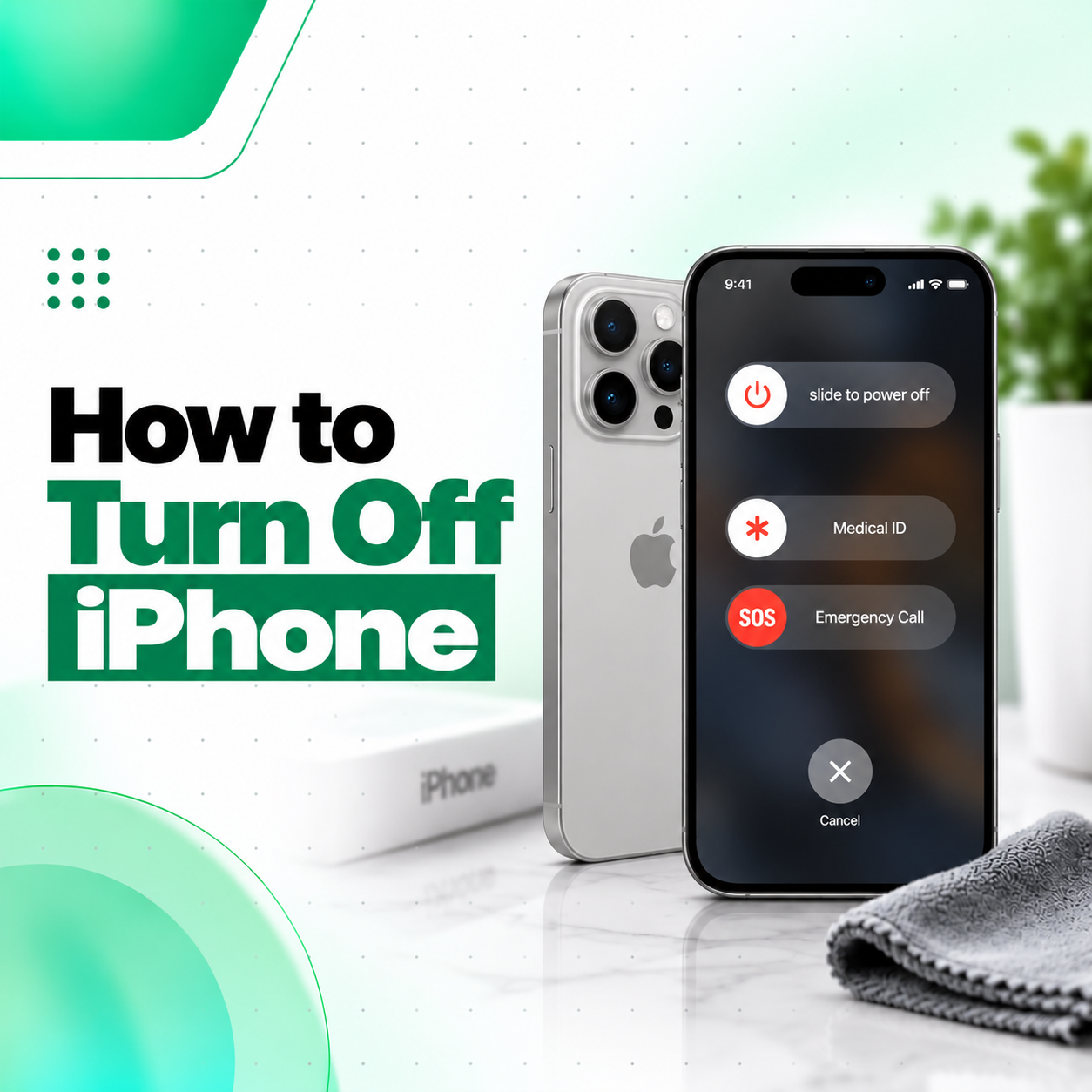
Knowing how to turn off iPhone is useful when you want to restart the device, troubleshoot a temporary software issue, save battery while the phone is not being used, or simply power it down completely.
The exact method depends on your iPhone model. Most modern iPhones with Face ID require you to hold the Side button and a Volume button together, while iPhones with a Home button normally use the Side or Top button. You can also shut down an iPhone through Settings, and supported iOS versions provide a power control through Control Center.
This guide explains each method clearly, including what to do if your buttons or touchscreen are not working properly. If the device has a hardware-related power, button, or display problem, professional diagnosis from a repair service such as iCareFix may be appropriate.
How to Turn Off iPhone Quickly
For most modern iPhones with Face ID, press and hold the Side button and either Volume button at the same time until the power-off screen appears. Then drag the “slide to power off” slider to the right.
Apple currently documents different shutdown methods depending on whether the iPhone has Face ID, a Home button, or an older Top button.
| iPhone Type | How to Turn It Off |
| iPhone with Face ID | Hold Side + either Volume button, then drag the power-off slider |
| iPhone with Home button | Hold the Side button, then drag the slider |
| iPhone SE 1st gen, iPhone 5 or earlier | Hold the Top button, then drag the slider |
| Buttons not convenient | Settings > General > Shut Down |
| Supported Control Center | Open Control Center, hold the Power control, then drag the slider |
How to Turn Off iPhone With Face ID
For an iPhone without a Home button, such as most Face ID models, use the Side button and either Volume button together.
Step-by-Step Instructions
- Press and hold the Side button.
- At the same time, press and hold either the Volume Up or Volume Down button.
- Keep holding them until the power-off screen appears.
- Release the buttons.
- Drag slide to power off from left to right.
- Wait for the display to become completely black.
Apple specifies this Side-button-plus-Volume-button method for iPhones with Face ID.
Why Doesn’t Holding Only the Side Button Turn Off Some iPhones?
On modern Face ID models, holding the Side button by itself may activate another function rather than immediately displaying the normal shutdown slider.
That is why using the Side button together with either Volume button is the standard physical-button method for powering down these models.
How to Turn Off an iPhone With a Home Button
If your iPhone has a physical Home button and a Side button, turning it off is usually simpler.
- Press and hold the Side button.
- Wait until the power-off slider appears.
- Release the button.
- Drag the slider to the right.
- Wait for the iPhone to shut down.
Apple lists this method for Home-button iPhones that use a Side button.
How to Turn Off Older iPhones With a Top Button
Some older iPhones use a power button located on the top edge rather than the right side.
For models such as the original iPhone SE, iPhone 5, and certain earlier devices:
- Press and hold the Top button.
- Wait for the power-off slider.
- Drag the slider to the right.
- Allow the device to shut down.
Apple’s current restart guidance identifies the Top button as the shutdown control for iPhone SE (1st generation), iPhone 5, and earlier models.
How to Turn Off iPhone Without Using the Buttons
You can turn off an iPhone directly through Settings, which is particularly useful if a Side or Volume button is difficult to press or damaged.
Turn Off iPhone From Settings
- Open Settings.
- Tap General.
- Scroll to the bottom.
- Tap Shut Down.
- Drag slide to power off to the right.
Apple officially provides the Settings > General > Shut Down method as an alternative to using physical buttons.
When Is the Settings Method Useful?
This method can help when:
- the Side button is damaged;
- a Volume button is not responding;
- a protective case makes the buttons difficult to press;
- you prefer touchscreen controls;
- you want to avoid using a faulty physical button repeatedly.
However, the touchscreen must still be responsive enough to navigate Settings and move the shutdown slider.
How to Turn Off iPhone From Control Center
On supported software versions, iPhone can also be powered off from Control Center.
Apple’s current iPhone guide states that you can open Control Center, touch and hold the Power control in the upper-right area, and then use the shutdown slider.
Steps
- Open Control Center.
- Find the Power control near the top-right corner.
- Touch and hold it until the shutdown screen appears.
- Drag the power-off slider to the right.
This provides another option when you want to shut down the phone without relying on the normal button combination.
How to Turn Your iPhone Back On
Once your iPhone is completely off, turning it back on is straightforward.
- Press and hold the Side button on most newer models.
- Release it when the Apple logo appears.
- Wait for iOS to load.
For older iPhones with a Top button, hold the Top button instead.
Apple confirms that modern iPhones can be powered back on by holding the Side button until the Apple logo appears.
Turning Off vs Locking Your iPhone
Turning off your iPhone and locking the screen are not the same thing.
| Action | What Happens |
| Lock iPhone | Screen switches off, but the phone remains powered on |
| Turn off iPhone | The device shuts down completely |
| Restart iPhone | The device is shut down and then powered back on |
| Force restart | Hardware-button sequence forces a restart when normal controls are unresponsive |
Pressing the Side button once normally locks the iPhone rather than shutting it down. Apple notes that the Side button is used for functions including locking and powering the device.
Should You Turn Off or Restart Your iPhone?
If you are troubleshooting a minor temporary issue, a restart is usually more practical than leaving the phone turned off.
A restart means:
- turning the iPhone off;
- waiting for it to shut down;
- turning it back on.
Restarting may help when an app or part of iOS is temporarily behaving unexpectedly. Apple itself recommends trying a restart when an iPhone is not working as expected before moving to a force restart for an unresponsive device.
What If Your iPhone Won’t Turn Off?
If the normal shutdown method does not work, first identify what is preventing it.
Common situations include:
- the screen is frozen;
- the touchscreen does not respond;
- the Side button is damaged;
- a Volume button does not work;
- iOS is temporarily unresponsive;
- the power-off slider appears but cannot be moved;
- the display is damaged and touch input is unavailable.
If the Buttons Don’t Work
If your touchscreen works, try:
Settings > General > Shut Down
This allows you to start the shutdown process without the normal Side-button combination.
If the Screen Is Frozen
A normal shutdown may not be possible if the touchscreen and interface are completely unresponsive.
In that situation, a force restart may be required rather than a standard power-off procedure. Apple distinguishes a force restart from a normal restart and recommends it when the device is frozen or unresponsive.
How to Force Restart an iPhone
A force restart is different from simply turning an iPhone off. It is mainly intended for situations where the device is frozen or will not respond normally.
For many newer iPhone models, the process involves a specific sequence of the Volume and Side buttons. Because force-restart combinations can differ across generations, follow the procedure appropriate for your exact iPhone model rather than repeatedly pressing random button combinations.
If your iPhone frequently freezes and requires force restarting, the recurring issue may need further diagnosis.
Why Might an iPhone Keep Freezing or Failing to Shut Down?
A one-time software freeze does not automatically indicate serious hardware damage. However, repeated shutdown problems can have several possible causes.
Temporary Software Issue
An app or iOS process may occasionally become unresponsive. Restarting the device can sometimes restore normal operation.
Damaged Side or Volume Button
Physical wear, impact damage, dirt around a button, or an internal button-flex problem can prevent the normal button combination from registering correctly.
Touchscreen Problem
If the shutdown slider appears but you cannot move it, the problem may involve touch input rather than the power controls themselves.
Display Damage
A damaged display can make it difficult to see or interact with the shutdown screen even when the phone itself is still running.
More Complex Hardware Issue
If the phone experiences repeated unexpected shutdowns, boot problems, button failures, or other persistent symptoms, professional inspection may be needed to identify the affected component.
Can Turning Off an iPhone Fix Problems?
Turning an iPhone off and back on can sometimes resolve temporary software-related behaviour, but it is not a universal repair method.
Restarting may be worth trying for issues such as:
- an app behaving unexpectedly;
- temporary interface lag;
- minor software glitches;
- controls that briefly stop responding.
If a problem repeatedly returns after restarting, further troubleshooting is more appropriate than continuously turning the device off and on.
Is It Safe to Turn Off an iPhone Regularly?
Yes. Using the normal shutdown procedure is a standard function built into iOS.
There is generally no need to power off an iPhone every day simply as routine maintenance. You can shut it down when needed—for example, when troubleshooting, storing the device for a period, or when you specifically want the phone completely powered off.
What Should You Do Before Turning Off an iPhone?
For a normal shutdown, no complicated preparation is usually required.
However, it can be sensible to:
- save unfinished work;
- allow important file transfers to complete;
- finish ongoing backups where practical;
- end important calls;
- avoid shutting down during an active software installation process.
These simple precautions help reduce the chance of interrupting something you still need.
Does Turning Off iPhone Delete Data?
No. A normal shutdown does not erase your photos, apps, contacts, messages, or other stored information.
Turning off an iPhone simply powers down the device. It is completely different from actions such as Erase All Content and Settings, restoring the device, or performing a factory reset.
After turning the phone back on, your existing data should remain available unless there is a separate storage, software, or hardware problem.
When Should You Seek Professional iPhone Repair?
Professional diagnosis may be worth considering if your inability to turn off the iPhone is related to a recurring hardware or operational issue.
For example:
- the Side button no longer clicks or responds;
- one or both Volume buttons are damaged;
- the touchscreen cannot operate the power-off slider;
- the display is broken;
- the phone repeatedly freezes;
- the iPhone switches off unexpectedly;
- it becomes stuck during startup;
- it does not turn back on after shutting down.
A technician can inspect whether the problem is related to the button assembly, display, battery, connector, software, or another internal component.
For users in Bangladesh, iCareFix can provide professional diagnosis when basic troubleshooting does not resolve the issue. The appropriate repair depends on the actual fault found during inspection.
Frequently Asked Questions
1. How do I turn off my iPhone?
For an iPhone with Face ID, press and hold the Side button and either Volume button until the shutdown screen appears, then drag the power-off slider. For many Home-button models, hold the Side button and drag the slider. You can also use Settings > General > Shut Down.
2. How can I turn off my iPhone without the power button?
Open Settings > General, scroll to the bottom, select Shut Down, and drag the power-off slider. This method lets you initiate a normal shutdown without using the physical Side button, provided that the touchscreen and Settings app are still responsive.
3. Why won’t my iPhone turn off when I hold the Side button?
On many Face ID iPhones, holding only the Side button is not the standard shutdown procedure. Instead, hold the Side button and either Volume button simultaneously until the sliders appear. If the correct button combination still does not work, check whether one of the physical buttons is damaged or unresponsive.
4. How do I turn off an iPhone if the screen is frozen?
If the screen is completely frozen, you may not be able to use the normal power-off slider. In that situation, Apple recommends a force restart when the device is frozen or unresponsive. The exact button sequence depends on the iPhone model, so use the procedure designed for your device.
5. Does turning off an iPhone delete anything?
No. A normal shutdown does not delete your photos, contacts, messages, apps, or other stored data. It simply powers the phone off. Data removal occurs through separate actions such as erasing the device or restoring it, not through the standard “slide to power off” process.
6. How do I turn my iPhone back on after shutting it down?
Press and hold the Side button until the Apple logo appears, then release it and allow the phone to start. On older models that use a Top button, hold the Top button instead. If the iPhone does not turn on, charging or additional troubleshooting may be necessary.
7. What should I do if my iPhone frequently freezes and won’t turn off normally?
Repeated freezing can indicate a persistent software problem or, in some cases, a hardware issue. Update and troubleshoot the phone appropriately, and note whether the problem occurs with particular apps or during specific activities. If the issue continues, professional inspection can help determine whether the display, buttons, battery, software, or another component requires attention.
Conclusion
Learning how to turn off iPhone is straightforward once you know which method applies to your model. Face ID iPhones generally use the Side and Volume buttons together, while many Home-button models use the Side button. You can also go to Settings > General > Shut Down, and supported iOS versions provide a shutdown control through Control Center.
If your iPhone cannot shut down because the Side button, Volume button, touchscreen, or display is damaged—or if the device repeatedly freezes—basic shutdown instructions may not solve the underlying problem.
In that situation, a professional inspection can identify whether the fault is related to software, the button assembly, display, battery, connector, or another component. iCareFix can assess the iPhone and recommend an appropriate repair option based on the condition of the device.