




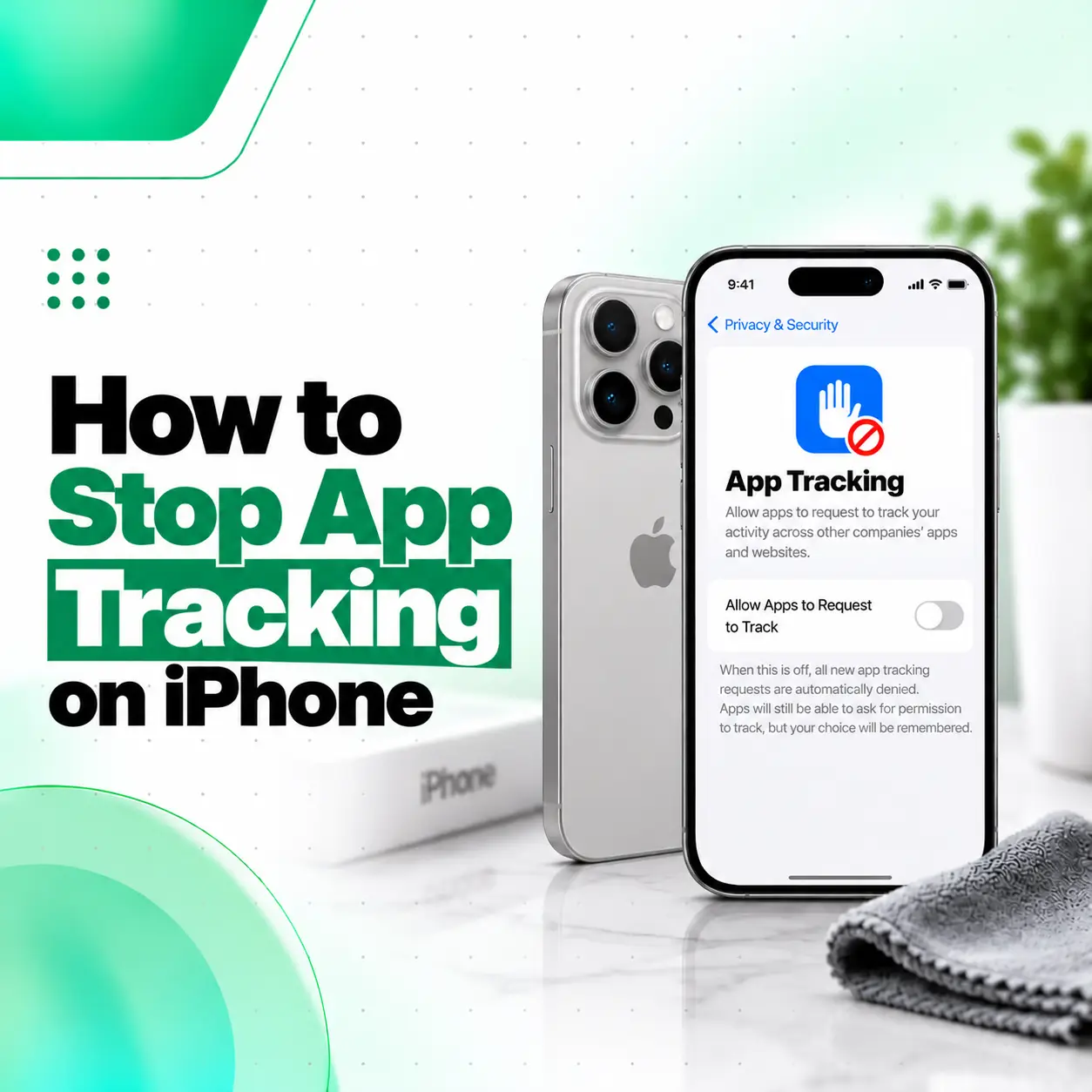
If you want more control over how apps use your activity for advertising and data sharing, iPhone includes built-in privacy controls that let you manage tracking permissions.
The quickest way to stop app tracking on iPhone is to go to Settings > Privacy & Security > Tracking and turn off Allow Apps to Request to Track. You can also disable tracking for individual apps from the same screen.
Apple’s App Tracking Transparency system requires apps to request permission before tracking your activity across apps and websites owned by other companies for purposes such as advertising or sharing information with data brokers.
Below, you will learn how these controls work, what turning tracking off actually does, and which additional privacy settings are worth reviewing.
How to Stop App Tracking on iPhone
To stop apps from requesting permission to track your activity:
- Open Settings on your iPhone.
- Scroll down and tap Privacy & Security.
- Tap Tracking.
- Turn off Allow Apps to Request to Track.
- Review any apps listed below and make sure their individual tracking switches are disabled if you do not want them to track you.
Apple states that when Allow Apps to Request to Track is turned off, apps that subsequently request tracking permission are treated as though you selected Ask App Not to Track.
This setting is the main control for Apple’s App Tracking Transparency feature.
What Is App Tracking on iPhone?
App tracking generally refers to an app linking information about you or your device with information collected from other companies’ apps, websites, or services.
This may be used for purposes such as:
- targeted advertising
- advertising measurement
- creating advertising profiles
- sharing information with data brokers
- tracking activity across different apps or websites
Apple’s App Tracking Transparency framework requires apps to request your permission before conducting this type of cross-company tracking.
What Is App Tracking Transparency?
App Tracking Transparency, often shortened to ATT, is Apple’s permission framework that lets you choose whether an app can track your activity across other companies’ apps and websites.
When an app requests tracking permission, you may see options such as:
- Allow
- Ask App Not to Track
If you choose not to allow tracking, the developer cannot access Apple’s system advertising identifier, commonly known as IDFA, for tracking. Apple also states that the app is not permitted to circumvent your choice by using other identifying information for tracking purposes.
How to Turn Off Tracking for a Specific App
You do not have to disable tracking requests for every app. iPhone also allows you to manage tracking permissions individually.
Go to:
Settings > Privacy & Security > Tracking
You will see apps that have requested permission to track you.
Turn off the switch next to any app you no longer want to permit tracking.
For example, if you previously allowed a social media or shopping app to track your activity, you can return to this menu later and withdraw that permission.
Apple confirms that tracking permissions can be changed after they have initially been granted or denied.
What Happens When You Turn Off Allow Apps to Request to Track?
Turning off Allow Apps to Request to Track prevents apps from displaying Apple’s tracking permission request.
Apps requesting tracking while this setting is disabled are treated as though you selected Ask App Not to Track.
However, it is important to understand what this setting does and does not control.
| Setting | What It Controls |
| App Tracking Transparency | Cross-app and cross-website tracking covered by Apple’s tracking rules |
| Location Services | Access to your current or approximate location |
| Photos | Access to photos and videos |
| Contacts | Access to your contact information |
| Camera | Access to your iPhone camera |
| Microphone | Access to your microphone |
| Local Network | Access to compatible devices and services on your local network |
Disabling app tracking therefore does not automatically remove every other permission an app has.
You should review those permissions separately if privacy is your main concern.
Can Apps Still Collect Data After You Turn Tracking Off?
Yes. Turning off tracking does not mean an app stops collecting all data.
App Tracking Transparency primarily addresses tracking across apps, websites, and services owned by other companies.
An app may still process information that is necessary to provide its service or information you have independently permitted it to access.
For example, depending on your permissions and how the app works, it may still have access to:
- your location
- photos
- contacts
- camera
- microphone
- Bluetooth
- local network
- information you provide directly to the app
Apple provides separate controls under Settings > Privacy & Security for these categories.
How to Review Other App Privacy Permissions
Stopping tracking is only one part of controlling app privacy.
Go to:
Settings > Privacy & Security
From here, you can review categories such as:
- Location Services
- Contacts
- Calendars
- Photos
- Bluetooth
- Microphone
- Camera
- Speech Recognition
- Motion & Fitness
- Local Network
Select a category to see which apps have requested access and change permissions when necessary.
Review Location Access
Location permission deserves particular attention because many apps do not need continuous location access.
Go to:
Settings > Privacy & Security > Location Services
Review apps individually and select the appropriate permission based on how you use the app.
Do not disable necessary location permissions blindly. Navigation, ride-sharing, delivery, emergency, and location-based apps may require location access to perform important functions.
Review Camera and Microphone Access
Go to:
Settings > Privacy & Security > Camera
and:
Settings > Privacy & Security > Microphone
Disable access for apps that do not reasonably need these features.
Apple allows users to grant or revoke these permissions after an app has requested them.
Review Photos and Contacts
Some apps request broad access to your photo library or contacts even when you use only a small portion of their features.
Review:
Settings > Privacy & Security > Photos
and:
Settings > Privacy & Security > Contacts
Keep permissions enabled only where they support features you actually use.
How to Check App Activity With App Privacy Report
Apple’s App Privacy Report can help you understand how installed apps are using permissions and communicating over networks.
To access it:
- Open Settings.
- Tap Privacy & Security.
- Scroll down to App Privacy Report.
- Turn the feature on if it is not already enabled.
- Use your iPhone normally and return later to review the report.
The report can show how apps use privacy-sensitive permissions and provide information about their network activity. Apple notes that it begins collecting information only after the feature is enabled.
What Can App Privacy Report Show?
Depending on your iOS version and activity, the report can help you review information such as:
- access to location
- camera use
- microphone use
- other data and sensor access
- app network activity
This can be useful when an app appears to be accessing more information than you expected.
Why Can’t I Turn On Allow Apps to Request to Track?
Sometimes the Allow Apps to Request to Track switch may be unavailable or cannot be enabled.
According to Apple, this can occur in certain situations, including when:
- the Apple Account belongs to a child or qualifying under-18 user
- the Apple Account is managed by an educational institution or business
- a device management configuration profile restricts tracking
- the Apple Account was created within the previous three days
Apple notes that while the setting remains disabled, apps requesting tracking cannot access the system advertising identifier.
If your iPhone is managed by an employer or educational institution, some privacy settings may also be controlled by the organization’s configuration profile.
Does Turning Off Tracking Stop Personalized Ads?
It can reduce the use of cross-app or cross-website activity for tracking covered by Apple’s ATT framework, but it should not be viewed as a universal switch for every form of advertising or personalization.
Apps and services may still personalize content or advertising based on information collected within their own service, account settings, or information you voluntarily provide, subject to their policies and applicable platform rules.
For stronger privacy, review both your iPhone permissions and privacy settings inside individual third-party accounts.
Apple specifically notes that changing iPhone privacy settings affects device-level app access, while some third-party privacy preferences may need to be changed inside the service’s own app, website, or account settings.
Should You Turn Off App Tracking on iPhone?
For users who prefer to minimize cross-app advertising tracking and unnecessary data sharing, disabling tracking requests is a reasonable privacy choice.
You might consider turning tracking off if:
- you do not want apps profiling activity across other companies’ services
- you prefer fewer tracking permission requests
- you want tighter control over advertising-related data
- you rarely benefit from personalized advertising
However, turning tracking off does not replace good permission management.
You should still periodically review location, camera, microphone, photo, contact, Bluetooth, and other privacy permissions.
Will Apps Stop Working If Tracking Is Disabled?
Generally, denying tracking permission should not prevent you from using an app’s normal functionality.
Apple states that users can still use an app’s full capabilities even when they choose Ask App Not to Track.
Tracking permission is different from permissions required for specific features.
For example:
- a navigation app may need location access
- a video-calling app may need camera and microphone access
- a photo-editing app may need photo-library access
Those permissions are managed separately.
How to Improve iPhone Privacy Beyond App Tracking
If privacy is important to you, use tracking controls as part of a broader privacy review.
1. Review App Permissions Regularly
Visit Settings > Privacy & Security and remove permissions that are no longer necessary.
2. Limit Location Access
Give continuous location access only to apps that genuinely require it.
3. Check Camera and Microphone Permissions
Remove access from apps that do not need these sensors.
4. Review Photo and Contact Access
Restrict unnecessary access to personal photos and contacts.
5. Use App Privacy Report
Review how apps interact with sensitive data and network domains.
6. Review Privacy Settings Inside Individual Apps
Some privacy choices are account-specific rather than controlled by iOS. Check the privacy or advertising settings inside social media, shopping, entertainment, and other third-party accounts when relevant.
7. Keep iOS Updated
Keeping your iPhone updated helps ensure you have current security patches, privacy features, and system improvements.
Is App Tracking the Same as Location Tracking?
No. App tracking and location access are separate privacy controls.
App Tracking Transparency relates mainly to tracking activity across other companies’ apps and websites.
Location Services controls whether an app can access your iPhone’s geographic location.
Therefore, turning off app tracking does not automatically turn off Location Services.
To manage location permissions, go to:
Settings > Privacy & Security > Location Services
Apple provides separate settings for location, contacts, photos, camera, microphone, and other types of data access.
What If Your iPhone Privacy Settings Are Not Working Correctly?
If privacy settings are missing, unavailable, or behaving unexpectedly, first:
- Restart your iPhone.
- Check for an iOS update.
- Confirm whether the device has a management profile.
- Check whether Screen Time or account restrictions apply.
- Review whether your Apple Account falls under Apple’s tracking-setting restrictions.
Avoid resetting or erasing your iPhone solely to solve a tracking-setting issue unless you understand the consequences and have backed up important data.
If the device has wider software problems, settings crashes, abnormal behavior, or suspected hardware-related issues, professional diagnosis may be appropriate. For users in Bangladesh, iCareFix can inspect iPhone software or hardware problems when normal troubleshooting does not resolve the issue.
Frequently Asked Questions
1. How do I completely turn off app tracking on my iPhone?
Go to Settings > Privacy & Security > Tracking and switch off Allow Apps to Request to Track. You can also review individual apps listed on the same screen and disable tracking permission for them. This prevents apps covered by Apple’s App Tracking Transparency framework from receiving permission for cross-app and cross-website tracking.
2. What happens if I turn off Allow Apps to Request to Track?
Apps will stop showing Apple’s tracking permission prompt. Apple states that apps requesting tracking permission while this setting is disabled are treated as though you selected Ask App Not to Track. This does not automatically disable separate permissions such as location, photos, contacts, camera, or microphone access.
3. Can apps still collect information if tracking is disabled?
Yes. Tracking permission is not the same as preventing all data collection. Apps may still process information needed for their services or information you have allowed them to access, such as location, photos, or contacts. Review individual permissions under Settings > Privacy & Security and check privacy controls inside third-party accounts where necessary.
4. How do I stop one specific app from tracking me?
Open Settings > Privacy & Security > Tracking. Find the app in the list and turn off its tracking switch. You can change this permission later, even if you previously selected Allow when the app first requested tracking access.
5. Why is the tracking option greyed out on my iPhone?
Apple says the setting may be unavailable for certain child or under-18 accounts, managed Apple Accounts, devices with configuration profiles restricting tracking, and Apple Accounts created within the previous three days. If your device is managed by an organization, its administrator may also control certain settings.
6. Does turning off tracking improve iPhone privacy?
It can improve privacy by restricting the type of cross-app and cross-website tracking covered by Apple’s App Tracking Transparency framework. For broader protection, also review Location Services, Photos, Contacts, Camera, Microphone, Bluetooth, and other permissions because these are controlled separately from tracking permission.
7. How can I see what apps are accessing on my iPhone?
Go to Settings > Privacy & Security > App Privacy Report and enable the feature. Once it has collected activity, you can review how apps use granted permissions and view information about their network activity. The report begins collecting information after you switch it on.
Conclusion
To stop app tracking on iPhone, open Settings > Privacy & Security > Tracking and disable Allow Apps to Request to Track. You can also remove tracking permission from individual apps that previously received access.
For stronger privacy, review your location, photos, contacts, camera, microphone, and other app permissions as well. App Tracking Transparency is an important privacy control, but it is only one part of managing the information your apps can access.
If your iPhone privacy settings are unavailable, malfunctioning, or accompanied by other software or hardware issues that basic troubleshooting cannot solve, a professional inspection can help identify the cause. iCareFix can assess iPhone-related problems in Bangladesh and recommend an appropriate repair or troubleshooting option.