




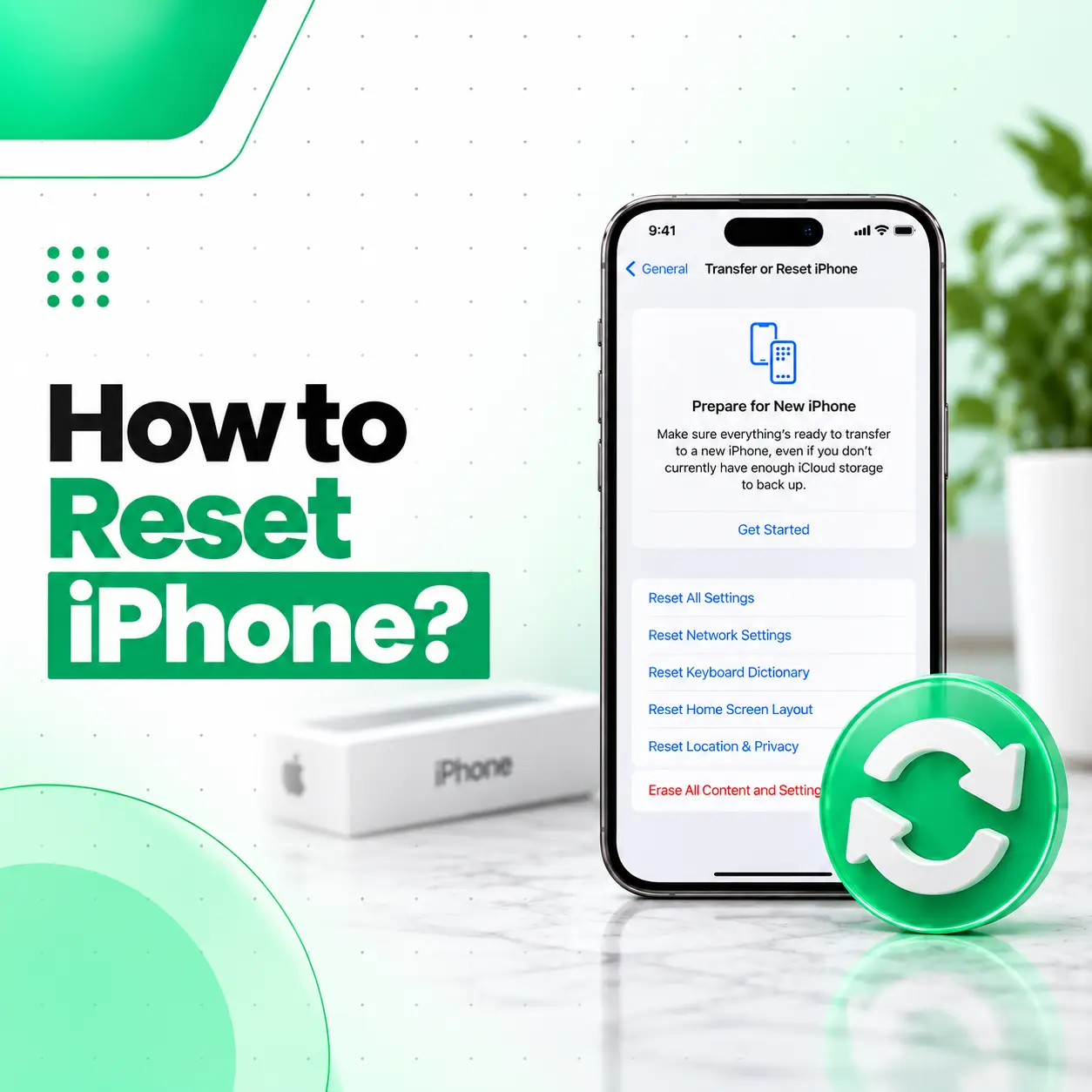
If your iPhone is frozen, behaving strangely, experiencing certain software problems, or you simply want to start fresh, knowing how to reset iPhone correctly can save you from unnecessary data loss. However, “reset” can mean several different things on an iPhone.
A restart or force restart usually does not erase personal data. Reset All Settings changes system preferences without intentionally deleting your personal content. A factory reset, on the other hand, erases the device’s content and settings.
This guide explains the different iPhone reset methods, when to use each one, what happens to your data, and what to do before performing a complete erase. If a reset does not solve a problem caused by physical damage, iCareFix can help assess whether professional repair is needed.
What Does Resetting an iPhone Mean?
Resetting an iPhone can refer to several different actions, ranging from a simple restart to completely erasing the device.
| Reset method | Main purpose | Personal data |
| Normal restart | Refresh the system | Kept |
| Force restart | Recover an unresponsive iPhone | Kept |
| Reset All Settings | Restore system settings to defaults | Kept |
| Reset Network Settings | Fix certain network configuration problems | Kept, network settings removed |
| Erase All Content and Settings | Completely erase the iPhone | Erased from the device |
The right method depends on the problem you are trying to solve.Because these options have very different effects, do not choose a factory reset when you only need to restart the phone.
How to Restart an iPhone Without Losing Data
If your iPhone is working normally but you want to refresh the system, a regular restart is usually the first step.
Restart an iPhone With Face ID
For many newer iPhone models:
- Press and hold the side button and either volume button.
- When the power-off slider appears, drag it.
- Wait for the iPhone to turn off.
- Press and hold the side button until the Apple logo appears.
A normal restart does not erase your photos, apps, messages, or other personal data.
Restart an iPhone With a Home Button
On iPhone models with a physical or capacitive Home button, the exact button combination can vary by model.
Generally, use the side or top button to bring up the power-off option, turn the iPhone off, then turn it back on using the appropriate power button.
How to Force Restart an iPhone
A force restart is useful when the iPhone is frozen, the touchscreen is not responding, or the device is stuck and cannot be shut down normally.
Force Restart Most Modern iPhones
For many recent iPhone models:
- Quickly press and release Volume Up.
- Quickly press and release Volume Down.
- Press and hold the Side button.
- Keep holding until the Apple logo appears.
- Release the button when the logo appears.
A force restart is different from a factory reset. It does not intentionally erase the iPhone’s personal data.
What If the Force Restart Does Not Work?
If the iPhone remains completely unresponsive, connect it to power and try again after allowing it some time to charge.
If the device still does not respond, the problem could involve software, the battery, display hardware, charging components, or another internal component.
How to Reset All Settings on an iPhone
If you want to restore system preferences without completely erasing your personal information, Reset All Settings may be appropriate.
Go to:
Settings → General → Transfer or Reset iPhone → Reset → Reset All Settings
The exact wording or menu arrangement can vary slightly depending on the iOS version.
What Does Reset All Settings Do?
Resetting all settings returns many system preferences to their defaults while keeping your personal content.
This can affect settings such as:
- Network configurations
- Keyboard dictionary
- Location and privacy settings
- Apple Pay-related settings
- Certain system preferences
- Home Screen arrangement or other preferences, depending on the current iOS behavior
Your photos, videos, messages, and installed apps are not the same thing as system settings and are not intentionally erased by Reset All Settings.
Still, review the confirmation screen before proceeding.
How to Reset Network Settings on iPhone
If your main problem involves Wi-Fi, mobile connectivity, or certain network configurations, you may not need to reset the entire iPhone.
You can use:
Settings → General → Transfer or Reset iPhone → Reset → Reset Network Settings
This removes saved network-related settings, including Wi-Fi configurations and other network preferences.
When Should You Reset Network Settings?
This option may be worth considering when you have persistent:
- Wi-Fi connection problems
- Cellular network configuration problems
- Bluetooth-related connectivity issues
- Network settings that appear corrupted
You will need to reconnect to Wi-Fi networks afterward, so make sure you know the necessary Wi-Fi passwords.
How to Factory Reset an iPhone
If your goal is to completely erase the iPhone, use Erase All Content and Settings.
This is the appropriate option when you are:
- Selling the iPhone
- Giving the iPhone to someone else
- Preparing it for another owner
- Intentionally starting from a clean setup
- Performing a last-resort software troubleshooting step after backing up important data
Step-by-Step Factory Reset
- Open Settings.
- Tap General.
- Scroll down and select Transfer or Reset iPhone.
- Choose Erase All Content and Settings.
- Review the information displayed on the screen.
- Follow the authentication instructions.
- Confirm that you want to erase the device.
- Allow the iPhone to complete the process and restart.
Once completed, the iPhone should return to its initial setup experience.
What Should You Do Before a Factory Reset?
A factory reset removes information from the device, so preparation is important.
Back Up Your Important Information
Create a current backup before erasing the phone if you need to keep your information.
Important items may include:
- Photos and videos
- Contacts
- Messages
- Notes
- Files
- App data
- Voice recordings
- Other locally stored information
Do not assume that every piece of information is backed up automatically.
Check Your Apple Account
Make sure you can access the Apple Account associated with the iPhone.
You may need account authentication during the erase process.
Check Your eSIM
If your iPhone uses an eSIM, pay close attention to the options presented during the erase process.
If you are selling the phone, you need to make sure your cellular plan is handled correctly rather than accidentally transferring or retaining something you did not intend to.
How to Reset an iPhone Before Selling It
If another person will receive the iPhone, resetting it involves more than simply pressing an erase button.
1. Back Up or Transfer Your Data
Move the information you want to keep to another device or create an appropriate backup.
2. Complete the Device Erase
Use:
Settings → General → Transfer or Reset iPhone → Erase All Content and Settings
Follow the instructions displayed by the iPhone.
3. Pay Attention to Account and Security Prompts
Make sure the phone is properly prepared for its next owner.
Features such as Find My and Activation Lock are designed to protect an iPhone against unauthorized use.
Do not remove ownership protections incorrectly just because someone asks you to.
4. Remove a Physical SIM If Appropriate
If the phone uses a physical SIM card and you are not transferring it with the device, remove it before handing over the iPhone.
Can You Reset an iPhone Without Losing Data?
Yes, depending on what you mean by “reset.”
A normal restart, force restart, Reset All Settings, or certain targeted reset options are different from a factory reset.
If your goal is simply to troubleshoot a minor software problem, start with the least destructive option.
For example:
Problem → Appropriate first step
- iPhone temporarily frozen → Force restart
- General settings behaving strangely → Reset All Settings
- Network configuration issue → Reset Network Settings
- Preparing the phone for another owner → Erase All Content and Settings
This approach reduces the chance of unnecessarily deleting personal information.
Can Resetting an iPhone Fix Software Problems?
A reset can sometimes help with software-related problems, but it is not a universal repair method.
For example, restarting may resolve a temporary system glitch. Resetting certain settings can help when a configuration has become problematic.
A factory reset may be considered for persistent software problems after important data has been backed up.
However, if the actual cause is hardware damage, resetting the software will not repair the physical component.
What If Your iPhone Is Still Not Working After a Reset?
If the problem continues after the appropriate reset, investigate whether the issue is hardware-related.
Common warning signs include:
- iPhone overheating
- Battery draining unusually quickly
- Charging failure
- Touchscreen not responding
- Screen flickering
- Camera not working
- Speaker or microphone problems
- Repeated unexpected restarts
- Water or liquid damage
- Persistent network problems
Software Problem or Hardware Problem?
A reset is most useful when the cause is related to software configuration.
A component-level problem may require physical diagnosis instead.
| Symptom | Possible area to investigate |
| Won’t charge | Charging port, cable, adapter, battery, charging circuit |
| Screen remains unresponsive | Display or touch hardware, software |
| Random shutdowns | Battery, power system, software |
| Camera stays black | Camera module, software |
| Phone overheats | Battery, charging system, software, internal hardware |
| Wi-Fi repeatedly fails | Network settings, software, wireless hardware |
These symptoms do not prove that a particular component is defective. A proper diagnosis is needed before repair.
Is It Safe to Reset an iPhone Yourself?
For standard iPhone reset options available through Settings, following the on-screen instructions is generally straightforward.
The main risk is choosing the wrong reset option.
Before selecting Erase All Content and Settings, make sure you have backed up anything important.
You should also avoid unofficial software or websites that claim to bypass Apple security features. Legitimate reset and recovery procedures do not require bypassing ownership protections.
When Should You Get Professional iPhone Repair?
A reset is not the right solution for every iPhone problem.
Consider professional inspection if:
- The iPhone has suffered physical impact
- It has been exposed to liquid
- The display or touchscreen is damaged
- It will not charge
- The battery behaves abnormally
- It repeatedly shuts down
- The device overheats
- The camera, speaker, microphone, or sensors fail
- Problems continue after appropriate software troubleshooting
For customers seeking professional phone repair in Bangladesh, iCareFix can assess the device and help determine whether the issue is software-related or requires hardware repair.
Frequently Asked Questions
1. How do I reset my iPhone without losing everything?
If you only need to refresh the device, try a normal restart or force restart first. If a settings problem is suspected, Reset All Settings can restore many preferences without intentionally deleting your personal content. Avoid Erase All Content and Settings unless you have backed up anything you want to keep.
2. What is the difference between restarting and resetting an iPhone?
Restarting simply turns the iPhone off and back on and normally keeps your data and settings. Resetting can refer to several actions, including restoring particular settings or completely erasing the device. A factory reset is the most destructive option because it removes the iPhone’s content and settings.
3. How do I hard reset an iPhone?
On many modern iPhones, quickly press and release Volume Up, quickly press and release Volume Down, then press and hold the Side button until the Apple logo appears. This is a force restart, not a factory reset, so it does not intentionally erase your personal data.
4. Will resetting my iPhone delete my photos and contacts?
It depends on the reset option. A normal restart, force restart, and Reset All Settings do not intentionally erase your personal photos and contacts. Erase All Content and Settings does erase the device’s stored content. Always check the reset option carefully and create a backup before performing a complete erase.
5. Should I factory reset my iPhone before selling it?
Yes. Before selling or giving away an iPhone, back up or transfer the information you want to keep, then use Erase All Content and Settings. Pay attention to Apple Account, Find My, Activation Lock, and eSIM-related prompts so the device is properly prepared for its next owner.
6. Can resetting an iPhone fix charging or battery problems?
A reset can help if a charging or battery symptom is caused by a temporary software issue, but it cannot repair damaged hardware. If the phone still will not charge, overheats, shuts down unexpectedly, or has a physically damaged charging port after troubleshooting, professional diagnosis may be necessary.
7. What should I do if my iPhone will not reset?
If the iPhone cannot complete a normal reset, check its battery level and try the appropriate force-restart procedure. If it remains unresponsive or repeatedly fails during recovery, the cause may involve software corruption or hardware damage. A professional technician can assess the device and determine the appropriate next step.
Conclusion
Learning how to reset iPhone starts with choosing the right type of reset. A normal restart or force restart is suitable for many temporary problems, while Reset All Settings can address certain configuration issues without intentionally erasing personal content. A factory reset should be reserved for situations where you genuinely need to erase the device.
Before using Erase All Content and Settings, back up important information and carefully review the Apple Account, Find My, and eSIM-related prompts.
If your iPhone continues to have charging, battery, display, overheating, camera, or other physical problems after software troubleshooting, the issue may require professional diagnosis. iCareFix can inspect the device and recommend an appropriate repair approach for customers seeking mobile phone repair in Bangladesh.