




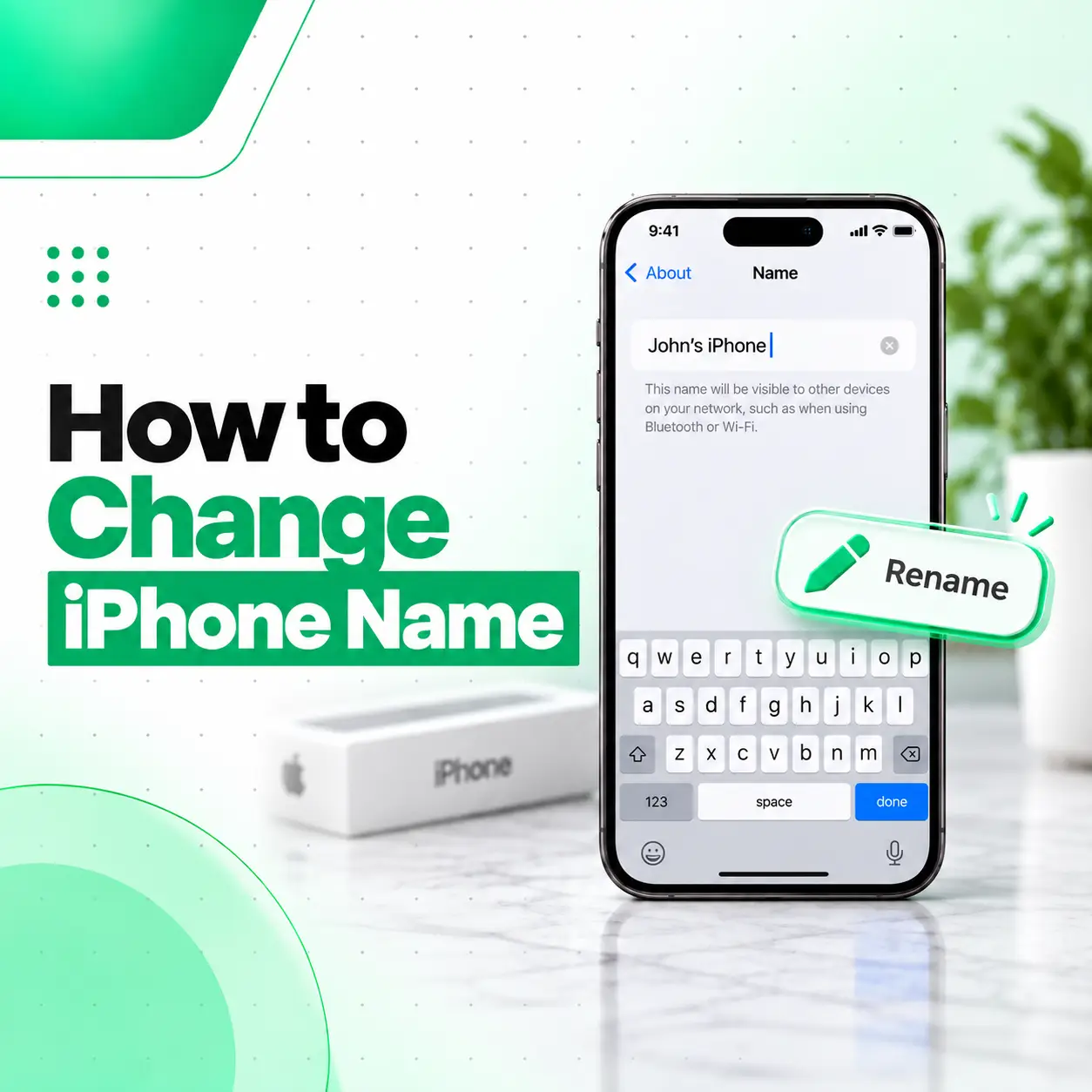
Changing your iPhone name is a simple Settings change that can make your device easier to identify when it appears in AirDrop, Bluetooth connections, Personal Hotspot, Finder, or other places where the device name is displayed. If your iPhone still has a generic name or you want to replace an old owner’s name, you can rename it without resetting the phone or deleting your data.
In this guide, you’ll learn how to change iPhone name directly from your iPhone, what the device name affects, what happens to AirDrop and other connections, and what to check if the new name does not appear immediately. If your iPhone has a separate software or hardware issue that prevents normal Settings changes, professional phone support may also be appropriate.
How to Change iPhone Name
You can change your iPhone name from the Settings app. You do not need to erase the device or change your Apple Account to rename it.
Follow these steps:
- Open Settings on your iPhone.
- Tap General.
- Tap About.
- Tap Name.
- Delete the existing name.
- Enter your new iPhone name.
- Tap Done on the keyboard.
Your new name should now be associated with the iPhone.
What Should You Name Your iPhone?
You can choose almost any simple name that helps you recognize the device.
For example:
- Nahida’s iPhone
- Work iPhone
- iPhone 17 Pro
- My Personal iPhone
- Office Phone
Avoid using sensitive personal information in a device name if the phone may be visible to nearby people through services such as AirDrop or Personal Hotspot.
Where Is the iPhone Name Located?
The iPhone’s device name is located under Settings > General > About > Name.
The Name field is separate from information such as the model name, serial number, and software version. Changing this field changes the device’s identifying name; it does not change the actual iPhone model.
iPhone Name vs. Model Name
These two terms can be confusing.
| Information | Example | Can you change it? |
| Device name | Nahida’s iPhone | Yes |
| Model name | iPhone 17 Pro | No, this identifies the model |
| iOS version | iOS version installed on the phone | Updated through software updates |
| Serial number | Unique device identifier | No |
| Apple Account name | Account-related information | Managed separately |
Changing the device name does not turn one iPhone model into another.
Does Changing Your iPhone Name Change Your Apple Account?
No. Changing your iPhone’s device name does not change your Apple Account name, email address, password, or account ownership.
The change applies to the device’s name. Your Apple Account remains separate.
This distinction is useful if you want to rename a phone after purchasing a used iPhone or giving a device a more recognizable name.
Does Changing the iPhone Name Change AirDrop?
Yes, the device name can be used as part of how your iPhone is identified in certain Apple services and connection scenarios, including AirDrop.
If you’re trying to make your iPhone easier for someone else to identify when sharing files, changing the device name can help.
How to Choose an AirDrop-Friendly Name
A practical name should be:
- Easy to recognize
- Short enough to read quickly
- Different from nearby devices
- Free of unnecessary personal information
For example, “Nahida iPhone” is easier to recognize than a generic name such as “iPhone.”
However, your AirDrop discoverability settings are controlled separately. Changing the device name does not automatically change who can send you AirDrop requests.
Does Changing the iPhone Name Affect Bluetooth?
The device name may also be used when identifying the iPhone in certain Bluetooth-related situations.
If another device continues showing an old name, try disconnecting and reconnecting the Bluetooth connection. Some previously paired devices may retain information about an earlier device name until their connection or saved device information is refreshed.
If Bluetooth Still Shows the Old Name
Try these steps:
- Change the iPhone name again and confirm it is saved.
- Turn Bluetooth off and back on.
- Restart the iPhone.
- Reconnect the accessory.
- If necessary, remove the old Bluetooth pairing and pair the devices again.
The exact behavior can vary depending on the accessory.
Does Changing the iPhone Name Affect Personal Hotspot?
Changing the device name can affect how your iPhone is identified for Personal Hotspot because the device name is used in certain connection contexts.
If someone previously connected to your hotspot using the old name, they may need to select the renamed device when connecting again.
Remember that your Personal Hotspot password is separate from the device name.
How to Change an iPhone Name Without Losing Data
You can rename an iPhone without deleting photos, contacts, apps, messages, or other personal data.
The process only changes the device name:
Settings → General → About → Name → Enter New Name → Done
You do not need to:
- Factory reset the iPhone
- Erase all content and settings
- Sign out of your Apple Account
- Delete your photos
- Restore the iPhone
This makes renaming your device a low-risk customization.
What If the iPhone Name Is Not Changing?
If your new name does not appear immediately, first confirm that the new name was actually saved under Settings > General > About > Name.
Then try these troubleshooting steps:
Restart Your iPhone
A restart can refresh temporary software processes and connection information.
Check the Name Again
Go back to:
Settings → General → About → Name
Make sure the new name is displayed there.
Refresh the Connection
If the old name only appears on another device, disconnect and reconnect the relevant Bluetooth, AirDrop, Wi-Fi, or hotspot connection.
Update iOS When Appropriate
If your iPhone is experiencing several unusual Settings or connectivity problems, check whether an available iOS update addresses the issue.
When the Problem Is More Than a Name
If you cannot edit the Name field, Settings repeatedly fails, or the iPhone has other software problems at the same time, the issue may not be related to the device name itself.
In that situation, avoid repeatedly changing settings without understanding the underlying problem. A professional phone repair or diagnostic service can help determine whether the issue is software-related or connected to another device problem.
Can You Change the Name of a Used iPhone?
Yes. A used iPhone can be renamed after you have access to its Settings.
If you recently purchased a second-hand device, changing its name can make it easier to distinguish from other Apple devices in your household.
However, renaming the device does not remove the previous owner’s Apple Account or Activation Lock. Those are separate security and ownership issues.
If a used iPhone is still linked to someone else’s account, the proper account-removal process should be completed by the previous owner.
Can You Change Your iPhone Name From a Computer?
If you’re managing an iPhone through a Mac or Windows computer, the displayed device information can vary depending on the software and connection method being used.
For simply renaming the iPhone, changing the name directly on the iPhone through Settings > General > About > Name is generally the most straightforward approach.
If your computer continues displaying an old name after you rename the phone, reconnecting the device can refresh the information.
When Should You Get Professional iPhone Help?
Changing an iPhone name normally does not require professional repair. It is a standard software setting.
Professional help becomes more relevant if the naming problem occurs alongside issues such as:
- Settings repeatedly crashing
- The iPhone freezing or restarting
- Bluetooth or Wi-Fi consistently failing
- Major software errors
- The touchscreen not responding
- The device failing to boot normally
In these situations, the name itself may not be the actual problem.
For users in Bangladesh, a professional mobile repair service such as iCareFix can inspect the device when a broader software or hardware problem needs diagnosis.
Frequently Asked Questions
1. How do I change my iPhone name?
Open Settings, go to General > About > Name, delete the existing name, enter your preferred name, and tap Done. The change does not require a factory reset and does not erase your personal data. Your Apple Account information remains unchanged because the device name is a separate setting.
2. Will changing my iPhone name delete anything?
No. Renaming an iPhone does not delete photos, contacts, applications, messages, or other stored information. It only changes the device’s identifying name. You do not need to erase the iPhone or reset it to make this change.
3. Does changing my iPhone name change my Apple Account name?
No. Your iPhone device name and Apple Account information are separate. Changing the name under Settings > General > About only changes the name associated with that device. It does not change your Apple Account email address, password, or account details.
4. Will changing my iPhone name change my AirDrop name?
The device name can be used to identify your iPhone in certain AirDrop and device-sharing contexts. However, your AirDrop discoverability settings are separate. If you want to control who can discover your device, review the AirDrop settings in addition to changing the device name.
5. Why is my old iPhone name still showing on another device?
Another device may have cached or retained the previous name. First confirm the new name under Settings > General > About > Name. Then restart or reconnect the relevant Bluetooth, hotspot, or other connection. Some accessories may need to be disconnected and paired again before displaying updated information.
6. Can I change my iPhone name without resetting it?
Yes. A factory reset is not necessary. You can change the name directly through Settings > General > About > Name. The process changes the device name while leaving your personal content and installed applications intact.
7. What should I do if I cannot change my iPhone name?
First restart the iPhone and check whether the Name field under Settings > General > About can be edited. If the Settings app is malfunctioning or the naming issue occurs with other software or connectivity problems, professional diagnosis may be useful to identify the underlying issue.
Conclusion
Learning how to change iPhone name only takes a few steps: open Settings, select General, tap About, choose Name, enter the new name, and save it. This changes the device’s identifying name without requiring a reset or deleting personal data.
If your iPhone’s name is not updating because of a wider Settings, connectivity, or software problem, the name itself may not be the root cause. In that situation, iCareFix can assess the device and help identify whether professional troubleshooting or repair is appropriate.