




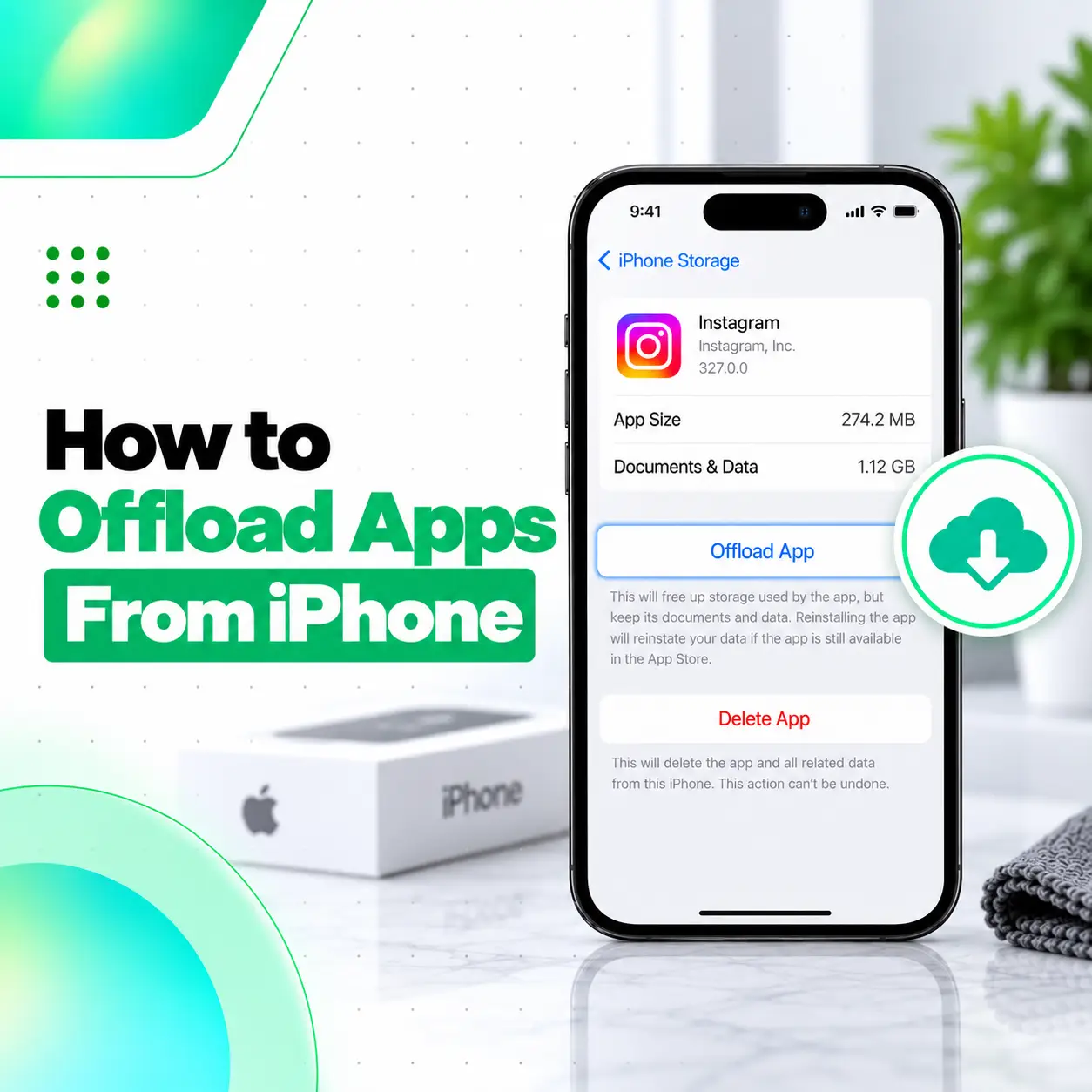
If your iPhone storage is getting full but you do not want to completely delete apps and their saved data, offloading can be a useful option. To offload apps from iPhone, open Settings > General > iPhone Storage, choose an app, then tap Offload App. This removes the app itself while keeping its documents and data, allowing you to reinstall it later.
iPhone can also offload unused apps automatically. On current iOS versions, Apple places that control under Settings > Apps > App Store > Offload Unused Apps.
This guide explains how manual and automatic offloading work, what happens to app data, how much storage you may recover, and how offloading differs from deleting an app.
What Does Offloading an App Mean on iPhone?
Offloading removes the app itself while keeping its documents and data on the iPhone.
This is different from deleting an app.
Apple describes Offload App as a storage-management option that frees the storage used by the app while preserving its documents and data.
That means you can reinstall the app later and, in many cases, continue using its retained local data.
What Offloading Removes
Offloading primarily removes:
- The installed app
- Storage occupied by the app package itself
What Offloading Keeps
Apple says offloading keeps:
- App documents
- App data
The exact content stored by an app varies, but the key difference is that offloading is designed to preserve app data rather than erase everything.
How to Offload Apps From iPhone Manually
You can manually offload individual apps through iPhone Storage.
Step-by-Step Method
- Open Settings.
- Tap General.
- Tap iPhone Storage.
- Wait for the app list to load.
- Select the app you want to offload.
- Tap Offload App.
- Confirm if prompted.
Apple’s iPhone Storage screen shows how much space apps use and provides the option to offload supported apps while keeping their documents and data.
How to Automatically Offload Unused Apps on iPhone
iPhone can automatically remove apps you rarely use while keeping their data.
On current iOS versions, go to:
Settings > Apps > App Store > Offload Unused Apps
Then turn Offload Unused Apps on.
When enabled, iPhone can automatically offload unused apps when storage management is needed.
What Happens to Automatically Offloaded Apps?
Apple says the app icon can remain visible with a cloud symbol. You can tap the icon to reinstall the app if it is still available from the App Store.
Offload App vs Delete App on iPhone
The biggest difference is what happens to the app’s data.
| Option | App Removed | Documents and Data |
| Offload App | Yes | Kept |
| Delete App | Yes | Removed from the device with the app |
| Remove From Home Screen | No | Kept |
Apple distinguishes offloading from deletion: offloading removes the app while preserving its documents and data, whereas deleting removes both the app and its related local data.
When Offloading Makes More Sense
Offloading may be useful when:
- You need more storage
- You rarely use the app
- You may want the app again later
- You want to preserve its documents and data
- You do not want a full deletion
When Deleting May Make More Sense
Deleting may be more appropriate when:
- You no longer need the app
- You also want to remove its local data
- The app is using excessive storage
- You are troubleshooting a persistent app problem
- You want a clean reinstall
Before deleting an app, check whether important information is stored locally or synced elsewhere.
Does Offloading Apps Free Up Storage?
Yes. Offloading frees the storage occupied by the app itself, while keeping its documents and data.
However, the amount of storage recovered depends on the app.
For example, an app might use storage in two main ways:
- App Size — the installed application
- Documents & Data — content created, downloaded, or stored by the app
Offloading mainly removes the app portion. If Documents & Data are very large, you may recover less storage than expected.
How to Check Which Apps Use the Most Storage
Before offloading apps, check which ones actually take up significant space.
Go to:
Settings > General > iPhone Storage
Apple says this screen shows storage recommendations and a list of apps with their storage usage.
You can use this information to decide which apps are worth offloading.
Look for Apps That Are:
- Large
- Rarely used
- Easy to reinstall
- Not currently important for daily use
Offloading small apps may not make much difference if most storage is being used by photos, videos, messages, or downloaded files.
Does Offloading an App Delete Your Login?
Not necessarily, because offloading keeps the app’s documents and data.
However, login behavior varies by app. Some apps store credentials or session information differently, and some may require you to sign in again after reinstalling.
Before offloading an important app, make sure you know:
- Your login details
- Password
- Recovery method
- Whether important data is synced to an account or cloud service
This is particularly useful for banking, work, authentication, or business apps.
Does Offloading Delete Photos, Messages, or Files?
Offloading one app does not generally delete unrelated iPhone content such as your Photos library or Messages.
However, content stored inside the specific app may remain as part of that app’s documents and data.
The exact behavior depends on how the app stores information.
For important apps, confirm whether your content is:
- Stored locally
- Stored in iCloud
- Synced to an online account
- Stored only inside the app
How to Reinstall an Offloaded App
Reinstalling an offloaded app is usually simple.
Method 1: Tap the App Icon
If the offloaded app still appears on the Home Screen or App Library with a cloud symbol:
- Tap the app.
- Allow iPhone to download it again.
- Open the app when installation finishes.
Apple states that automatically offloaded apps can be reinstalled by tapping their icon, as long as the app remains available.
Method 2: Download It Again From the App Store
If needed:
- Open the App Store.
- Search for the app.
- Download it again.
Apple also allows previously downloaded apps to be reinstalled from purchase history if they are still available.
Can You Offload Every App on iPhone?
Not necessarily.
The available storage controls can vary depending on:
- The app
- iOS version
- Whether it is a built-in app
- System restrictions
- Device configuration
If Offload App does not appear for a specific app, iOS may not provide that option for it in the same way.
Do not assume that every built-in or system app can be handled like a normal App Store app.
Why Is the Offload App Option Missing?
If you cannot see the option, possible reasons include:
- You are not viewing the app through iPhone Storage
- The app or system component does not support normal offloading
- Screen Time or device-management restrictions may affect app changes
- Your iOS version has different settings behavior
Start by checking:
Settings > General > iPhone Storage > [App]
If the app supports offloading, the option should normally appear there.
Is Offloading the Same as Clearing Cache?
No.
Offloading removes the installed app while preserving its documents and data. Clearing cache usually means removing temporary files.
These are different storage-management actions.
An app’s cached or temporary data may not always be counted in the same way in iPhone Storage, and Apple notes that cached and temporary data may not appear as part of app usage in every case.
If your goal is specifically to clear cache, check whether the individual app provides its own cache-management controls.
Should You Offload Apps to Make iPhone Faster?
Offloading can help if your iPhone is critically low on free storage, but it is not a universal speed fix.
Apple advises maintaining free storage and notes that iPhone can remove downloadable or unnecessary items when storage becomes low.
If the iPhone still feels slow after freeing storage, also consider:
- Restarting the phone
- Updating iOS
- Updating apps
- Checking battery condition
- Reviewing background activity
- Removing unnecessary files
- Investigating hardware problems if symptoms persist
Other Ways to Free Up iPhone Storage
Offloading apps is only one option.
Go to Settings > General > iPhone Storage and review the biggest storage categories. Apple recommends managing items such as apps, photos, videos, messages, downloads, files, and documents.
Useful options include:
- Offload unused apps.
- Delete apps you no longer need.
- Remove large videos.
- Review photos.
- Delete unnecessary message attachments.
- Remove offline downloads.
- Delete unwanted files.
Choose actions based on what is actually using storage rather than deleting content randomly.
Is Automatic Offloading Worth Turning On?
It can be useful if you regularly run low on storage and have apps you rarely use.
Automatic offloading is especially practical when:
- Your iPhone has limited free space
- You install many apps
- You keep apps that you use only occasionally
- You want to preserve app data while removing unused app installations
However, keep in mind that reinstalling an offloaded app requires downloading it again, and the app must still be available in the App Store.
When Should You Avoid Offloading an App?
Consider keeping an app installed when:
- You need it urgently or frequently
- You may not have reliable internet later
- The app is essential for travel, work, or authentication
- You are unsure how its local data is stored
- You do not want to risk needing a re-download at an inconvenient time
Offloading is most useful for apps you rarely use and can reinstall without difficulty.
What If Your iPhone Storage Is Still Full After Offloading Apps?
If storage remains full, the main problem may not be app installation size.
Check Settings > General > iPhone Storage and review categories such as:
- Photos
- Videos
- Messages
- Files
- Downloads
- Documents and Data
- Large apps
If one app still shows very large Documents & Data after offloading, offloading may not reclaim that portion because the feature intentionally preserves app data.
In that situation, deleting the app may recover more space, but it can also remove local app data.
When Should You Seek Professional Help?
Offloading apps is a normal software feature and usually does not require repair service.
Professional assistance may be useful if:
- iPhone Storage does not load properly
- Storage remains unexpectedly full
- Apps repeatedly fail to install or reinstall
- The phone crashes or freezes during normal use
- Storage problems continue despite basic cleanup
- You suspect a broader software or hardware problem
For users in Bangladesh, iCareFix can assess an iPhone when the issue appears to go beyond normal storage management.
Frequently Asked Questions
1. How do I offload apps from iPhone?
Go to Settings > General > iPhone Storage, select the app you want to remove temporarily, then tap Offload App. Apple says this frees the storage used by the installed app while keeping its documents and data so you can reinstall it later.
2. Does offloading an app delete its data?
No. Apple specifically describes offloading as removing the app while keeping its documents and data. This is the main difference between offloading and deleting. However, individual apps may handle account sessions or cloud-synced information differently, so it is still sensible to know your login details before offloading important apps.
3. What is the difference between offloading and deleting an app?
Offloading removes the installed app but keeps its documents and data. Deleting removes the app and its related local data from the iPhone. If your goal is to temporarily save storage without fully removing an app’s data, offloading is generally the more appropriate option.
4. Can iPhone offload unused apps automatically?
Yes. On current iOS versions, go to Settings > Apps > App Store > Offload Unused Apps and turn the feature on. iPhone can then automatically remove unused app installations while keeping their associated data.
5. How do I reinstall an offloaded app?
Tap the offloaded app’s icon if it remains on your Home Screen or App Library, or download the app again from the App Store. Reinstallation requires the app to remain available for download. Apple also allows previously downloaded apps to be reinstalled from App Store purchase history.
6. Does offloading apps free a lot of storage?
It depends on the app. Offloading removes the app installation but keeps its documents and data. If the app package is large, you may recover substantial space. If most of its storage use comes from Documents & Data, the amount recovered may be smaller.
7. Is it safe to offload apps on iPhone?
Generally, yes. Offloading is a built-in iOS storage-management feature designed to preserve app documents and data while removing the app installation. For important apps, still make sure you know your login credentials and understand whether key information is stored locally or synced online.
Conclusion
Learning how to offload apps from iPhone is useful when you need more free storage but do not want to completely delete app documents and data. For individual apps, use Settings > General > iPhone Storage > [App] > Offload App. For automatic management, current iOS versions provide Settings > Apps > App Store > Offload Unused Apps.
Offloading is different from deleting: it removes the installed app while preserving its data. If storage remains full afterward, check iPhone Storage to identify whether photos, videos, downloads, messages, or app documents are actually consuming most of the space.
If an iPhone continues to show abnormal storage behavior after normal cleanup, iCareFix can help assess whether a broader software or device issue needs attention.