




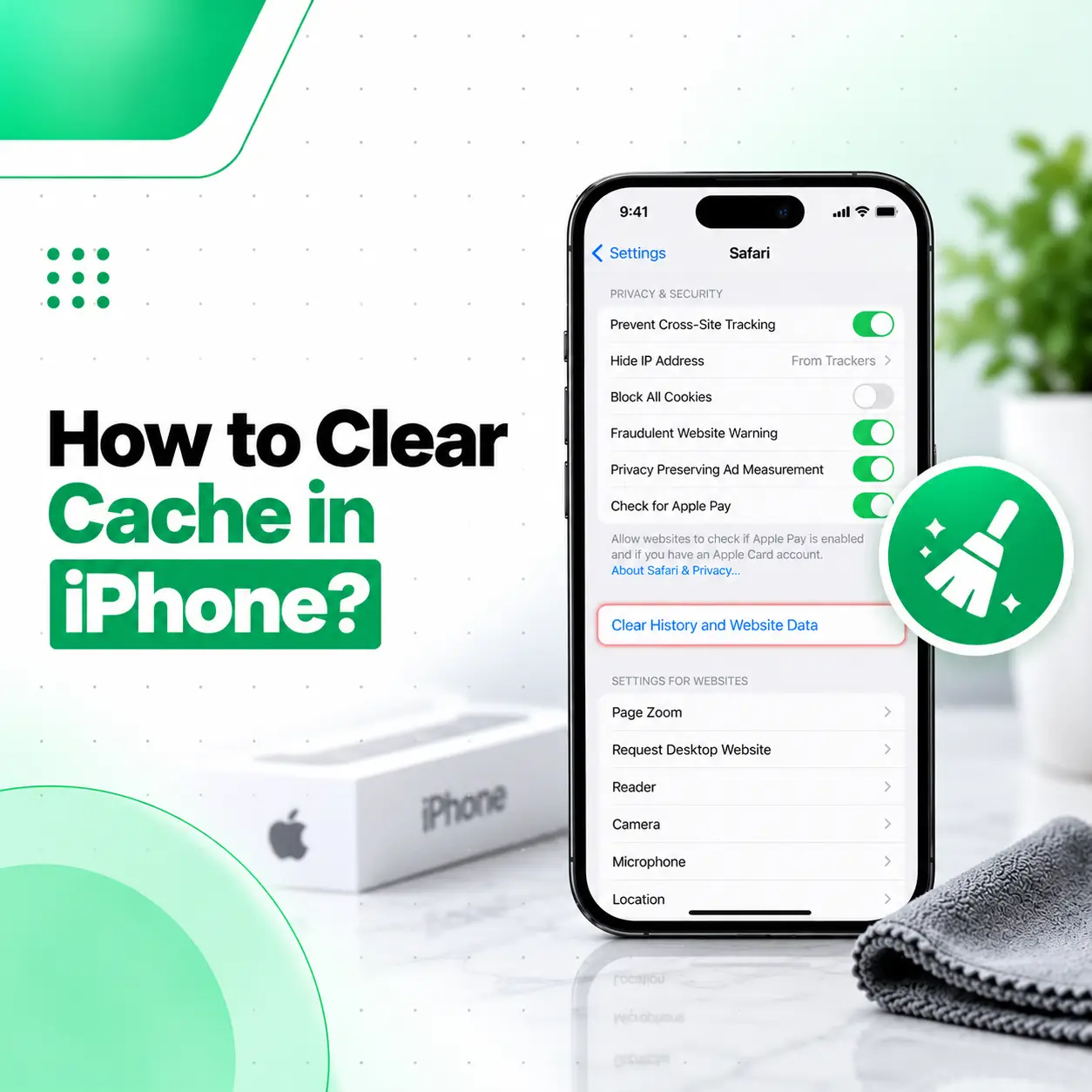
If your iPhone feels sluggish, websites are loading incorrectly, or storage is getting tight, clearing cached data may help in some cases. The process depends on what you want to clear because iPhone does not have one universal “Clear All Cache” button for every app.
To clear cache in iPhone, you can remove Safari browsing data, clear website data, manage app storage, offload unused apps, or delete and reinstall an app when necessary. Apple also provides storage-management tools under Settings > General > iPhone Storage.
This guide explains the safest ways to clear cache, what gets removed, what stays on your phone, and when cache clearing is actually useful.
What Is Cache on an iPhone?
Cache is temporary data stored by browsers and apps to help content load faster.
Examples can include:
- Website files
- Images
- Temporary app data
- Stored web resources
- Cookies
- Recently used content
Cached data is usually helpful. It can speed up websites and apps by reducing the need to download the same information repeatedly.
However, old or corrupted cached data can sometimes contribute to:
- Website loading problems
- Outdated page content
- App glitches
- Storage buildup
- Login or session issues
Clearing cache is therefore mainly a troubleshooting and storage-management step, not something that needs to be done constantly.
How to Clear Safari Cache on iPhone
For Safari, Apple provides a built-in method to clear history, cache, cookies, and website data.
Method 1: Clear Safari History and Website Data From Settings
Go to:
Settings > Apps > Safari > Clear History and Website Data
Then choose the timeframe you want to clear and confirm.
Apple states that this removes Safari history, cookies, cache, and related website data. It does not remove AutoFill information.
Method 2: Clear Safari Cache From the Safari App
On current iOS versions, you can also clear Safari browsing data from the Safari app:
- Open Safari.
- Open History.
- Tap the More button.
- Tap Clear History.
- Choose the timeframe.
- Select the relevant profile if you use Safari profiles.
- Tap Clear History.
Apple notes that this process clears Safari cache and cookies along with browsing history for the selected period.
What Happens When You Clear Safari Cache?
Clearing Safari browsing data can remove:
- Browsing history
- Recent searches
- Cookies
- Cached website files
- Some website permissions
- Frequently visited site information
It does not erase your photos, contacts, messages, or other unrelated iPhone data.
Apple also notes that clearing Safari history does not remove browsing histories stored separately by websites or other apps.
Can You Clear Safari Cache Without Deleting Everything?
Yes, Safari provides more targeted website-data controls.
If you do not want to remove all browsing history, you can manage specific website data from Safari settings.
Depending on your iOS version, look under:
Settings > Apps > Safari > Advanced > Website Data
From there, you can review and remove website data rather than clearing all Safari history.
This can be useful if only one website is causing problems.
How to Clear App Cache on iPhone
Unlike Safari, iPhone does not provide one universal cache-clearing button for every third-party app.
The available method depends on the app.
Option 1: Use the App’s Own Cache Settings
Some apps include their own cache-management controls.
Look inside the app for sections such as:
- Settings
- Storage
- Data Usage
- Downloads
- Clear Cache
- Manage Storage
If the app offers a built-in cache-clearing option, that is usually the most targeted method.
Option 2: Offload the App
Go to:
Settings > General > iPhone Storage
Then:
- Select the app.
- Tap Offload App if available.
Apple explains that offloading removes the app itself while keeping its documents and data, allowing you to reinstall it later without starting completely from scratch.
Option 3: Delete and Reinstall the App
If an app has no cache-clearing control and is using excessive storage, deleting and reinstalling it can remove the app and its associated local data.
Before doing this, make sure any important app information is backed up or synced.
Deleting an app is different from offloading it:
| Option | App Removed | Documents/Data Kept |
| Offload App | Yes | Yes |
| Delete App | Yes | No, local app data may be removed |
Apple documents both options under iPhone Storage.
How to Check Which Apps Are Using the Most Storage
Before deleting anything, check which apps actually use the most space.
Go to:
Settings > General > iPhone Storage
You will see:
- Total used storage
- Available storage
- App-by-app storage usage
- Storage recommendations
- Options to offload or delete apps
Apple recommends this section for managing storage and identifying apps, files, media, and downloads taking up space.
Does Clearing Cache Free Up iPhone Storage?
Sometimes.
Clearing cached website data or app-generated temporary files can reduce storage use, but the amount varies.
Cache clearing may help if:
- Safari has accumulated substantial website data
- An app stores large temporary files
- Downloads or offline content have built up
- An app’s stored data has grown unusually large
However, cache is not always the main reason an iPhone is full.
Large storage use may instead come from:
- Photos and videos
- Messages and attachments
- Downloaded movies
- Offline music
- Files
- Large apps
- App documents
Apple recommends checking iPhone Storage rather than assuming cache is responsible.
Does Clearing Cache Make an iPhone Faster?
It can help in specific cases, but it is not a guaranteed performance boost.
Clearing cache may improve behavior when:
- A website loads outdated content
- Safari has corrupted stored data
- An app has a cache-related glitch
- Storage is extremely low
- Temporary data has become problematic
However, frequently clearing useful cached data can also make websites and apps reload content again.
If your iPhone is generally slow, the cause may involve:
- Low available storage
- Background activity
- Software issues
- Battery condition
- An outdated iOS version
- Heavy apps
- Hardware problems
Cache clearing should be treated as one troubleshooting step, not a universal fix.
How to Clear Cookies on iPhone
Cookies are small files websites use to remember information such as preferences and sessions.
You can clear cookies and website data through Safari settings.
Apple’s current Safari settings are under:
Settings > Apps > Safari
You can also reach advanced cookie controls through Safari’s Advanced settings.
Be aware that deleting cookies may sign you out of websites or reset site preferences.
Will Clearing Cache Delete Passwords?
It depends on what you clear.
Clearing Safari history and website data can remove cookies and website sessions, which may sign you out of websites.
However, Apple states that Safari’s Clear History and Website Data option does not change AutoFill information.
Still, make sure important account credentials are saved before clearing browser or app data.
Will Clearing Cache Delete Photos, Messages, or Contacts?
No. Clearing Safari cache does not delete your personal photos, contacts, messages, or unrelated files.
However, deleting an app can remove local data associated with that app.
That is why it is important to distinguish between:
- Clearing Safari data
- Offloading an app
- Deleting an app
Always check whether an app syncs data to iCloud or another account before deleting it.
How to Free Up iPhone Storage Without Clearing Everything
If storage is the main problem, cache clearing may not be the best first step.
Apple recommends checking Settings > General > iPhone Storage and reviewing what is using space.
Useful options include:
- Delete unwanted photos and videos.
- Remove large message attachments.
- Delete downloaded videos.
- Remove unnecessary files.
- Offload unused apps.
- Delete apps you no longer need.
- Remove offline downloads from streaming apps.
Offload Unused Apps
Apple also allows iPhone to automatically offload apps that you do not use often while keeping their documents and data.
The current documented path is:
Settings > Apps > App Store > Offload Unused Apps
When enabled, the app can be removed while its data remains available for later reinstallation.
When Should You Clear Cache on iPhone?
You may want to clear cache when:
- A website displays outdated content
- Safari pages fail to load correctly
- A website behaves strangely
- An app is using unusually large storage
- An app repeatedly crashes or glitches
- Storage is running low
- You want to remove browsing data
- You are troubleshooting a specific app or website
There is usually no need to clear every cache on a fixed schedule.
When Cache Clearing Does Not Fix the Problem
If the issue continues after clearing cache, try other basic troubleshooting steps:
- Restart the iPhone.
- Update iOS.
- Update the affected app.
- Check available storage.
- Test your internet connection.
- Reinstall the affected app if appropriate.
- Check whether the problem occurs only in one app.
If the phone remains unusually slow, crashes frequently, overheats, or shows other hardware-related symptoms, cache clearing may not address the real cause.
For users in Bangladesh, iCareFix can inspect an iPhone when the issue appears to involve more than normal software or storage behavior.
Frequently Asked Questions
1. How do I clear cache in iPhone?
The method depends on what you want to clear. For Safari, go to Settings > Apps > Safari > Clear History and Website Data. For apps, check whether the app has a built-in cache option, or use Settings > General > iPhone Storage to offload or delete the app when appropriate.
2. Can I clear cache for all apps at once on iPhone?
No universal iOS control clears the cache of every third-party app at once. Safari has dedicated cache and website-data controls, while other apps manage cache differently. Some offer their own clear-cache button; others may require offloading, deleting, or reinstalling the app.
3. Does clearing cache delete photos or messages?
No, clearing Safari cache does not remove your photos, messages, contacts, or other unrelated personal data. However, deleting an app may remove locally stored app data, so confirm whether important information is synced or backed up before deleting it.
4. Will clearing Safari cache sign me out of websites?
It can. Clearing Safari history and website data removes cookies and other website information, so some websites may sign you out or forget saved site preferences. Apple’s Clear History and Website Data option does not remove AutoFill information.
5. Does clearing cache free up iPhone storage?
It may free some space, but the amount varies. Large photos, videos, apps, downloads, and message attachments often use more storage than cache. Check Settings > General > iPhone Storage to identify what is actually consuming space.
6. Is offloading an app the same as clearing cache?
No. Offloading removes the app itself but keeps its documents and data, while cache clearing usually removes temporary stored files. Apple provides Offload App in iPhone Storage as a storage-management option, not as a dedicated cache-clearing command.
7. How often should I clear cache on iPhone?
There is no fixed schedule required. Clear cache when you are troubleshooting website or app problems, managing storage, or removing browsing data. Constantly clearing useful cache may simply force apps and websites to download the same data again.
Conclusion
Learning how to clear cache in iPhone is mainly about choosing the correct method for the type of data you want to remove. Safari provides direct controls for clearing browsing history, cookies, cache, and website data, while third-party apps may require built-in settings, offloading, or deletion and reinstallation.
If your goal is to free storage, first check Settings > General > iPhone Storage so you can see what is actually taking up space. If performance problems continue after cache and storage troubleshooting, the issue may need broader software or hardware diagnosis.
For users in Bangladesh, iCareFix can assess an iPhone when storage cleanup or basic troubleshooting does not resolve the problem.