




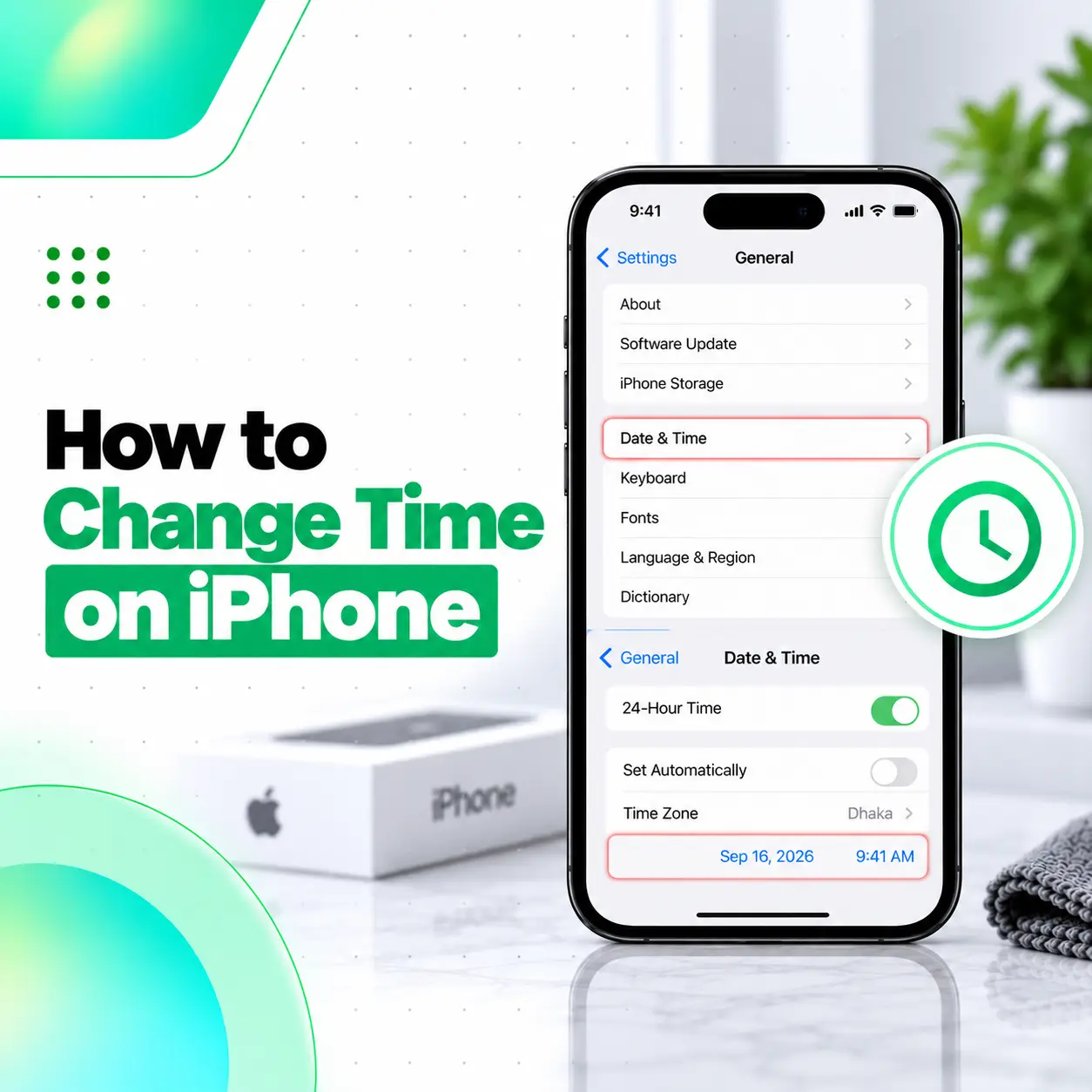
If your iPhone is showing the wrong time, date, or time zone, you can usually correct it from the Date & Time settings. To change time in iPhone, open Settings > General > Date & Time, turn off automatic time if you want to set it manually, then choose the correct date and time.
Apple also lets iPhone set the time automatically based on the current time zone, and you can separately control time-zone settings and switch between 12-hour and 24-hour clock formats.
This guide explains how to change the time manually, use automatic time, adjust the time zone, fix a wrong clock, and understand why some Date & Time options may be unavailable.
How to Change Time in iPhone Manually
You can manually change the date and time from the Settings app.
Step-by-Step Method
- Open Settings.
- Tap General.
- Tap Date & Time.
- Turn off Set Automatically or Set Time Automatically, depending on the wording shown on your iOS version.
- Tap the displayed date or time.
- Set the correct date and time.
Apple’s current iPhone guide documents this process under Settings > General > Date & Time.
How to Set iPhone Time Automatically
For most users, automatic time is the easiest option because iPhone can set the date and time based on the current time zone.
Go to:
Settings > General > Date & Time
Then turn on:
Set Automatically
Apple recommends making sure the iPhone is connected to the internet and running current software if automatic time is not working correctly.
Why Automatic Time Is Useful
Automatic time can help keep:
- Clock time accurate
- Calendar dates correct
- Time zone changes updated
- Alarms aligned with local time
- App timestamps consistent
For everyday use, automatic time is usually preferable unless you have a specific reason to set the clock manually.
How to Change Time Zone on iPhone
If the clock is correct but the time zone is wrong, you can adjust the time-zone setting separately.
Apple’s current guide allows time-zone selection by city or by time-zone offset when automatic time-zone control is disabled.
To Change the Time Zone Manually
- Open Settings.
- Go to General > Date & Time.
- Turn off automatic time-zone setting if shown.
- Tap the time-zone option.
- Choose a city or the appropriate time-zone setting.
The exact wording can vary with iOS version.
How to Use 24-Hour Time on iPhone
You can change how the clock is displayed without changing the actual time.
Go to:
Settings > General > Date & Time
Then turn 24-Hour Time on or off.
Apple documents this toggle as the control for choosing how iPhone displays the clock format.
Example
| Setting | Example |
| 12-hour format | 5:30 PM |
| 24-hour format | 17:30 |
Changing the format does not change your time zone or actual time.
Why Is My iPhone Showing the Wrong Time?
An incorrect iPhone time can happen for several reasons.
Possible causes include:
- Automatic time is turned off
- Incorrect time zone is selected
- Internet connection is unavailable
- Location-related settings are limited
- iOS needs an update
- A configuration profile restricts Date & Time settings
- Screen Time restrictions are active
- Updated time-zone information has not yet been applied
Apple recommends checking the internet connection, software version, automatic time setting, and time-zone configuration when the displayed time is wrong.
How to Fix Wrong Time on iPhone
If your iPhone time is incorrect, try these steps.
1. Turn Set Automatically On
Go to:
Settings > General > Date & Time > Set Automatically
If it is already on, Apple suggests turning it off and back on in some troubleshooting situations.
2. Check Your Internet Connection
Automatic time can depend on network information, so make sure the iPhone has a working Wi-Fi or cellular connection.
3. Check the Time Zone
Make sure the selected time zone matches your location.
4. Restart the iPhone
If updated time-zone information is available, Apple may recommend restarting the device.
5. Update iOS
A current software version can help avoid Date & Time bugs or outdated system information.
6. Set the Time Manually
If automatic time remains incorrect:
- Turn off Set Automatically.
- Set the correct date.
- Set the correct time.
- Confirm the correct time zone.
Why Can’t I Change the Time on My iPhone?
If Date & Time controls are greyed out, the setting may be restricted.
Apple notes that automatic time controls may be unavailable in some situations, including when:
- The network provider does not allow the option
- A Screen Time passcode affects settings
- A corporate or device-management profile applies restrictions
- Country or regional limitations apply
Check for Screen Time Restrictions
Go to:
Settings > Screen Time
If your iPhone is managed by a parent, school, or organization, you may not be allowed to change certain system settings.
Check for Device Management
A work or school iPhone may use a management profile.
If the device is managed, the administrator may control Date & Time behavior.
Does Location Services Affect iPhone Time?
Yes, Location Services can be relevant to automatic time-zone detection.
Apple states that iPhone time zone can be set automatically, while users without Location Services or service may need to change the time zone manually.
If automatic time-zone detection is not working, check whether Location Services is available and whether the device has network access.
Can You Set a Different Time Without Changing the Time Zone?
Yes.
If automatic time is turned off, you can manually change the displayed date and time.
However, manually changing the time to influence app behavior is not recommended. Apple specifically cautions against manual time adjustments intended to alter app behavior, such as game timers.
Manual time setting is better used for legitimate clock-correction needs.
What Happens If Your iPhone Time Is Wrong?
Incorrect date or time can cause practical problems.
You may notice:
- Incorrect message timestamps
- Calendar events showing at the wrong time
- Alarm confusion
- App login or verification issues
- Website certificate warnings
- Incorrect photo timestamps
- Sync inconsistencies
Some apps and online services depend on accurate system time.
That is another reason automatic time is usually the best option for most users.
How to Change Date on iPhone
The date and time are controlled in the same settings area.
Go to:
Settings > General > Date & Time
Then:
- Turn off Set Automatically.
- Tap the date.
- Choose the correct date.
Apple includes manual date and time adjustment under the same Date & Time menu.
Should You Use Automatic or Manual Time?
For most people, automatic time is the better choice.
| Option | Best For |
| Automatic Time | Normal everyday use |
| Manual Time | Fixing a specific clock issue or using a required custom setting |
| Automatic Time Zone | Travel and normal location-based use |
| Manual Time Zone | When automatic detection is unavailable or incorrect |
Automatic settings reduce the chance of the clock becoming inaccurate after travel or network changes.
How to Change Time After Traveling
Normally, iPhone should update the time zone automatically when you travel.
If it does not:
- Check internet connectivity.
- Open Settings > General > Date & Time.
- Make sure automatic time is enabled.
- Check the time-zone setting.
- Restart the iPhone if updated time-zone information appears.
Apple recommends these steps when the time or time zone does not update automatically.
Can Wrong Time Be a Hardware Problem?
Usually, incorrect time is a settings, network, software, or restriction issue rather than an immediate hardware problem.
Before considering repair, try:
- Automatic time
- Manual time-zone correction
- Restarting
- Updating iOS
- Checking Screen Time
- Checking management restrictions
- Testing internet connectivity
If the device repeatedly loses time or shows broader software problems after normal troubleshooting, professional inspection may be useful.
For users in Bangladesh, iCareFix can assess the iPhone if the issue appears to extend beyond normal settings behavior.
Frequently Asked Questions
1. How do I change time in iPhone?
Open Settings > General > Date & Time, turn off Set Automatically, then set the correct date and time manually. Apple documents this as the standard way to manually change the iPhone clock.
2. How do I set the time automatically on iPhone?
Go to Settings > General > Date & Time and turn on Set Automatically. Make sure the iPhone has internet access and current software if automatic time is not updating correctly.
3. Why can’t I change the time on my iPhone?
The Date & Time control may be restricted by a network provider, Screen Time passcode, or corporate device-management profile. Apple notes that these conditions can cause the automatic setting to appear dimmed or unavailable.
4. How do I change the time zone on iPhone?
Open Settings > General > Date & Time, disable automatic time-zone control if needed, then choose the appropriate city or time-zone setting. The exact menu wording can vary depending on iOS version.
5. How do I change iPhone to 24-hour time?
Go to Settings > General > Date & Time, then turn 24-Hour Time on. Turn it off again if you prefer the 12-hour AM/PM format.
6. Why is my iPhone time wrong after traveling?
The phone may not have updated its time zone correctly. Check internet access, automatic time, the selected time zone, and available iOS updates. Apple also recommends restarting when updated time-zone information becomes available.
7. Should I keep Set Automatically turned on?
Generally, yes. Automatic time is the most convenient option for normal use because it helps keep the date, clock, and time zone accurate. Manual settings are more useful when automatic detection is unavailable or when you need to correct a specific issue.
Conclusion
Learning how to change time in iPhone is straightforward: go to Settings > General > Date & Time, then choose whether you want the clock set automatically or manually. You can also adjust the time zone and switch between 12-hour and 24-hour formats from the same area.
If the time is wrong, first check automatic settings, internet access, time zone, iOS updates, Screen Time restrictions, and device-management controls. If the iPhone continues to show abnormal date or time behavior after normal troubleshooting, iCareFix can help assess whether a broader software or device issue needs attention.