




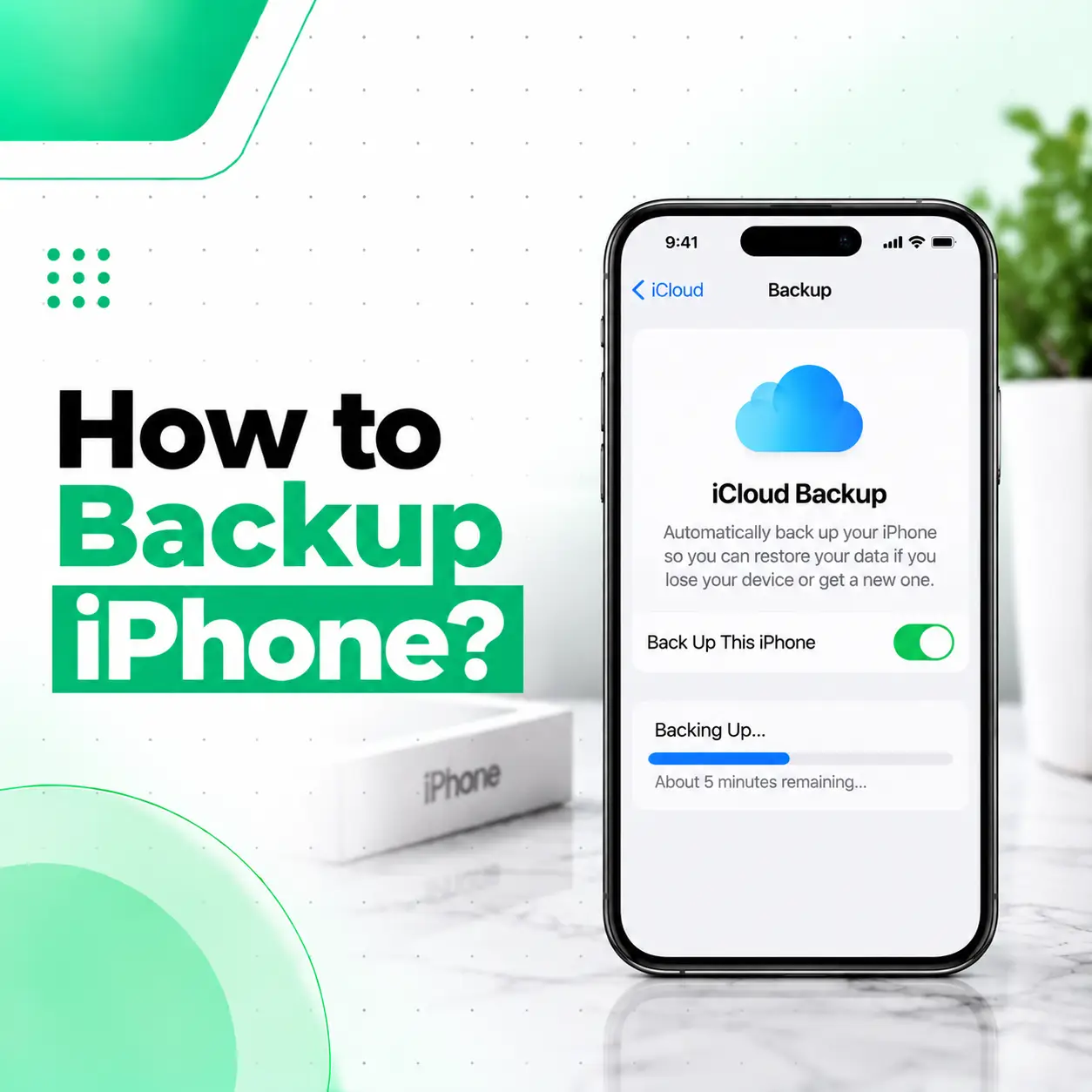
If you want to know how to backup iPhone data, there are two main approaches: use iCloud or create a backup on a Mac or Windows computer. A backup gives you a copy of important information that can help when an iPhone is lost, damaged, replaced, reset, or sent for repair.
For most users, iCloud is the simplest option because it can back up automatically when the required conditions are met. A computer backup is another useful option, particularly when you want a local copy. Before an iPhone repair, reset, or major software procedure, creating a recent backup can also help reduce the risk of losing important information. This guide explains both methods, what backups contain, how to check your latest backup, and what to do when an iPhone backup fails.
What Is an iPhone Backup?
An iPhone backup is a copy of information and settings from your device that can be used to restore your information later. Apple supports backing up an iPhone through iCloud or a computer.
A backup can be particularly useful if your iPhone is:
- Lost or stolen
- Damaged
- Being replaced
- Being reset
- Being upgraded
- Having software problems
- Going in for repair
However, it is important to understand that iCloud syncing and iCloud Backup are not exactly the same thing. Some information, such as data already synchronized with iCloud, is handled through syncing rather than being duplicated inside an iCloud backup.
How to Backup iPhone to iCloud
The easiest way to create an iPhone backup is usually through iCloud.
Apple’s current iPhone instructions are:
- Open Settings.
- Tap your name.
- Tap iCloud.
- Tap iCloud Backup.
- Turn on Back Up This iPhone.
- To create an immediate backup, tap Back Up Now.
Stay connected to Wi-Fi while the manual backup is being created. Apple also displays the date and time of the most recent backup under the backup controls.
How to Turn On Automatic iCloud Backup
If you don’t want to manually back up your iPhone every time, enable automatic iCloud Backup.
Make sure:
- Back Up This iPhone is enabled.
- The iPhone is connected to power.
- The iPhone is connected to Wi-Fi.
- The iPhone’s screen is locked.
Under these conditions, iCloud can automatically back up the iPhone.
This is useful because a backup can otherwise be forgotten until you actually need it.
How to Manually Backup iPhone to iCloud
If you’re preparing for a repair, reset, upgrade, or other important procedure, you may want to create a fresh backup immediately.
Go to:
Settings → [your name] → iCloud → iCloud Backup → Back Up Now
Keep the iPhone connected to Wi-Fi until the process finishes.
Afterward, check the displayed backup date and time to confirm that the recent backup completed.
What Does an iCloud Backup Include?
An iCloud backup includes information and settings on your iPhone that aren’t already regularly synchronized with iCloud. Depending on your settings, this can include device settings, Home Screen layout, app organization, app data, and other information.
What About Photos and Videos?
This depends on whether iCloud Photos is enabled.
If you use iCloud Photos, your photos and videos are synchronized with iCloud rather than being included in your daily iCloud backup. If iCloud Photos isn’t enabled, photos and videos stored on the device may be included in the backup.
The same general distinction applies to other information that already synchronizes with iCloud.
What About Messages?
If Messages in iCloud isn’t enabled, supported messages can be included in the iCloud backup.
When Messages in iCloud is enabled, messages are synchronized with iCloud instead of being included in the daily backup.
This is why simply asking whether something is “in the backup” isn’t always enough. You should also check which iCloud synchronization services you use.
How to Check if Your iPhone Is Backed Up
You can check your iCloud Backup settings directly on your iPhone.
Go to:
Settings → [your name] → iCloud → iCloud Backup
The backup section shows information about your current backup, including the last backup and related backup details.
Before an important repair or reset, check this rather than assuming your phone was recently backed up.
Why Checking the Backup Date Matters
Suppose your last successful backup was several weeks ago. Any relevant information created or changed since that backup may not be represented in that backup.
For that reason, creating a fresh backup immediately before a major device procedure is a sensible precaution.
How to Backup iPhone to a Mac
You can also create a local iPhone backup on a Mac using Finder.
Apple’s current process is:
- Connect the iPhone to the Mac with a cable.
- Open Finder.
- Select your iPhone from the Finder sidebar.
- Open the General section.
- Select Back up all of the data on your iPhone to this Mac.
- If desired, select Encrypt local backup.
- Click Back Up Now.
Apple states that Finder is used for iPhone backups on macOS 10.15 and later. Earlier macOS versions use iTunes for this purpose.
Should You Encrypt a Mac Backup?
Encryption provides additional protection for a local backup. Apple also notes that certain data, including Health and Activity information, requires an encrypted local backup to be included.
If you create an encrypted backup, keep the backup password somewhere secure. Apple warns that an encrypted backup cannot be used without its password.
How to Backup iPhone to a Windows PC
Windows users can create a local iPhone backup using Apple’s Apple Devices app or, where applicable, iTunes.
A current Windows workflow is:
- Connect the iPhone to your PC.
- Open the Apple Devices app.
- Select your iPhone.
- Open General.
- Choose the option to back up the iPhone’s data to the computer.
- Select Encrypt local backup if you need an encrypted backup.
- Click Back Up Now.
Apple’s current Windows guidance also explains that iTunes may be used on systems where the Apple Devices app isn’t available.
Where Can You Check a Computer Backup?
In Apple’s Windows instructions, you can view stored backups through the device-management interface. Encrypted backups are identified separately, and the backup-management tools can show the backups stored on the computer.
iCloud Backup vs Computer Backup
Both methods can protect your iPhone information, but they work differently.
| Feature | iCloud Backup | Computer Backup |
| Backup location | iCloud | Mac or Windows PC |
| Requires computer | No | Yes |
| Useful before repair | Yes | Yes |
| Automatic backup | Yes, when enabled | Primarily manual |
| Internet required | Yes for iCloud | Not for the local backup itself |
| Local copy | No | Yes |
| Encryption | iCloud backups are encrypted | Local backup can be encrypted |
| Storage consideration | iCloud storage | Computer storage |
Apple recommends understanding the differences between the two methods and notes that you can use both if you want an additional backup method.
Should You Backup Your iPhone Before Repair?
Yes, when possible, create a recent backup before handing an iPhone over for repair or before performing a procedure that could affect the device.
A backup is particularly useful before:
- Screen repair
- Battery replacement
- Charging-port repair
- Water-damage assessment
- Software troubleshooting
- Factory reset
- Device replacement
- Major system troubleshooting
A backup does not prevent physical damage or guarantee that every type of information can be restored. Its purpose is to provide a recoverable copy of supported information.
What If the iPhone Is Already Damaged?
If your iPhone still turns on and you can access its settings, try to create a backup before repair.
If the phone has a broken screen, charging problem, water damage, boot problem, or another fault that prevents you from accessing the device, backing it up may become more difficult.
In that situation, avoid repeatedly trying actions that could potentially worsen an existing hardware problem. A professional technician can assess whether the device can be safely accessed and whether data-preservation options are available.
How Much iCloud Storage Do You Need for an iPhone Backup?
The amount of iCloud storage required depends on the data that needs to be stored and what is already synchronized with iCloud.
You can check your available iCloud storage from:
Settings → [your name] → iCloud
Apple provides storage information there and also provides tools for managing backup contents.
What to Do When iCloud Storage Is Full
If an iCloud backup cannot complete because there isn’t enough available storage, review what is using your iCloud space.
You may be able to:
- Remove unnecessary data from iCloud.
- Manage which apps are included in the backup.
- Delete an old backup you no longer need.
- Use an available storage option that provides enough capacity.
Apple provides backup-management controls that allow you to see backup details and adjust which apps are backed up.
What If Your iPhone Won’t Backup?
If your iPhone won’t complete a backup, start by identifying whether the problem is related to iCloud, network connectivity, storage, or the device itself.
iCloud Backup Troubleshooting
Try these steps:
- Check that the iPhone has a stable Wi-Fi connection.
- Check available iCloud storage.
- Make sure iCloud Backup is enabled.
- Restart the iPhone.
- Try Back Up Now again.
- Check whether the backup completes successfully.
If iCloud reports insufficient storage, you’ll need to address the storage limitation before the backup can finish.
Computer Backup Troubleshooting
If the computer doesn’t recognize your iPhone:
- Check the USB cable and connection.
- Make sure the Mac or PC software is up to date.
- Restart the iPhone and computer.
- Check whether the device appears in Finder, Apple Devices, or iTunes.
- Try another compatible connection if necessary.
Apple recommends keeping the relevant device-management software updated and restarting devices when troubleshooting computer backup problems.
What If the Backup Is Corrupt or Incompatible?
A corrupted or incompatible backup may not restore correctly. Apple recommends checking that the relevant software is up to date and, where necessary, trying another backup method or an alternative backup.
Is iCloud Backup Enough Before an iPhone Repair?
For many users, a recent iCloud backup provides useful protection, but it is not the same as having an additional independent copy.
If the data is particularly important, you can consider maintaining both an iCloud backup and a computer backup. Apple specifically notes that you can use both methods as an alternative backup approach.
This can be especially useful before major repairs, device replacement, or troubleshooting where data access may become difficult.
How to Protect Your Data Before Giving Your iPhone for Repair
Backing up your device is only one part of protecting personal information.
Before a repair appointment, consider:
- Creating a recent backup.
- Confirming that the backup completed.
- Checking that important photos and documents are accessible through their relevant sync or backup service.
- Removing unnecessary sensitive information where appropriate.
- Following the repair provider’s instructions regarding passcodes and device access.
- Keeping passwords for encrypted backups secure.
For devices containing sensitive personal or work information, don’t assume that a backup alone addresses every privacy concern.
When Should You Get Professional iPhone Repair Help?
Backing up an iPhone is normally a software task. However, physical damage can make the process difficult or impossible.
Professional inspection may be appropriate if your iPhone:
- Won’t turn on.
- Has severe screen damage.
- Won’t charge.
- Has suffered liquid exposure.
- Keeps restarting.
- Cannot connect reliably to a computer.
- Has severe battery or power problems.
- Contains important data but cannot be accessed normally.
In these cases, avoid assuming that repeatedly restarting, resetting, or restoring the device will solve the problem. If data preservation is important, professional diagnosis should come before actions that could erase or alter the device.
Frequently Asked Questions
1. How do I backup my iPhone to iCloud?
Go to Settings → [your name] → iCloud → iCloud Backup, turn on Back Up This iPhone, and tap Back Up Now for an immediate backup. Keep the iPhone connected to Wi-Fi until the process finishes. Apple also supports automatic iCloud backups when the device is connected to power, Wi-Fi, and locked.
2. How do I know if my iPhone has been backed up?
Open Settings → [your name] → iCloud → iCloud Backup. The backup section displays information about the most recent backup. Check the date and time rather than assuming the backup is current. This is particularly important before repairing, resetting, replacing, or upgrading an iPhone.
3. Can I backup my iPhone to a computer?
Yes. You can back up an iPhone to a Mac using Finder or to a Windows PC using Apple’s Apple Devices app or, where applicable, iTunes. You can also encrypt a local computer backup for additional protection. If you encrypt it, keep the password secure because it is required to use that encrypted backup.
4. What happens if I don’t have enough iCloud storage?
An iCloud backup may not complete if there isn’t enough available storage. Check Settings → [your name] → iCloud to see your storage usage. You can review backup contents and manage which apps are included, or use another appropriate backup method such as a computer.
5. Should I backup my iPhone before getting it repaired?
Yes, if the device is working well enough to allow a backup. A recent backup can provide a copy of supported information before a repair or troubleshooting procedure. If the iPhone is already severely damaged or inaccessible, don’t repeatedly perform resets or other potentially destructive actions simply to create a backup.
6. Does an iCloud backup include everything on my iPhone?
No, not necessarily as a single backup file. Information that already synchronizes with iCloud, such as photos when iCloud Photos is enabled, is handled through synchronization rather than being duplicated in the daily iCloud backup. Other device information and settings can be included in iCloud Backup.
7. What should I do if my iPhone won’t backup?
First, check your Wi-Fi connection and available iCloud storage, then restart the iPhone and try again. For computer backups, make sure the Mac or PC and its device-management software are updated, and check the cable and connection. If the phone has physical damage or cannot be accessed normally, professional diagnosis may be safer than repeatedly attempting resets.
Conclusion
Knowing how to backup iPhone data can help you prepare for device replacement, loss, damage, repair, or a major software procedure. iCloud provides a convenient automatic and manual backup option, while Finder on Mac and Apple Devices on Windows provide local computer backups.
Before an important repair, check that your latest backup actually completed instead of simply assuming that your information is protected. If your iPhone is damaged, won’t turn on, won’t charge, or cannot be accessed well enough to create a backup, avoid unnecessary resets and seek professional diagnosis.
If you need help with an iPhone that has a hardware problem preventing normal use or data access, iCareFix can inspect the device and help identify the appropriate repair approach.