




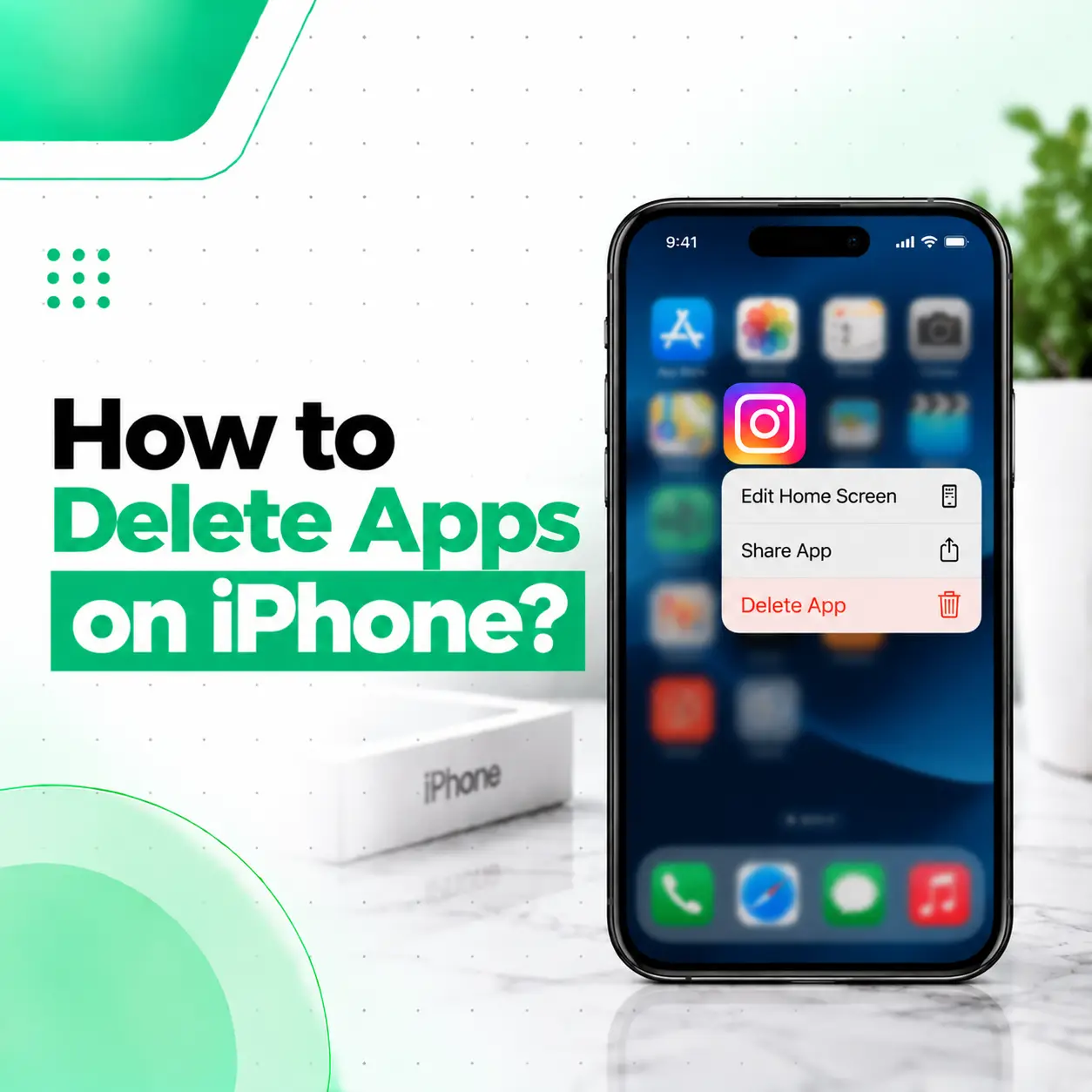
If you want to know how to delete apps on iPhone, you can usually remove an app in just a few taps. Apple lets you delete apps directly from the Home Screen or App Library, and on supported iPhones you can also find apps through Spotlight. However, removing an app from the Home Screen is not the same as deleting it completely.
In this guide, you’ll learn how to permanently delete an iPhone app, remove an app only from the Home Screen, delete apps from the App Library, and troubleshoot situations where the Delete App option does not appear. The steps are based on Apple’s current iPhone guidance, although wording can vary slightly between iOS versions.
How Do You Delete Apps on iPhone?
The quickest way to delete an app is to touch and hold its icon, select Remove App, choose Delete App, and then confirm the deletion.
Delete an App from the Home Screen
Follow these steps:
- Go to your iPhone Home Screen.
- Find the app you want to remove.
- Touch and hold the app icon.
- Tap Remove App.
- Tap Delete App.
- Tap Delete to confirm.
The app and its locally stored app data are removed from the iPhone. Apple notes that data already stored in iCloud, such as certain photos or documents, is not automatically deleted simply because you delete the app.
What If the Apps Start Jiggle Mode?
On some iPhones, touching and holding an app may cause the icons to start moving.
In that case:
- Tap the Remove icon on the app.
- Select Delete App.
- Tap Delete.
- Tap Done when finished.
This is another way to access the same deletion process.
How to Remove an App Without Deleting It
If you only want to clean up your Home Screen, you don’t have to delete the app.
Touch and hold the app, tap Remove App, and then choose Remove from Home Screen.
The app will remain installed and can still be accessed through the App Library.
This option is useful when:
- You rarely use the app.
- You want a cleaner Home Screen.
- You still want to keep the app installed.
- You don’t want to download the app again later.
Remove vs Delete: What’s the Difference?
| Action | What happens? |
| Remove from Home Screen | The app stays installed in App Library |
| Delete App | The app is removed from the iPhone |
| Hide App | The app is moved to the Hidden folder on supported iOS versions |
| Offload App | The app itself is removed while certain documents and data may be retained |
So, if your goal is to completely uninstall an app, choose Delete App, not Remove from Home Screen.
How to Delete Apps from the App Library
You can delete an app even when it isn’t visible on your Home Screen.
Step-by-Step
- Swipe left through your Home Screen pages until you reach App Library.
- Tap the search field at the top.
- Find the app you want to delete.
- Touch and hold the app icon.
- Tap Delete App.
- Confirm by tapping Delete.
Apple’s current instructions confirm that apps can be deleted directly from App Library.
Why Is App Library Useful?
App Library automatically organizes installed apps into categories. This means an app can remain installed even if you have removed it from your Home Screen.
If you can’t remember where an app is located, App Library’s search field can help you find it quickly.
Can You Delete an iPhone App Using Spotlight?
Yes. If you can’t locate an app on your Home Screen, Apple also provides Spotlight search as a way to find apps.
Search for the app, then use the available app options to access the deletion process. Apple specifically recommends using Spotlight when you can’t find an app you want to delete.
This can be particularly useful when you have many Home Screen pages or keep most apps in App Library.
Why Can’t I Delete Apps on My iPhone?
If Delete App doesn’t appear, the issue may not be a fault with your iPhone. Several settings or restrictions can prevent an app from being deleted.
Screen Time or Parental Control Restrictions
If app deletion is restricted, you may not see the normal delete option.
Check your Screen Time restrictions and make sure Deleting Apps is allowed. Apple specifically recommends checking this setting when a third-party app cannot be deleted.
The App Is a Built-In Apple App
Not every Apple app can necessarily be deleted in every situation.
Apple allows deletion of many built-in apps on supported versions of iOS, but there are exceptions and regional differences.
The iPhone Is Managed by an Organization
If your iPhone is managed through a Mobile Device Management (MDM) system, an administrator may restrict app deletion.
This can happen with organization-managed phones. If that’s the case, you may need to contact the device administrator rather than change ordinary iPhone settings.
Can You Delete Built-In Apple Apps?
Yes, some built-in Apple apps can be deleted from supported iPhones.
Apple currently lists apps such as Calendar, Calculator, FaceTime, Files, Maps, Music, Notes, Podcasts, Reminders, Weather, and several others among built-in apps that can be deleted on supported versions of iOS.
However, deleting a built-in app can affect related functionality. For example, deleting certain apps can affect features or integrations that depend on them.
If you aren’t sure whether removing a built-in app will affect something you use, check Apple’s documentation before deleting it.
Can You Restore a Deleted Apple App?
In many cases, yes. If a supported built-in Apple app has been deleted, you can search for its exact name in the App Store and redownload it.
Does Deleting an App Delete Its Data?
Not necessarily all associated data.
Deleting an app removes the app and its data stored on the iPhone, but information that is separately stored in iCloud may remain. Apple gives examples such as photos or documents saved through an app.
Before deleting an app, consider whether you have important information inside it.
For example, check whether the app contains:
- Important documents
- Photos or videos
- Locally stored files
- Saved projects
- Account information
- Data that hasn’t been synchronized
What About App Subscriptions?
Deleting an app does not automatically cancel an in-app subscription.
If you no longer want to pay for a subscription, cancel the subscription separately before or after deleting the app. Apple specifically recommends checking subscriptions before deleting an app.
What If You Want to Hide an App Instead?
Deleting isn’t the only option.
On supported iPhones, you can lock or hide certain downloaded apps. A hidden app is removed from the normal Home Screen, App Library, and search results and is placed in a Hidden folder that requires authentication to access.
This is useful when you want to keep an app but don’t want it readily visible.
Delete vs Hide an App
- Delete: Removes the app from the iPhone.
- Remove from Home Screen: Keeps the app installed in App Library.
- Hide: Keeps the app but places it in the Hidden folder.
- Lock: Keeps the app but requires authentication to open it.
Choose the option based on what you actually want to accomplish.
What Should You Check Before Deleting an App?
Before permanently deleting an important app, take a moment to check:
- Subscriptions — Make sure you don’t have an unwanted active subscription.
- Important files — Check whether the app stores documents locally.
- Account access — Make sure you know your login details if you’ll reinstall it.
- Cloud synchronization — Confirm important information has synchronized where necessary.
- App purpose — Make sure you’re not removing an app required for another workflow or device.
This is especially important for productivity, finance, authentication, business, and file-management apps.
Does Deleting Apps Fix iPhone Problems?
Deleting an unnecessary or problematic app can help if the app itself is causing crashes, storage usage, or other app-specific issues. However, deleting apps won’t fix every iPhone problem.
If your iPhone is experiencing problems such as:
- Frequent unexpected restarts
- Severe overheating
- Touchscreen problems
- Charging problems
- Battery issues
- Persistent system crashes
- Storage errors
- Hardware damage
the underlying cause may be unrelated to a particular app.
In those situations, troubleshooting or professional device inspection may be more appropriate than repeatedly deleting applications.
When Should You Get Professional iPhone Help?
Deleting an app is normally a software-level task that doesn’t require repair. But if your iPhone is showing broader problems that continue after normal troubleshooting, the issue may involve the operating system, storage, battery, charging hardware, display, or another component.
If the problem appears to be hardware-related or your phone is behaving unexpectedly after physical damage, professional diagnosis can help identify the underlying issue before unnecessary repairs are attempted.
For users looking for professional phone repair in Bangladesh, iCareFix can assess the device and recommend an appropriate repair or troubleshooting option based on the symptoms.
Frequently Asked Questions
1. How do I permanently delete an app from my iPhone?
Touch and hold the app, tap Remove App, select Delete App, and confirm by tapping Delete. This removes the app from the iPhone. If you only select Remove from Home Screen, the app remains installed in App Library.
2. Why can’t I delete an app on my iPhone?
The most common reasons include app deletion restrictions, the app being a built-in Apple app that cannot be deleted in that situation, or the iPhone being managed by an organization through MDM. Check Screen Time settings and your device-management status if the Delete App option is missing.
3. How do I delete an app from the App Library?
Swipe left past your Home Screen pages to open App Library. Tap the search field, find the app, touch and hold its icon, select Delete App, and confirm the deletion.
4. Does deleting an app delete everything associated with it?
Deleting an app removes the app and locally stored app data from the iPhone, but information already stored separately in iCloud may remain. Important files, photos, or documents should be checked before deletion.
5. Does deleting an app cancel its subscription?
No. Deleting an app does not automatically cancel an associated in-app subscription. If you no longer want the subscription, cancel it separately through the appropriate subscription settings.
6. Can I reinstall an app after deleting it?
Yes. Apps downloaded from the App Store can generally be downloaded again when they are still available. Some deleted built-in Apple apps can also be restored by finding the exact app name in the App Store.
7. Should I delete an app if my iPhone is having problems?
Only if the app appears to be related to the problem. Deleting an app won’t normally resolve hardware problems such as charging-port damage, display faults, battery issues, or physical damage. If broader problems continue, professional diagnosis may be more appropriate.
Conclusion
Knowing how to delete apps on iPhone makes it easier to manage unwanted applications, clean up your Home Screen, and remove apps you no longer need. Remember that Remove from Home Screen only hides an app from the Home Screen, while Delete App removes it from the device.
Before deleting an important app, check subscriptions and any locally stored information you may need. If the Delete App option is missing, review Screen Time restrictions, built-in app limitations, and possible device-management restrictions.
If your iPhone has additional problems that go beyond app management—such as charging, battery, display, overheating, or other hardware-related issues—professional inspection can help identify the underlying cause. iCareFix can assess the device and recommend the appropriate troubleshooting or repair option for customers seeking phone repair services in Bangladesh.