




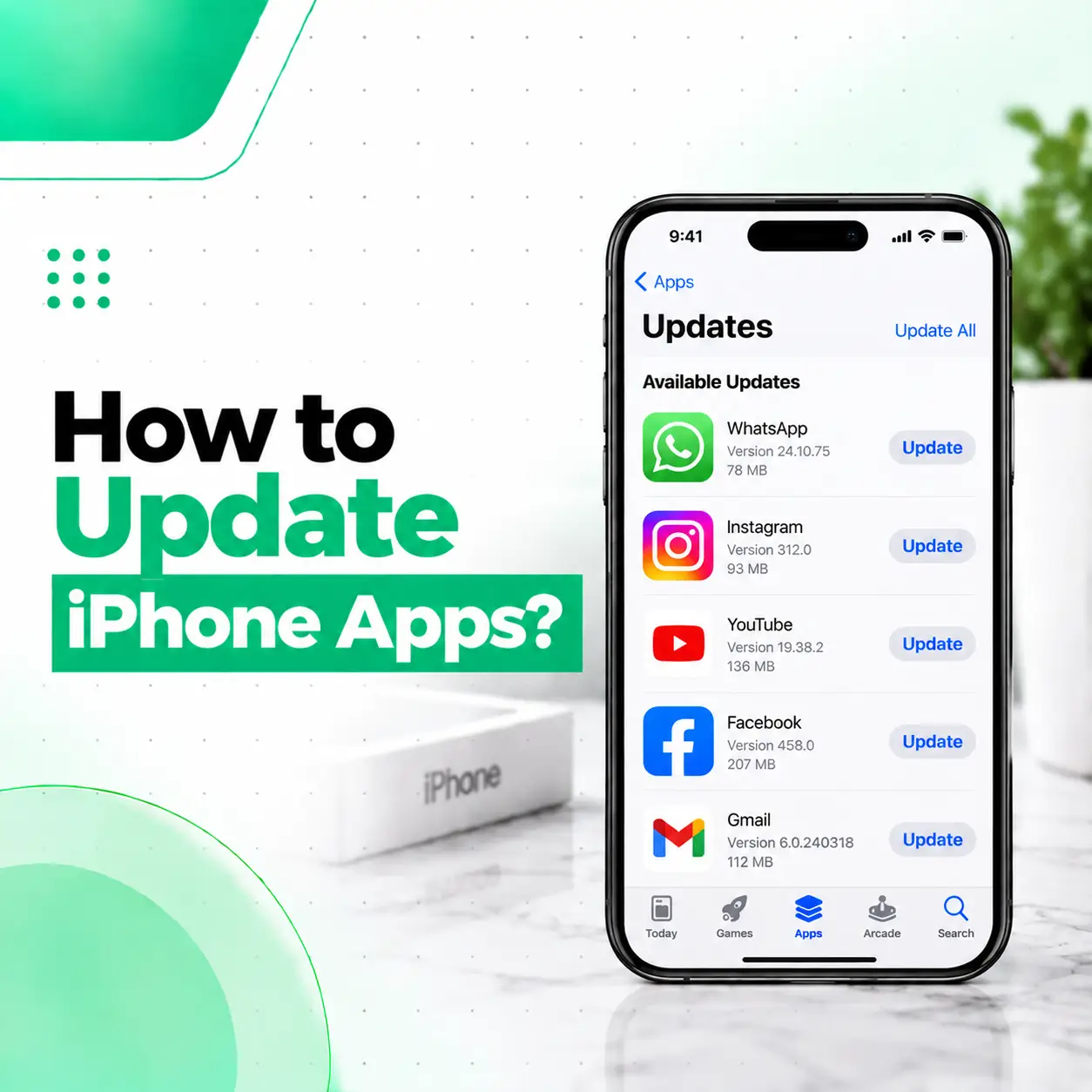
If you want to know how to update iPhone apps, the process is straightforward. Apps downloaded from the App Store are automatically updated by default, but you can also check for updates manually and update one app or all available apps at once.
Keeping apps updated can provide new features, bug fixes, compatibility improvements, and other changes released by app developers. If an app is not updating, the cause may be related to the App Store, payment or account issues, network connectivity, available storage, or the app itself.
This guide explains how to update iPhone apps manually and automatically, what to do when an update gets stuck, and when an ongoing problem may require professional iPhone troubleshooting.
How Do You Update Apps on iPhone?
The quickest way to update iPhone apps manually is to open the App Store, tap your account or profile picture, open App Updates, and tap Update beside an individual app or Update All for all available updates.
Step-by-Step: Update One App
- Open the App Store on your iPhone.
- Tap your account button or profile picture at the top.
- Tap App Updates.
- Find the app you want to update.
- Tap Update beside that app.
- Wait for the download and installation to finish.
After an app is updated, it appears under the recently updated apps in the App Store.
How to Update All iPhone Apps at Once
If several apps have pending updates, you don’t need to update them individually.
- Open App Store.
- Tap your profile picture or account button.
- Open App Updates.
- Tap Update All.
- Leave the iPhone connected to a suitable network while the updates download.
This is useful when you haven’t updated your apps for some time and several updates are waiting.
Do iPhone Apps Update Automatically?
Yes. Apps downloaded from the App Store are automatically updated by default. If you prefer to control updates yourself, you can turn automatic app updates off and update apps manually instead.
Automatic updates can reduce the need to regularly check the App Store for pending updates.
How to Turn On Automatic App Updates
On current iOS versions:
- Open Settings.
- Tap Apps.
- Tap App Store.
- Make sure App Updates is turned on.
This setting controls automatic updates for apps downloaded from the App Store.
How to Turn Off Automatic App Updates
If you want to update apps yourself:
- Open Settings.
- Tap Apps.
- Select App Store.
- Turn App Updates off.
You can then manually check the App Store whenever you want to install available app updates.
Why Should You Update iPhone Apps?
Updating an app can provide changes released by its developer, such as new features, bug fixes, compatibility improvements, and other software changes.
An outdated app may also behave differently after an iOS update if its developer has released a newer version designed to work with the newer system.
However, an app update does not guarantee that every problem with the app will disappear. Some issues can originate from the app developer’s software, your iPhone settings, your Apple Account, network connection, or the device itself.
App Updates vs iOS Updates
These are two different processes.
| Update type | What it updates | Where you normally check |
| App update | Individual apps downloaded from the App Store | App Store |
| iOS update | The iPhone operating system | Settings → General → Software Update |
| Built-in Apple app update | Certain apps included with iOS | Often updated with iOS |
Apple states that apps installed by default on iPhone are updated when you update iOS, while apps downloaded from the App Store can be manually updated through the App Store.
How Do You Know an iPhone App Needs an Update?
If automatic updates are disabled or an update hasn’t installed yet, an app may appear in the App Updates section of the App Store.
You may also notice symptoms such as:
- An app asking you to update before continuing
- New features being unavailable
- Compatibility messages
- An app behaving differently after an iOS update
- A developer releasing a newer version of the app
- An app update appearing in your App Store account
The presence of an available update doesn’t necessarily mean the current version is malfunctioning.
What If an iPhone App Won’t Update?
If an app won’t update, first check the basics: your internet connection, available storage, App Store account, and whether there is a payment or billing issue.
Apple recommends several troubleshooting steps for apps that cannot be downloaded or updated.
Check Your Internet Connection
A stable internet connection is important when downloading an app update.
Try:
- Check whether other internet services work.
- Switch between Wi-Fi and another available connection if appropriate.
- Retry the update.
- If the connection appears unreliable, try again when the network is stable.
A network problem can prevent an update from completing even when the App Store itself is working normally.
Check iPhone Storage
An app update requires sufficient space for the download and installation process.
If your iPhone is almost full, check:
Settings → General → iPhone Storage
Remove unnecessary content or apps if you need to create space, then try the update again.
Check for Payment or Billing Problems
A valid payment method may sometimes be required even when the particular app you are trying to download is free. Apple also lists billing problems with previous purchases and verification requirements among issues that can interfere with downloads or updates.
If you see a billing-related message, resolve the account issue and then retry the app update.
Restart Your iPhone
A simple restart can help when an App Store download or update has become unresponsive.
After restarting:
- Open the App Store.
- Go to your account.
- Open App Updates.
- Try the update again.
Apple includes restarting the device among its troubleshooting recommendations for apps that cannot be downloaded or updated.
Prioritize a Stuck App Download
If an app update or download appears stuck on the Home Screen, touch and hold the app icon and choose Prioritize Download when that option is available. Apple lists this as one of the steps that can help with an app download problem.
What If Update All Doesn’t Work?
If Update All doesn’t successfully update your apps, try updating one app at a time.
This can help you identify whether:
- One particular app is causing the problem.
- Your App Store account needs attention.
- There is a network issue.
- Your iPhone doesn’t have enough storage.
- The app has a compatibility problem.
If one app consistently fails while other apps update normally, the issue may be specific to that application.
Update the Problem App Individually
Open the App Store, go to App Updates, and tap Update beside the affected app.
If it still won’t update, note any error message displayed. The exact message can provide useful information about the underlying problem.
Can You Update Apps Without Updating iOS?
Generally, yes. App Store apps can be updated independently of an iOS update, provided the app version is compatible with the iOS version installed on your iPhone.
However, an app developer may eventually require a newer iOS version for a particular app release. In that situation, you may need to update iOS before you can install the newest compatible version of the app.
How to Check Your iOS Version
To check for an iOS update:
- Open Settings.
- Tap General.
- Tap Software Update.
- Check whether an iOS update is available.
Apple treats iOS updates separately from App Store app updates.
What If an App Update Is Not Available?
If you don’t see an update for an app, there may simply be no newer version available to your device at that time.
Other possibilities include:
- The app is already up to date.
- The developer hasn’t released a newer version.
- Your current iOS version isn’t compatible with a newer release.
- The app is unavailable in your region.
- There is an App Store or account-related issue.
Avoid repeatedly reinstalling an app just because you don’t see an update. First confirm whether an update is actually available.
Should You Update Apps Automatically or Manually?
Both approaches have advantages.
| Automatic updates | Manual updates |
| Less maintenance | More control |
| Apps can update without regular checking | You choose when updates happen |
| Convenient for most users | Useful if you want to review updates |
| Requires automatic updates to be enabled | Requires periodic App Store checks |
For most users, automatic updates are convenient. If you prefer to review changes before installing them, manual updates give you more control.
Does Updating an App Delete Your Data?
Normally, updating an app is intended to install a newer version while retaining the app’s existing data. However, important information should still be synchronized or backed up when appropriate, particularly for apps containing important documents or locally stored information.
For important apps, make sure you understand how that app handles account data and backups before performing major troubleshooting steps such as deleting and reinstalling it.
An ordinary App Store update should not be treated as the same process as deleting an app and reinstalling it.
When Should You Consider Professional iPhone Troubleshooting?
An ordinary app-update problem usually doesn’t require phone repair. However, if multiple apps repeatedly fail to update despite normal App Store troubleshooting, or if your iPhone is experiencing other persistent problems, the issue may extend beyond a single app.
Pay attention if you also notice:
- Frequent system crashes
- Unexpected restarts
- Severe storage problems
- Unusual overheating
- Charging problems
- Battery-related issues
- Touchscreen problems
- Wi-Fi or connectivity problems
- App Store problems that continue after basic troubleshooting
A professional inspection can help determine whether the problem is related to software, device settings, storage, connectivity, or hardware.
For customers seeking professional phone repair in Bangladesh, iCareFix can assess the device and recommend an appropriate troubleshooting or repair option based on the symptoms.
How to Keep iPhone Apps Working Properly
A few simple habits can make app management easier:
- Keep iOS reasonably up to date.
- Allow sufficient free storage.
- Use a reliable internet connection for large updates.
- Keep automatic app updates enabled if you don’t want to update apps manually.
- Check the App Store when an app reports that an update is required.
- Resolve App Store account or billing alerts.
- Restart the iPhone if an update becomes unresponsive.
- Avoid deleting and reinstalling an app unless necessary.
These steps won’t prevent every app problem, but they can reduce common update-related issues.
Frequently Asked Questions
1. How do I update apps on my iPhone?
Open the App Store, tap your account button or profile picture, and select App Updates. Tap Update beside a specific app or Update All to install all available app updates. Apple currently provides this as the standard manual update method on iPhone.
2. Do iPhone apps update automatically?
Yes. Apps downloaded from the App Store are automatically updated by default. You can check or change this behavior under Settings → Apps → App Store → App Updates. If automatic updates are disabled, you can update apps manually through the App Store.
3. Why won’t my apps update on my iPhone?
Possible causes include an internet connection problem, insufficient storage, an App Store account or billing issue, or another download-related problem. Apple recommends checking these areas, restarting the device, and trying the update again.
4. How do I update all apps on my iPhone at once?
Open the App Store, tap your account button or profile picture, then open App Updates. If updates are available, tap Update All. This lets you install the available updates without opening each app’s individual listing.
5. Does updating an iPhone app update iOS too?
No. An App Store update updates the individual application, while an iOS update changes the iPhone’s operating system. iOS updates are checked separately under Settings → General → Software Update.
6. What should I do if one app is stuck while updating?
First check your internet connection and available storage. If the download is stuck on the Home Screen, touch and hold the app and choose Prioritize Download when available. You can also restart the iPhone and retry the update.
7. Do I need professional repair if iPhone apps won’t update?
Not usually. App-update problems are generally software or App Store issues. However, if several device functions are also failing—such as charging, storage, connectivity, or repeated unexpected restarts—a professional inspection may help determine whether a broader device problem is involved.
Conclusion
Knowing how to update iPhone apps helps you keep App Store applications current without unnecessary troubleshooting. You can manually update individual apps or use Update All, while automatic app updates can handle the process for you in the background.
If an app won’t update, check your connection, available storage, App Store account, billing alerts, and the app itself before assuming your iPhone needs repair. A restart can also resolve some temporary update problems.
If app-update problems continue alongside wider iPhone issues, such as charging, overheating, connectivity, or repeated system problems, professional diagnosis may be appropriate. iCareFix can inspect the device and help determine whether the problem is software-related or requires phone repair in Bangladesh.