




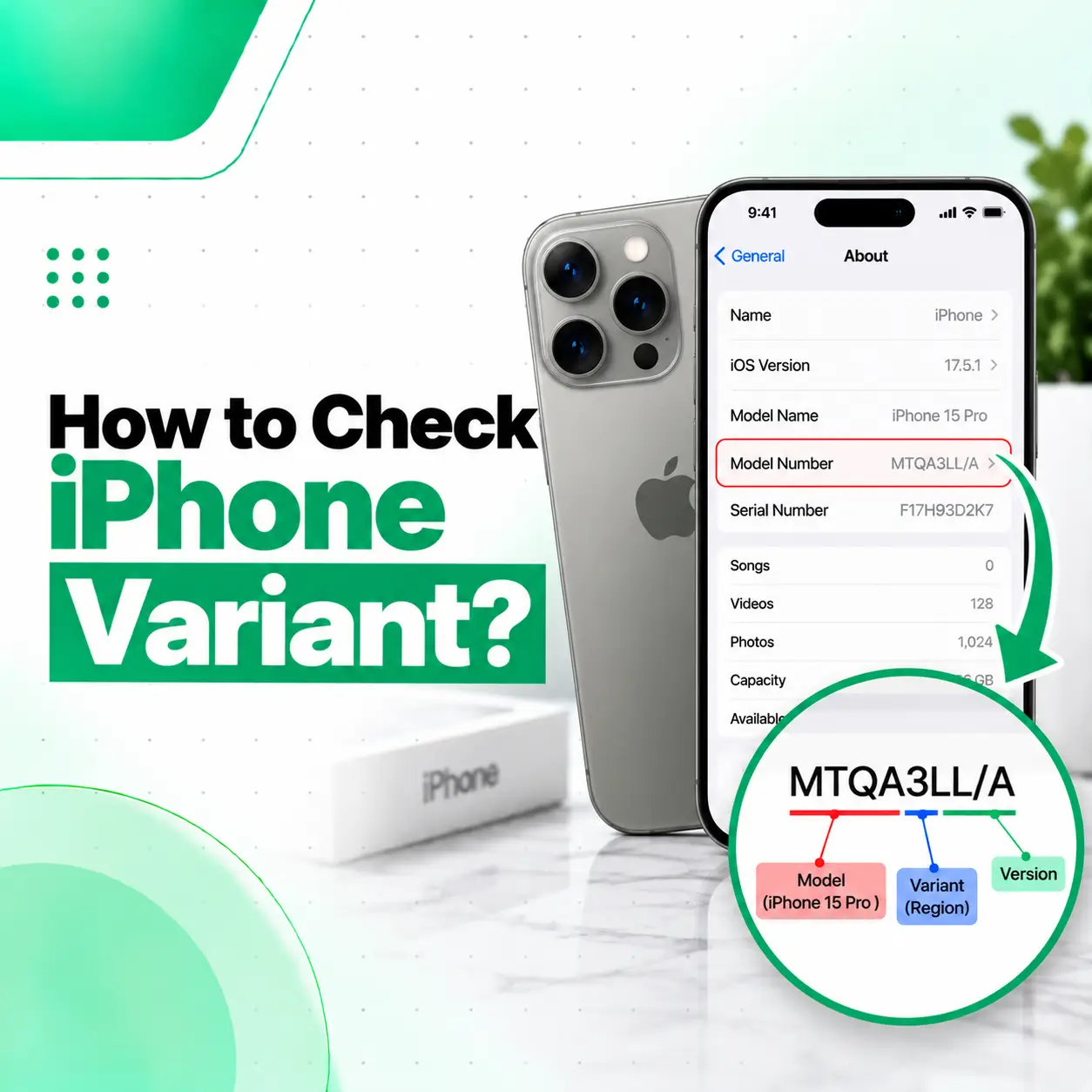
If you want to know how to check iPhone variant, the easiest place to start is the Settings app. Your iPhone can show its model name, model number, part number, serial number, storage capacity, and other identifying information from Settings → General → About. Depending on what you need to verify, you may also need to check the model number, physical SIM configuration, or Apple’s official device information.
Knowing your exact iPhone variant is useful when buying a used phone, checking compatibility, ordering replacement parts, comparing specifications, or taking a device for professional repair. This guide explains the different identifiers, how to find them, and how to interpret the information without relying on unreliable third-party tools.
What Does an iPhone Variant Mean?
An iPhone variant generally refers to a particular version of an iPhone model intended for a specific market or configuration. Two iPhones with the same generation and marketing name can have differences in model number, SIM configuration, network support, or regional availability.
For example, an iPhone’s identifying information can help distinguish:
- The iPhone generation and model
- The specific model number
- The market or regional version
- Physical SIM and eSIM configuration
- Storage capacity
- Device identifiers used for support or service
The term “variant” can therefore mean slightly different things depending on what you are trying to verify.
How to Check iPhone Variant From Settings
The quickest method is to use the About section in your iPhone’s Settings.
Step-by-Step Method
- Open Settings.
- Tap General.
- Select About.
- Look for Model Name.
- Find Model Number or the related part/model identifier.
- Note the Serial Number and IMEI if you need them for a legitimate verification or service purpose.
- Check Capacity if you also need to confirm the phone’s storage.
The About page is usually the best starting point because it brings several important device details together in one place.
What Information Can You Find There?
Depending on the iPhone and iOS version, the About screen can provide information such as:
| Information | What It Helps Identify |
| Model Name | The iPhone’s commercial model |
| Model Number | Specific hardware/model configuration |
| Serial Number | Device-specific identifier |
| IMEI | Cellular device identifier |
| Capacity | Advertised storage capacity |
| iOS Version | Current operating-system version |
| Carrier/Network information | Certain cellular configuration details |
Avoid posting your full serial number or IMEI publicly. These are device-specific identifiers and should be treated as private information.
How to Check the iPhone Model Number
The model number is particularly useful when you need to distinguish between different hardware variants of the same iPhone generation.
Find the Model Number in Settings
Go to:
Settings → General → About → Model Number
On many iPhones, the value displayed initially may be a part number rather than the A-number commonly used to identify the hardware model.
Tapping the model-number field can switch between identifiers.
Part Number vs A-Number
These two identifiers should not be confused.
- Part number: Helps identify a particular sales/configuration version.
- A-number: A hardware model identifier used to distinguish specific iPhone models.
If you are checking a phone for repair or compatibility, provide the repair technician with the exact information shown on the device rather than assuming that two phones with the same marketing name are identical.
How to Check the iPhone Variant or Region
If your goal is to determine which regional version of an iPhone you have, the model or part number can provide useful clues. However, the exact interpretation can depend on the particular iPhone generation.
A region or market variant may differ in areas such as:
- Cellular band support
- SIM configuration
- eSIM availability
- Physical SIM support
- Certain regional hardware requirements
- Regulatory or market-specific features
Why Region Matters
Region information can be relevant when purchasing a used iPhone or importing one into Bangladesh.
Before buying an imported device, check more than just the model name. Confirm the specific model identifier and verify that the device’s cellular and SIM configuration meets your requirements.
A seller saying “iPhone 15” or “iPhone 16” alone does not tell you everything about the hardware configuration.
How to Check an iPhone Variant Without the Settings App
If you cannot access Settings, there may be other ways to identify the device.
Check the Device or SIM Tray
Some older iPhone models have identifying information associated with the device’s physical design or SIM-tray area. The exact information available varies by model.
Newer iPhones can differ significantly in physical SIM and eSIM configurations, so the absence of a physical SIM tray can itself provide a useful clue—but it should not be treated as the only method of identifying a variant.
Check the Original Packaging
If you still have the original box, check the label for information such as:
- Model information
- Part number
- Serial number
- IMEI
- Storage capacity
The box can be useful when the phone cannot be turned on. However, if you are buying a used phone, compare the packaging information with the actual device rather than assuming the box belongs to that phone.
How to Check an iPhone Variant Before Buying a Used iPhone
If you’re buying a used iPhone in Bangladesh, checking the variant should be part of your basic inspection.
1. Open the About Page
Go to Settings → General → About and check the model name and identifiers.
2. Compare the Device With the Listing
Make sure the advertised model matches the actual device.
For example, don’t rely only on the seller’s description. Check the phone itself.
3. Check SIM Configuration
Determine whether the phone uses:
- A physical SIM
- eSIM
- A combination of physical SIM and eSIM
This can be particularly important if you plan to use a specific cellular setup.
4. Check Storage
Verify the storage capacity shown on the device instead of relying solely on the seller’s claim.
5. Check the Device Identifier
Compare relevant identifying information with the original packaging or purchase documentation when available.
6. Test Basic Functions
Variant verification should not replace a physical inspection. Also test:
- Display
- Touchscreen
- Cameras
- Speakers
- Microphone
- Charging
- Wi-Fi
- Bluetooth
- Cellular connectivity
- Face ID where applicable
If the device has been repaired previously, a professional inspection can help identify hardware issues that cannot be determined simply from the model number.
Does the iPhone Variant Affect Repair?
Yes, the exact device configuration can matter for repair.
Different iPhone generations and variants can use different:
- Displays
- Batteries
- Cameras
- Connectors
- Internal components
- SIM configurations
- Replacement procedures
That is why a professional repair service should identify the device accurately before selecting a replacement component.
Why Accurate Identification Matters
Supplying the wrong model information can result in an incompatible part being selected.
For example, saying only “I have an iPhone 15” may not provide enough information for every repair-related question. The technician may need the exact model and the nature of the fault before determining the appropriate repair procedure.
What Is the Difference Between iPhone Model, Variant and Version?
These terms are often used interchangeably, but they can mean different things.
| Term | General Meaning |
| iPhone model | The commercial device name, such as an iPhone generation |
| Model number | A more specific hardware identifier |
| Variant | A particular regional or configuration version |
| iOS version | The software version installed on the device |
| Part number | Identifier associated with a particular sales/configuration version |
For example, your iPhone model and iOS version answer completely different questions. One identifies the hardware; the other identifies the software currently installed.
Can You Check the iPhone Variant Using the IMEI?
An IMEI can identify a cellular device, but it should not be your only method for determining the exact variant.
For basic identification, the About page is usually more useful because it provides the model name and model-related information directly.
If an IMEI-based service is used, choose a reputable source and avoid entering device identifiers into unknown websites. Do not publish your IMEI or serial number in public forums or social media posts.
What If the iPhone Won’t Turn On?
If the iPhone cannot power on, checking the device becomes more difficult.
Depending on the model and what information you have available, you may be able to use:
- The original packaging.
- Purchase documentation.
- Apple’s official support or account-related resources.
- Physical device information where applicable.
- A professional repair inspection if the phone is completely unresponsive.
If the reason you’re checking the variant is because the phone won’t turn on, don’t repeatedly attempt risky repairs just to access its model information. A technician can identify the device as part of the diagnostic process.
Why Should You Check the iPhone Variant Before Repair?
Checking the variant before repair helps establish exactly which device is being serviced.
This is especially useful when:
- Ordering a replacement screen
- Replacing a battery
- Troubleshooting charging problems
- Checking camera components
- Investigating network problems
- Diagnosing display issues
- Buying replacement parts
- Comparing repair options
Keep Your Device Information Private
You can provide the model information to a repair professional when necessary, but avoid unnecessarily sharing sensitive identifiers such as your full IMEI or serial number with unknown people or websites.
How to Check an iPhone Variant in Bangladesh
For users in Bangladesh, the same basic identification process applies:
Settings → General → About → Model Name / Model Number
If you’re buying an imported or second-hand iPhone, also check its physical SIM configuration and confirm that its cellular setup is suitable for your intended use.
If you’re taking the phone for professional repair, providing the exact model information can help the technician start with the correct device configuration rather than relying only on the marketing name.
When Should You Ask a Professional to Check the Device?
You generally do not need a repair shop simply to find the model name. However, professional assistance can be useful when the phone has a hardware problem, cannot turn on, has been damaged, or has undergone previous repairs.
A professional inspection may be appropriate if:
- The iPhone will not power on.
- The screen is damaged or unreadable.
- The device has suffered liquid damage.
- The phone has unexplained network problems.
- You suspect incompatible replacement parts were installed.
- You are unsure whether a previous repair affected the device.
iCareFix can inspect the device and use its identifying information as part of the repair diagnosis when professional phone repair is required.
Frequently Asked Questions
1. How do I check my iPhone variant?
You can usually check it from Settings → General → About. Look for the Model Name and Model Number, and review the other device information shown there. If you need to identify a regional configuration, the model-related information can provide additional clues. For a damaged or non-working iPhone, packaging or professional inspection may also help.
2. How can I check my iPhone model number?
Open Settings, select General, then About. Find the Model Number field. On some devices, tapping the displayed identifier changes the information shown. This can help you access the specific hardware model identifier rather than relying only on the commercial iPhone name.
3. How do I check the country or region of my iPhone?
The model or part number can help identify a phone’s market configuration, but the exact interpretation varies between iPhone generations. If you’re checking an imported iPhone, also consider its SIM configuration and cellular compatibility. Avoid relying on unofficial websites that ask for unnecessary personal or device information.
4. Does the iPhone variant matter for repair?
Yes. Different iPhone models and configurations can use different components and repair procedures. Accurate identification is especially important for screen, battery, camera, charging, and other hardware repairs. Providing the exact model information helps a repair professional determine which diagnostic and replacement-part options are appropriate.
5. Can I check my iPhone variant if the phone won’t turn on?
Yes, but your options are more limited. Check the original box or purchase documentation if available. Depending on the circumstances, official Apple resources may also help with device identification. If the phone is damaged or completely unresponsive, a professional repair technician can identify the device during inspection.
6. Should I check the variant before buying a used iPhone?
Yes. Check the actual phone rather than relying only on the seller’s listing. Review the model name, model number, storage capacity, SIM configuration, and basic device functions. If the phone has been repaired previously or shows hardware problems, consider having it professionally inspected before completing the purchase.
7. Is an iPhone model number the same as the iOS version?
No. The model number identifies the device’s hardware configuration, while the iOS version identifies the software currently installed. You can generally find both types of information in the About section of Settings, but they answer different questions and should not be confused when troubleshooting or arranging a repair.
Conclusion
Checking an iPhone variant is usually straightforward: open Settings → General → About and review the Model Name, Model Number, and other device information. If you’re checking an imported or used iPhone, also pay attention to its regional configuration, SIM setup, storage, and overall condition.
For repair purposes, accurate model identification is important because component compatibility can vary between iPhone models and configurations. If your iPhone is damaged, won’t turn on, or has a hardware problem that makes identification difficult, iCareFix can assess the device and recommend the appropriate diagnostic or repair approach.