




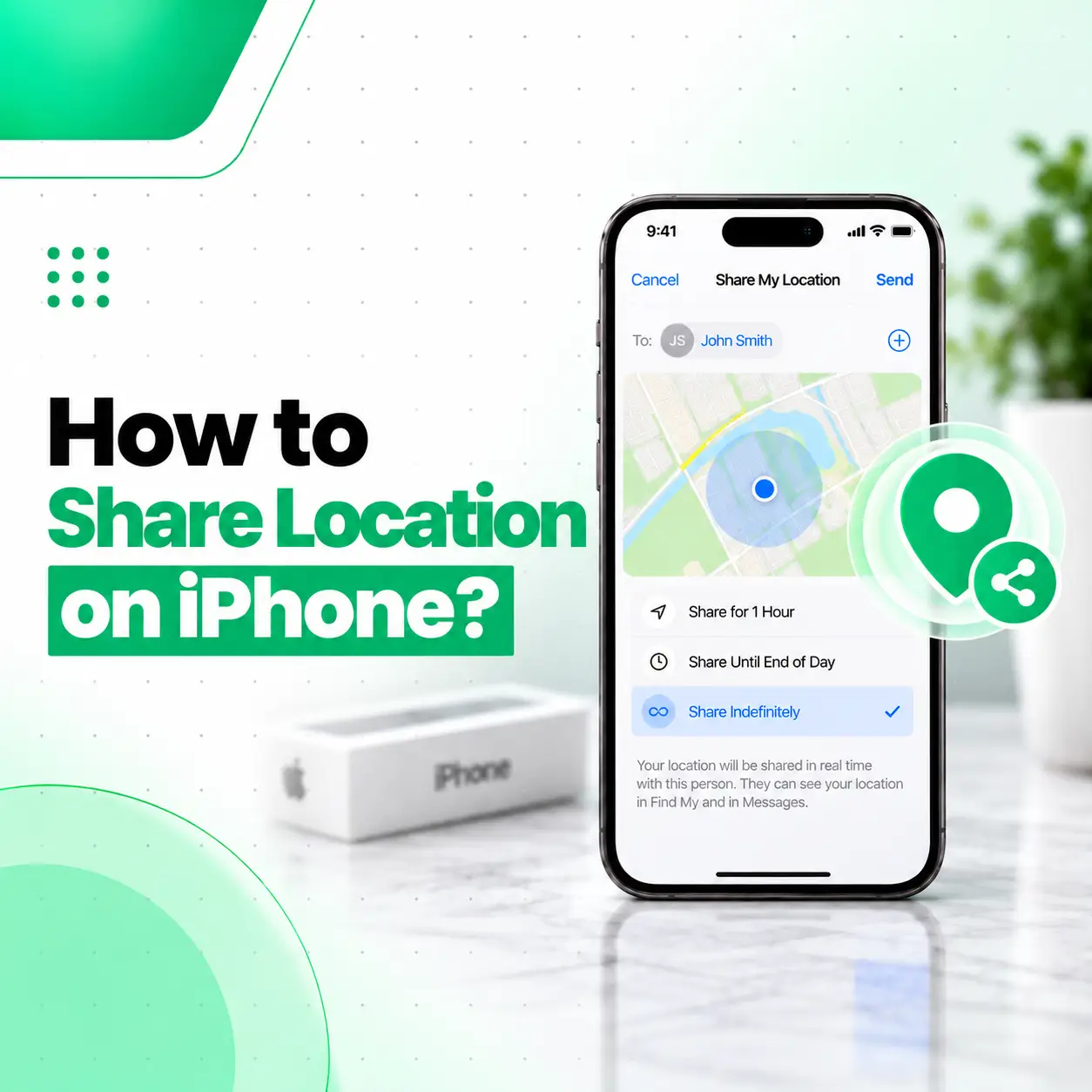
Sharing your location on an iPhone is useful when you want a friend or family member to know where you are, meet you somewhere, or follow your journey. You can share a one-time location or allow someone to see your ongoing location for a selected period.
The easiest options are Find My, Messages, and Maps. The exact steps can vary slightly depending on your iOS version, but the core process is straightforward. In this guide, you’ll learn how to share location on iPhone, how to share a Live Location, how to send a location pin, how to stop sharing, and what to check if location sharing isn’t working. The instructions are based primarily on Apple’s current support documentation.
How to Share Location on iPhone
You can share your iPhone location through Find My or Messages, while Maps can also be used to share a place or your location during navigation. For ongoing sharing, Find My and Messages are the most direct options.
Before starting, make sure:
- Location Services are enabled.
- You have an active internet connection when using features that require cellular or Wi-Fi.
- Your iPhone is signed in to your Apple Account where required.
- The person you want to share with is available as a contact or in your conversation.
Share Your Location Using Find My
Find My is useful when you want to share your ongoing location with a friend or family member.
To share your location:
- Open the Find My app.
- Tap Me.
- Turn on Share My Location.
- Tap People.
- Tap the Add button.
- Select Share My Location.
- Choose the person you want to share with.
- Select how long you want to share your location.
Apple currently allows you to choose a sharing duration rather than necessarily sharing indefinitely. Available choices can depend on the software version and feature being used.
Share Your Location Through Messages
If you’re already chatting with someone, Messages can be one of the quickest ways to send your location.
- Open Messages.
- Open the conversation with the person.
- Tap the + button.
- Tap Location.
- Choose Share.
- Select how long you want to share your location.
- Tap Send.
When you share an ongoing location through Messages, the recipient can view your location in the conversation. Apple notes that Messages uses Find My for location sharing.
Send Your Current Location as a Pin
If you don’t want someone to follow your movement, you can send a one-time location instead.
In Messages:
- Open a conversation.
- Tap +.
- Select Location.
- Tap the map pin option.
- Position the pin if necessary.
- Tap Send Pin.
- Send the message.
A pinned location is different from Live Location because it represents the location at the time you send it and does not continue updating as you move.
How to Share Live Location on iPhone
Live Location lets another person see your ongoing location rather than only a single point on a map. It is useful when someone is waiting for you, you’re traveling, or you want a trusted contact to follow your journey.
You can start Live Location sharing through Find My or Messages. Apple states that supported Live Location sharing requires compatible iPhones and software, with some features depending on the iOS version.
Share Live Location Using Find My
To use Find My:
- Open Find My.
- Tap Me.
- Turn on Share My Location.
- Open People.
- Tap Add.
- Select Share My Location.
- Choose your contact.
- Select the sharing duration.
The recipient can then use Find My to view your shared location.
Share Live Location From Messages
You can also begin location sharing directly from a Messages conversation.
- Open Messages.
- Select the conversation.
- Tap +.
- Tap Location.
- Choose Share.
- Select the duration.
- Send the location.
The shared location can be viewed within the conversation, and the recipient can use the map to understand where you are.
What’s the Difference Between Live Location and a Location Pin?
The main difference is whether the location continues updating.
| Feature | Location Pin | Live Location |
| Shows your current position | Yes | Yes |
| Updates as you move | No | Yes |
| Useful for meeting someone | Yes | Yes |
| Can follow your journey | No | Yes |
| Sharing duration | One-time | Selected period |
If you simply want to tell someone where you are right now, a pin may be enough. If you want them to follow your movement, Live Location is more appropriate.
How to Share a Location From Apple Maps
Maps can also be used when you want to share a place or coordinate meeting somewhere.
For example, you can:
- Open Maps.
- Find the place you want to share.
- Tap the location or search result.
- Tap the Share button.
- Choose how you want to send it.
You can share a place through options such as Messages or Mail. Apple also provides a quick action from the Maps app icon for sending your location.
Share Your ETA While Traveling
If you’re navigating to a destination, Maps can also support sharing your estimated time of arrival. This is useful when someone wants to know when you’ll reach a particular destination rather than continuously checking your location manually.
How to Stop Sharing Your Location on iPhone
You can stop location sharing with one person or turn it off for everyone.
Stop Sharing With One Person
In Find My:
- Open Find My.
- Tap People.
- Select the person.
- Tap Stop Sharing My Location.
- Confirm the action.
Apple also allows location sharing to be stopped through Messages or Maps in supported situations.
Stop Sharing With Everyone
To stop sharing your location more broadly:
- Open Find My.
- Tap Me.
- Turn off Share My Location.
Turning this feature off prevents the people you’ve shared your location with from continuing to see your location through Find My.
Why Can’t I Share My Location on iPhone?
If location sharing isn’t working, the issue is often related to permissions, Location Services, connectivity, account settings, or software compatibility.
Try these checks:
Check Location Services
Go to:
Settings → Privacy & Security → Location Services
Make sure Location Services is enabled. Apple specifically recommends checking the Find My permission when others cannot see your shared location.
Check Share My Location
Open:
Find My → Me
Then check whether Share My Location is turned on.
You can also manage location-sharing settings through your Apple Account’s Find My settings.
Check Your Internet Connection
Many location-sharing functions rely on cellular or Wi-Fi connectivity. If the connection is unavailable or unstable, location updates may not work normally.
Apple also documents a satellite-based location-sharing feature on supported iPhone models in supported regions, but this has specific device, connectivity, SIM, and availability requirements.
Update iOS if a Feature Is Missing
Some location-sharing features require newer iOS versions. If an option described in a current guide doesn’t appear on your iPhone, check whether an iOS update is available.
What If the Person Still Can’t See My Location?
If you’ve enabled location sharing but the other person can’t see you, check the following:
- Share My Location is enabled.
- Location Services is enabled.
- Find My has appropriate location permission.
- Your iPhone has a working network connection.
- You’re sharing with the correct contact.
- Your iPhone is using the device you intend to share your location from.
- Your software supports the feature you’re trying to use.
If the issue continues across different apps, the problem may be related to the iPhone’s location services, software, connectivity, or another device-level issue.
How to Protect Your Privacy When Sharing Location
Location sharing should be treated as personal information. Only share your location with people you trust and choose a sharing duration appropriate for the situation.
For example:
- Use a one-time pin when someone only needs to know where you are now.
- Use temporary Live Location when someone needs to follow your journey.
- Avoid indefinite sharing when it isn’t necessary.
- Review your active location-sharing contacts periodically.
- Stop sharing when you no longer need someone to see your location.
Apple also provides Safety Check, which can help users review and manage information shared with people and apps when personal safety is a concern.
Can You Share Your Location Without the Find My App?
Yes, depending on the situation and iOS version. You can share your location through Messages, while Maps can be used to share places and location information. However, Find My is Apple’s central location-sharing system and is closely integrated with location sharing across supported Apple apps.
If the Find My app is missing or has been deleted, location-sharing behavior can become confusing. Apple notes that deleting Find My does not itself stop previously configured location sharing; you should use the appropriate settings to stop sharing.
Can You Share Your Location Without Mobile Data?
It depends on the iPhone model, feature, region, and circumstances.
Most Find My location-sharing functions require cellular or Wi-Fi connectivity. On supported iPhones, Apple provides satellite location sharing when you’re outside cellular and Wi-Fi coverage, but it has specific requirements and isn’t available in every country or region.
For everyday location sharing, having a reliable cellular or Wi-Fi connection is the simplest approach.
When Should You Consider Professional iPhone Support?
Location sharing is normally a software and settings feature, so a repair shop isn’t usually the first solution. Basic checks such as Location Services, permissions, connectivity, and iOS updates should be attempted first.
However, if your iPhone has broader problems with GPS or location accuracy—for example, location-based apps consistently struggle to determine where the device is, navigation behaves incorrectly, or location services fail across multiple apps—a professional inspection may help determine whether there is an underlying hardware or software issue.
For customers seeking professional phone repair in Bangladesh, iCareFix can assess an iPhone when a persistent device-level problem requires further diagnosis.
Frequently Asked Questions
1. How do I share my location on iPhone?
You can share your location through Find My or Messages. In Find My, open the app, turn on Share My Location, go to People, tap Add, choose Share My Location, select a contact, and choose how long to share. In Messages, open a conversation, tap +, select Location, choose Share, and send it.
2. What is the difference between sharing my location and sending a pin?
Sharing your location can allow someone to see your ongoing position for a selected period, while a location pin is a snapshot of where you were when the pin was sent. A pin does not continue updating as you move, making it suitable when someone only needs your current meeting point.
3. Can I share my live location with someone on iPhone?
Yes. You can share an ongoing location through Find My or Messages on supported iPhones and software versions. You can choose a sharing duration rather than necessarily sharing indefinitely. The recipient can then view your shared location through Apple’s supported location-sharing features.
4. How do I stop sharing my location on iPhone?
Open Find My, tap People, select the person, and choose Stop Sharing My Location. To stop sharing more broadly, open Find My, tap Me, and turn off Share My Location. You can also stop sharing through supported Messages or Maps controls.
5. Why can’t someone see my location on iPhone?
First check Location Services and Share My Location. Go to Settings → Privacy & Security → Location Services and make sure location access is enabled. Then check Find My and your network connection. If the issue continues across several apps, further software or device troubleshooting may be necessary.
6. Does sharing my location drain my iPhone battery?
Location-related features can use device resources, particularly when location is being actively determined or transmitted. The actual battery impact depends on factors such as the iPhone model, network conditions, other apps, and how the device is being used. If battery life changes significantly while using location features, check overall battery and app usage.
7. Can I share my location when my iPhone has no cellular or Wi-Fi connection?
Most location-sharing features require cellular or Wi-Fi connectivity. However, supported iPhone models can use satellite connectivity for certain Find My location-sharing functions outside cellular and Wi-Fi coverage, subject to Apple’s availability and technical requirements.
Conclusion
Knowing how to share location on iPhone makes it easier to coordinate with friends and family, share a meeting point, or let someone follow your journey. For a one-time location, sending a pin is usually sufficient. For ongoing tracking, Find My or Messages can provide Live Location sharing. You can also stop sharing whenever it is no longer needed.
If location sharing continues to fail after checking Location Services, permissions, connectivity, and iOS settings—or if other GPS-related functions are also malfunctioning—a professional diagnosis may be appropriate. iCareFix can assess an iPhone with persistent device-level issues and recommend an appropriate repair or troubleshooting path.