




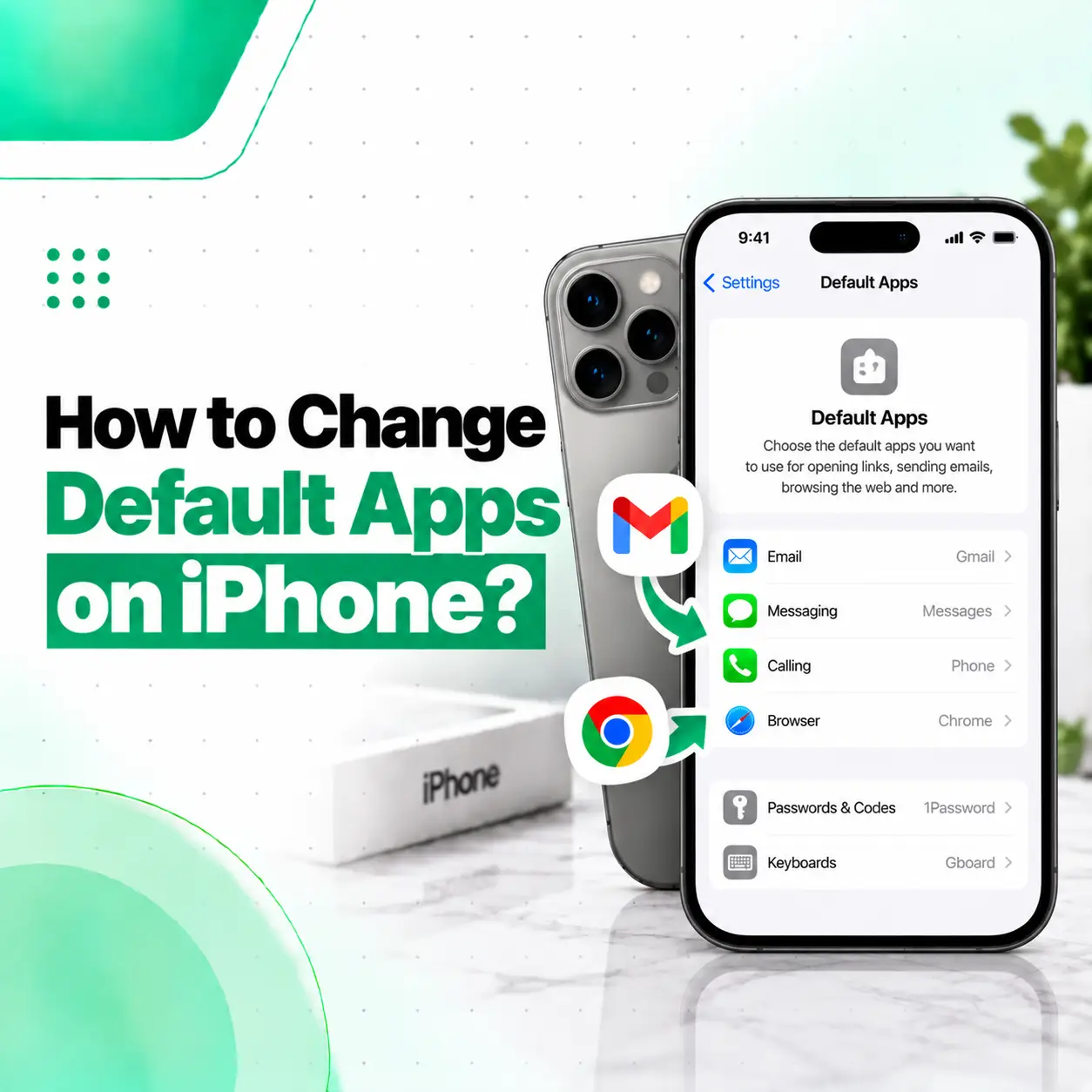
Want links to open in Chrome instead of Safari, emails to launch in another mail app, or certain supported tasks to use a third-party app instead of Apple’s built-in app? You can change several default app preferences directly from your iPhone. To change default apps on iPhone, go to Settings > Apps > Default Apps, choose the feature you want to change, and then select a supported app.
The important limitation is that iPhone does not let you replace every built-in Apple app with another app. The available default categories depend on the feature, your iOS version, app support, and in some cases your country or region. This guide explains what you can change, how to change it, and what to do when the option you need is missing.
How Do You Change Default Apps on iPhone?
The current process is straightforward:
- Open Settings on your iPhone.
- Tap Apps.
- Tap Default Apps near the top of the Apps settings.
- Select the feature you want to change.
- Choose the app you want to use as the default.
- Complete any additional instructions shown on screen.
For example, to change the browser that opens web links, select Browser App and choose a supported browser instead of Safari.
Where Is the Default Apps Setting?
On supported iOS versions, the setting is located inside the Apps section rather than being hidden inside each individual app.
Settings → Apps → Default Apps
Apple recommends updating to the latest available version of iOS or iPadOS when using the Default Apps settings.
Which Default Apps Can You Change on iPhone?
Apple currently supports several categories for default-app selection. However, not every category is available in every country or region.
| Default category | What it controls |
| Browser App | The app used to open web links |
| The app used for email-related links and actions | |
| Messaging | The app used for supported messaging actions |
| Calling | The app used for supported calling functions |
| Call Filtering | Caller identification and blocking features |
| Translation | The app used to translate selected text |
| Passwords & Codes | Password AutoFill, passkeys, and related authentication functions |
| Keyboards | Third-party keyboards used for text entry |
| Contactless App | Supported contactless transaction functions on iPhone |
Apple also documents App Installation and Navigation as default categories in certain countries or regions. Availability therefore varies according to location and Apple’s supported regional rules.
How to Change the Default Browser on iPhone
One of the most common reasons people search for iPhone default-app settings is to replace Safari with another supported browser.
Steps to Change the Default Browser
- Open Settings.
- Tap Apps.
- Tap Default Apps.
- Tap Browser App.
- Select the browser you want to use.
After you make the change, supported web links can open using your selected browser rather than Safari.
The browser you want to use must support Apple’s default-app system. If it does not appear as an option, Apple recommends contacting the app developer.
Can You Switch Back to Safari?
Yes. You can return to the Default Apps settings and select Safari again when it is available as a choice.
Changing the default browser does not mean Safari is removed from your iPhone. It changes which supported app is used for the relevant default browser behavior.
How to Change the Default Email App on iPhone
You can also select another supported email app instead of Apple’s Mail app.
Go to:
Settings → Apps → Default Apps → Email
Then choose the email app you want to use.
This can be useful when you regularly use a third-party mail service and prefer its app when opening supported email links or actions.
The selected app must support Apple’s default email functionality. Not every email application will necessarily appear in the list.
How to Change the Default Calling App on iPhone
Apple also allows a supported third-party app to be selected for default calling functions.
The general path is:
Settings → Apps → Default Apps → Calling
Choose the compatible calling app you want to use.
Apple’s Phone settings also document a default calling option under:
Settings → Apps → Phone → Default Calling App
The exact calling behavior available can depend on the app and region.
Why Is My Calling App Not Showing?
A third-party calling app will not necessarily appear just because it is installed.
The app developer must support the relevant Apple functionality. If the app does not appear, check that the app is updated and supports the feature you are trying to configure. Apple advises contacting the developer when a particular app cannot be selected.
How to Change the Default Messaging App on iPhone
Supported messaging apps can also be selected from the Default Apps settings.
Go to:
Settings → Apps → Default Apps → Messaging
Then select the supported app you want to use.
Apple notes that messaging functionality can vary by region. In some supported regions, the setting can also affect supported SMS and RCS messaging behavior on iPhone.
That means installing a messaging application alone does not guarantee that it can replace Apple’s Messages app for every messaging function.
Can You Change Apple Maps to Another Default Navigation App?
This depends on your country or region.
Apple currently documents Navigation as a default-app category in certain regions rather than universally. Therefore, an iPhone user may see a Navigation option in Settings while another user may not.
When the feature is available, the general process is:
Settings → Apps → Default Apps → Navigation
Then choose a supported navigation app.
If Navigation does not appear in your Default Apps settings, that can be related to regional availability rather than a fault with your iPhone.
Can You Change Every Apple App to a Different Default?
No. iPhone does not provide a universal setting that lets you replace every Apple app.
Apple specifically notes that some app categories, including Maps, Camera, and Music, are not available in the Default Apps settings and cannot be assigned a different default in the same way.
This distinction is important because “change default apps” on iPhone does not mean you can make any third-party app replace any Apple application.
Instead, Apple provides default selection for specific supported system functions.
Why Can’t I See the Default Apps Option on My iPhone?
If you cannot find Default Apps, several things may explain it.
Your iOS Version May Need an Update
Apple says the Default Apps settings require a current version of iOS or iPadOS. Check:
Settings → General → Software Update
Then install an available update when appropriate.
The Feature May Not Be Available in Your Region
Some default-app capabilities have specific country or region requirements. Apple documents regional restrictions for features such as alternative app installation, navigation, and contactless apps.
The App May Not Support Default Selection
Even when a category is available, an individual third-party app must support the relevant functionality. If it doesn’t, the app may not appear as a selectable default.
The Setting May Be Different on an Older iOS Version
Apple’s current interface places Default Apps under Settings → Apps. Older iOS versions used different settings structures, so instructions from older articles or videos may not match what you see on your iPhone.
Does Changing Default Apps Delete Anything From Your iPhone?
No. Changing a default app is a settings preference, not a device reset.
Selecting a different browser, email application, messaging app, or another supported default does not by itself erase your photos, contacts, messages, or other personal files.
However, the third-party application you select has its own account, storage, synchronization, and privacy behavior. Those are separate from Apple’s Default Apps setting.
What Should You Do If a Default App Change Isn’t Working?
Start by checking whether the selected application actually supports the feature.
Update the App
Open the App Store and check for an available update. A newer app version may be required for compatibility with Apple’s current default-app functionality.
Update iOS
Go to:
Settings → General → Software Update
Apple recommends using the latest available iOS version when working with Default Apps settings.
Restart the iPhone
A simple restart can help when a settings change does not appear to take effect immediately.
Check the Default Apps Menu Again
Return to:
Settings → Apps → Default Apps
Open the relevant category and verify that your intended app is still selected.
Check Whether the Problem Is Actually an App or System Issue
If the default setting works but the app itself crashes, fails to open links, cannot make supported calls, or behaves unexpectedly, the issue may be with the third-party application rather than the iPhone’s default-app configuration.
Can You Change Default Keyboards on iPhone?
Yes, Apple includes Keyboards among the supported Default Apps settings.
However, using a third-party keyboard involves additional considerations because keyboards operate across text-entry situations and can have their own permissions and features.
Apple’s Default Apps documentation lists Keyboards as a category where users can manage compatible keyboard apps.
Before choosing one, review the app’s features and permissions and install it only from a source you trust.
Can You Change the Default Translation App on iPhone?
Yes. Apple’s current Default Apps settings include a Translation category.
To change it:
Settings → Apps → Default Apps → Translation
Then select a supported translation app.
This allows supported translation actions to use the selected application instead of Apple’s Translate app.
Can You Change the Default Password Manager on iPhone?
Yes. Apple currently provides a Passwords & Codes section for supported password and authentication applications.
This setting can be used for functions such as Password AutoFill and passkey-related workflows in supported apps and websites.
Because passwords and passkeys are sensitive information, choose a password manager carefully and review its security and privacy documentation before relying on it for important accounts.
Are Default Apps the Same as Default Search Engine?
No. These are related but separate settings.
A default browser app determines which application opens supported web links. A search engine determines which search provider is used within supported search interfaces.
Apple provides a separate setting for the default search engine, and its availability can also depend on region.
Changing your browser therefore does not automatically mean that every search engine setting changes with it.
What If Your iPhone Still Has Problems After Changing Default Apps?
Changing a default app is normally a software settings task. If an issue continues across several apps or affects other iPhone functions, the underlying problem may not be the default setting itself.
For example, repeated crashes, abnormal touch behavior, connectivity issues, charging faults, microphone problems, speaker failures, or other hardware-related symptoms may require separate troubleshooting.
A professional diagnosis is more appropriate when the symptoms point beyond a simple app preference.
For Bangladesh users, iCareFix provides iPhone repair and support services, and its service information states that device inspection may identify additional hardware or software faults beyond the initially reported problem.
Before Taking Your iPhone for Professional Repair
If a problem goes beyond changing an app setting, protect your information before handing over the device.
iCareFix’s service policy recommends backing up important information before repair and notes that data cannot be guaranteed to remain intact during every repair, software procedure, reset, component replacement, or diagnostic process.
A practical preparation checklist is:
- Back up important data.
- Know your Apple Account credentials.
- Record the device’s current symptoms.
- Tell the technician what troubleshooting you already performed.
- Ask what diagnosis and repair steps may be required.
- Confirm service and warranty terms before approving additional work.
Frequently Asked Questions
1. How do I change the default apps on my iPhone?
Open Settings > Apps > Default Apps, then choose the feature you want to change, such as Browser App, Email, Messaging, or Calling. Select a supported third-party application from the list. Apple notes that the app must support the relevant default functionality, and some categories are limited by country or region.
2. How do I change Safari to another browser on iPhone?
Go to Settings > Apps > Default Apps > Browser App, then choose a supported browser. The selected browser can become the default for supported web links. If the browser you want does not appear, make sure it supports Apple’s default-browser functionality and is updated to a compatible version.
3. Can I change the default email app on iPhone?
Yes. Go to Settings > Apps > Default Apps > Email and select a supported email application. The app must support Apple’s default email functionality. Installing an email app does not automatically make it the default; you must select it through the Default Apps settings when the option is available.
4. Why can’t I see Default Apps on my iPhone?
The most common reasons are an older iOS version, regional limitations for certain features, or lack of support from the specific app. Apple recommends using the latest available iOS version. Some categories, such as Navigation and Contactless Apps, have country or region requirements.
5. Can I make every Apple app use a third-party replacement?
No. Apple’s Default Apps system applies only to supported categories. Apple specifically states that categories such as Maps, Camera, and Music are not available in Default Apps and cannot be replaced through this setting in the same way as supported categories.
6. Does changing a default app delete my iPhone data?
No. Changing a default-app preference is not an erase or reset operation. It changes which supported application handles a particular function. Your personal data is not normally deleted simply because you change a browser, email app, calling app, or another default preference.
7. What should I do if changing the default app doesn’t solve my problem?
First, verify that the selected app supports the feature and is updated. Also check that iOS is current and confirm the new default remains selected in Settings > Apps > Default Apps. If the wider issue involves crashes, connectivity, charging, touch, audio, or other device functions, the cause may require separate software troubleshooting or professional device diagnosis.
Conclusion
Knowing how to change default apps on iPhone gives you more control over supported functions such as web browsing, email, messaging, calling, translation, passwords, and keyboards. The main path is Settings > Apps > Default Apps, followed by selecting the feature and a compatible application.
Keep in mind that Apple does not allow every built-in app to be replaced, and some default-app features depend on iOS version, app compatibility, or regional availability.
When the issue is limited to an app preference, changing the default setting is usually enough. When the iPhone shows broader software or hardware symptoms, professional diagnosis can help identify the underlying problem. iCareFix provides iPhone repair and support services, with inspection used to determine the appropriate next step.