




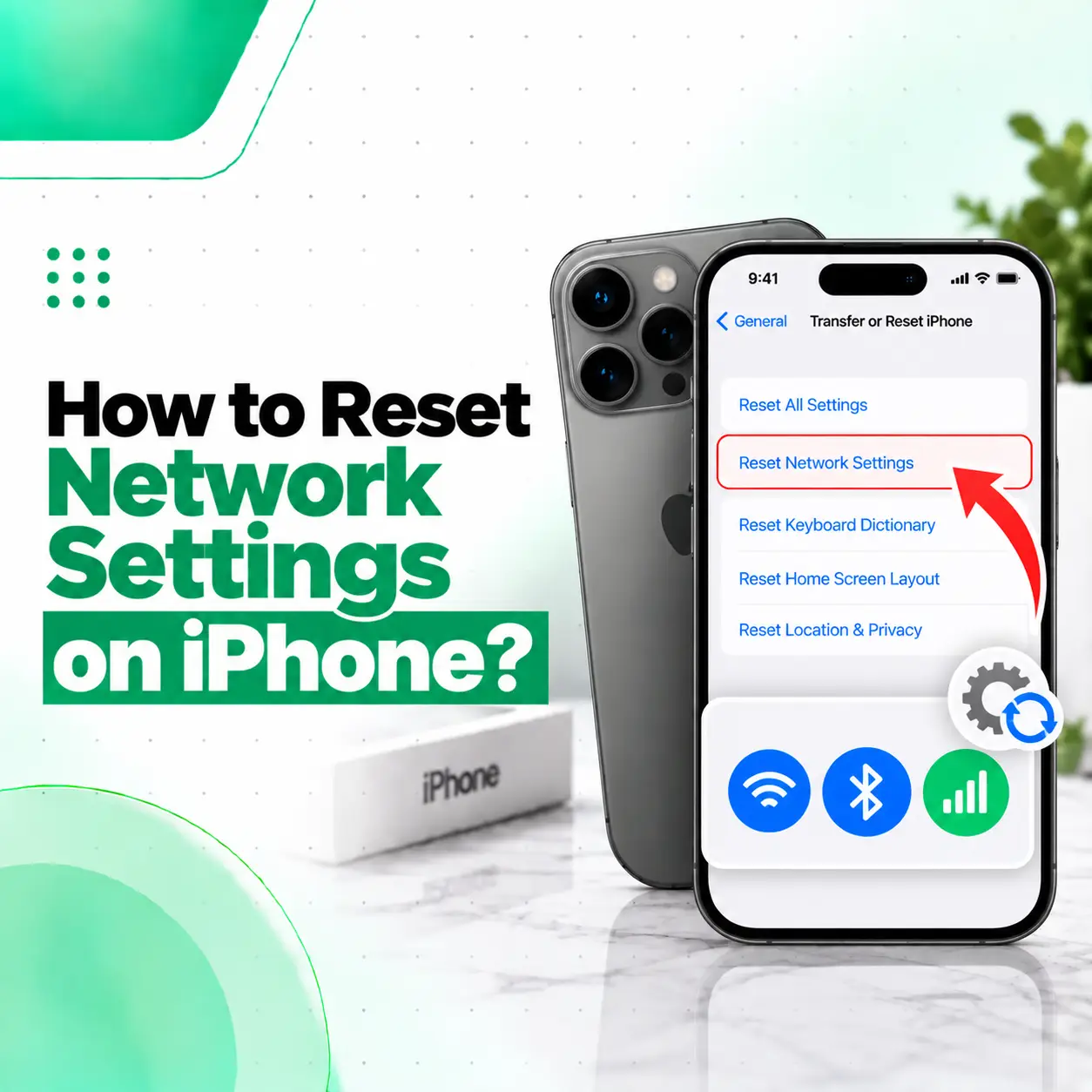
If your iPhone is having trouble connecting to Wi-Fi, mobile data, Bluetooth, or other network services, resetting network settings can sometimes help. To reset network settings on iPhone, go to Settings > General > Transfer or Reset iPhone > Reset > Reset Network Settings. This removes saved network-related settings, so you will need to reconnect to Wi-Fi networks afterward. Apple recommends trying other troubleshooting steps first and using a network reset when those solutions do not resolve the problem.
This guide explains exactly how to reset network settings on an iPhone, what the reset changes, when it can help, and what to check if your connection problems continue. If the issue remains after software troubleshooting, a professional phone inspection may be appropriate.
What Does Reset Network Settings Do on iPhone?
Resetting network settings removes your iPhone’s saved network-related configurations and returns them to their default state. It does not erase your photos, videos, apps, messages, contacts, or other personal content.
Apple states that a network reset removes saved Wi-Fi networks and passwords, cellular settings, and VPN and APN settings. Your iPhone may also disconnect from the network you are currently using.
What Gets Reset?
A network reset can affect:
- Saved Wi-Fi networks
- Wi-Fi passwords
- Cellular network settings
- VPN settings that are not managed by a configuration profile or MDM
- APN settings
- Previously used network configurations
You should therefore be prepared to reconnect to your Wi-Fi networks after completing the reset.
What Does Not Get Deleted?
A network settings reset is different from erasing an iPhone.
It does not normally delete:
- Photos and videos
- Apps
- Messages
- Contacts
- Documents
- Personal files
- Other stored content
Do not confuse Reset Network Settings with Erase All Content and Settings. The latter is designed to erase the iPhone’s content, while a network reset targets network-related configurations.
How to Reset Network Settings on iPhone
You can reset the network settings directly from the Settings app.
Step-by-Step Method
- Open the Settings app on your iPhone.
- Tap General.
- Scroll down and tap Transfer or Reset iPhone.
- Tap Reset.
- Select Reset Network Settings.
- Follow the on-screen instructions to confirm the reset.
The exact wording can vary slightly depending on the iOS version, but the current Apple-supported path follows this general sequence.
What Happens After the Reset?
Your iPhone will clear the relevant network configurations. You may need to:
- Reconnect to your Wi-Fi network.
- Enter your Wi-Fi password again.
- Reconfigure certain network-related settings.
- Reconnect or troubleshoot Bluetooth devices if connection problems remain.
- Check cellular or carrier-related settings if mobile data is still unavailable.
If your iPhone reconnects to Wi-Fi but still cannot access the internet, Apple recommends checking the network or contacting your internet service provider when appropriate.
When Should You Reset Network Settings on iPhone?
A network reset can be useful when basic troubleshooting has not solved a persistent connection problem.
Consider it when you experience issues such as:
- iPhone cannot connect to Wi-Fi.
- Wi-Fi repeatedly disconnects.
- Mobile data is not working correctly.
- Personal Hotspot is having connection problems.
- Network settings appear to be causing connection issues.
- Certain network configurations are no longer working as expected.
Apple specifically recommends trying other solutions before resetting network settings.
Try These Steps Before Resetting
Before performing a network reset, try:
- Turn Airplane Mode on and off.
- Restart your iPhone.
- Check that Wi-Fi or cellular data is enabled.
- Try connecting to another Wi-Fi network.
- Restart your router if the problem affects only one Wi-Fi network.
- Check whether other devices can access the same network.
- Check for VPN or third-party security software that could interfere with connectivity.
Apple also recommends checking VPN and security software when troubleshooting network connectivity.
Will Resetting Network Settings Delete Wi-Fi Passwords?
Yes. Resetting network settings removes saved Wi-Fi networks and their passwords, so you will need to enter the Wi-Fi password again when reconnecting.
This is one of the main things to remember before performing the reset.
If you rely on several Wi-Fi networks—for example, home, office, school, or frequently visited locations—make sure you can access their passwords before resetting the settings.
Can Resetting Network Settings Fix iPhone Wi-Fi Problems?
It can help when the problem is related to saved or incorrect network configurations, but it cannot fix every Wi-Fi problem.
For example, if the issue is caused by:
- A faulty router
- An internet service outage
- Poor Wi-Fi coverage
- A damaged iPhone antenna or related hardware
- A deeper software problem
- A network-provider issue
then resetting network settings may not resolve it.
Apple recommends checking whether other devices can connect to the same network and trying another Wi-Fi location when diagnosing connection problems.
If Wi-Fi Works on Other Devices
If your router works normally with other devices but your iPhone cannot connect, the problem may be specific to the iPhone or its configuration.
In this situation, restarting the iPhone, checking Wi-Fi settings, removing problematic VPN/security configurations, and eventually resetting network settings can be reasonable troubleshooting steps.
If No Device Can Connect
If multiple devices cannot access the same Wi-Fi network, the problem may be related to the router, modem, ISP, or service outage rather than your iPhone.
In that case, resetting the iPhone’s network settings is unlikely to solve the underlying network problem.
Does a Network Reset Affect Cellular Data?
Yes. A network settings reset also resets cellular-related settings.
Apple notes that cellular settings and APN settings can be reset as part of the process. Depending on your carrier and configuration, additional cellular settings may need attention afterward.
If mobile data remains unavailable after resetting the network settings, check whether your cellular service is active and whether your carrier has an issue.
For some APN-related problems, Apple provides separate options for reverting APN settings to the carrier’s default configuration.
Does Resetting Network Settings Remove the eSIM?
Reset Network Settings is not the same as Delete All eSIMs. Apple’s reset menu provides these as separate options.
Do not select Delete All eSIMs unless you specifically intend to remove the stored eSIMs from the iPhone. Apple states that deleting eSIMs requires setting up cellular service again with a physical SIM or eSIM afterward.
What If Resetting Network Settings Doesn’t Fix the Problem?
If your iPhone still has network problems after the reset, the issue may not be caused by saved network settings.
Check the Network First
Try another Wi-Fi network or another location.
If the iPhone connects successfully elsewhere, the original router or network may be responsible.
Check VPN or Security Software
VPNs, configuration profiles, and third-party security software can affect network connectivity. Apple recommends checking these configurations when troubleshooting network issues.
Check the Cellular Service
For mobile data or calling problems, check your carrier connection and service status. Some cellular problems require assistance from the network provider rather than an iPhone settings reset.
Consider Professional Diagnosis
If Wi-Fi, cellular connectivity, Bluetooth, or other wireless functions continue to fail across different networks and locations, the problem may require a deeper software or hardware diagnosis.
A professional repair technician can inspect the device and determine whether the problem is related to settings, software, connectors, antennas, or another internal component.
Is Reset Network Settings the Same as Reset All Settings?
No. These two options affect different groups of settings.
| Reset Option | What It Does | Personal Data |
| Reset Network Settings | Removes network-related settings such as Wi-Fi, cellular, VPN and APN configurations | Not deleted |
| Reset All Settings | Returns many system settings to their defaults | Not deleted |
| Erase All Content and Settings | Erases the iPhone and its content | Deleted |
Apple explains that Reset All Settings affects a much broader range of preferences, while Erase All Content and Settings removes the device’s content.
For a specific Wi-Fi or cellular configuration problem, Reset Network Settings is the more targeted option.
What Should You Do After Resetting Network Settings?
After the reset, reconnect your iPhone to the networks and services you use.
A simple checklist is:
- Open Settings > Wi-Fi.
- Select your Wi-Fi network.
- Enter the Wi-Fi password.
- Check that cellular data works when Wi-Fi is disabled.
- Test Bluetooth if it was previously having problems.
- Test websites, apps, calls, or other affected services.
- If the issue continues, identify whether it happens on one network or all networks.
Testing the iPhone on more than one network can help distinguish an iPhone-specific problem from a router or ISP problem.
When Should You Get Professional iPhone Repair?
A network reset is a software troubleshooting step. It cannot repair physically damaged hardware.
Consider professional inspection if:
- Wi-Fi fails on multiple networks.
- Cellular connectivity remains unavailable despite an active service.
- Bluetooth repeatedly fails with multiple devices.
- The iPhone recently suffered liquid or physical damage.
- Network problems appeared after internal repair or component damage.
- Wireless connectivity repeatedly drops despite normal network conditions.
- Multiple connectivity functions fail at the same time.
A technician can assess whether the problem is configuration-related or requires further hardware or software diagnosis.
For users in Bangladesh, a professional phone repair service can also help determine whether continued troubleshooting is appropriate or whether the device needs physical inspection.
Frequently Asked Questions
1. How do I reset network settings on my iPhone?
Go to Settings > General > Transfer or Reset iPhone > Reset > Reset Network Settings. Confirm the action when prompted. The process removes saved network configurations, including Wi-Fi networks and passwords, along with relevant cellular, VPN, and APN settings. Your personal files and apps are not erased.
2. Will resetting network settings delete everything on my iPhone?
No. Resetting network settings does not erase your photos, videos, apps, messages, contacts, or documents. It specifically targets network-related configurations. However, saved Wi-Fi passwords and certain other network settings are removed, so you will need to reconnect to your networks afterward.
3. Will resetting network settings delete my Wi-Fi passwords?
Yes. Saved Wi-Fi networks and their passwords are removed during a network settings reset. Before resetting, make sure you know the passwords for important networks you regularly use, such as your home or workplace Wi-Fi.
4. Can resetting network settings fix iPhone Wi-Fi problems?
It can help when a Wi-Fi problem is related to saved or incorrect network configurations. However, it will not fix every connection problem. Router faults, ISP outages, poor coverage, or iPhone hardware problems can require different solutions. Testing another Wi-Fi network can help identify where the problem originates.
5. Does resetting network settings affect mobile data?
Yes. Network settings include cellular-related configurations, and Apple states that cellular settings and APN settings can be reset. If mobile data does not work afterward, check your cellular service and carrier settings. Some carrier-specific problems may require assistance from your network provider.
6. What should I do if resetting network settings doesn’t fix my iPhone?
First, test the iPhone on another Wi-Fi network and check whether the problem affects Wi-Fi, cellular data, Bluetooth, or several services. Then check VPN or security configurations and your carrier or ISP. If connectivity problems continue across different networks, professional diagnosis may be appropriate.
7. Is resetting network settings safe for my iPhone?
It is a built-in iPhone troubleshooting option, but you should understand what it changes before using it. It removes saved network configurations, including Wi-Fi passwords and relevant cellular, VPN, and APN settings. It does not normally erase personal data. Apple recommends using it after other basic troubleshooting steps have failed.
Conclusion
Knowing how to reset network settings on iPhone can help when Wi-Fi, cellular data, or other network connections are behaving unexpectedly. The process is straightforward: open Settings > General > Transfer or Reset iPhone > Reset > Reset Network Settings. Remember that saved Wi-Fi passwords and other network configurations will need to be set up again afterward.
If the problem continues after resetting network settings, avoid repeatedly changing settings without identifying the underlying cause. The issue may involve your router, carrier, software configuration, or the iPhone’s hardware.
If your iPhone continues to have persistent connectivity problems, iCareFix can assess the device and help determine whether the issue requires further software troubleshooting or professional repair.