




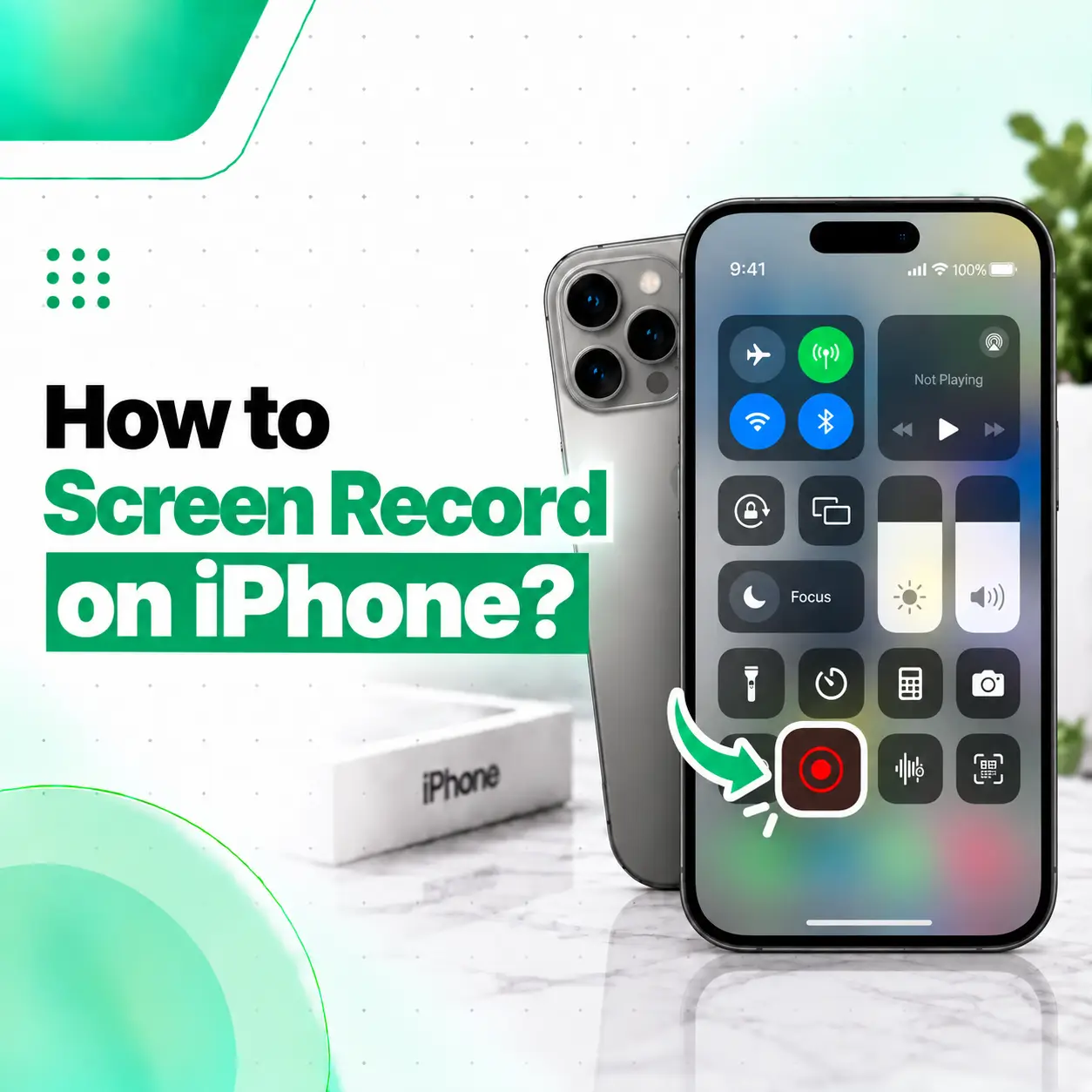
Need to show someone how to use an app, save a short tutorial, document an issue, or capture something happening on your iPhone? You can do it without installing a separate screen-recording app. To screen record on iPhone, open Control Center, tap the Screen Recording button, wait for the three-second countdown, and then use your iPhone normally. The finished recording is automatically saved in the Photos app.
You can also enable the microphone before recording when you want to add your own voice. However, some apps may restrict audio or video recording, and screen recording cannot run at the same time as Screen Mirroring.
This guide explains the current screen-recording process, how to record with audio, how to find your recordings, and what to check when the feature is missing or not working.
How Do You Screen Record on iPhone?
The quickest way is through Control Center.
Step-by-Step Screen Recording
- Open Control Center.
- On an iPhone with Face ID, swipe down from the top-right corner.
- On an iPhone with a Home button, swipe up from the bottom.
- Tap the Screen Recording button.
- Wait for the three-second countdown.
- Close Control Center and perform the actions you want to record.
- Stop the recording when you’re finished.
Apple’s current iPhone guide confirms that the screen recording starts after the three-second countdown and the recording is automatically saved to your photo library.
How Do You Stop Screen Recording?
You can stop a recording from the indicator at the top of the screen.
On supported iPhone models with Dynamic Island, tap the red recording indicator and then tap the Stop Screen Recording button. On other models, tap the red timer at the top-left and then tap Stop. You can also open Control Center and tap the red recording button.
What If Screen Recording Is Not in Control Center?
If you do not see the Screen Recording control, you can add it to Control Center.
How to Add Screen Recording to Control Center
- Open Control Center.
- Tap the Add (+) button to begin customizing controls.
- Tap Add a Control.
- Select Screen Recording.
- Return to Control Center and tap the new Screen Recording control.
Apple’s current Control Center interface allows controls to be added, removed, rearranged, resized, and organized into different sections.
If your iPhone uses an older iOS version, the appearance of Control Center may differ, so instructions from older tutorials may not look exactly the same as what you see on your device.
How to Screen Record With Sound on iPhone
You can enable the microphone before starting the recording if you want to include microphone audio.
How to Turn On the Microphone
- Open Control Center.
- Touch and hold the Screen Recording button.
- Tap Microphone to turn it on.
- Tap Start Recording.
- Wait for the three-second countdown.
- Close Control Center and begin your recording.
This is useful when you want to explain what you’re doing while recording a tutorial or demonstrating a problem.
Does iPhone Record Audio Automatically?
Screen recording can capture sound, but audio behavior can vary depending on the app and the recording setup. Turning on the microphone specifically enables microphone input, while Apple also notes that some apps may not allow audio or video recording.
So, when you need a recording with your own narration, turn on the microphone before starting.
Where Are iPhone Screen Recordings Saved?
iPhone screen recordings are automatically saved to your Photos library.
How to Find Screen Recordings
- Open the Photos app.
- Go to Collections.
- Scroll down to Media Types.
- Tap Screen Recordings.
From there, you can open, edit, trim, share, or otherwise manage the recorded video like other media in Photos.
What Can You Use iPhone Screen Recording For?
Screen recording is useful for more than saving interesting moments.
Common uses include:
- Creating a quick tutorial for a friend or family member.
- Demonstrating how to change an iPhone setting.
- Recording an app problem for troubleshooting.
- Showing a software bug to a technician or app developer.
- Saving a walkthrough of a particular feature.
- Recording your own on-screen workflow for reference.
- Documenting steps that are difficult to explain in text.
For a repair-related issue, a screen recording can also help demonstrate intermittent software behavior. For example, if an app repeatedly freezes or a particular setting causes an unexpected result, a video can give a repair technician or support team more context.
Can You Screen Record Every App on iPhone?
No. Some apps may prevent their content from being recorded. Apple specifically notes that some apps might not allow screen recording of their audio or video content.
This means a screen recording can behave differently depending on what you are trying to capture.
If a particular app shows a blank area, missing media, blocked playback, or missing audio during a recording, the limitation may come from the app rather than a problem with your iPhone.
Why Do Apps Restrict Screen Recording?
Apps can apply their own technical restrictions to certain types of content. As a result, the iPhone’s built-in recording function may not capture every element displayed inside every app.
If recording works normally elsewhere, but not inside one specific app, check that app’s documentation or contact its developer for information about supported recording behavior.
Can You Screen Record While Using Screen Mirroring?
No. Apple states that you can’t record your iPhone screen and use Screen Mirroring at the same time.
If you are currently mirroring the screen to another display and the Screen Recording feature does not behave as expected, stop Screen Mirroring first and then try recording again.
This is an important distinction because both features involve transmitting or capturing the display, but they serve different purposes.
What Should You Do If Screen Recording Is Not Working?
If you tap Screen Recording and nothing happens, or the recording stops unexpectedly, start with basic checks.
Check That Screen Recording Is Added
Open Control Center and confirm that the Screen Recording control is available. If it is missing, add it through Control Center customization.
Restart Your iPhone
A restart can be useful when a built-in feature behaves unexpectedly after temporary software problems.
After restarting, open Control Center and try the recording again.
Check Screen Mirroring
Make sure Screen Mirroring is not active. Apple does not allow screen recording and screen mirroring to operate at the same time.
Test Another App
Try recording the Home Screen or another ordinary app.
If screen recording works elsewhere but fails inside one particular app, that may indicate an app-level recording restriction rather than an iPhone fault.
Check Your iOS Version
Apple’s current support documentation reflects newer iOS interfaces, and settings can change between versions. Keeping iOS updated can help ensure that you are using the current Control Center and screen-capture features.
Why Is My iPhone Screen Recording Missing Audio?
A screen recording can be created without microphone input, so missing voice narration may simply mean the microphone was not enabled.
Before recording, touch and hold the Screen Recording control in Control Center and turn Microphone on. Apple documents this as the method for recording the screen with microphone audio.
What If the Microphone Is On but There Is Still No Sound?
First, test another recording and speak clearly while the microphone is enabled.
If microphone audio is unclear or consistently absent across recordings and other apps, the issue may extend beyond screen-recording settings. Apple recommends testing the microphones through apps such as Voice Memos and Camera when diagnosing microphone problems.
If the microphone also fails in normal phone calls, videos, or Voice Memos, professional diagnosis may be appropriate.
How Can You Improve iPhone Screen Recording Quality?
Apple provides screen-capture settings that let supported iPhones choose between SDR and HDR capture formats. These settings are located under:
Settings → General → Screen Capture
Apple states that SDR uses standard brightness and color, while HDR captures a wider range of brightness and color and uses HDR10 for screen recordings.
SDR vs HDR for Screen Recordings
| Setting | General characteristic | Useful when |
| SDR | Standard brightness and color | You want broader compatibility across standard displays |
| HDR | Higher brightness and wider color range | You want to preserve HDR characteristics on compatible displays |
The appropriate choice depends on where you plan to view or share the recording. Apple notes that HDR requires an HDR-capable display to show its full quality.
How to Screen Record an iPhone Tutorial Clearly
A good screen recording is not just about pressing the record button. A few simple habits can make the final video much easier to follow.
Start From the Relevant Screen
Before starting the recording, open the screen where the explanation begins. This avoids unnecessary swiping and makes the tutorial easier to understand.
Turn On the Microphone for Narration
If you’re explaining the steps as you go, enable the microphone before starting the recording.
Keep the Demonstration Focused
Instead of recording every step of a long process, record only the actions the viewer needs to see.
Review the Video Before Sharing
Open the recording in Photos and check that the important actions, screen content, and audio were captured properly.
Is iPhone Screen Recording Better Than a Third-Party App?
For basic screen capture, the built-in iPhone feature is usually sufficient because screen recording is integrated directly into Control Center and saves the result to Photos.
A third-party app may provide additional editing, annotation, or workflow features, but it is not required simply to record your iPhone screen.
For most users who only need to capture what is happening on the display, Apple’s built-in tool is the simpler starting point.
Does Screen Recording Affect iPhone Performance?
Screen recording uses the iPhone’s system resources because the device is capturing and processing video while you continue using it.
You may notice greater battery usage or additional device activity during longer recordings, especially when recording high-quality video or using demanding apps at the same time.
For occasional short recordings, the built-in feature is designed as a normal iPhone capability. For unusually long or demanding recordings, make sure the iPhone has sufficient battery and available storage.
What Should You Do If Screen Recording Still Fails?
When the built-in feature consistently fails across normal apps and the Home Screen, the issue may be related to iOS or another device-level problem rather than the recording itself.
Before seeking repair, you can try:
- Restarting the iPhone.
- Installing any available iOS update.
- Removing and re-adding the Screen Recording control.
- Testing the feature from the Home Screen.
- Checking whether Screen Mirroring is active.
- Testing microphone functionality separately if audio is the main problem.
If several unrelated functions are also malfunctioning—for example, microphone issues, app crashes, display problems, overheating, or other software or hardware symptoms—the screen-recording problem may be part of a larger device issue.
When Should You Consider Professional iPhone Repair?
A screen-recording problem by itself is usually a software-setting issue. However, professional inspection becomes more relevant when other device functions are also failing or when the issue persists after normal troubleshooting.
For example, a technician may need to examine the iPhone if you are also experiencing microphone failure, display problems, repeated crashes, unexpected shutdowns, or other hardware-related symptoms.
For users in Bangladesh, a professional mobile repair service such as iCareFix can assess the device when the problem appears to go beyond a simple iOS setting.
Before handing over an iPhone for service, back up important information and discuss the diagnostic or repair process with the technician.
Frequently Asked Questions
1. How do I screen record on my iPhone?
Open Control Center, tap the Screen Recording button, and wait for the three-second countdown. Then close Control Center and perform the actions you want to capture. When you stop the recording, the video is automatically saved to the Photos library. On iPhones with a Home button, open Control Center by swiping up from the bottom.
2. How do I screen record with my voice on iPhone?
Open Control Center and touch and hold the Screen Recording button. Tap Microphone to turn it on, then tap Start Recording and wait for the three-second countdown. Your iPhone will then record the screen while microphone input is enabled. Some apps may still restrict certain audio or video content from being recorded.
3. Where are screen recordings saved on iPhone?
Your screen recordings are automatically saved in the Photos app. To find them, open Photos, tap Collections, scroll to Media Types, and select Screen Recordings. From there, you can review or manage the videos like other media stored in your photo library.
4. Why can’t I find the Screen Recording button?
The Screen Recording control may not currently be added to Control Center. Open Control Center, tap the Add button, choose Add a Control, and select Screen Recording. If the feature still does not appear or behave normally after you add it, check your iOS version and restart the iPhone.
5. Can I screen record any app on my iPhone?
Not necessarily. Apple states that some apps may not allow their content to be recorded, including certain audio or video content. If recording works on the Home Screen and in other apps but not in one specific application, the restriction may come from that app rather than your iPhone.
6. Why does my iPhone screen recording have no sound?
If you need your own voice in the recording, make sure the Microphone is turned on by touching and holding the Screen Recording control before starting. If microphone audio remains missing in multiple recordings, test the iPhone’s microphone using Voice Memos or Camera. A microphone problem affecting other functions may require further diagnosis.
7. Can I screen record while using Screen Mirroring?
No. Apple states that you cannot use screen recording and Screen Mirroring at the same time. If you’re mirroring your iPhone and screen recording is unavailable or behaves unexpectedly, stop Screen Mirroring and then try the recording again.
Conclusion
Learning how to screen record on iPhone is simple once the Screen Recording control is available in Control Center. Tap the recording button, wait for the three-second countdown, and begin using the iPhone. You can also enable the microphone when you need voice narration, and your finished recording is automatically saved in Photos.
If Screen Recording does not work, first check the Control Center control, Screen Mirroring, iOS version, and whether the problem happens in one specific app or across the whole device.
When screen-recording issues appear alongside microphone, display, software, or other iPhone problems, professional diagnosis may help identify the underlying cause. iCareFix can assess the device and recommend an appropriate troubleshooting or repair path when a simple settings fix is not enough.