




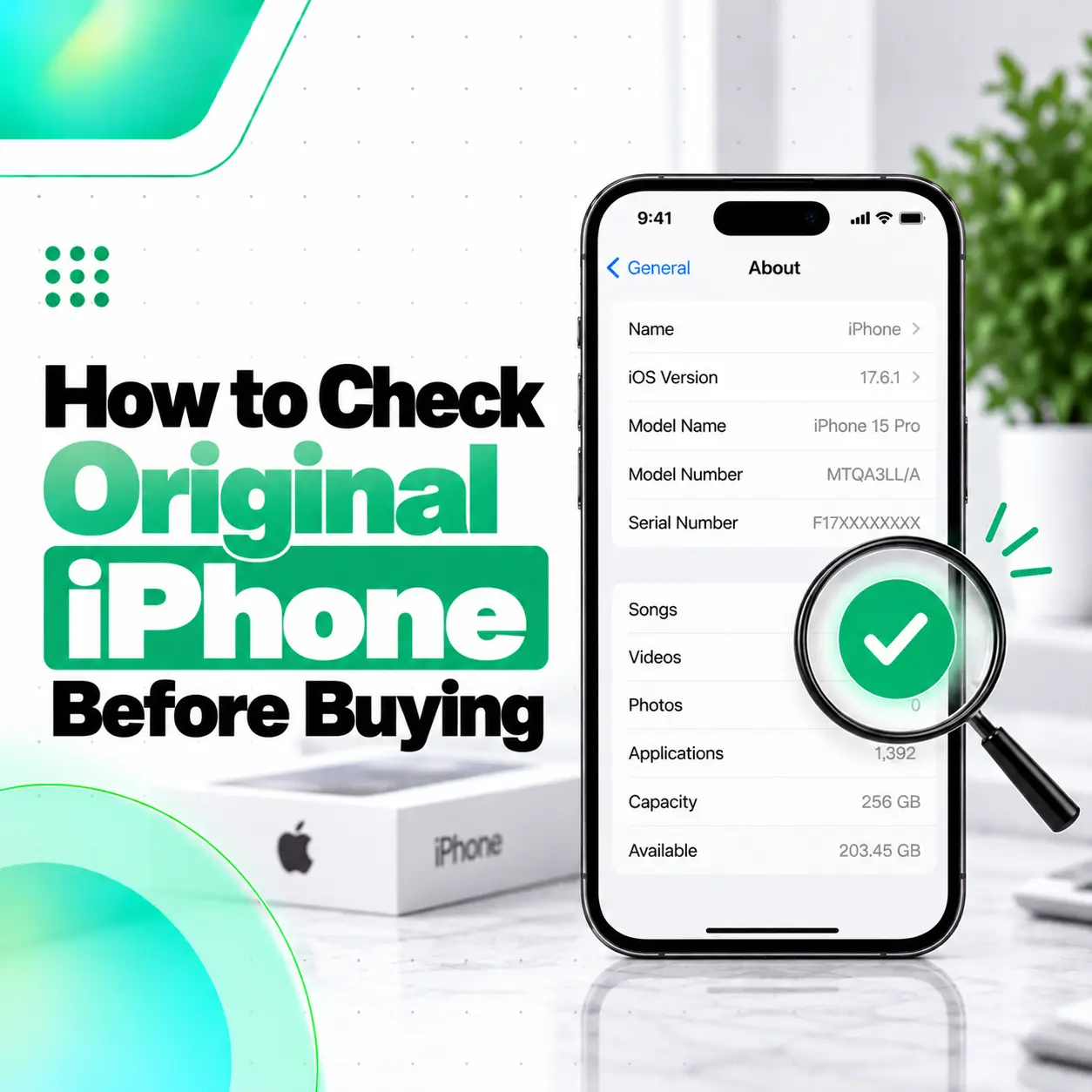
If you want to know how to check original iPhone, do not rely on one serial-number website, the box, or the Apple logo alone. A proper check should confirm that the device is actually an Apple iPhone, that its model and identifiers match, that it is not locked to a previous owner, and that you understand any previous repairs or replacement parts.
Apple lets you view the Model Name, Model Number, serial number, IMEI, Carrier Lock status, and other device information under Settings > General > About. Apple also provides Parts and Service History on supported iPhones and specifically advises used-iPhone buyers not to take ownership of a device that still has Activation Lock.
This guide explains the most useful checks for buyers in Bangladesh before paying for a new, used, open-box, or refurbished iPhone.
What Does “Original iPhone” Actually Mean?
The phrase original iPhone can mean different things.
A seller may use it to mean:
- Genuine Apple-manufactured iPhone
- Not a clone or Android copy
- Never repaired
- Original display and battery
- Not refurbished
- Official regional variant
- Factory-unlocked phone
These are not the same thing.
A genuine Apple iPhone can still have:
- A replaced display
- A replaced battery
- A used Apple part
- An unknown part
- Previous repair history
- Carrier lock
- Activation Lock
- Refurbished or open-box history
So the correct question is not just “Is this original?” but:
Is this a genuine Apple device, and what is its actual ownership, repair, and hardware history?
What Is the Best Way to Check Whether an iPhone Is Original?
Use several checks together.
Quick Original-iPhone Checklist
- Check Settings > General > About.
- Verify Model Name and Model Number.
- Compare serial number and IMEI.
- Confirm the model on Apple’s official model list.
- Check AppleCare or warranty information.
- Check Parts and Service History.
- Confirm Activation Lock is removed.
- Test Face ID or Touch ID.
- Test cameras, display, speakers, charging, and network.
- Compare the phone with the box and purchase documents.
No single check tells you everything.
How to Check iPhone Model, Serial Number, and IMEI
Open:
Settings > General > About
Apple currently lists the following information on this screen:
- Model Name
- Model Number
- Serial number
- IMEI
- EID
- Carrier Lock status
- Network information
- Storage information
Why This Matters
A counterfeit phone may imitate iOS visually, but genuine iPhone device information should be internally consistent.
Check whether:
- Model name matches the physical phone.
- Model number belongs to that iPhone generation.
- IMEI is present on cellular models.
- Storage matches what the seller advertised.
If anything looks inconsistent, investigate before buying.
How to Check the iPhone Model Number
In:
Settings > General > About
look for Model Number.
Apple explains that the displayed part number can be tapped to reveal the actual model number.
You can then compare that number with Apple’s official model-identification list.
Apple maintains a current list of iPhone models, introduction years, capacities, and model numbers.
Why Model Number Verification Helps
It can help confirm:
- Exact iPhone generation
- Regional variant
- Whether the housing matches the internal device identity
- Whether a seller has mislabeled the model
For example, an iPhone body marketed as one generation should not report a completely different model internally.
How to Check the Serial Number
You can find the serial number in:
Settings > General > About
Apple also allows users to find device identifiers from:
- Original packaging
- Apple Account
- Finder
- Apple Devices app
- iTunes on supported systems
Compare Serial Numbers Where Possible
Compare the serial number shown in Settings with:
- Original box
- Purchase invoice
- Apple Account device list
- Warranty/coverage information
A mismatch between the phone and its box should be investigated.
However, matching packaging alone does not prove that every internal component is original.
Can a Serial Number Prove an iPhone Is Original?
It is useful, but it should not be your only test.
A serial number can help identify the device and review Apple support or coverage information.
However:
- A genuine serial number can potentially be copied onto fake packaging.
- A genuine iPhone can still have replacement parts.
- A genuine iPhone can still be Activation Locked.
- A genuine device can be refurbished.
Use the serial number as one part of a wider inspection.
How to Check iPhone IMEI
On the iPhone:
Settings > General > About
Scroll to IMEI.
Apple confirms that IMEI and other cellular identifiers are available there.
Depending on the iPhone model, IMEI may also be available:
- Before device setup through the Info button
- On certain SIM trays
- In Finder or Apple Devices
- On original packaging
What Should You Compare?
Compare:
- IMEI in Settings
- IMEI on box if available
- Seller documentation
- Any legitimate carrier or regulatory record you are using
A mismatch is a warning sign.
Does IMEI Tell You Whether Every Part Is Original?
No.
IMEI identifies the cellular device, not every internal component.
An iPhone can have a legitimate IMEI but still contain:
- Replacement display
- Replacement battery
- Used camera
- Previously replaced logic board
- Unknown part
For component history, check Parts and Service History.
How to Check Parts and Service History
Open:
Settings > General > About
If the iPhone has relevant repair history and runs a supported iOS version, you may see:
Parts and Service History
Apple says iOS 15.2 and later can display this section on supported iPhones.
Depending on model, the section can show information for:
- Battery
- Display
- Logic Board
- Front camera
- Rear cameras
What Does “Genuine” Mean in Parts and Service History?
Apple says Genuine means the repair was completed using genuine Apple parts and processes.
This is useful information.
However, note the distinction:
A Genuine replacement part means the part is genuine—it does not mean the phone was never repaired.
So a phone can be:
- Genuine Apple iPhone
- Repaired previously
- Fitted with genuine Apple replacement parts
That is not the same as a never-opened factory-original device.
What Does “Used” Mean?
Apple may show Used when a part was previously installed in another iPhone.
This can appear on supported newer iPhones and iOS versions.
A used part does not automatically mean the whole phone is fake.
It means repair history exists and the component has previously been used elsewhere.
What Does “Unknown Part” Mean?
Apple says an Unknown message can appear when a replacement part:
- Is not a genuine Apple part
- Is not functioning as expected
- Was not properly verified
- Has been modified
- Cannot otherwise be verified
This is highly relevant when evaluating a used iPhone.
However, do not claim that “Unknown” always means counterfeit. Apple’s own explanation includes several possible reasons.
What Does “Unverified” Mean?
Apple’s current Parts and Service History system may show Unverified when a Logic Board was previously used in another iPhone. Apple notes that certain features such as Apple Pay may be affected.
For an expensive used phone, an unverified logic-board history deserves careful investigation.
How to Check Whether the Display Is Genuine
Open:
Settings > General > About > Parts and Service History
If a display repair was recorded, Apple may show:
- Genuine
- Used
- Unknown
- Finish Repair
depending on device, iOS version, and repair state.
Also Test the Display Physically
Check:
- Touch response
- Brightness
- Color
- True Tone
- Flickering
- Green lines
- Black spots
- Dead pixels
- Ghost touch
A settings message and a physical test should be used together.
How to Check Whether the Battery Is Genuine
For supported iPhones, check:
Settings > General > About > Parts and Service History
Apple says genuine battery service can appear as Genuine, while an unverified battery may produce inaccurate battery-health information.
Also review:
Settings > Battery
Check available battery-health information for the model and iOS version.
Do not judge a used iPhone only by one percentage number.
How to Check Apple Warranty or AppleCare
Apple allows you to review AppleCare and warranty information from:
Settings > General > AppleCare & Warranty
or through Apple’s support systems.
Coverage information can help confirm that Apple recognizes the device in its service ecosystem.
However, warranty status does not prove:
- The phone was never repaired
- Every component is factory-original
- The seller is the rightful owner
It is one verification layer, not a complete authenticity test.
Can Warranty Information Be Incorrect?
Apple states that estimated purchase-date information can sometimes need correction, and the original proof of purchase may be required.
So if a coverage date looks unusual, do not immediately conclude that the iPhone is fake.
Compare it with:
- Receipt
- Seller records
- Serial number
- Device age
- Apple Support information
How to Check Activation Lock Before Buying
This is one of the most important used-iPhone checks.
Apple says you should not take ownership of a used iPhone if it remains protected by Activation Lock.
Safe Buying Process
Ask the seller to erase the phone.
Then begin setup.
If you see:
iPhone Locked to Owner
or the setup asks for the previous owner’s Apple Account information, the iPhone is still linked to them.
Do not complete the purchase until the previous owner removes it from their account.
Does Activation Lock Mean the iPhone Is Fake?
No.
Activation Lock is actually an Apple security feature.
A completely genuine Apple iPhone can still be Activation Locked.
The problem is ownership—not authenticity.
This distinction matters because some sellers may describe a locked phone as “original but bypass.”
A genuine device with unresolved Activation Lock can still be a bad purchase.
How to Check Whether an iPhone Is a Clone or Fake
A fake or clone phone may copy the physical appearance of an iPhone but run modified Android software underneath.
Check several things.
Settings Structure
Open:
Settings > General > About
Look for Apple’s expected device information.
App Store
A genuine iPhone uses Apple’s App Store.
A clone may:
- Open Google Play
- Use a fake App Store interface
- Run Android-style menus
Apple Account
Check whether normal Apple Account features work.
iOS Interface
Check:
- Control Center
- App Store
- FaceTime
- iMessage
- Software Update
- Find My
A fake device may imitate some visual elements but fail deeper Apple-service checks.
Check Software Update
Open:
Settings > General > Software Update
A genuine supported iPhone should use Apple’s iOS update system.
Be cautious if:
- It shows Android version information
- The update page looks abnormal
- Google services replace core Apple services
- The device cannot access normal Apple settings
Software Update alone is not sufficient, but it is a useful cross-check.
How to Check Face ID or Touch ID
Set up and test the biometric feature appropriate for the model.
For Face ID:
Settings > Face ID & Passcode
Test:
- Face enrollment
- Unlock
- App authentication
For Touch ID models:
Settings > Touch ID & Passcode
A failure does not mean the phone is fake, but it can reveal repair or hardware problems.
How to Check Cameras
Test all available cameras.
Depending on model:
- Main camera
- Ultra Wide
- Telephoto
- Front camera
- Portrait
- Video
- Autofocus
- Stabilization
Also compare the physical camera layout with Apple’s official model information.
Apple’s model-identification page provides details for each iPhone generation.
How to Check the Display
Test:
- Touch across the whole screen
- Brightness
- True Tone
- Auto-brightness
- Color uniformity
- Green/white lines
- Dead pixels
- Black spots
- Flickering
A genuine iPhone may still have a nongenuine or damaged display.
That is why Parts and Service History matters.
Check Speakers and Microphones
Test:
- Bottom speaker
- Earpiece
- Voice recording
- Phone call microphone
- Video recording audio
A used iPhone may be authentic but still have damaged hardware.
Authenticity and condition are separate questions.
Check Charging
Connect a known-good charger.
Test:
- Cable connection
- Charging stability
- USB-C or Lightning port depending on model
- Wireless charging where supported
A charging problem does not mean the iPhone is fake, but it affects buying value.
Check SIM, eSIM, and Mobile Network
Insert or configure a supported SIM/eSIM if possible.
Test:
- Calls
- SMS
- Mobile data
- Signal
- Carrier recognition
Also check:
Settings > General > About > Carrier Lock
Apple includes Carrier Lock status in the About screen.
A carrier-locked iPhone can still be completely genuine.
Carrier Lock vs Fake iPhone
These are unrelated.
A carrier-locked iPhone:
- Can be genuine
- May work only with a particular carrier
- Can still use normal iOS and Apple services
A fake iPhone:
- Is not a genuine Apple-manufactured iPhone
Do not confuse network restrictions with authenticity.
Original iPhone vs Refurbished iPhone
A refurbished iPhone can still be a genuine Apple device.
“Refurbished” refers to its condition or previous use/repair—not whether Apple originally manufactured the device.
A refurbished phone may have:
- New battery
- New display
- Replacement housing
- Other repaired components
The important questions are:
- Who refurbished it?
- Which parts were used?
- Does it activate normally?
- What does Parts and Service History show?
- What warranty does the seller provide?
Original iPhone vs Repaired iPhone
A repaired iPhone can also be genuine.
For example:
A genuine iPhone with a replaced display remains a genuine iPhone.
But it is no longer accurate to describe every component as factory-original.
When buying used, ask sellers to distinguish:
genuine device from all-original parts.
Does the Model Number Prefix Prove Everything?
No.
Online advice sometimes tries to classify an iPhone entirely by a part-number prefix.
Such codes may provide useful clues in some contexts, but they should not replace current Apple-supported checks.
For a buyer, stronger verification includes:
- Exact model identification
- Serial and IMEI
- Apple coverage
- Parts and Service History
- Activation Lock
- Physical testing
Avoid making a high-value purchase based on one letter or code alone.
Does the Box Prove the iPhone Is Original?
No.
A box can be:
- Reused
- Reprinted
- Mismatched
- Counterfeit
Always compare the box with the phone.
Check:
- Model
- Storage
- Serial number
- IMEI where printed
- Color
Apple notes that original packaging can contain serial and device identifiers.
But the phone itself should remain the primary inspection target.
Does the Apple Logo Prove the Phone Is Original?
No.
The Apple logo is easy to copy physically.
A clone phone can have:
- Apple-style body
- Apple logo
- iPhone-like wallpaper
- Fake iOS interface
Always verify deeper Apple-specific information and services.
How to Check an Original iPhone in Bangladesh
For buyers in Bangladesh, use the same Apple verification process, then add practical local checks.
Before payment, verify:
- Model and regional variant
- IMEI
- Serial number
- SIM/eSIM compatibility
- Carrier Lock
- Activation Lock
- Parts and Service History
- Battery condition
- Display
- Cameras
- Face ID/Touch ID
- Charging
- Seller invoice or documentation
- Seller warranty where applicable
Imported, unofficial-market, and used iPhones can still be genuine Apple devices, but warranty and repair history may differ.
What Should You Check Before Buying a Used iPhone?
A practical inspection order is:
- Inspect body and display.
- Open Settings > General > About.
- Verify model name and number.
- Check serial and IMEI.
- Check Carrier Lock.
- Review Parts and Service History.
- Check AppleCare/warranty.
- Test Face ID/Touch ID.
- Test cameras.
- Test speakers/microphones.
- Test charging.
- Test SIM/mobile data.
- Ask seller to erase the phone.
- Confirm Activation Lock is removed.
- Complete setup before final payment.
Apple also provides a dedicated checklist for pre-owned iPhone buyers.
Red Flags When Buying an iPhone
Be cautious if:
- Seller refuses IMEI check
- Model information does not match
- Box identifiers do not match the device
- Activation Lock remains enabled
- Seller says “never reset”
- Apple Account cannot be used
- Parts and Service History shows unexpected repair information
- Face ID does not work
- Camera or display behaves abnormally
- Seller will not allow basic testing
- Price is unusually low without explanation
One red flag does not always prove fraud, but multiple inconsistencies should stop the purchase.
Is a Cheap iPhone Automatically Fake?
No.
A low price may be caused by:
- Older model
- Weak battery
- Cracked display
- Carrier lock
- Previous repair
- Cosmetic damage
- No warranty
- Seller urgency
But unusually low pricing should lead to more verification, not less.
Should You Use Third-Party IMEI Checker Websites?
They can provide supplementary information, but accuracy varies.
Do not treat a third-party checker as the only authority.
Prefer:
- Apple’s own device information
- Apple model records
- Apple coverage information
- Physical inspection
- Carrier checks where relevant
Avoid giving sensitive account information to unknown verification websites.
Can iCareFix Check Whether an iPhone Is Original?
A professional repair technician can help inspect the physical and hardware condition of a device, including:
- Display
- Battery
- Cameras
- Charging system
- Face ID-related symptoms
- Previous repair indicators
However, ownership verification and Activation Lock should still be resolved through the seller and Apple’s account systems.
For a used iPhone in Bangladesh, combining Apple-supported verification with a physical hardware inspection gives a much clearer picture than relying on a seller’s “100% original” claim.
Frequently Asked Questions
1. How do I check if an iPhone is original?
Start with Settings > General > About and verify the model name, model number, serial number, IMEI, and Carrier Lock status. Compare the model with Apple’s official model list, then check Parts and Service History, warranty information, Activation Lock, and major hardware functions. No single serial-number check can verify the phone’s full condition.
2. Can I verify an iPhone using the serial number?
Yes, the serial number is useful for identifying the device and checking Apple support or coverage information, but it should not be your only authenticity test. A genuine serial does not prove that every component is original or that the phone has never been repaired. Also check model information, IMEI, Parts and Service History, and Activation Lock.
3. How do I check an iPhone IMEI before buying?
Open Settings > General > About and scroll to IMEI. Depending on the model, you may also find the identifier before setup, in Apple software on a computer, or on the original packaging. Compare the numbers with seller documents and any legitimate carrier checks relevant to your purchase.
4. How can I tell if an iPhone has replacement parts?
Open Settings > General > About and look for Parts and Service History. Depending on the model and repair, Apple may show Genuine, Used, Unknown, Unverified, or Finish Repair. These labels provide more reliable repair-history information than a seller simply claiming the phone has “all original parts.”
5. How do I know if an iPhone is Activation Locked?
Ask the seller to erase the phone and start setup. If you see iPhone Locked to Owner or the phone asks for the previous owner’s Apple Account information, Activation Lock is still active. Apple specifically advises buyers not to take ownership until the device is removed from the previous owner’s account.
6. Can a genuine iPhone still be refurbished or repaired?
Yes. Genuine refers to the Apple-manufactured device, while refurbished or repaired describes its history or condition. A genuine iPhone may have a replaced battery, display, camera, or another component. Parts and Service History can help identify recorded repairs and whether supported parts are Genuine, Used, or Unknown.
7. What should I check before buying a used iPhone?
Check the model, serial, IMEI, Carrier Lock, Parts and Service History, AppleCare or warranty, battery condition, display, cameras, Face ID or Touch ID, charging, network functions, and seller documentation. Most importantly, confirm that Activation Lock is removed and the phone can be erased and activated normally before final payment.
Conclusion
Learning how to check original iPhone requires more than entering a serial number into a website.
Use a complete verification process:
- Check Model Name and Model Number.
- Check serial number.
- Check IMEI.
- Compare the model with Apple’s official list.
- Review AppleCare or warranty.
- Check Parts and Service History.
- Verify Activation Lock is removed.
- Test Face ID or Touch ID.
- Test display, cameras, charging, speakers, and network.
- Compare documentation before paying.
Apple’s current used-iPhone guidance specifically recommends checking the physical condition, battery health, parts and service history, network lock status, and Activation Lock before purchase.
For buyers in Bangladesh, do not rely only on phrases such as “100% original,” “fresh condition,” or “never opened.” Verify the device yourself.
If you want an additional hardware assessment before buying a used iPhone, iCareFix can inspect relevant components and help identify display, battery, camera, charging, and previous-repair issues. Ownership and Activation Lock, however, must be resolved through the legitimate owner and Apple-supported processes.