




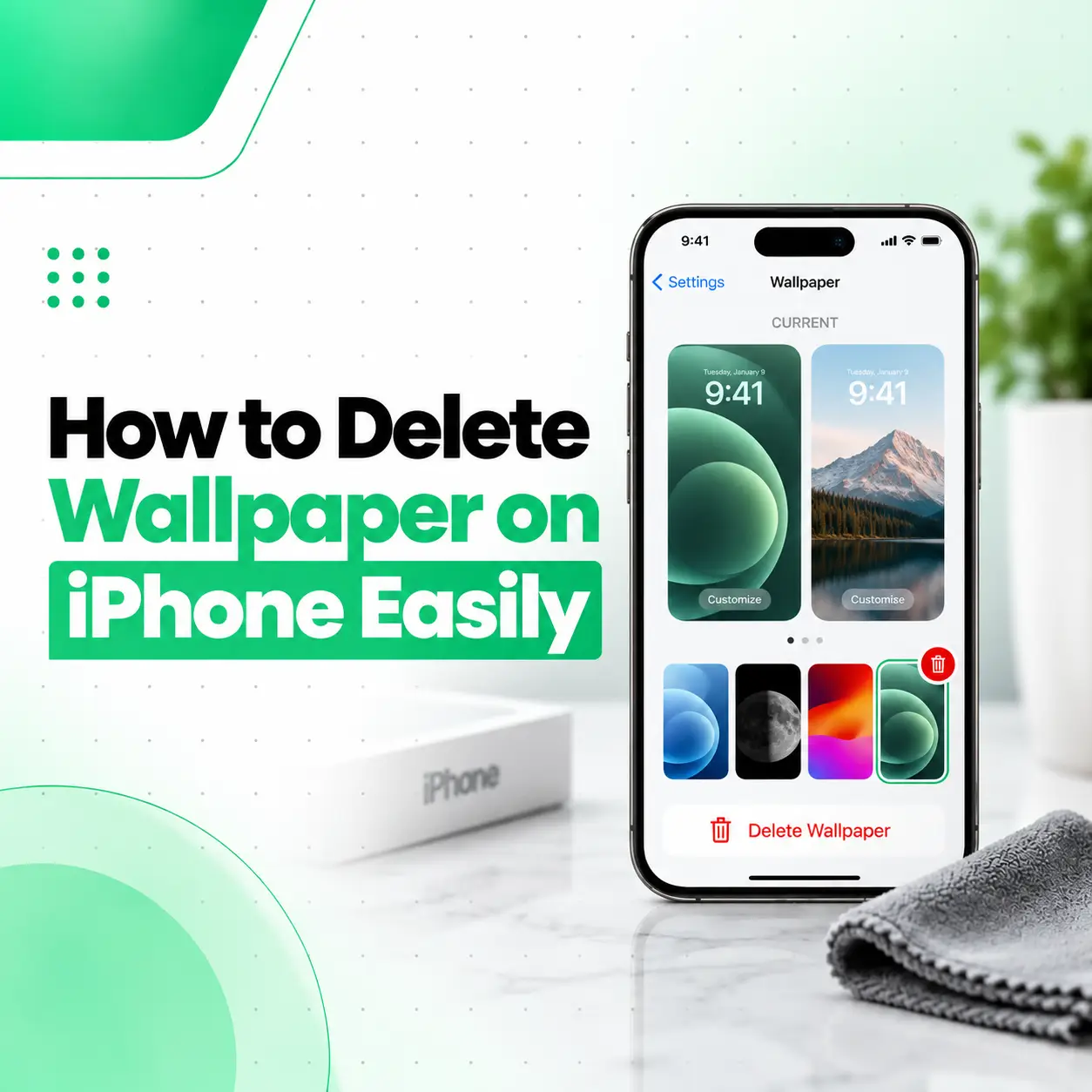
If you want to know how to delete wallpaper on iPhone, the current method is done from the Lock Screen wallpaper gallery rather than from the Photos app. On iOS 16 and later, press the Side button to show the Lock Screen, touch and hold the screen, authenticate with Face ID, Touch ID, or your passcode, swipe to the wallpaper you want to remove, then swipe up and tap the trash icon. Apple then asks you to confirm Delete This Wallpaper.
Deleting a wallpaper setup is different from deleting the original image from Photos. This guide explains the correct steps, how Lock Screen and Home Screen wallpaper pairs work, why the delete option may be missing, and what changes on older iOS versions.
How to Delete Wallpaper on iPhone
On iOS 16 or later, you can delete a saved wallpaper directly from the Lock Screen gallery.
Steps to Delete an iPhone Wallpaper
- Press the Side button to go to the Lock Screen.
- Touch and hold the Lock Screen.
- Authenticate with Face ID, Touch ID, or your passcode.
- Swipe left or right to find the wallpaper you want to delete.
- Swipe up on that wallpaper.
- Tap the trash icon.
- Tap Delete This Wallpaper.
Apple currently documents this as the standard wallpaper-deletion process for iOS 16 and later.
Where Is the Wallpaper Delete Option on iPhone?
The delete option is inside the Lock Screen wallpaper gallery.
It is not normally shown as a large Delete button under:
Settings > Wallpaper
Instead, open the Lock Screen gallery and swipe up on the wallpaper preview.
That reveals the trash icon.
How to Open the Wallpaper Gallery
To open the wallpaper gallery:
- Lock or wake your iPhone.
- Stay on the Lock Screen.
- Touch and hold the Lock Screen.
- Unlock the wallpaper gallery if prompted.
- Swipe between your saved wallpapers.
Apple also lets you switch between saved Lock Screens from this gallery.
Why Can’t I Delete Wallpaper on My iPhone?
If the delete option does not appear, there are several possible reasons.
You Are Not in the Lock Screen Gallery
The trash icon appears after you open the Lock Screen gallery and swipe up on a wallpaper.
Simply opening:
Settings > Wallpaper
may not show the same delete control.
The iPhone Is Still Locked
If the wallpaper gallery does not fully open, authenticate again.
Apple says that if Face ID does not open the gallery, touch and hold the Lock Screen again and enter your passcode.
You Did Not Swipe Up on the Wallpaper
Once you find the wallpaper, swipe up on the preview.
The trash icon is hidden until you perform this gesture.
Your iPhone Is Running an Older iOS Version
The modern wallpaper gallery was introduced with iOS 16.
Apple says that on iOS 15 and earlier, you manage wallpapers differently and can delete the source image through the Photos app if needed.
Does Deleting a Wallpaper Delete the Original Photo?
No, deleting a wallpaper setup does not normally delete the original photo from your Photos library.
The wallpaper configuration and the original image are separate.
For example, if you:
- Choose a photo from Photos.
- Set it as a wallpaper.
- Later delete the wallpaper from the Lock Screen gallery.
the original photo should remain in Photos unless you separately delete it there.
This distinction is important if the image is valuable.
What Is a Wallpaper Pair on iPhone?
When you create a new wallpaper, Apple can apply the design to both:
- Lock Screen
- Home Screen
Apple calls this option Set as Wallpaper Pair.
You can also choose:
Customize Home Screen
to use a different Home Screen background.
This means a saved wallpaper setup can include both Lock Screen and Home Screen customization.
What Happens When You Delete a Wallpaper Pair?
Deleting the wallpaper from the Lock Screen gallery removes that saved wallpaper configuration.
That may include:
- Lock Screen image
- Home Screen pairing
- Widgets
- Clock style
- Linked Focus
- Other Lock Screen customization associated with that setup
It does not normally remove your original photos.
Can You Delete Only the Home Screen Wallpaper?
There is no separate “delete Home Screen wallpaper” button in the same way there is for a Lock Screen setup.
Instead, you can replace or customize the Home Screen.
Go to:
Settings > Wallpaper
Then tap Customize under the Home Screen preview.
Depending on your current iOS version, you can choose:
- A different photo
- A color
- Blur
- Another wallpaper style
Apple currently provides separate Home Screen customization after setting a wallpaper pair.
How to Change Wallpaper Without Deleting It
You do not have to delete an old wallpaper just to use another one.
From the Lock Screen:
- Touch and hold the Lock Screen.
- Swipe left or right.
- Tap another saved wallpaper.
Apple supports multiple Lock Screens and lets you switch between them.
This is useful if you want different setups for:
- Work
- Personal use
- Travel
- Sleep
- Different Focus modes
How to Add a New Wallpaper
Go to:
Settings > Wallpaper > Add New Wallpaper
Apple currently allows wallpaper choices such as:
- Photos
- Photo Shuffle
- Emoji
- Color
- Weather
- Astronomy
- Other suggested wallpaper categories
After selecting a wallpaper, tap:
- Set as Wallpaper Pair, or
- Customize Home Screen
How to Delete a Lock Screen Wallpaper
The process is the same as deleting a saved wallpaper:
- Go to the Lock Screen.
- Touch and hold.
- Authenticate.
- Swipe to the Lock Screen you want.
- Swipe up.
- Tap the trash icon.
- Tap Delete This Wallpaper.
This removes that Lock Screen setup from your saved wallpaper collection.
Can You Delete the Current Wallpaper?
Yes, but your iPhone must still have another usable wallpaper setup available.
If necessary, create a new wallpaper first.
Then return to the wallpaper gallery and delete the old one.
This is often easier than trying to remove the only active setup first.
How to Delete Photo Shuffle Wallpaper
Photo Shuffle is also treated as a saved wallpaper setup.
To remove it:
- Open the Lock Screen gallery.
- Find the Photo Shuffle wallpaper.
- Swipe up.
- Tap the trash icon.
- Confirm deletion.
Apple currently lets users create Photo Shuffle wallpaper from categories, albums, or manually selected photos.
Deleting the Photo Shuffle setup does not automatically delete the underlying photos from your library.
Does Deleting a Focus-Linked Wallpaper Remove the Focus?
No.
Apple allows individual Lock Screens to be linked with a Focus mode.
Deleting the wallpaper setup removes that Lock Screen configuration, but the Focus mode itself remains available in iOS.
You can later link the Focus to another Lock Screen.
How to Remove Wallpaper on iOS 15 or Earlier
The wallpaper system works differently on iOS 15 and earlier.
Apple notes that on older iOS versions you can change wallpaper from Settings, and if you want to remove a photo that was used as wallpaper, delete the original image through the Photos app.
The swipe-up wallpaper-gallery deletion method applies to iOS 16 and later.
How to Check Your iOS Version
Open:
Settings > General > About
Look for iOS Version.
This can help explain why your wallpaper controls look different from screenshots or tutorials online.
If your iPhone is on a much older supported iOS release, menu locations and wallpaper behavior may differ.
Why Does My Wallpaper Keep Changing Automatically?
Your wallpaper may change automatically because of:
- Photo Shuffle
- A linked Focus mode
- Multiple Lock Screens
- Automatic wallpaper settings
Apple allows Lock Screens to be linked to Focus modes, which means changing Focus can also switch your active Lock Screen.
Check whether the wallpaper has a Focus label beneath it in the Lock Screen gallery.
How to Stop a Focus From Changing Your Wallpaper
Open the Lock Screen gallery.
Find the wallpaper and tap Focus.
Then review which Focus mode is linked to that Lock Screen.
You can remove or change the association.
Apple documents Focus linking directly from the Lock Screen gallery.
Does Deleting Wallpapers Free Storage?
Usually, deleting wallpaper configurations does not free a meaningful amount of storage.
The original photo remains in your Photos library unless you delete it separately.
If storage is your main concern, check:
Settings > General > iPhone Storage
Look for large:
- Videos
- Photos
- Apps
- Downloads
- Message attachments
Wallpaper deletion should mainly be viewed as customization management rather than storage cleanup.
Can Too Many Wallpapers Slow Down an iPhone?
Having several saved wallpaper configurations normally should not create a major performance problem.
If your iPhone feels slow, the cause is more likely to involve:
- Very low storage
- Background activity
- iOS issues
- Apps
- Battery condition
- Broader device problems
Deleting wallpapers is unlikely to fix a hardware performance problem.
Is Wallpaper Deletion a Repair Issue?
No.
Deleting, changing, or customizing wallpaper is normally an iOS settings task.
You do not need phone repair simply because:
- A wallpaper will not delete
- A wallpaper changed
- Lock Screen customization looks different
- Photo Shuffle is active
First check:
- iOS version
- Lock Screen gallery
- Authentication
- Wallpaper settings
When Might Professional iPhone Support Be Relevant?
Professional diagnosis may be relevant if the problem is actually with the display rather than the wallpaper.
Examples include:
- Image remains on screen after wallpaper changes
- Screen has green lines
- Display shows black spots
- Ghost images remain visible
- Touch does not respond
- Screen flickers
- Display is physically damaged
These are display symptoms, not wallpaper settings.
For users in Bangladesh, iCareFix can inspect a genuine screen or hardware issue if changing the wallpaper does not affect what you see on the display.
Frequently Asked Questions
1. How do I delete a wallpaper on iPhone?
On iOS 16 or later, go to the Lock Screen, touch and hold it, authenticate, swipe to the wallpaper you want to remove, then swipe up. Tap the trash icon and choose Delete This Wallpaper. Apple currently documents this as the standard method for deleting saved iPhone wallpapers.
2. Why can’t I delete wallpaper on my iPhone?
You may not be inside the Lock Screen wallpaper gallery, the phone may still be locked, or you may not have swiped up on the wallpaper preview. On iOS 16 or later, the trash icon appears only after opening the wallpaper gallery and swiping up on the selected wallpaper.
3. How do I remove an old Lock Screen wallpaper?
Touch and hold your Lock Screen, authenticate, swipe left or right to find the old Lock Screen, swipe up on it, then tap the trash icon. Confirm Delete This Wallpaper. You can keep multiple Lock Screens, so make sure you are deleting the correct saved configuration.
4. Does deleting a wallpaper remove the original photo?
No. Deleting a saved wallpaper configuration does not normally delete the original image from your Photos library. If you used one of your own photos as wallpaper, that image remains in Photos unless you separately remove it there.
5. Can I delete only the Home Screen wallpaper?
You normally replace or customize the Home Screen rather than deleting it as a standalone wallpaper. Open Settings > Wallpaper, then choose Customize under the Home Screen preview. You can select a different photo, color, blur, or other available background option.
6. How do I delete wallpaper on iOS 16 or later?
Use the Lock Screen wallpaper gallery. Touch and hold the Lock Screen, unlock the gallery, swipe to the wallpaper, swipe upward, and tap the trash icon. Then confirm deletion. Apple specifically identifies this method for iOS 16 and later.
7. What happens when I delete a wallpaper pair?
Deleting the wallpaper removes that saved Lock Screen configuration and its associated wallpaper pairing. Any original photo used to create it normally remains in your Photos library. If the Lock Screen was linked to a Focus, the Focus itself remains available and can be linked to another Lock Screen later.
Conclusion
Learning how to delete wallpaper on iPhone is simple once you know that the delete control is inside the Lock Screen wallpaper gallery.
For iOS 16 or later:
- Go to the Lock Screen.
- Touch and hold the screen.
- Authenticate.
- Find the wallpaper.
- Swipe up.
- Tap the trash icon.
- Tap Delete This Wallpaper.
Deleting a wallpaper setup does not normally delete the original photo, and you can keep multiple Lock Screens if you want different designs or Focus configurations.
If changing or deleting wallpaper does not remove strange visual symptoms—such as green lines, black spots, flickering, ghost images, or touch problems—the issue may be with the display rather than wallpaper settings. In that situation, iCareFix can inspect the iPhone and determine whether professional hardware diagnosis is appropriate.