




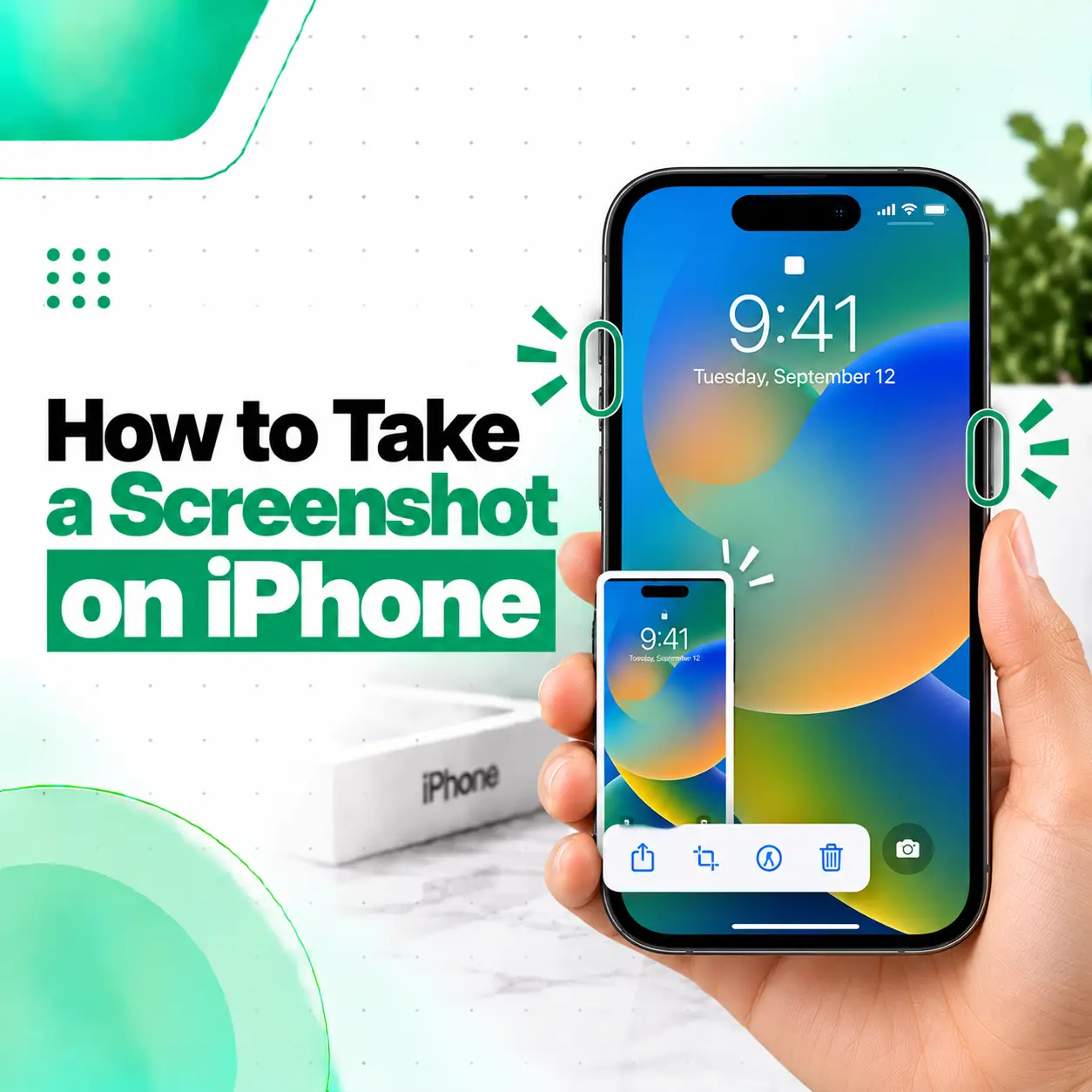
If you need to save something currently displayed on your iPhone screen, taking a screenshot is usually the quickest option. You can capture a conversation, webpage, receipt, error message, social media post, booking confirmation, or other on-screen information without using another device.
To take a screenshot on most newer iPhones, quickly press and release the Side button and Volume Up button at the same time. iPhones with a Home button use a different button combination. Apple also provides alternatives such as AssistiveTouch, Back Tap, and Siri, while supported webpages can be captured as full-page screenshots.
This guide explains the different ways to take screenshots on iPhone, where screenshots are saved, how to capture an entire webpage, how to edit and share screenshots, and what to check if the screenshot function isn’t working correctly.
How Do You Take a Screenshot on an iPhone?
The button combination depends on your iPhone model.
- iPhone with Face ID: Press and quickly release the Side button + Volume Up button together.
- iPhone with a Home button and Side button: Press and quickly release the Side button + Home button together.
- Older iPhone models with a Top button and Home button: Press and quickly release the Top button + Home button together.
The screenshot is then captured and can be edited, shared, or saved.
How to Screenshot on an iPhone Without a Home Button
Most newer iPhones don’t have a physical Home button.
To take a screenshot:
- Open the screen you want to capture.
- Press the Side button and Volume Up button simultaneously.
- Quickly release both buttons.
- Edit, share, or save the screenshot if needed.
Apple’s current iPhone documentation confirms this method for iPhones with Face ID.
You don’t need to hold the buttons down. A quick press and release is enough.
How to Take a Screenshot on an iPhone With a Home Button
If your iPhone has a physical Home button, the screenshot combination is different.
iPhone With Side Button and Home Button
Follow these steps:
- Open the content you want to capture.
- Press the Side button and Home button together.
- Quickly release both buttons.
- Edit or save the screenshot.
Apple lists this combination for iPhone models with Touch ID and a Side button.
iPhone With Top Button and Home Button
Some older iPhone models use a Top button instead of a Side button.
The process is:
- Press the Top button and Home button together.
- Quickly release both buttons.
- The screenshot will be captured.
The exact button layout depends on the iPhone model.
What Happens After You Take a Screenshot?
After capturing a screenshot, iOS provides tools for working with the image.
Depending on your iOS version and screenshot settings, you may see the captured screenshot with options to:
- Edit it
- Crop it
- Mark it up
- Share it
- Save it
- Delete it
In current iOS versions, Apple provides quick tools for editing, sharing, and saving screenshots immediately after capture.
How to Edit a Screenshot
After taking the screenshot, use the available editing tools to crop or annotate it.
You can use Markup to:
- Draw on the screenshot
- Highlight information
- Add markings
- Crop unnecessary areas
This is particularly useful when you want to send someone only a specific part of a conversation, webpage, document, or error message.
How to Take a Full-Page Screenshot on iPhone
A standard screenshot captures what is currently visible on your screen. However, supported content can sometimes be captured beyond the visible screen.
For example, Safari can capture an entire webpage as a Full Page screenshot.
Steps to Take a Full-Page Screenshot
- Open the webpage in Safari.
- Take a normal screenshot using the appropriate button combination.
- Open the screenshot preview or screenshot controls.
- Select Full Page.
- Review the captured content.
- Crop it if necessary.
- Choose the available save option.
Apple’s current documentation says a full-page capture can include content beyond the visible screen, such as an entire webpage in Safari. Depending on the available options, the full-page capture can also be saved as a PDF to Files.
When Is a Full-Page Screenshot Useful?
Full-page screenshots can be useful for:
- Webpages
- Online instructions
- Long articles
- Receipts
- Reference information
- Web-based forms
Instead of taking several separate screenshots, a full-page capture can keep the information together when the content supports this feature.
How to Take a Screenshot Without Pressing the Buttons
If pressing two physical buttons at the same time is difficult, iPhone provides alternative methods.
You can use:
- AssistiveTouch
- Back Tap
- Siri
Apple specifically lists these as alternative ways to take screenshots.
How to Screenshot Using AssistiveTouch
AssistiveTouch provides an on-screen menu that can perform actions without requiring the same physical button combination.
To enable it:
Settings → Accessibility → Touch → AssistiveTouch
Turn on AssistiveTouch, then customize the menu or gesture to perform a screenshot.
Apple confirms that AssistiveTouch can be used to take screenshots and can also be customized for different actions.
Why Use AssistiveTouch?
AssistiveTouch can be useful if:
- A physical button is difficult to press
- You have difficulty pressing two buttons simultaneously
- You prefer touchscreen controls
- A button isn’t responding normally
If a physical button is consistently failing, however, AssistiveTouch is a workaround rather than a repair for the underlying hardware problem.
How to Screenshot Using Back Tap
Back Tap lets you assign an action to a double or triple tap on the back of the iPhone.
To set it up:
- Open Settings.
- Tap Accessibility.
- Tap Touch.
- Tap Back Tap.
- Choose Double Tap or Triple Tap.
- Select Screenshot.
- Double-tap or triple-tap the back of the iPhone to trigger the action.
Apple documents Back Tap as a way to trigger actions such as taking a screenshot.
Back Tap is available on supported iPhone models and iOS versions.
Can Siri Take a Screenshot on iPhone?
Yes. Siri can be used as an alternative way to trigger a screenshot on supported iPhone configurations.
This can be useful when you don’t want to use the physical buttons or touchscreen controls.
If Siri doesn’t perform the expected action, check that Siri is enabled and that your iPhone’s current software supports the requested function.
Where Are Screenshots Saved on iPhone?
Screenshots are automatically saved to your iPhone’s photo library.
To find them:
Photos → Collections → Media Types → Screenshots
Apple’s current iPhone documentation identifies the Screenshots media type as the location for reviewing captured screenshots.
This makes it easier to find screenshots without searching through your entire photo library.
How to Share an iPhone Screenshot
After taking a screenshot, you can share it directly using the available sharing controls.
Depending on your iPhone and iOS version, you can send the screenshot through supported apps and services.
You can also open the screenshot later from Photos and use the Share option.
This can be useful when sending:
- Error messages to technical support
- Payment confirmations
- Product information
- Conversations
- Website information
- Repair-related screenshots
How to Delete an iPhone Screenshot
If you no longer need a screenshot, you can delete it from Photos like any other image.
Open:
Photos → Screenshots → Select → Choose the screenshot → Delete
Regularly removing unnecessary screenshots can help keep your photo library organized and reduce unnecessary storage use.
Screenshot vs Screen Recording: What’s the Difference?
A screenshot is a still image of what appears on your screen.
A screen recording captures video of the screen, and may include related audio depending on the recording setup.
Use a screenshot when you need to save a single moment or piece of information.
Use screen recording when you need to demonstrate something that happens over time, such as:
- A software problem
- A gesture
- An app workflow
- A recurring error
- A troubleshooting process
Apple distinguishes screenshots as images and screen recordings as video captures of the device display.
What Should You Do If Your iPhone Won’t Take a Screenshot?
If your iPhone doesn’t capture a screenshot, first check whether you’re using the correct button combination for your model.
Check the Button Timing
The buttons should be pressed and quickly released together.
You don’t need to hold them down for several seconds.
If you hold the buttons too long, you may trigger other functions instead of taking a screenshot.
Check Whether the Buttons Respond
Test the Side, Volume, Home, or Top button individually.
If one physical button doesn’t respond reliably, the normal screenshot shortcut may not work.
You can temporarily try AssistiveTouch or Back Tap if those features are supported.
Restart the iPhone
If the buttons work normally but screenshots suddenly stop responding, restarting the iPhone can be a basic troubleshooting step.
After restarting, try the screenshot shortcut again.
Check for a Broader Button Problem
If a physical button also fails to lock the phone, adjust volume, return to the Home screen, or perform its other normal function, the issue may be related to the button or device hardware.
In that situation, a professional inspection can help determine the cause.
Common iPhone Screenshot Problems
| Problem | What to Check |
| Screenshot doesn’t capture | Correct button combination and timing |
| Volume button isn’t responding | Test the button separately |
| Side button isn’t responding | Check whether other Side button functions work |
| Home button isn’t responding | Test the Home button independently |
| Buttons are difficult to press | Try AssistiveTouch |
| Want a button-free shortcut | Set up Back Tap |
| Screenshot is hard to find | Photos → Collections → Media Types → Screenshots |
| Need a long webpage | Use Full Page where supported |
| Screenshot shortcut suddenly stopped | Restart and test buttons again |
When Should You Get an iPhone Button Problem Checked?
You may want professional inspection if a physical button repeatedly fails to respond or only works when pressed from a particular angle.
Other warning signs can include:
- Side button not responding consistently
- Volume button not working
- Home button malfunctioning
- Button feeling physically loose
- Button becoming stuck
- Button problems appearing after a drop
- Button problems appearing after liquid exposure
- Multiple physical controls failing at the same time
Software-based alternatives such as AssistiveTouch can help you continue using the device, but they don’t repair a physically damaged button.
If the problem started after impact or liquid exposure, avoid repeatedly forcing the affected button.
Can a Broken iPhone Button Affect Screenshot Capture?
Yes. If your iPhone relies on a physical button combination for screenshots and one of those buttons isn’t working correctly, the standard screenshot shortcut may fail.
For supported devices, AssistiveTouch and Back Tap can provide alternative screenshot methods.
If other functions associated with the same physical button are also affected, professional diagnosis may be useful to determine whether the issue is mechanical, hardware-related, or software-related.
How to Keep Screenshots Organized
If you frequently capture screenshots, your Photos library can quickly become cluttered.
A simple organization routine can help:
- Delete screenshots you no longer need.
- Keep important receipts or documents.
- Move important files to an appropriate location when necessary.
- Review the Screenshots media type periodically.
- Avoid keeping multiple copies of the same information.
For sensitive information such as payment details, passwords, personal conversations, or identification documents, consider whether you still need the screenshot after sharing or using it.
Frequently Asked Questions
1. How do I take a screenshot on my iPhone?
On an iPhone with Face ID, press and quickly release the Side button and Volume Up button together. On an iPhone with a Home button, press and quickly release the Side button and Home button together. Older models with a Top button use the Top and Home buttons.
2. How do I screenshot on an iPhone without a Home button?
Press the Side button and Volume Up button at the same time, then quickly release both. The screenshot will be captured immediately. You can then edit, share, or save it using the available screenshot controls. This is the standard method for iPhones with Face ID.
3. How can I take a screenshot without pressing the iPhone buttons?
You can use alternatives such as AssistiveTouch, Back Tap, or Siri. AssistiveTouch can provide an on-screen screenshot action, while Back Tap can be configured to take a screenshot with a double or triple tap on the back of the iPhone.
4. How do I take a full-page screenshot on iPhone?
Take a normal screenshot on supported content, then select Full Page when the option appears. This can capture content beyond the visible screen, such as an entire webpage in Safari. Apple also provides an option to save a full-page capture as a PDF to Files on supported configurations.
5. Where are screenshots saved on an iPhone?
Screenshots are automatically saved to the Photos library. To find them, open Photos, go to Collections, scroll to Media Types, and select Screenshots. This gives you a dedicated place to review captured screenshots.
6. Why won’t my iPhone take a screenshot?
First, make sure you’re using the correct button combination and quickly releasing the buttons together. If one of the physical buttons isn’t responding, try AssistiveTouch or Back Tap if available. If the button also fails during other normal functions, the device may need professional inspection.
7. Can I use AssistiveTouch to take screenshots if an iPhone button is broken?
Yes, AssistiveTouch can be configured to perform a screenshot without relying on the normal physical-button combination. Go to Settings → Accessibility → Touch → AssistiveTouch and customize the available actions. This can be a useful workaround while determining whether a physical button needs repair.
Conclusion
Learning how to take a screenshot on iPhone is simple once you know which button combination applies to your model. iPhones with Face ID generally use the Side and Volume Up buttons, while models with a Home button use the Home button together with the Side or Top button.
If pressing physical buttons isn’t convenient, AssistiveTouch, Back Tap, and Siri provide alternative methods on supported devices. You can also capture supported webpages as full-page screenshots and find your saved screenshots in the Photos app.
If the normal screenshot method fails because a physical button is damaged, stuck, or no longer responds consistently, software shortcuts can provide a temporary workaround. For persistent button problems—especially after a drop or liquid exposure—iCareFix can inspect the device and help determine whether professional repair is appropriate.