




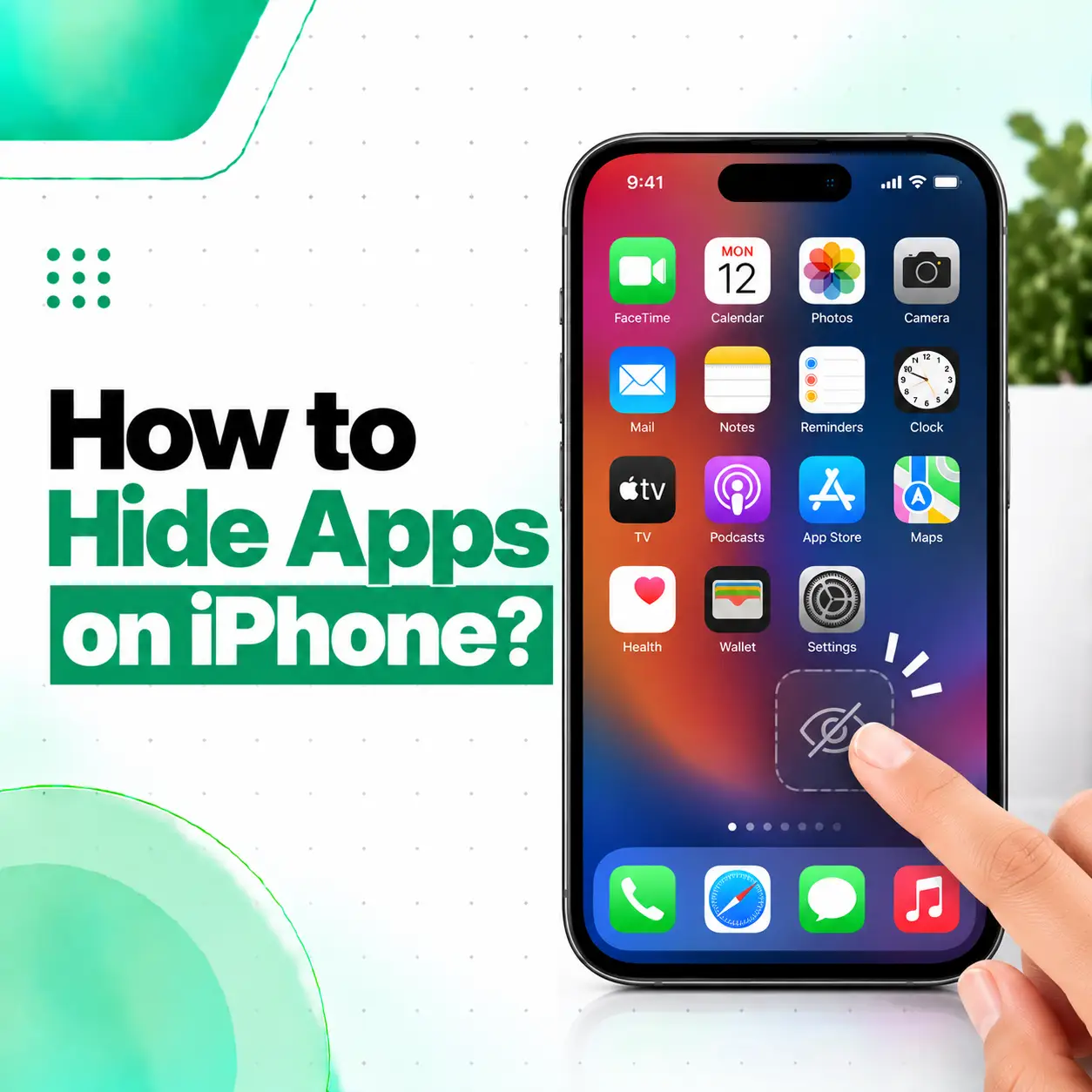
If you want to keep an app out of sight on your iPhone without deleting it, Apple’s newer iOS versions provide a built-in Hide App feature. You can hide eligible downloaded apps so they disappear from the Home Screen, App Library, and Search, while access to the hidden app requires Face ID, Touch ID, or your passcode.
To hide an app, touch and hold its icon on the Home Screen, select Require Face ID (or Touch ID/Passcode), choose Hide and Require Face ID, authenticate, and then tap Hide App. The app moves to the Hidden folder at the bottom of App Library.
This guide explains how to hide apps on iPhone, the difference between hiding and locking an app, where hidden apps are stored, how to unhide them, and what to do if the Hide option isn’t available.
How Do You Hide Apps on iPhone?
On an iPhone running a supported version of iOS, you can hide an eligible downloaded app directly from the Home Screen.
Steps to Hide an App on iPhone
- Go to the Home Screen.
- Find the app you want to hide.
- Touch and hold the app icon.
- Tap Require Face ID (or Require Touch ID or Require Passcode, depending on your device).
- Tap Hide and Require Face ID.
- Authenticate using Face ID, Touch ID, or your passcode.
- Tap Hide App.
The app is then removed from the Home Screen and moved to the Hidden folder at the bottom of App Library.
What Happens When You Hide an App?
Hiding an app does more than simply remove its icon from the Home Screen.
According to Apple, a hidden app:
- Disappears from the Home Screen.
- Doesn’t appear in the normal App Library view.
- Doesn’t appear in Search.
- Moves to the Hidden folder.
- Requires authentication to open.
- Remains installed on the iPhone.
The hidden status applies to that particular iPhone and doesn’t sync as a hidden status through iCloud.
How to Hide Apps With Face ID on iPhone
If your iPhone supports Face ID and the app is eligible for hiding, Face ID can be used to authenticate the action.
The process is:
Touch and hold app → Require Face ID → Hide and Require Face ID → Authenticate → Hide App
Once hidden, the app requires authentication before it can be accessed from the Hidden folder.
This can be useful when you want additional privacy for apps containing personal conversations, financial information, private documents, or other sensitive content.
However, hiding an app should not be treated as a way to make all traces of an app completely invisible. Apple notes that information about hidden apps can still be visible in certain areas, including Settings, Screen Time, Battery information, and App Store purchase history.
How to Hide Apps Without Deleting Them
You don’t need to delete an app just because you don’t want its icon visible.
There are three different actions to understand:
| Action | What Happens |
| Hide App | Removes the app from normal Home Screen/App Library views and places it in Hidden |
| Remove from Home Screen | Removes the icon from Home Screen but keeps the app accessible through App Library |
| Delete App | Removes the app from the iPhone |
If your goal is privacy rather than freeing storage, Hide App is the more appropriate option when the feature is available.
What Is the Difference Between Hiding and Locking an App?
Hiding and locking are related but aren’t exactly the same.
Locking an App
When you lock an app, it remains visible but requires Face ID, Touch ID, or a passcode to open.
Apple also limits where information from a locked app can appear, including areas such as notification previews, Search, Siri suggestions, and certain other locations.
Hiding an App
When you hide an app, it is additionally removed from the normal Home Screen, App Library, and Search results and placed in the Hidden folder.
You still need authentication to access it.
Which One Should You Use?
Choose based on what you need:
- Want the app visible but protected? Lock it.
- Want the app removed from normal app views? Hide it.
- Want the app completely removed? Delete it.
These options solve different problems, so hiding isn’t necessarily better than locking for every situation.
Where Do Hidden Apps Go on iPhone?
Hidden apps are placed in a dedicated Hidden folder at the bottom of App Library.
To access it:
- Go to the Home Screen.
- Swipe left past all Home Screen pages.
- Continue to App Library.
- Scroll to the bottom.
- Tap the Hidden folder.
- Authenticate with Face ID, Touch ID, or your passcode.
- Tap the app you want to open.
- Authenticate again if prompted.
Apple’s current iPhone documentation confirms this process for accessing hidden apps.
How to Find Hidden Apps on iPhone
If you’ve hidden an app and can’t remember where it is, don’t search for it normally because hidden apps don’t appear in standard Search.
Instead:
Home Screen → App Library → Hidden → Authenticate
You can also view a list of hidden apps through:
Settings → Apps → Hidden Apps
Authentication is required to view this list.
Why Can’t I Find My Hidden App in Search?
That’s expected behavior.
Apple specifically states that hiding an app removes it from Search results. The app remains installed but is moved into the Hidden folder and protected by authentication.
If you don’t see an app in Search, check the Hidden folder before assuming that it has been deleted.
How to Unhide an App on iPhone
If you want a hidden app to appear normally again, you can stop hiding it.
Steps to Unhide an App
- Go to the Home Screen.
- Swipe left to open App Library.
- Scroll to the Hidden folder.
- Authenticate with Face ID, Touch ID, or your passcode.
- Touch and hold the app.
- Tap Don’t Require Face ID (or the corresponding Touch ID/Passcode option).
- Authenticate again if required.
The app then appears in App Library and can be placed back on the Home Screen.
Can You Hide Built-In Apple Apps?
Not every app can be hidden.
Apple states that apps installed with iOS cannot be hidden using the Hide App feature. The feature is intended for apps that you downloaded separately from the App Store.
For example, if you want to hide a built-in Apple app and the Hide option isn’t available, that doesn’t necessarily mean your iPhone is malfunctioning. The limitation may simply come from Apple’s app-hiding rules.
Some built-in apps also have limitations around app locking.
What If the “Hide App” Option Is Missing?
If you don’t see Hide and Require Face ID, check a few things before assuming there’s a problem with your iPhone.
Check Your iOS Version
The built-in app-hiding feature was introduced with iOS 18. Apple continues to document it in newer iOS versions.
You can check your software version under:
Settings → General → About → iOS Version
If your device is running an older version of iOS, the Hide App option may not be available.
Check Whether the App Is Eligible
Apple’s built-in apps generally cannot be hidden using this feature.
If you’re trying to hide an app that came with iOS, the missing option may be expected behavior.
Check Your Authentication Settings
The Hide App feature relies on device authentication. Make sure your iPhone has the appropriate Face ID, Touch ID, or passcode configuration available.
If Face ID or another authentication feature isn’t functioning correctly, you may encounter problems when trying to authenticate the hiding or opening process.
Can You Hide Apps on Older iPhones?
The availability of the built-in Hide App feature depends primarily on the iOS version and device compatibility rather than simply the name of the iPhone model.
Apple introduced app hiding with iOS 18, so an iPhone capable of running a supported iOS version can use the feature when the app is eligible.
Older devices that cannot run a compatible iOS version won’t have Apple’s newer Hide App feature.
How to Hide an App From the Home Screen Without Using Hide App
If you don’t need authentication-based privacy and simply want an app off your Home Screen, you can remove it from the Home Screen without deleting it.
Steps
- Touch and hold the app.
- Tap Remove App.
- Tap Remove from Home Screen.
The app remains installed and can still be found in App Library.
This is different from hiding an app.
Remove from Home Screen: The app remains searchable and accessible through App Library.
Hide App: The app is removed from normal Search/Home Screen/App Library views and placed in the authenticated Hidden folder.
How to Hide an Entire Home Screen Page
You don’t always need to hide individual apps.
If you have a Home Screen page containing several apps, you can hide the entire page while keeping the apps installed.
Apple’s Home Screen controls allow you to hide pages while keeping the apps available through App Library.
Steps to Hide a Home Screen Page
- Touch and hold an empty area on the Home Screen.
- Tap the page indicator or Edit Pages option.
- Remove the checkmark from the page you want to hide.
- Tap Done.
The apps remain installed and available in App Library.
This is useful for organization, but it doesn’t provide the same privacy protection as the dedicated Hide App feature.
Does Hiding an App Delete Its Data?
No. Hiding an app is not the same as deleting it.
The app remains installed on the iPhone. Hiding changes where and how the app can normally be accessed; it doesn’t serve as an app deletion process.
If you actually delete an app, its local app data can be removed from the device, although information stored separately in iCloud may remain depending on the app and data type.
Can Other People See a Hidden App?
Hiding an app makes it substantially less visible in normal iPhone locations, but it doesn’t mean the app leaves no trace anywhere on the device.
Apple says hidden apps can still be referenced in places such as:
- Settings → Apps → Hidden Apps
- Screen Time
- Battery information
- App Store purchase history
Access to some of these areas may require authentication, but the app’s existence isn’t necessarily erased from every system record.
For this reason, think of Hide App as a privacy and access-control feature, not a complete deletion or forensic concealment feature.
Is Hiding an App the Same as Deleting It?
No.
Hiding keeps the app installed, while deleting removes the app from the iPhone.
Use Hide App when you want to keep the app and its functionality but make it less visible.
Use Delete App when you no longer need the application and want to remove it from the device.
What Happens to Notifications From a Hidden App?
Hiding an app changes how the app appears in several parts of the iPhone. Apple states that information from locked apps doesn’t appear in certain locations such as notification previews, Search, Siri suggestions, and call history.
However, notification behavior can depend on the app and the specific iOS feature involved.
If privacy is important, review the app’s notification settings as well rather than relying only on hiding the icon.
Does Hiding an App Hide It From iCloud?
The hidden or locked status applies to the specific iPhone.
Apple states that the locked or hidden status of an app doesn’t sync with iCloud.
That means hiding an app on one iPhone shouldn’t be interpreted as a universal hidden state across every Apple device associated with the same Apple Account.
App Privacy Tips Beyond Hiding Apps
If your goal is to protect personal information, hiding apps is only one part of iPhone privacy.
Consider also:
- Using a strong device passcode.
- Keeping iOS updated.
- Reviewing notification previews.
- Checking which apps have access to sensitive information.
- Reviewing Face ID permissions.
- Using Screen Time where appropriate.
- Reviewing unfamiliar apps and account activity.
- Avoiding sharing your device passcode unnecessarily.
For sensitive apps such as banking, email, messaging, or password-management apps, use the security controls provided by the app itself in addition to iPhone’s built-in protections.
When Could an iPhone Privacy Feature Problem Need Professional Help?
Most app-hiding problems are software or settings issues and don’t require hardware repair.
However, professional troubleshooting may be appropriate if you are experiencing broader iPhone problems such as:
- Face ID repeatedly failing
- Touchscreen problems preventing you from navigating settings
- A physical button not responding
- iPhone repeatedly restarting
- Settings unexpectedly crashing
- Apps repeatedly disappearing or behaving abnormally
- Other system functions failing after physical or liquid damage
A repair technician can first determine whether the issue is software-related before recommending hardware service.
For users in Bangladesh, this distinction is important: an app not showing a Hide App option isn’t automatically a phone hardware problem.
How to Prevent App Privacy Problems
A few simple habits can help keep your iPhone organized and private:
- Keep your iPhone updated to a supported iOS version.
- Use Face ID, Touch ID, or a strong passcode.
- Review hidden and locked apps periodically.
- Check notification previews for sensitive apps.
- Remove apps you no longer use.
- Don’t rely on hiding an app as a substitute for account security.
- Keep important apps updated through the App Store.
- Review privacy permissions periodically.
If you are hiding an app because it contains particularly sensitive information, also review the app’s own privacy and security settings.
Frequently Asked Questions
1. How do I hide apps on iPhone?
To hide an eligible downloaded app, touch and hold its icon on the Home Screen, tap Require Face ID (or Touch ID/Passcode), choose Hide and Require Face ID, authenticate, and tap Hide App. The app moves to the Hidden folder in App Library.
2. Can I hide an app on iPhone without deleting it?
Yes. Hiding an app does not delete it. The app remains installed and moves to the Hidden folder in App Library. You’ll need Face ID, Touch ID, or your passcode to access it. If you only remove an app from the Home Screen, it remains normally accessible through App Library and Search.
3. Where can I find hidden apps on my iPhone?
Swipe left through your Home Screen pages until you reach App Library. Scroll to the bottom and tap the Hidden folder, then authenticate. You can also view hidden apps through Settings → Apps → Hidden Apps, which requires authentication.
4. How do I unhide an app on iPhone?
Open App Library, go to the Hidden folder, authenticate, then touch and hold the app. Select Don’t Require Face ID (or the corresponding Touch ID/Passcode option) and authenticate if requested. The app will become visible again in App Library and can be returned to the Home Screen.
5. Why can’t I see the Hide App option on my iPhone?
The feature requires a supported iOS version, and Apple’s Hide App function applies to eligible apps downloaded separately from the App Store. Apps that come installed with iOS generally can’t be hidden. If you’re using a compatible iOS version and an eligible app but the option is still missing, check your device settings and software version.
6. Does hiding an app completely remove it from my iPhone?
No. Hiding removes the app from the normal Home Screen, App Library view, and Search, but the app remains installed in the Hidden folder. Apple also notes that information about hidden apps can remain visible in certain places, including Settings, Screen Time, Battery information, and App Store purchase history.
7. What should I do if Face ID or another feature doesn’t work when trying to hide an app?
First, check whether Face ID or your device’s other authentication method works elsewhere. If the problem is limited to app hiding, review your iOS version and settings. If Face ID, the touchscreen, buttons, or other system functions are also failing—particularly after a drop or liquid exposure—a professional inspection can help identify whether the issue is software-related or hardware-related.
Conclusion
Learning how to hide apps on iPhone is straightforward when your device is running a supported iOS version. For an eligible downloaded app, touch and hold its icon, select Require Face ID, choose Hide and Require Face ID, authenticate, and confirm Hide App. The app then moves to the Hidden folder in App Library.
Remember that hiding an app is different from removing it from the Home Screen or deleting it. It also doesn’t erase every reference to the app from the device. If the Hide App option is unavailable, first check the iOS version and whether the app is eligible.
If you’re experiencing wider iPhone problems—such as Face ID failure, touchscreen issues, repeated crashes, or other hardware-related symptoms—basic settings changes may not solve the underlying problem. iCareFix can inspect the device and help determine whether professional troubleshooting or repair is appropriate.