




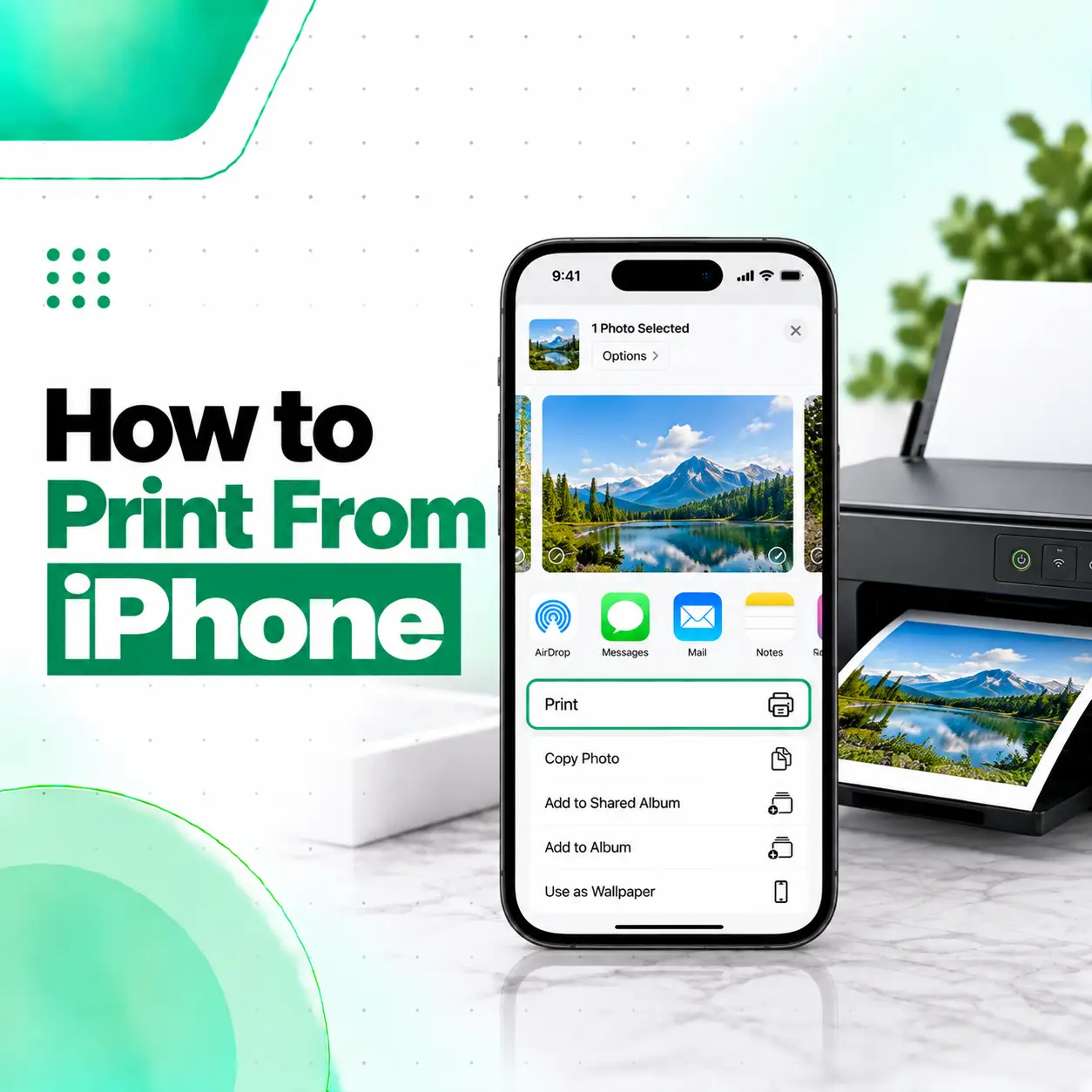
If you need to print a document, photo, PDF, email, or webpage, you don’t necessarily need to transfer it to a computer first. With a compatible printer, you can print directly from your iPhone using Apple’s AirPrint feature.
To print from iPhone, your printer generally needs to support AirPrint, and your iPhone and printer should be connected to the same Wi-Fi network. You then open the app containing the content, choose the Share or Actions option, select Print, choose your printer, adjust the available options, and start printing.
This guide explains how to print different types of content from an iPhone, how to set up an AirPrint printer, what to do when your printer doesn’t appear, and when an iPhone connectivity problem may require professional troubleshooting.
How Do You Print From iPhone?
The easiest way to print from iPhone is through AirPrint, Apple’s built-in wireless printing technology.
Before You Start
Check these requirements:
- Your printer supports AirPrint.
- The printer is powered on.
- Your iPhone has Wi-Fi enabled.
- Your iPhone and printer are connected to the same Wi-Fi network.
- The app you’re using supports printing.
AirPrint doesn’t require you to install printer drivers on your iPhone. Apple says AirPrint is built into many popular printer models.
Steps to Print From iPhone
- Open the app containing the document, photo, webpage, or other content.
- Tap the Share, More, or Actions button, depending on the app.
- Scroll through the available options and tap Print.
- Tap No Printer Selected if a printer hasn’t already been selected.
- Choose your AirPrint-enabled printer.
- Select the number of copies and other available printing options.
- Tap Print.
Apple notes that not every app supports printing, so the Print option may not appear in some apps.
How to Connect an iPhone to a Printer
You normally don’t need to physically connect your iPhone to an AirPrint printer with a cable.
Instead, connect both devices to the same Wi-Fi network.
Step 1: Connect the Printer to Wi-Fi
Use your printer’s control panel or manufacturer’s setup instructions to connect it to your Wi-Fi network.
The exact setup process varies by printer model.
Step 2: Connect Your iPhone to the Same Wi-Fi
On your iPhone:
Settings → Wi-Fi
Select the same Wi-Fi network being used by the printer.
Step 3: Select the Printer From the Print Menu
Open an app that supports printing and select:
Share/Actions → Print → No Printer Selected
Your iPhone should then search for available AirPrint printers.
How to Print Photos From iPhone
You can print photos directly from the Photos app if you have an AirPrint-enabled printer.
Print One Photo
- Open Photos.
- Open the photo you want to print.
- Tap the Share button.
- Tap Print.
- Select your printer.
- Adjust the available print settings.
- Tap Print.
Apple specifically supports direct photo printing from Photos to AirPrint-enabled printer
Print Multiple Photos
You can also print several photos together:
- Open Photos.
- Go to your photo library.
- Tap Select.
- Choose the photos you want to print.
- Tap Share.
- Tap Print.
- Select the printer and complete the print options.
Apple documents this multiple-photo workflow for AirPrint-enabled printers.
How to Print a PDF From iPhone
PDF printing depends on where the PDF is stored and which app you’re using.
If the PDF is available in an app that supports printing, open the document and look for the Print option in the Share or Actions menu.
On supported versions of iOS, you can also open a PDF in the Preview app and print it directly:
- Open Preview.
- Open the PDF.
- Tap the Actions menu beside the filename.
- Tap Print.
- Select your printer.
- Tap the Print button.
Apple provides this workflow for printing PDFs and images in Preview on iPhone.
How to Print a Document From iPhone
You can print documents from compatible apps such as Pages.
For example, in Pages:
- Open Pages.
- Open the document.
- Tap the More button.
- Tap Print.
- Select a printer if one hasn’t already been selected.
- Choose available options such as page range and number of copies.
- Tap Print.
Pages automatically searches for nearby AirPrint printers when you choose the printer option.
How to Print From Safari on iPhone
If you want to print a webpage from Safari:
- Open Safari.
- Open the webpage.
- Tap the Share button.
- Scroll through the actions.
- Tap Print.
- Select your AirPrint printer.
- Choose the available printing options.
- Tap Print.
The exact appearance of the Share menu can vary depending on your iOS version.
How to Print an Email From iPhone
If the email app provides a printing option, you can generally print the message through its Share, More, or Actions menu.
The basic process is:
Open email → Share/Actions → Print → Select printer → Print
If the Print option isn’t immediately visible, scroll through the available actions. Apple notes that the location of the print option can vary between apps.
What Is AirPrint?
AirPrint is Apple’s wireless printing technology that allows compatible Apple devices to print to supported printers without installing traditional printer drivers.
With AirPrint, you can print supported content directly from apps on your iPhone.
AirPrint is useful because:
- No traditional printer driver installation is required.
- Printing can be done wirelessly.
- Compatible printers can be discovered from the print menu.
- It works with supported apps such as Photos, Mail, and Safari.
What If Your iPhone Can’t Find the Printer?
If your printer doesn’t appear in the printer list, the problem is often related to network connectivity, printer compatibility, or the printer itself.
Try these checks.
Check the Wi-Fi Network
Make sure the iPhone and printer are connected to the same Wi-Fi network. This is one of Apple’s basic requirements for AirPrint.
Check AirPrint Compatibility
Not every printer supports AirPrint.
Check the printer manufacturer’s specifications or Apple’s AirPrint information to confirm compatibility.
Check Whether the Printer Is Turned On
Make sure the printer is:
- Powered on
- Connected to Wi-Fi
- Not displaying an error
- Ready to accept print jobs
Restart the Connection
If the printer was recently connected to Wi-Fi or the network changed, restarting the printer and reconnecting the iPhone to Wi-Fi can sometimes resolve discovery problems.
Try Another App
If the Print option is missing from one app, try another app that supports printing.
Not all iPhone apps support AirPrint.
Why Is My iPhone Connected to Wi-Fi but Can’t Print?
Being connected to Wi-Fi doesn’t automatically mean your iPhone can communicate with every printer.
Check:
- Whether the printer supports AirPrint
- Whether both devices are on the same Wi-Fi network
- Whether the printer is online
- Whether the app supports printing
- Whether the printer is showing an error
If the printer appears in the list but the print job doesn’t complete, the problem may involve the printer, network, app, or print queue rather than the iPhone itself.
How to Check a Stuck Print Job on iPhone
If you’ve already sent something to the printer, you can check the print job through Print Center when available.
Apple explains that you can open the App Switcher and select Print Center to view the print queue. A badge on the Print Center icon indicates the number of documents waiting.
If necessary, select the print job and choose Cancel Printing.
What If the Print Option Is Missing?
If you can’t find Print, don’t assume your iPhone is malfunctioning.
The most likely explanations include:
- The app doesn’t support printing.
- The Print option is further down the Share menu.
- The content needs to be opened in another compatible app.
- The app has a different Actions or More menu.
Apple specifically notes that not all apps support printing.
Try scrolling through the available actions before troubleshooting the iPhone itself.
Can You Print From iPhone Without AirPrint?
Yes, but the exact method depends on the printer.
If your printer doesn’t support AirPrint, the manufacturer may provide its own iPhone app or another printing method.
However, the setup varies between printer brands and models, so you should follow the printer manufacturer’s instructions rather than assuming that every printer works the same way.
For AirPrint specifically, Apple recommends using a compatible printer connected to a network accessible to the iPhone.
Common iPhone Printing Problems
Here are some common situations users may encounter:
| Problem | What to Check |
| Printer doesn’t appear | Same Wi-Fi network and AirPrint compatibility |
| Print option missing | Whether the app supports printing |
| Print job is stuck | Print Center and printer status |
| Photos won’t print | Photos app, printer connection, paper/settings |
| PDF won’t print | Use a compatible app such as Preview |
| Printer disconnects | Wi-Fi and printer network connection |
| Multiple copies fail | Printer settings and available paper |
| Printing suddenly stops | Printer errors, network, or print queue |
When Could the Problem Be With the iPhone?
Most printing problems are related to the printer, network, app, or compatibility rather than a physical iPhone fault.
However, professional troubleshooting may be appropriate if your iPhone has broader connectivity problems—for example, persistent Wi-Fi issues, Bluetooth problems, or other network-related symptoms that affect multiple devices or services.
Before considering hardware repair, it’s important to isolate the problem by testing another Wi-Fi network, app, or compatible device where possible.
How to Prevent iPhone Printing Problems
A few simple habits can make wireless printing easier:
- Keep your iPhone’s software reasonably up to date.
- Keep the printer connected to a stable network.
- Check printer compatibility before attempting AirPrint.
- Keep the printer manufacturer’s instructions available.
- Restart the printer if it becomes unavailable.
- Check the print queue when jobs appear stuck.
- Test another supported app if printing doesn’t work from one app.
Frequently Asked Questions
1. How do I print from my iPhone?
To print from iPhone, open the app containing the content, tap the Share or Actions button, choose Print, select an AirPrint-enabled printer, choose the number of copies or other available settings, and tap Print. Your iPhone and printer generally need to be connected to the same Wi-Fi network.
2. Can I print directly from my iPhone without a computer?
Yes. If you have an AirPrint-enabled printer, you can print supported documents, photos, webpages, and other content directly from your iPhone without transferring the file to a computer first. AirPrint is built into iPhone and doesn’t require traditional printer-driver installation.
3. Why can’t my iPhone find my printer?
First, check that the printer supports AirPrint and that both the iPhone and printer are connected to the same Wi-Fi network. Also make sure the printer is powered on and ready. If the printer still doesn’t appear, restart the network connection and check the printer manufacturer’s setup instructions.
4. How do I print photos from my iPhone?
Open the Photos app, select a photo, tap the Share button, and choose Print. You can also select multiple photos before opening the Share menu. Then choose an AirPrint-enabled printer and complete the available print settings.
5. How do I print a PDF from my iPhone?
If your iPhone has the PDF in a compatible app, open the document and use its Share or Actions menu to find Print. On supported iOS versions, you can also open a PDF in Preview, tap the Actions menu beside the filename, choose Print, select the printer, and start the job.
6. Can I print from an iPhone if my printer doesn’t support AirPrint?
You may be able to use a printer manufacturer’s app or another supported printing method, but the process depends on the printer model. AirPrint itself requires a compatible printer. Check the manufacturer’s documentation for the specific alternative available for your printer.
7. What should I do if my iPhone won’t connect to a printer?
Start by checking the Wi-Fi connection, AirPrint compatibility, printer status, and whether the app supports printing. If the printer appears but jobs remain stuck, check Print Center and the printer’s status. If your iPhone also has persistent Wi-Fi or other connectivity problems across multiple services, professional device troubleshooting may be appropriate.
Conclusion
Learning how to print from iPhone is straightforward when you have an AirPrint-compatible printer. Connect the iPhone and printer to the same Wi-Fi network, open the content you want to print, select Print from the Share or Actions menu, choose your printer, adjust the available options, and start the print job.
If the printer doesn’t appear, first check Wi-Fi connectivity, AirPrint compatibility, printer status, and app support. Most printing issues can be isolated through these basic checks.
If your iPhone has persistent Wi-Fi, Bluetooth, or other connectivity problems that affect multiple services even after basic troubleshooting, a professional inspection can help determine whether the issue is software-related or involves the device’s hardware. iCareFix can assess the device and recommend an appropriate repair or troubleshooting option based on the problem.