




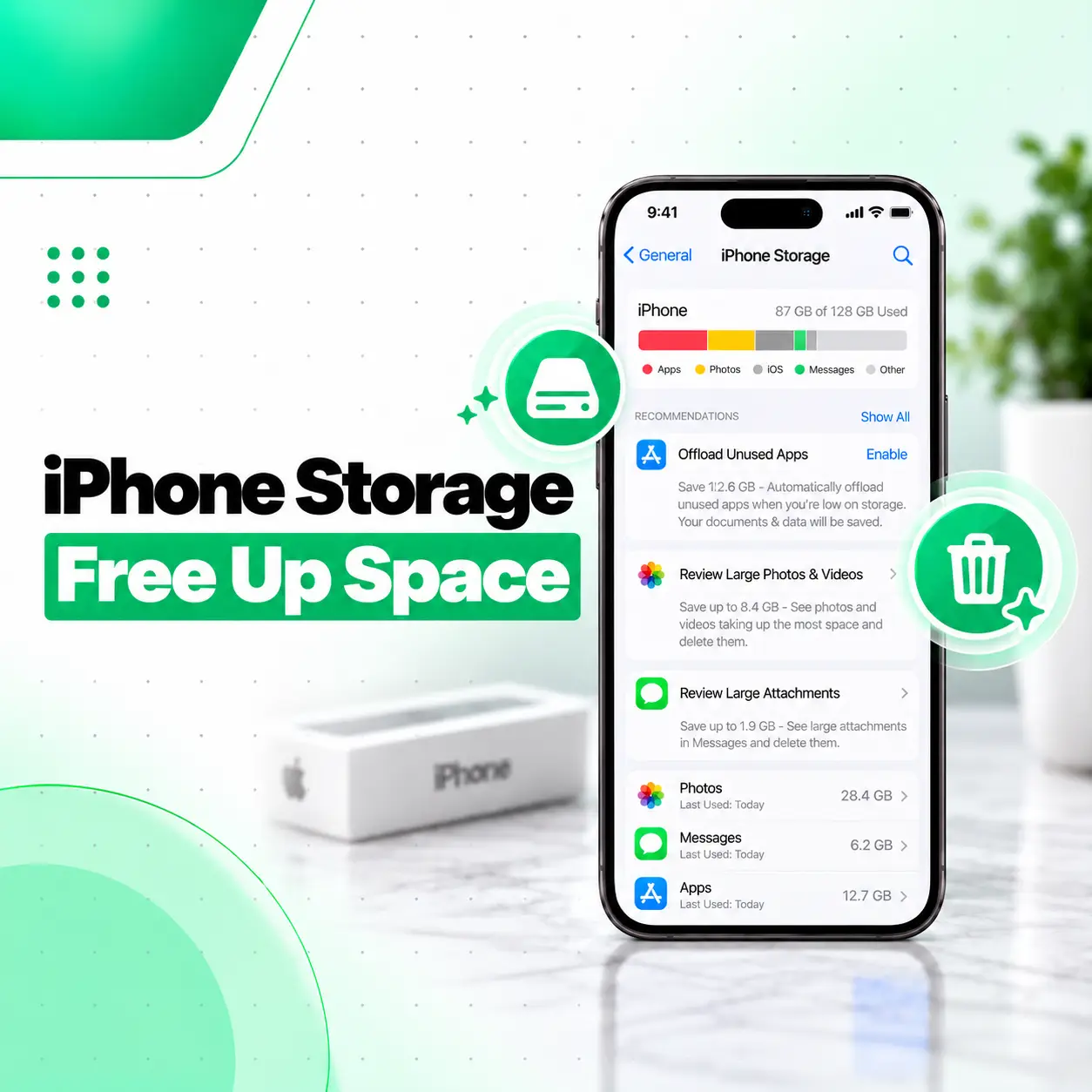
If you want to know how to check iPhone storage, you can find the information directly in the iPhone’s Settings app. Go to Settings → General → iPhone Storage to see how much device storage is being used and how much remains available. You can also see which apps and types of content are consuming the most space.
Checking storage is useful when your iPhone is running low on space, showing a “Storage Almost Full” alert, or when you want to understand whether photos, videos, apps, messages, files, or system data are taking up most of your capacity.
This guide explains where to find the storage information, how to understand the different categories, how iPhone storage differs from iCloud storage, and what you can safely do when your available space is low.
How Do You Check iPhone Storage?
The quickest way to check your iPhone’s storage is through the Settings app.
Follow these steps:
- Open Settings.
- Tap General.
- Tap iPhone Storage.
- Wait for the storage information to load.
- Check the storage bar at the top of the screen.
- Scroll down to see how much space individual apps and content categories are using.
Apple’s current support documentation confirms that the iPhone Storage screen provides storage recommendations and a list of apps showing their storage usage.
What Information Appears in iPhone Storage?
The iPhone Storage screen gives you a breakdown of your device’s storage usage.
You may see categories such as:
- Apps
- Photos
- Media
- Messages
- iCloud Drive content stored locally
- System Data
- iOS/System storage
- Other content
The exact breakdown can vary depending on your iPhone, iOS version, installed apps, and the content stored on the device.
How Do You See What Is Taking Up Space on Your iPhone?
The iPhone Storage section lists apps and their storage usage, making it easier to identify what is consuming the most space.
Tap an app from the list to see more information about its storage. Depending on the app, you may have options to offload or delete it.
Apps
Large apps and their stored content can consume significant amounts of device storage.
If you rarely use an app, check its storage information and decide whether you need to keep it.
Photos and Videos
Photos and videos can take up substantial storage, particularly when your device contains a large camera library.
Before deleting important photos or videos, make sure you have an appropriate backup if you want to keep them.
Messages and Attachments
Messages can also consume storage because conversations may contain photos, videos, documents, and other attachments.
Reviewing large attachments can help identify content that you no longer need.
Files and Downloads
Downloaded files and documents stored locally can contribute to your storage usage. Apple’s storage guidance includes files stored on the device and locally downloaded iCloud Drive content among the categories that can use device storage.
How Much Storage Does Your iPhone Have?
Your iPhone’s storage capacity depends on the specific model and storage configuration you purchased.
The iPhone Storage screen shows how much of that capacity is currently being used and how much remains available.
For example, if an iPhone has a certain storage capacity but a large portion is occupied by apps, photos, videos, and system files, the remaining available space will be lower than the advertised capacity.
The storage capacity of the physical iPhone and the space available for your personal content are therefore not necessarily the same number.
What Is the Difference Between iPhone Storage and iCloud Storage?
iPhone storage is the physical storage available on your device. iCloud storage is cloud storage associated with your Apple Account. They are separate types of storage.
iPhone Device Storage
Device storage is used for content stored directly on the iPhone, including:
- Apps
- Photos
- Videos
- Messages
- Downloaded files
- Other local data
- System files
You can check it under Settings → General → iPhone Storage.
iCloud Storage
iCloud can store or synchronize information such as photos, files, notes, backups, and other data across devices using the same Apple Account.
To check iCloud storage, Apple says to open Settings → [your name] → iCloud, where you can view your iCloud storage usage.
Why the Difference Matters
Buying or managing iCloud storage does not change the physical storage capacity of your iPhone.
For example, having available iCloud storage does not mean your iPhone automatically has additional physical storage capacity. How much device space is used depends on what is stored locally and how features such as iCloud Photos are configured.
Why Is My iPhone Storage Full?
An iPhone can run low on storage when the amount of locally stored content approaches the device’s capacity.
Common contributors include:
- Large photo and video libraries
- Many installed apps
- Downloaded media
- Large message attachments
- Locally stored files
- Offline content
- System and temporary data
Apple may display recommendations in the iPhone Storage section when space is limited.
Check Apple’s Storage Recommendations
Open:
Settings → General → iPhone Storage
If recommendations are available, review them before deleting content manually.
Depending on the device and current storage situation, recommendations can help identify ways to reduce storage usage.
How Can You Free Up iPhone Storage?
Once you know what is using the most space, you can decide what to remove or manage.
1. Delete Apps You No Longer Use
Review the app list under iPhone Storage.
If an app is no longer useful, deleting it can release the space occupied by the app and its associated data.
2. Offload Unused Apps
Offloading an app removes the app itself while keeping its documents and data, allowing you to reinstall it later.
Apple also provides an Offload Unused Apps feature that can automatically remove unused apps when storage is low while keeping their data.
3. Review Photos and Videos
If photos and videos are among your largest storage categories, review your library for:
- Duplicate photos
- Unwanted screenshots
- Old videos
- Large recordings
- Media you no longer need
Do not delete valuable photos simply to free space unless you have confirmed they are backed up or otherwise preserved.
4. Remove Unnecessary Downloads
Check locally stored files and downloaded media.
Streaming apps, the Files app, and other services can store content offline, which can gradually increase device storage usage.
5. Review Large Message Attachments
Old conversations can contain large photos, videos, and documents.
Removing attachments you no longer need can reduce storage usage without requiring you to remove everything from your iPhone.
Can You Check iPhone Storage From a Computer?
Yes. You can also check an iPhone’s storage from a compatible Mac or PC.
Apple’s current guidance explains that you can connect an iPhone to a Mac using Finder or to a PC using the Apple Devices app. Older setups may use iTunes. The computer can show a storage bar divided by content type.
This can be useful if your iPhone screen is difficult to use or if you want to inspect storage while the device is connected to a computer.
What Does System Data Mean on iPhone?
System Data represents storage used by various system-related resources, including items such as caches, logs, fonts, dictionaries, and other system assets.
The amount can change over time and can vary between devices. Apple notes that system-related categories can include non-removable assets and cached or temporary information.
A large or changing System Data category does not automatically mean that your iPhone has a hardware fault.
If storage remains unusually constrained after normal storage management, or if the device also has other problems, a professional inspection may help determine whether there is an underlying software or hardware issue.
When Should You Consider Professional iPhone Repair?
Simply having low storage does not normally mean your iPhone needs repair. Storage management is usually the appropriate first step.
Consider professional assistance if you are experiencing additional problems such as:
- The iPhone repeatedly freezes while managing storage
- Settings does not load the storage information correctly
- The device repeatedly restarts
- Storage information appears inconsistent with the content on the device
- The iPhone has suffered physical or liquid damage
- You cannot access important data and need help before attempting risky troubleshooting
Before a repair or service procedure, discuss data privacy, backup options, and what diagnostic steps will be performed.
For important personal data, having a current backup is particularly useful before troubleshooting that could involve resetting or restoring the device.
How to Check iPhone Storage Before Buying a Used iPhone?
If you are checking a used iPhone before purchasing it, first confirm the model and its advertised storage capacity.
After accessing the device, you can go to:
Settings → General → iPhone Storage
This shows the current storage usage and available space.
However, storage usage alone does not establish the overall condition of a used iPhone. A proper inspection should also consider the battery, display, cameras, charging system, physical condition, network functions, and other relevant components.
Frequently Asked Questions
1. How do I check my iPhone storage?
Open Settings → General → iPhone Storage. The screen shows how much device storage is being used and how much remains available. It also provides a list of apps and their storage usage, along with recommendations that may help you manage available space.
2. How do I see what is taking up the most space on my iPhone?
Go to Settings → General → iPhone Storage and review the storage categories and app list. Photos, videos, apps, messages, files, and system-related data can all contribute to storage usage. Tapping an individual app can provide more information about the space it occupies.
3. Is iCloud storage the same as iPhone storage?
No. iPhone storage is the physical storage available on your device, while iCloud storage is cloud storage associated with your Apple Account. You can check device storage under Settings → General → iPhone Storage and iCloud storage under Settings → [your name] → iCloud.
4. Why does my iPhone say storage is almost full?
Your iPhone may display a storage warning when available device space becomes limited. Large photos and videos, apps, downloads, messages, files, and system-related data can all contribute. Check iPhone Storage to identify the largest categories and review Apple’s available storage recommendations.
5. Can I free up iPhone storage without deleting an app’s data?
In some cases, yes. Offloading an app removes the app itself while keeping its documents and data, so the app can potentially be reinstalled later. The exact options available can depend on the app.
6. Can I check iPhone storage from a Windows PC or Mac?
Yes. Apple supports checking connected iPhone storage through Finder on Mac and the Apple Devices app on PC. Depending on the setup, the computer displays a storage breakdown by content type.
7. Do I need phone repair if my iPhone storage is full?
Usually, full storage by itself is a storage-management issue rather than a repair problem. Start by checking Settings → General → iPhone Storage and reviewing the recommendations. If storage problems occur alongside freezing, restarting, physical damage, or other unusual behavior, professional diagnosis may be appropriate.
Conclusion
Knowing how to check iPhone storage makes it easier to understand why your device is running out of space and what you can safely manage. Start with Settings → General → iPhone Storage, then review the largest apps and content categories before deleting anything important.
Remember that iPhone device storage and iCloud storage are different. If the storage issue is accompanied by crashes, repeated restarts, physical damage, or other unusual behavior, basic storage cleanup may not address the underlying problem.
If your iPhone continues to behave abnormally after normal troubleshooting, iCareFix can inspect the device and help determine whether the issue is related to software, storage management, or another component that requires professional attention.