




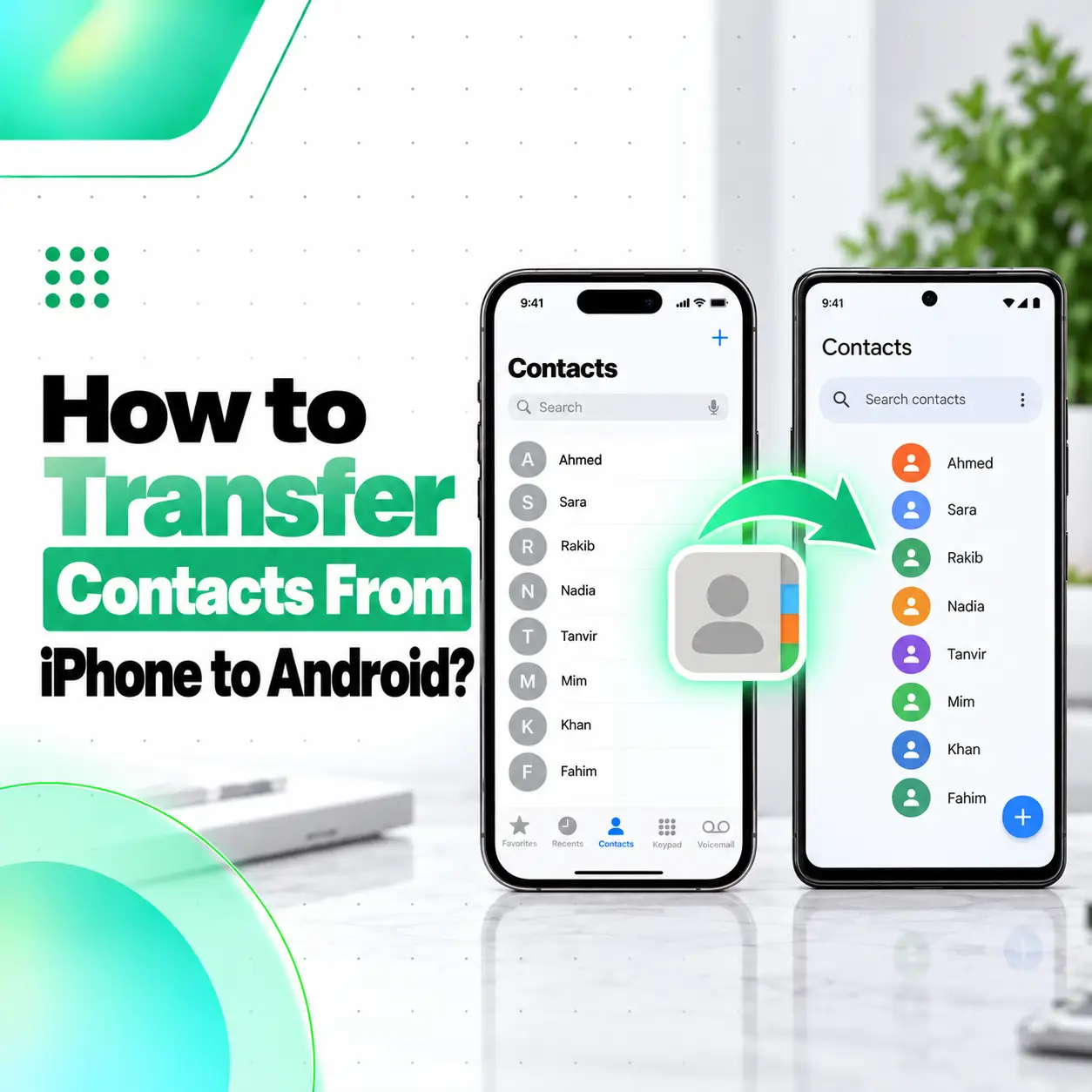
If you want to know how to transfer contacts from iPhone to Android, you have several reliable options. If the Android phone is new, you can usually copy contacts during initial setup. If the Android device is already configured, you can sync your iPhone contacts with a Google Account or export them as a vCard/VCF file and import them into Google Contacts.
Google confirms that contacts saved to a Google Account automatically sync to Android devices signed into that account. Apple also allows users to export contact lists directly from the iPhone Contacts app.
This guide explains each method, which one is easiest, what to do if contacts are missing, and how to avoid losing or duplicating contact information during the switch.
What Is the Easiest Way to Transfer Contacts From iPhone to Android?
If your Android phone is new, transferring contacts during Android setup is usually the easiest method. If it is already set up, Google Contacts sync or a VCF file is often more convenient.
Here is a quick comparison:
| Method | Best For | Computer Needed? | Works After Android Setup? |
| Android setup transfer | New Android phone | No | Mainly during setup |
| Google Contacts sync | Ongoing contact sync | No | Yes |
| VCF/vCard transfer | One-time manual transfer | No | Yes |
| iCloud export | Large iCloud contact lists | Usually computer/tablet | Yes |
The best method depends on where your iPhone contacts are currently stored.
How to Transfer Contacts From iPhone to Android During Setup
Google’s Android setup process can copy data from an iPhone or iPad when you configure a new Android device.
Google currently instructs users to select iPhone or iPad when asked to copy data from an existing device. Depending on the Android model, the transfer may use a cable or wireless pairing with a QR code.
Step 1: Turn On the New Android Phone
Start the Android phone and go through the first setup screens.
Connect to Wi-Fi when prompted.
Step 2: Choose to Copy Data
When Android asks whether you want to copy data from another device, choose the option for an existing phone.
Select:
iPhone or iPad
Step 3: Connect the iPhone
Depending on the Android phone, you may be asked to:
- Connect the phones with a cable
- Scan a QR code using the iPhone camera
- Continue with a wireless transfer
Follow the instructions shown on the Android device.
Step 4: Select Contacts
Choose contacts along with any other supported information you want to copy.
Step 5: Complete Setup
Finish the Android setup and open the Contacts app.
Check:
- Names
- Phone numbers
- Email addresses
- Important business contacts
Do not erase the iPhone until you have verified that the transfer completed properly.
How to Transfer iPhone Contacts to Android Using Google Account
Another convenient method is to sync contacts through Google.
Google allows a Google Account to sync contacts with an iPhone, and the same Google contacts then automatically appear on Android devices signed into that account.
Step 1: Add Your Google Account to iPhone
On the iPhone:
- Open Settings.
- Go to Apps > Contacts or the Contacts account settings available on your iOS version.
- Tap Add Account.
- Choose Google.
- Sign in to the Google Account you will use on Android.
- Enable Contacts.
- Tap Save.
Google’s current instructions confirm this process for syncing Google Contacts with iPhone.
Step 2: Open the Contacts App
Open the iPhone Contacts app so syncing can begin.
Step 3: Sign Into the Same Google Account on Android
On the Android phone, sign into the same Google Account.
Google states that Google Contacts automatically sync to Android when the account is added to the device.
Important Limitation
Turning on Google Contacts sync does not always automatically move contacts that currently exist only in iCloud into Google Contacts.
If your contacts are stored exclusively in iCloud, exporting and importing them may be more reliable.
How to Check Where Your iPhone Contacts Are Stored
Before transferring contacts, it helps to know which account owns them.
Open the Contacts app and tap Lists.
You may see lists such as:
- iCloud
- Gmail
- Outlook
- Exchange
- Other accounts
If most contacts are under iCloud, use the iPhone export method or iCloud export.
If they are already under Gmail, signing into the same Google Account on Android may be enough.
How to Export Contacts Directly From iPhone
Apple now lets users export some or all contacts directly from the Contacts app.
Apple’s current instructions are:
- Open Contacts.
- Tap Lists.
- Touch and hold the contact list you want to export.
- Tap Export.
- Choose the contact fields to include.
- Tap Done.
- Choose how to save or send the contact cards.
This creates contact-card data that can be transferred to another device or app.
How to Transfer Contacts Using a VCF File
A VCF file, also called a vCard, is a standard contact file containing names, phone numbers, email addresses, and other details.
It is one of the most reliable ways to move a large number of contacts between iPhone and Android.
Step 1: Export Contacts
Export the contact list from your iPhone.
You can then save or send the contact file using an appropriate method such as:
- Files
- Cloud storage
- Messaging to yourself
Step 2: Move the VCF File to Android
Make sure the VCF file is accessible on the Android phone.
Step 3: Import It Into Google Contacts
Google’s current Android instructions are:
- Open the Contacts app.
- Tap Organise.
- Tap Import from file.
- Choose the Google Account where you want the contacts stored.
- Find and select the VCF file.
Once imported, the contacts can sync with that Google Account.
How to Export iCloud Contacts to Android
If your iPhone contacts are stored in iCloud, you can also export them through iCloud Contacts.
Apple says iCloud.com can export one, multiple, or all contacts as a vCard.
Export From iCloud
On a tablet or computer:
- Open iCloud Contacts.
- Sign in with your Apple Account.
- Select the contacts you want.
- Choose Export vCard.
- Save the VCF file.
Apple notes that multiple selected contacts can be exported together in a single vCard.
Import to Google Contacts
Move the VCF file to the Android phone and import it into your chosen Google Account.
This method is especially useful when you have hundreds or thousands of iCloud contacts.
Can You Transfer Contacts Without a Computer?
Yes.
The easiest no-computer options are:
- Android’s initial setup transfer
- Google Account sync
- Export from the iPhone Contacts app
- Send a VCF file to the Android phone
A computer is mainly useful if you prefer managing a large iCloud contact list from a bigger screen.
Can You Transfer iPhone Contacts to Samsung?
Yes.
Samsung phones run Android and support Google Contacts, so the Google sync and VCF methods work.
A new Samsung device may also provide its own migration tools during setup.
Regardless of the brand, storing transferred contacts in a Google Account is useful because those contacts can then sync across compatible Android devices.
Can You Transfer Contacts Using a SIM Card?
SIM-based contact transfer is usually not the best choice when moving from iPhone to Android.
Modern contact records can contain more than a basic name and number, including:
- Multiple phone numbers
- Email addresses
- Notes
- Company details
- Addresses
- Photos
A Google Account or VCF file is generally better for preserving richer contact information.
Google does support importing contacts that already exist on a SIM into a Google Account on Android.
Does Google Contacts Keep Your Contacts Backed Up?
Yes, if the contacts are saved in your Google Account.
Google states that contacts saved to a Google Account sync across signed-in Android devices and stay updated automatically.
This means if you later:
- Replace the Android phone
- Reset the device
- Sign into another Android phone
your Google Contacts can sync back after account sign-in.
Will Transferring Contacts Delete Them From the iPhone?
Normally, no.
Copying, exporting, or importing contacts does not automatically delete the original contacts from the iPhone.
For example, Google says importing contacts into Google Contacts does not remove them from the original account.
Still, keep the old iPhone until you have verified the entire contact list.
How to Check That All Contacts Transferred
After transfer, open the Android Contacts app.
Verify:
- Total number of contacts approximately matches.
- Important family contacts are present.
- Work contacts appear.
- International numbers are complete.
- Email addresses are preserved.
- Contacts with multiple numbers still contain all numbers.
Check several important entries manually rather than relying only on the total count.
Why Are Some iPhone Contacts Missing on Android?
Missing contacts usually happen because not every contact was stored in the same account.
For example:
- Some may be in iCloud.
- Some may be in Gmail.
- Others may be in Outlook or Exchange.
- Some may exist only in another account.
Check the iPhone Contact Lists
Open:
Contacts > Lists
Review every account.
If one group is missing on Android, export or sync that specific account separately.
Why Aren’t Google Contacts Syncing?
Google recommends checking that the Google Account is connected properly and that Contacts syncing is turned on.
Google also recommends using SSL for the account connection.
Try These Checks
- Confirm both phones use the same Google Account.
- Check that Contacts sync is enabled on iPhone.
- Open the Contacts app to trigger sync.
- Connect to a stable internet connection.
- Check the Google Account on Android.
- Wait for syncing to complete.
Large contact lists may not appear instantly.
Why Do I Have Duplicate Contacts After Transfer?
Duplicates can appear when the same person exists in:
- iCloud
- Gmail
- Outlook
- SIM storage
- Device storage
and more than one source is imported.
Before repeatedly importing a VCF file, check whether the contacts are already present.
Google’s restore process is designed to avoid restoring contacts that already exist in some backup situations, but duplicate records can still occur when information comes from different accounts or imports.
Should Contacts Be Stored in Google Account or Phone Storage?
For most Android users, storing contacts in a Google Account is more convenient than keeping them only in device storage.
Google explains that device-only contacts may not sync to other devices, whereas Google Contacts stay available across signed-in devices.
This makes Google storage useful for:
- Backups
- New phone migration
- Contact recovery
- Multi-device syncing
What Happens to iCloud Contacts After Switching to Android?
They stay in iCloud unless you remove them.
Transferring them to Android creates another copy or imports them into another account.
That means you can keep the iPhone contacts in iCloud as a backup while verifying the Android copy.
Do not delete your iCloud contact list immediately after switching phones.
Should You Keep a Backup Before Transferring?
Yes.
Before making major changes:
- Keep the iPhone intact
- Export a VCF backup if possible
- Confirm iCloud or Google synchronization
- Verify important contacts manually
A VCF file can act as a convenient secondary backup.
Apple specifically notes that exporting all contacts as a single vCard can be used as a backup.
Is Contact Transfer a Phone Repair Issue?
Usually not.
Transferring contacts is primarily a data-management and account-sync task.
Professional repair becomes relevant only if the old iPhone has a hardware issue preventing access to the contacts, such as:
- Broken display
- Touchscreen failure
- Phone not turning on
- Charging failure
- Liquid damage
- Severe battery failure
If the iPhone cannot remain powered long enough to access or export important data, the underlying hardware problem may need diagnosis first.
For users in Bangladesh, iCareFix can inspect genuine hardware issues that prevent normal access to an iPhone before a data migration.
Frequently Asked Questions
1. How do I transfer contacts from iPhone to Android?
The easiest method for a new Android phone is to copy contacts during initial setup. If the Android phone is already configured, you can sync contacts through a Google Account or export the iPhone contacts as a VCF/vCard file and import them into Google Contacts. Google and Apple officially support these methods.
2. Can I transfer iPhone contacts to Android without a computer?
Yes. You can use Google’s account-sync method, the Android setup migration process, or export contacts directly from the iPhone Contacts app. Apple now lets you export a contact list from the iPhone itself, so a computer is not required for many contact-transfer situations.
3. How do I sync iPhone contacts with Google?
Add your Google Account to the iPhone’s Contacts account settings, sign in, and enable Contacts. Then open the Contacts app to begin syncing. When you sign into the same Google Account on Android, contacts stored in that Google Account automatically sync to the Android device.
4. Can I export all iPhone contacts as a VCF file?
Yes. Apple allows contact lists to be exported from the iPhone Contacts app. If your contacts are stored in iCloud, iCloud.com also lets you select all contacts and export them together as one vCard file, which can later be imported into Google Contacts.
5. How do I import a VCF file on Android?
Open the Android Contacts app, tap Organise, choose Import from file, select the Google Account where you want the contacts saved, and then select the VCF file. Google will import the contact records into that account, after which they can sync across your signed-in devices.
6. Why are some iPhone contacts missing after switching to Android?
The missing contacts may belong to a different account. iPhones can display contacts from iCloud, Gmail, Outlook, Exchange, and other sources at the same time. Open Contacts > Lists on the iPhone and check each account. You may need to export or sync the missing contact group separately.
7. Will transferring contacts to Android remove them from my iPhone?
No, ordinary syncing, exporting, and importing do not normally delete the original iPhone contacts. The transfer creates or syncs contact records on the Android side. Keep the iPhone and any contact backup until you verify that names, phone numbers, email addresses, and other important details transferred correctly.
Conclusion
Learning how to transfer contacts from iPhone to Android is straightforward once you identify where the contacts are stored.
For a new Android phone, use the built-in Android setup transfer where possible. Google currently supports copying data from an iPhone during new-device setup through cable or wireless pairing depending on the device.
If the Android phone is already set up, two reliable alternatives are:
- Google Contacts sync — useful when you want ongoing cloud synchronization.
- VCF/vCard transfer — useful for moving an iCloud contact list or creating a manual backup.
Apple supports exporting contacts directly from iPhone, while Google supports importing VCF files into a Google Account.
Before erasing or selling the old iPhone, check that important names, numbers, email addresses, and contact groups have transferred correctly.
If hardware damage prevents you from accessing the contacts—for example, a broken display, charging failure, or an iPhone that will not turn on—iCareFix can inspect the device and determine whether a genuine hardware problem needs attention before the data transfer can continue.