




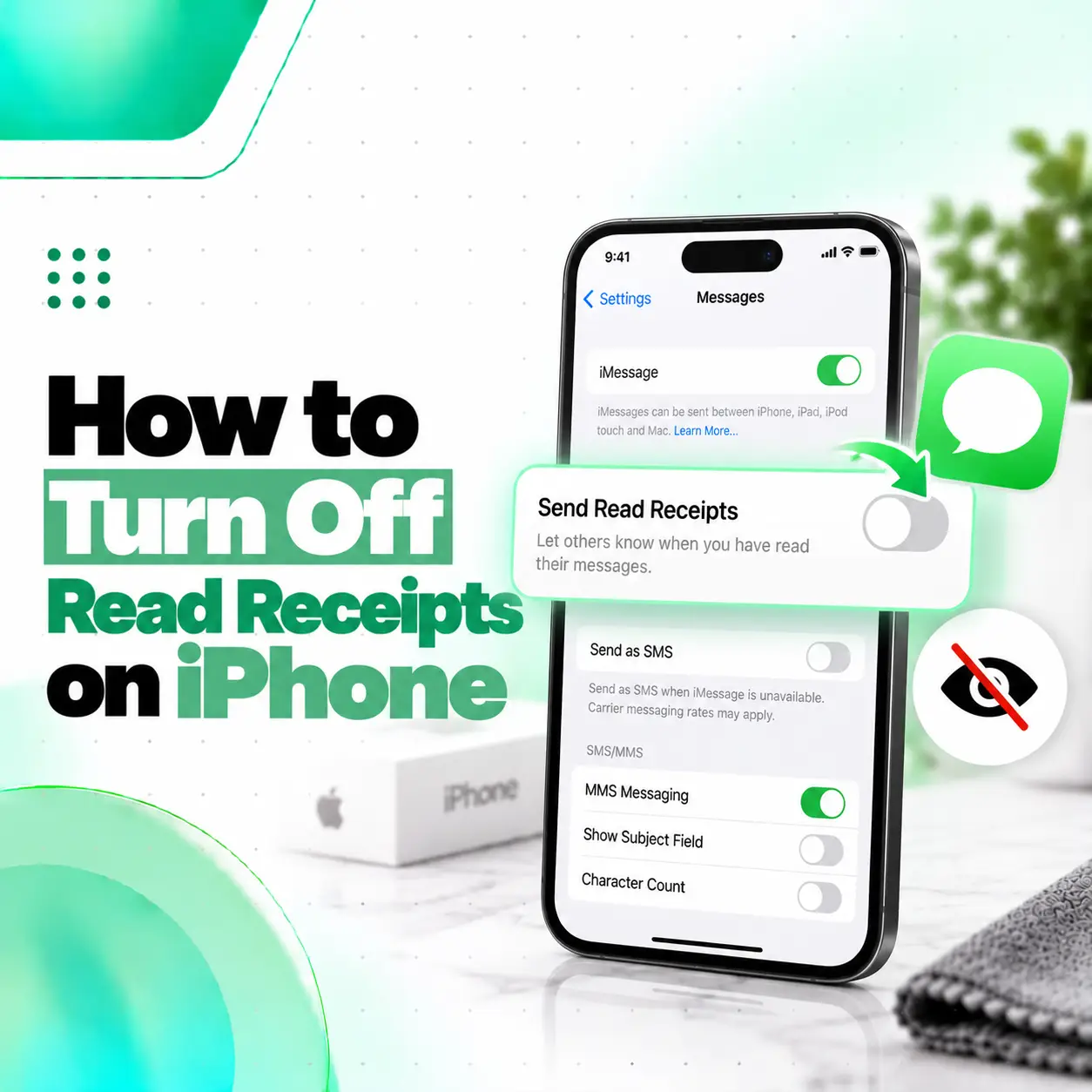
If you do not want people to know exactly when you open their messages, you can turn off read receipts on your iPhone in just a few steps. Apple allows you to disable the feature for all supported conversations or control it separately for individual contacts.
The current path is Settings > Apps > Messages > Send Read Receipts. Once the setting is turned off, supported senders generally see Delivered instead of Read after you open their message. You can also open a specific conversation and disable read receipts only for that person.
This guide explains how to turn off read receipts on iPhone, how per-contact settings work, what changes after disabling them, and what to check if the setting does not seem to work.
What Are Read Receipts on iPhone?
Read receipts are a Messages feature that lets another person know when you have opened a supported message.
When read receipts are enabled, the sender may see:
- Delivered before you open the message
- Read after you open it
If read receipts are disabled, the other person generally continues to see Delivered rather than receiving a Read indicator after you view the message.
Read receipts can be useful when you want someone to know you received and viewed an important message. However, some users prefer to disable them for greater privacy or less pressure to reply immediately.
How to Turn Off Read Receipts on iPhone for Everyone
To turn off read receipts across supported Messages conversations:
- Open Settings on your iPhone.
- Scroll down and tap Apps.
- Tap Messages.
- Find Send Read Receipts.
- Turn the switch off.
Apple’s current iPhone documentation lists this as the global method for disabling read receipts.
Once disabled, people in supported conversations will generally no longer see when you have opened their messages.
Quick Path
Settings > Apps > Messages > Send Read Receipts > Off
On some older iOS versions, Messages may have appeared directly in the main Settings list. The current Apple guidance places Messages under the Apps section.
How to Turn Off Read Receipts for One Person on iPhone
Yes, you can disable read receipts for one individual contact without changing the setting for everyone else.
Follow these steps:
- Open the Messages app.
- Open the conversation with the person.
- Tap the person’s name, photo, or contact icon at the top.
- Find Send Read Receipts.
- Turn it off.
Apple allows read receipts to be controlled on a per-conversation basis, so your individual setting can differ from your general Messages preference.
This is useful when you want read receipts enabled for family or work contacts but disabled for certain conversations.
Can You Keep Read Receipts Off for Everyone but On for One Person?
Yes. Your global read receipt setting and individual-contact settings can be different.
For example, you can:
- Turn Send Read Receipts off globally
- Open one person’s Messages conversation
- Turn Send Read Receipts on specifically for that contact
That person can then receive read receipts even though they are disabled for your other supported conversations. Apple specifically supports individual read receipt controls.
The reverse is also possible: read receipts can be enabled globally but disabled for a particular contact.
What Happens When You Turn Off Read Receipts on iPhone?
When you turn off read receipts, supported senders generally stop receiving a Read indicator when you open their messages.
Instead, they may continue to see Delivered.
Turning read receipts off does not:
- Block the person
- Stop messages from arriving
- Mute their notifications
- Delete the conversation
- Prevent you from replying
- Tell the sender that you changed the setting
It simply changes whether supported conversations report that you have opened the incoming message.
Can Someone Tell If You Turned Off Read Receipts?
There is no standard notification telling another person that you switched read receipts off.
However, they may notice that their messages continue to show Delivered rather than changing to Read.
That does not necessarily prove that you personally changed the setting. A Read indicator can depend on the messaging method and the recipient’s settings.
For privacy, it is better to think of read receipts as a status-sharing feature rather than a hidden or visible mode notification.
Does Turning Off Read Receipts Affect Messages You Send?
No. Turning off your own read receipts mainly controls whether other people receive a Read status when you open their messages.
It does not force another person’s read receipt setting to change.
If you want to see whether someone else has read your message, that recipient must have their own read receipt setting enabled where supported. Apple notes that you cannot remotely enable someone else’s read receipts.
In other words:
| Setting | What It Controls |
| Your Send Read Receipts is ON | Others may see when you read their messages |
| Your Send Read Receipts is OFF | Others generally do not see when you read them |
| Other person’s read receipts are ON | You may see when they read your supported messages |
| Other person’s read receipts are OFF | You generally see Delivered rather than Read |
Do iPhone Read Receipts Work With SMS Messages?
Traditional SMS messaging does not support the same iMessage read receipt feature.
Apple notes that read receipts are associated with iMessage and are not supported with SMS messaging or group texts in the same way.
This means the behavior may differ depending on how the message is being sent.
iMessage
iMessage supports features such as:
- Read receipts
- Delivery status
- Message editing on supported systems
- Unsend features on supported systems
SMS/MMS
Standard carrier-based SMS/MMS does not provide Apple’s iMessage read receipt functionality.
Therefore, if you are looking at a normal SMS conversation, changing iMessage read receipt settings may not produce an obvious difference.
What Is the Difference Between Read and Delivered on iPhone?
Delivered means the message reached the recipient’s messaging system or device successfully.
Read indicates that the recipient opened the supported message while read receipts were enabled.
Apple describes this behavior directly: when read receipts are enabled, the sender can see Read after the recipient views the message; otherwise, the message may continue to display Delivered.
The distinction is useful:
- Delivered does not necessarily mean the person has opened the message.
- Read indicates that the supported conversation has reported the message as viewed.
How to Turn Read Receipts Back On
If you change your mind, you can re-enable the feature at any time.
For Everyone
- Open Settings.
- Tap Apps.
- Tap Messages.
- Turn Send Read Receipts on.
For One Person
- Open Messages.
- Open the person’s conversation.
- Tap their contact icon at the top.
- Turn Send Read Receipts on.
Apple notes that an individual-contact setting may need to be changed separately if you previously customized that contact.
Why Are Read Receipts Still Showing After I Turned Them Off?
If someone still receives read receipts after you disabled the global setting, check whether that particular contact has a separate setting enabled.
Apple explains that individual read receipt preferences can override the general setting for specific conversations.
Check the Contact Setting
- Open Messages.
- Open the affected conversation.
- Tap the contact name or icon.
- Check Send Read Receipts.
- Turn it off if necessary.
Restart Messages or Your iPhone
If the setting appears correct but the behavior seems inconsistent:
- Close and reopen Messages.
- Restart your iPhone.
- Check the setting again.
A temporary software or synchronization issue can sometimes make a setting appear inconsistent.
Check Whether You Are Testing the Right Messaging Type
Remember that iMessage read receipts and standard SMS behave differently.
If you are comparing multiple conversations, confirm that they use the same messaging service before assuming the setting is malfunctioning.
Why Can’t I Find Send Read Receipts on My iPhone?
On current iPhone software, Apple places the option under:
Settings > Apps > Messages > Send Read Receipts.
If you were following an older guide telling you to open Settings > Messages, the interface may look different because Apple has reorganized parts of the Settings app in newer software.
You can also use the Settings search field and search for:
Send Read Receipts
This can be faster if you cannot locate the Messages menu manually.
Does Turning Off iMessage Also Turn Off Read Receipts?
If iMessage is disabled, iMessage-specific features such as read receipts are no longer available for those iMessage conversations.
Apple states that when iMessage is turned off, features including read receipts are unavailable and messages may instead be sent using SMS/MMS where applicable.
However, you do not need to disable iMessage simply because you want to stop sharing read receipts.
The better approach is:
Settings > Apps > Messages > Send Read Receipts > Off
That way, you can continue using iMessage while controlling whether your read status is shared.
Is Turning Off Read Receipts the Same as Hiding Alerts?
No. These are separate settings.
Send Read Receipts
Controls whether supported contacts can see when you have opened their messages.
Hide Alerts
Controls whether you receive notifications for a particular conversation.
Apple allows users to mute a conversation through Hide Alerts, but this does not serve the same purpose as disabling read receipts.
You can therefore:
- Mute a conversation while keeping read receipts on
- Keep notifications active while turning read receipts off
- Disable both independently
Is Turning Off Read Receipts the Same as Focus Mode?
No.
Focus modes control interruptions and notifications, while read receipts control whether another person sees that you opened their message.
A Focus mode may affect notification behavior, but it is not a substitute for the Send Read Receipts setting.
If your goal is specifically to stop another person from seeing Read, change the read receipt setting rather than relying on Focus.
Should You Turn Off Read Receipts on Your iPhone?
It depends on how you prefer to communicate.
Reasons to Turn Them Off
You may prefer read receipts off if you:
- Want more messaging privacy
- Do not want pressure to reply immediately
- Often read messages while busy
- Prefer people not to track when you opened a message
- Want more control over communication expectations
Reasons to Keep Them On
Read receipts may be useful when:
- Coordinating with family
- Confirming that an important message was seen
- Communicating with colleagues
- Managing time-sensitive conversations
You can also use individual settings rather than choosing one preference for everyone.
Do You Need an iPhone Repair Service for Read Receipt Problems?
Usually, no.
Read receipts are primarily a software and Messages-setting feature. A missing or incorrectly configured read receipt does not normally indicate that your iPhone requires hardware repair.
Try these steps first:
- Check Send Read Receipts.
- Check the individual contact setting.
- Confirm whether the conversation uses iMessage.
- Restart the iPhone.
- Check for an available iOS update if you are experiencing broader Messages problems.
Professional inspection would make more sense only if your phone is experiencing broader hardware symptoms, such as an unresponsive display preventing you from changing settings.
For example, if you cannot access Messages settings because the touchscreen is damaged, iCareFix can inspect the underlying display or hardware issue rather than treating read receipts themselves as a repair problem.
Frequently Asked Questions
1. How do I turn off read receipts on iPhone?
Open Settings > Apps > Messages, then turn off Send Read Receipts. This disables read receipts for supported conversations that are using the general setting. Apple also allows individual read receipt settings, so check a specific contact separately if that person still appears to receive Read indicators.
2. Can I turn off read receipts for only one person?
Yes. Open the person’s conversation in the Messages app, tap their contact icon or name at the top, and turn off Send Read Receipts. This allows you to keep your general read receipt preference unchanged while using a different setting for that specific contact.
3. Will someone know that I turned off read receipts?
They do not receive a standard notification saying that you disabled read receipts. However, they may notice that messages remain marked Delivered instead of changing to Read. This alone does not necessarily prove that you changed your setting because message type and recipient settings can also affect read-status behavior.
4. Why does one person still see my read receipts?
The conversation may have its own individual read receipt setting enabled. Apple allows per-contact settings to differ from the general Messages preference. Open the conversation, tap the contact icon at the top, and check Send Read Receipts. Turn it off there if you do not want that person to receive Read indicators.
5. Do read receipts work on regular SMS text messages?
Not in the same way as iMessage. Apple’s iMessage read receipt feature is not supported with standard SMS messaging, so SMS conversations do not use the same Read status system. Message behavior can therefore differ depending on whether your conversation is using iMessage or a carrier-based messaging service.
6. Can I still see other people’s read receipts if mine are turned off?
Potentially, yes. Your setting controls whether you send read receipts. It does not automatically disable another person’s settings. If the recipient has their own read receipts enabled for your conversation, you may still see when they read your supported messages. You cannot enable their read receipts remotely.
7. Can I turn read receipts back on later?
Yes. Go to Settings > Apps > Messages and enable Send Read Receipts again. You can also change the setting for individual contacts from within their Messages conversation. If you previously customized a person’s setting separately, you may need to change that individual preference as well.
Conclusion
Learning how to turn off read receipts on iPhone is straightforward: open Settings > Apps > Messages and switch off Send Read Receipts. You can also control the feature separately for individual contacts, giving you more flexibility over who can see when you open a message.
Turning the feature off does not block anyone, mute your messages, or stop iMessage from working. It simply changes whether supported conversations receive a Read indicator.
If your only issue involves read receipts, hardware repair is usually unnecessary. However, if a damaged display, unresponsive touchscreen, or another iPhone hardware problem prevents you from accessing Messages or changing settings, iCareFix can inspect the device and recommend the appropriate repair option.