




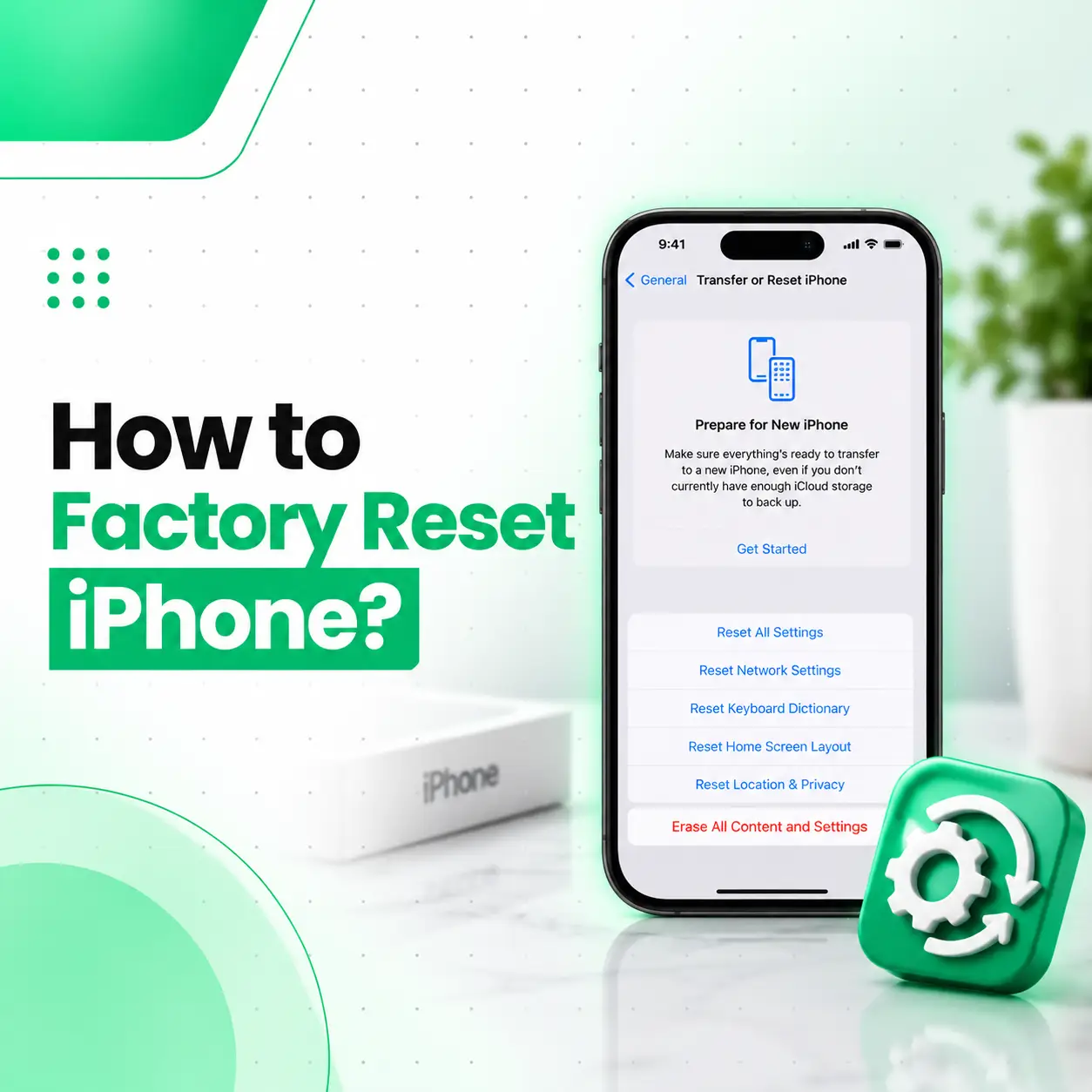
If you want to sell your iPhone, give it to someone else, troubleshoot a serious software problem, or start fresh, you may need to know how to factory reset iPhone safely. A factory reset removes personal content and settings from the device and returns the iPhone to its factory state.
The important part is preparing before you erase anything. A proper reset can remove photos, messages, apps, accounts, Apple Pay information, and other data stored on the device. If you need those files later, create a backup first.
This guide explains how to factory reset an iPhone, what happens to your data, what to do with an eSIM, how to prepare an iPhone before selling it, and what options you have if the normal reset process doesn’t work.
What Does a Factory Reset Do to an iPhone?
A factory reset erases the iPhone’s personal content and settings and returns the device to its factory state. After the process finishes, the iPhone restarts and displays the Hello setup screen.
A factory reset can remove or reset:
- Photos and videos stored on the device
- Messages
- Apps and their local data
- Contacts stored on the device
- Apple Pay cards
- Network and privacy settings
- Personal preferences
- Other personal content and settings
However, erasing the device does not automatically mean that your iCloud data is deleted from iCloud. Apple explains that content stored in iCloud remains in iCloud when you erase the iPhone.
Factory Reset vs Reset All Settings
These two options are different.
| Option | Personal data deleted? | Settings changed? | Typical purpose |
| Erase All Content and Settings | Yes | Yes | Selling, giving away, or completely wiping the iPhone |
| Reset All Settings | No | Yes | Troubleshooting certain settings-related problems |
| Reset Network Settings | No | Network settings only | Certain Wi-Fi, cellular, or connectivity problems |
Apple specifically distinguishes Reset All Settings from Erase All Content and Settings. Reset All Settings returns settings to their defaults without deleting photos, messages, apps, or documents.
What Should You Do Before Factory Resetting an iPhone?
Before you factory reset your iPhone, back up anything you want to keep. This is the most important preparation step.
Apple recommends backing up the device so your content, settings, and apps can be restored later.
1. Back Up Your iPhone
You can use an iCloud backup or a computer backup.
Before continuing, make sure important information such as:
- Photos
- Videos
- Contacts
- Messages
- App data
- Important documents
- Device settings
is available through your chosen backup method.
If you later set up the erased iPhone or another compatible iPhone, you can restore from an iCloud or computer backup.
2. Check Your Apple Account Password
You may be asked for your device passcode and Apple Account password during the erase process.
If you’re preparing the iPhone for someone else, make sure you can sign in to your Apple Account before starting.
3. Consider Your eSIM
If your iPhone uses an eSIM, the erase process can give you the option to keep or erase the eSIM.
If you erase the eSIM, Apple says you may need to contact your carrier to reactivate the cellular plan.
If you’re keeping the phone and simply resetting it for troubleshooting, carefully consider whether you actually need to remove the eSIM.
4. If You’re Selling the iPhone, Prepare It as a Device Transfer
If you’re selling, giving away, or trading in the iPhone, there are additional considerations beyond simply deleting your photos.
Apple recommends backing up the device and signing out of relevant Apple services before erasing it. Erasing the device also turns off Find My and removes Activation Lock when the process is completed correctly.
How to Factory Reset iPhone From Settings
If your iPhone is working normally and you can access Settings, this is the simplest method.
Step-by-Step Factory Reset
Follow these steps:
- Open Settings.
- Tap General.
- Scroll down and tap Transfer or Reset iPhone.
- Tap Erase All Content and Settings.
- Review the information displayed on the screen.
- Tap Continue.
- Choose whether to keep or erase your eSIM if prompted.
- Enter your iPhone passcode when requested.
- Follow the onscreen instructions.
- Enter your Apple Account password if requested.
- Wait for the erase process to finish.
Apple’s current instructions use Settings → General → Transfer or Reset iPhone → Erase All Content and Settings.
When the process is complete, the iPhone restarts and shows the Hello screen.
How Long Does an iPhone Factory Reset Take?
The time can vary depending on the device and circumstances. The iPhone needs to complete the erase process before returning to the setup screen.
Keep the device connected to power if appropriate and avoid interrupting the process unnecessarily.
How to Factory Reset iPhone Before Selling It
If you’re selling or giving away an iPhone, don’t simply delete individual photos, contacts, or apps. Use the proper erase process.
A better preparation sequence is:
- Back up the iPhone.
- Make sure you know your Apple Account password.
- Transfer any information you want to keep.
- Unpair an Apple Watch if applicable.
- Sign out of the relevant Apple services/account.
- Go to Settings → General → Transfer or Reset iPhone.
- Choose Erase All Content and Settings.
- Review the eSIM option.
- Complete the authentication steps.
- Wait until the Hello screen appears.
Apple says that when an iPhone is properly erased, Find My and Activation Lock are turned off, making the device ready for a new owner.
What Happens to iCloud Data When You Erase an iPhone?
Erasing the iPhone does not mean that information already stored in iCloud is deleted from your iCloud account.
Apple explains that content stored in iCloud remains there when the physical device is erased.
This distinction is important: erasing the iPhone and deleting your iCloud account data are not the same action.
Can You Factory Reset an iPhone Without Losing Your Data?
Not if you choose Erase All Content and Settings and don’t have a backup elsewhere.
That option is specifically designed to erase the device’s personal content and settings. If you want to troubleshoot an iPhone without deleting your personal data, consider less destructive options first.
Try Reset All Settings Instead
If the problem is related to incorrect or corrupted settings, Reset All Settings may be more appropriate.
Go to:
Settings → General → Transfer or Reset iPhone → Reset → Reset All Settings
Apple says this restores settings to their defaults but does not delete your photos, messages, apps, or documents.
This can be useful for certain Wi-Fi, Bluetooth, privacy, display, and other settings-related problems.
Should You Factory Reset an iPhone to Fix Problems?
Not necessarily.
A factory reset is a major troubleshooting step because it erases the device. If you’re experiencing a relatively specific problem—such as a charging issue, broken speaker, damaged display, faulty camera, or Face ID problem—a factory reset may not fix a physical hardware fault.
For example:
- A cracked display won’t be repaired by resetting iOS.
- A damaged charging port won’t be physically repaired by erasing the phone.
- A defective battery won’t become healthy after a factory reset.
- Liquid damage may require hardware inspection.
- A damaged camera component may still fail after the reset.
If you’ve already ruled out software-related causes and the problem remains, professional diagnosis may be more appropriate than repeatedly resetting the phone.
How to Factory Reset iPhone Using a Computer
If you can’t complete the normal process through Settings, you may be able to erase the iPhone using a computer.
Apple’s current instructions use Finder on supported Mac computers or the Apple Devices app on Windows. Older systems may use iTunes.
Using a Mac
Connect the iPhone to the Mac with a suitable USB or USB-C cable.
Then:
- Open Finder.
- Select your iPhone from the sidebar.
- Open the device’s general information.
- Select Restore iPhone.
- Confirm the restore.
- Follow the onscreen instructions.
Apple notes that if Find My is enabled, you may need to sign out before restoring through this method.
Using Windows
On a supported Windows PC:
- Connect the iPhone to the computer.
- Open the Apple Devices app.
- Select your iPhone.
- Choose the restore option.
- Follow the onscreen instructions.
The exact interface can vary depending on the operating system and software version.
What If You Forgot Your iPhone Passcode?
If you don’t remember your iPhone passcode or the device is disabled, the normal Settings-based reset may not be available.
Apple provides separate procedures for devices whose passcode has been forgotten or that are disabled.
The appropriate recovery method depends on the device state and what account information you still have access to.
Don’t Confuse a Forgotten Passcode With Activation Lock
These are different security mechanisms.
A device passcode protects access to the iPhone itself. Activation Lock is associated with Find My and is designed to prevent someone else from activating a lost or stolen device.
If you are buying a used iPhone, the previous owner needs to properly remove the device from their account and complete the erase process. A factory reset alone should not be treated as a way to bypass Activation Lock.
What If the iPhone Won’t Factory Reset?
If the reset doesn’t complete, don’t repeatedly force the process without understanding the cause.
Possible reasons can include:
- Forgotten passcode
- Apple Account authentication issues
- Disabled device
- Software problems
- Connectivity-related issues
- Problems communicating with a computer
- Hardware faults
Apple provides troubleshooting guidance for iPhones that won’t erase and directs users to separate recovery procedures when a passcode is forgotten or the device is disabled.
When Professional Repair May Help
Consider professional inspection if the iPhone:
- Won’t power on
- Won’t respond to normal recovery procedures
- Restarts repeatedly
- Has suffered liquid exposure
- Has physical damage
- Cannot communicate properly with a computer
- Shows unusual behavior during restoration
A repair technician can determine whether the problem is software-related or caused by hardware such as the battery, charging system, storage-related components, or logic board.
Does Factory Reset Remove a Virus or Malware From an iPhone?
A factory reset removes the personal content and settings from the device, but it should not be treated as a universal solution for every security concern.
If you’re worried about account security, also review your Apple Account security, trusted devices, passwords, and other connected services.
If unusual behavior continues after a legitimate reset and clean setup, investigate the specific cause rather than assuming the reset itself failed.
Is Factory Reset Safe for an iPhone?
A factory reset is a standard Apple-supported method for erasing an iPhone, but the process is irreversible from the device itself once the content has been erased.
The main risk is losing information that wasn’t backed up.
Before selecting Erase All Content and Settings, verify that important information has been backed up or transferred. Apple specifically recommends creating a backup before erasing an iPhone.
What Should You Do After Factory Resetting Your iPhone?
Once the reset is complete, the iPhone should display the Hello screen.
From there, you can:
- Set it up as a new iPhone.
- Restore your information from an iCloud backup.
- Restore from a computer backup.
- Transfer data from another compatible device.
- Leave it at the Hello screen if you’re giving it to another person.
Apple’s backup restoration process allows an erased iPhone to be restored from an iCloud backup during setup.
If you’re selling the device, leaving it at the Hello/setup screen is generally appropriate rather than signing back into your account.
Frequently Asked Questions
1. How do I factory reset my iPhone?
Go to Settings → General → Transfer or Reset iPhone → Erase All Content and Settings. Tap Continue and follow the authentication and onscreen instructions. You may be asked for your iPhone passcode and Apple Account password. If your iPhone uses an eSIM, you’ll also have the option to keep or erase it.
2. Does a factory reset delete everything from an iPhone?
Yes. Erase All Content and Settings is designed to remove the personal content and settings stored on the iPhone. This includes items such as photos, apps, messages, and other personal information. However, data already stored in iCloud is not automatically deleted from iCloud simply because you erased the iPhone.
3. Should I back up my iPhone before a factory reset?
Yes. Backing up first is recommended if you want to keep your photos, messages, app data, settings, or other information. Apple recommends backing up before erasing an iPhone so the information can later be restored to an erased or replacement device.
4. Will a factory reset fix iPhone hardware problems?
Not usually. A factory reset can address some software or settings-related problems, but it cannot physically repair a damaged battery, cracked display, defective charging port, damaged camera, or other failed hardware. If the same physical symptom remains after resetting, professional hardware diagnosis may be necessary.
5. Can I factory reset an iPhone without the passcode?
If you can’t remember your passcode or the iPhone is disabled, the normal Settings method may not work. Apple provides separate recovery procedures for these situations. The appropriate method depends on the device’s state, and account credentials may still be required for activation and ownership-related security.
6. What happens to my eSIM after a factory reset?
When you erase an iPhone, you may be given the choice to keep or erase the eSIM. If you erase the eSIM, Apple notes that you may need to contact your carrier to reactivate your cellular plan. If you’re keeping the phone, review the eSIM option carefully before confirming the erase.
7. What should I do if my iPhone won’t factory reset?
First, determine whether the problem is related to your passcode, Apple Account authentication, software, or hardware. Apple provides additional recovery procedures for iPhones that won’t erase or are disabled. If the phone also has physical damage, liquid exposure, repeated restarts, or other hardware symptoms, professional inspection may be appropriate.
Conclusion
Learning how to factory reset iPhone is useful when you’re preparing a device for sale, transferring it to another person, starting fresh, or troubleshooting certain software-related problems. The key is to back up important data before erasing anything and understand that Erase All Content and Settings is different from simply resetting the iPhone’s settings.
For a normal reset, go to Settings → General → Transfer or Reset iPhone → Erase All Content and Settings and follow the onscreen instructions.
If your iPhone won’t reset, won’t turn on, has liquid or physical damage, or continues showing the same problem after a reset, the underlying issue may require more than software troubleshooting. iCareFix Phone Repair can inspect the device and help determine whether the problem is software-related or requires professional hardware repair.