




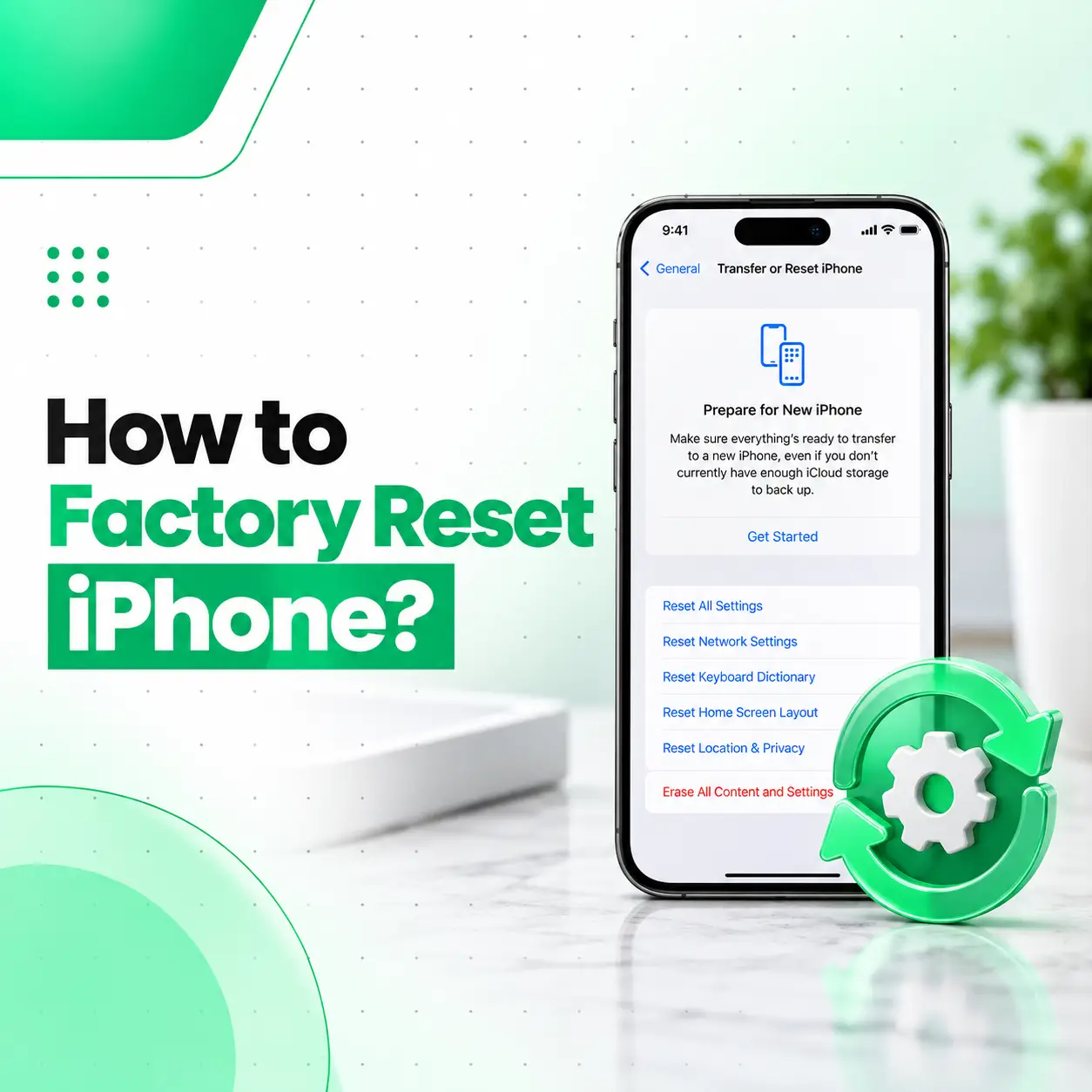
If you need to how to factory reset iPhone because you are selling it, giving it to someone else, troubleshooting persistent software problems, or simply want to erase everything, the process is straightforward—but it should be done carefully. A factory reset permanently removes personal information, settings, apps, and other data from the device.
Before starting, make sure you have a current backup of anything you want to keep. You should also understand what happens to your Apple Account, eSIM, and other device settings during the reset.
This guide explains how to factory reset an iPhone using its built-in settings, what to do before erasing it, what happens afterward, and when professional help may be necessary.
What Does a Factory Reset Do on an iPhone?
A factory reset erases the iPhone’s personal content and settings and returns the device to its setup state. It can remove photos, messages, apps, accounts, saved settings, and other information stored locally on the phone.
A factory reset is different from simply restarting an iPhone. Restarting turns the phone off and back on, while a factory reset erases its contents.
A factory reset may be appropriate when you:
- Are selling or giving away your iPhone
- Want to remove your personal information
- Are preparing the phone for another user
- Need to troubleshoot certain persistent software problems
- Want to erase the device before starting fresh
Important: A factory reset is an erasure process. Do not start it until you have confirmed that important data is backed up or transferred.
What Should You Do Before Factory Resetting an iPhone?
Before you erase your iPhone, back up important information and make sure you can access your Apple Account.
1. Back Up Your Important Data
If you want to keep your photos, contacts, messages, files, or other information, create a recent backup first.
You can use an iCloud backup or back up the iPhone to a computer.
Check that the backup has completed before proceeding. A reset cannot be used to recover information that was never backed up.
2. Check Your Apple Account Access
Make sure you know the password for the Apple Account associated with the iPhone.
You may need account authentication during the erasure process, particularly when security features such as Find My are enabled.
3. Check Your eSIM or Mobile Plan
If your iPhone uses an eSIM, pay attention to the option presented during the reset process.
If you are selling or giving away the phone, you generally need to ensure that your cellular plan is not left associated with the device.
If you are keeping the iPhone and simply resetting it for troubleshooting, your preferred eSIM choice may be different.
4. Transfer Anything You Still Need
Before resetting, check for information that you might overlook, such as:
- Photos and videos
- Contacts
- Messages
- Notes
- Voice recordings
- Important files
- Authentication information
- App data
- Two-factor authentication access
- WhatsApp or other messaging backups
A reset is much easier to deal with when you have already confirmed that your important information is safely available elsewhere.
How to Factory Reset iPhone
The standard method is through the iPhone’s Settings app.
Step 1: Open Settings
Open the Settings app on your iPhone.
Step 2: Open General
Scroll down and tap General.
Step 3: Select Transfer or Reset iPhone
Scroll to the bottom of the General settings page and select Transfer or Reset iPhone.
This section contains Apple’s options for preparing, transferring, or resetting the device.
Step 4: Choose Erase All Content and Settings
Tap Erase All Content and Settings.
This is the option used when you want to completely erase the iPhone rather than simply reset a particular setting.
Step 5: Review the Information Shown
The iPhone may display information about what will be removed and may provide options related to your Apple Account, eSIM, or backup.
Read these prompts carefully rather than automatically selecting the first option.
Step 6: Confirm the Reset
Follow the on-screen instructions.
You may be asked to enter your iPhone passcode and authenticate your Apple Account.
Once the process begins, the iPhone will erase its contents and restart.
Step 7: Wait for the iPhone to Restart
Do not interrupt the process unnecessarily.
When the reset is complete, the iPhone should display the initial setup screen, allowing a user to configure the device again.
What Happens After You Factory Reset an iPhone?
After a successful factory reset, the iPhone no longer contains the personal data and settings that were stored on it.
The device returns to its setup experience, similar to a newly prepared iPhone.
The reset can remove:
- Locally stored photos and videos
- Messages stored on the device
- Installed apps
- Personal settings
- Saved device preferences
- Locally stored account information
- Other user data stored on the iPhone
However, a factory reset does not mean that every copy of your information everywhere is automatically destroyed. Data that was already synchronized or backed up to cloud services may remain in those services.
How to Factory Reset iPhone Before Selling It
If you are selling or giving away your iPhone, there are a few additional considerations.
Back Up and Transfer Your Data First
Before erasing the phone, make sure your new device has the information you need.
If you are moving from an old iPhone to another iPhone, Apple’s device-transfer process can help move supported information before the old phone is erased.
Erase the Old iPhone
After confirming your information is available on the new device, use:
Settings → General → Transfer or Reset iPhone → Erase All Content and Settings
Follow the authentication and confirmation steps.
Check the Activation State
A phone being erased and a phone being ready for another person are related but not identical considerations.
Security features such as Activation Lock are designed to prevent unauthorized use of a lost or stolen iPhone. Properly removing the device from your account as part of the transfer process is important when ownership is changing.
Remove Physical Accessories and SIM Cards
If the iPhone contains a physical SIM card and you are not transferring it with the device, remove it before handing the phone over.
For eSIM, follow the on-screen instructions carefully because the correct choice depends on whether you are keeping the cellular plan or transferring ownership of the device.
Can You Factory Reset an iPhone Without the Passcode?
If you cannot unlock the iPhone because you have forgotten the passcode, the normal Settings-based reset process is not available.
There are other recovery methods for an iPhone that cannot be unlocked, but they involve additional steps and may require a Mac or Windows PC, depending on the situation.
A successful erase also does not bypass ownership protections such as Activation Lock. If the device belongs to someone else, you should not attempt to circumvent those security protections.
If you are dealing with a locked device and are unsure which recovery procedure applies, professional assistance can help identify the appropriate legitimate recovery route.
Does Factory Reset Remove Your Apple Account?
A factory reset removes the account information and personal content from the iPhone itself, but it does not delete your Apple Account.
Your Apple Account continues to exist separately and can be used on other supported devices and services.
This distinction is important:
| Action | What it does |
| Factory reset | Erases the iPhone’s contents and settings |
| Sign out of an Apple Account | Removes the account association from the device |
| Delete an Apple Account | Permanently affects the account itself and is a separate process |
If you are selling the phone, follow Apple’s transfer and account-removal process rather than assuming that erasing the phone alone handles every ownership-related step.
Can a Factory Reset Fix iPhone Software Problems?
A factory reset can sometimes help when persistent software configuration or system-related problems remain after simpler troubleshooting.
However, a factory reset is not a universal repair solution.
If the underlying problem is caused by physical hardware damage, such as a damaged charging port, faulty display component, battery problem, liquid damage, or motherboard issue, erasing the phone may not resolve it.
Before performing a factory reset for troubleshooting, consider whether the problem could be hardware-related.
Try Basic Troubleshooting First
Depending on the problem, you may first consider:
- Restarting the iPhone
- Updating iOS
- Checking available storage
- Testing another compatible accessory
- Reviewing problematic settings
- Backing up important data
If the issue continues, a professional diagnostic assessment may be more appropriate than repeatedly resetting the device.
What If the iPhone Won’t Factory Reset?
If the reset fails, first check whether the iPhone has enough battery power and whether it is responding normally.
Other possible situations include:
- Forgotten passcode
- Apple Account authentication problems
- Software errors
- An unresponsive touchscreen
- Device freezing
- Recovery-related problems
- Hardware damage
If the iPhone cannot respond to the normal reset process, recovery procedures may be required.
If the device has physical damage or continues failing after software troubleshooting, a professional phone repair technician can inspect it to determine whether the problem is software-related or hardware-related.
Does Factory Reset Delete Everything Permanently?
A factory reset is designed to erase the data and settings on the iPhone so that the device can be set up again.
For normal users, the important practical point is that you should treat a factory reset as irreversible from the device itself.
Do not reset the iPhone assuming that you can simply restore important files later unless you already have a suitable backup or those files remain safely synchronized with another service.
This is why creating and checking a backup before erasing the device is one of the most important steps.
How Long Does an iPhone Factory Reset Take?
The time required can vary depending on the iPhone model, amount of data, device condition, and the specific reset process.
For a normally functioning iPhone, the erasure process may complete without much intervention from the user. If the phone becomes stuck for an unusually long period or repeatedly fails during the process, there may be a software or hardware issue that needs further diagnosis.
Avoid repeatedly forcing the phone to restart while an erase operation is actively progressing unless Apple’s troubleshooting guidance specifically calls for it.
When Should You Get Professional iPhone Repair Help?
A factory reset is appropriate for certain software and ownership situations, but it is not a substitute for hardware diagnosis.
Consider professional inspection if your iPhone has:
- A damaged or unresponsive touchscreen
- Charging problems
- Severe battery issues
- Water or liquid damage
- Random shutdowns
- Persistent overheating
- Display problems
- Camera or speaker failures
- Network or connectivity problems
- Repeated crashes that continue after software troubleshooting
For people seeking phone repair in Bangladesh, professional diagnosis can help determine whether the issue is actually related to software or whether a physical component needs attention.
Frequently Asked Questions
1. How do I factory reset my iPhone?
Go to Settings → General → Transfer or Reset iPhone → Erase All Content and Settings. Review the information shown, follow the authentication prompts, and confirm the erase. Before doing this, make sure important photos, contacts, messages, files, and other data have been backed up or transferred.
2. What happens when I factory reset my iPhone?
A factory reset erases personal content and settings stored on the iPhone and returns it to the initial setup state. Installed apps, locally stored data, personal settings, and other device information are removed. Information that exists separately in a cloud account or backup is not necessarily deleted simply because the iPhone is reset.
3. Should I factory reset my iPhone before selling it?
Yes, you should properly erase an iPhone before giving it to another person. First back up or transfer anything you want to keep. Then follow the iPhone’s transfer and erase process and pay attention to Apple Account, Find My, Activation Lock, and eSIM-related prompts.
4. Can I factory reset an iPhone without the passcode?
The normal Settings method requires access to the device. If you have forgotten the passcode, Apple’s recovery process may provide another way to erase the iPhone using a computer. However, erasing the device does not bypass Activation Lock or ownership protections.
5. Will a factory reset fix an iPhone that is not working properly?
It can help with some persistent software-related problems, but it will not repair physically damaged components. If the issue comes from a faulty battery, charging port, display, camera, motherboard, liquid damage, or another hardware component, professional diagnosis may be necessary.
6. Does factory resetting an iPhone remove my Apple Account?
A factory reset removes your personal account information from the device, but it does not delete your Apple Account itself. Your account continues to exist separately. When transferring ownership, make sure you complete the appropriate account and device-removal steps.
7. What should I do if my iPhone still has problems after a factory reset?
If the same problem continues after a successful factory reset, the issue may not be caused by the iPhone’s user settings or ordinary software configuration. Hardware problems become more important to consider. A professional inspection can help identify whether the battery, display, charging system, motherboard, or another component requires attention.
Conclusion
Knowing how to factory reset iPhone is useful when preparing a device for resale, transferring it to another person, or troubleshooting certain persistent software problems. The most important step is to back up or transfer your important information before choosing Erase All Content and Settings.
If a factory reset does not solve the problem—or if the iPhone has physical damage, charging issues, battery problems, display faults, water damage, or other persistent symptoms—a reset may not address the underlying cause.
For professional iPhone and mobile phone repair in Bangladesh, iCareFix can inspect the device, identify whether the issue is software- or hardware-related, and explain the appropriate repair options based on the device’s condition.