




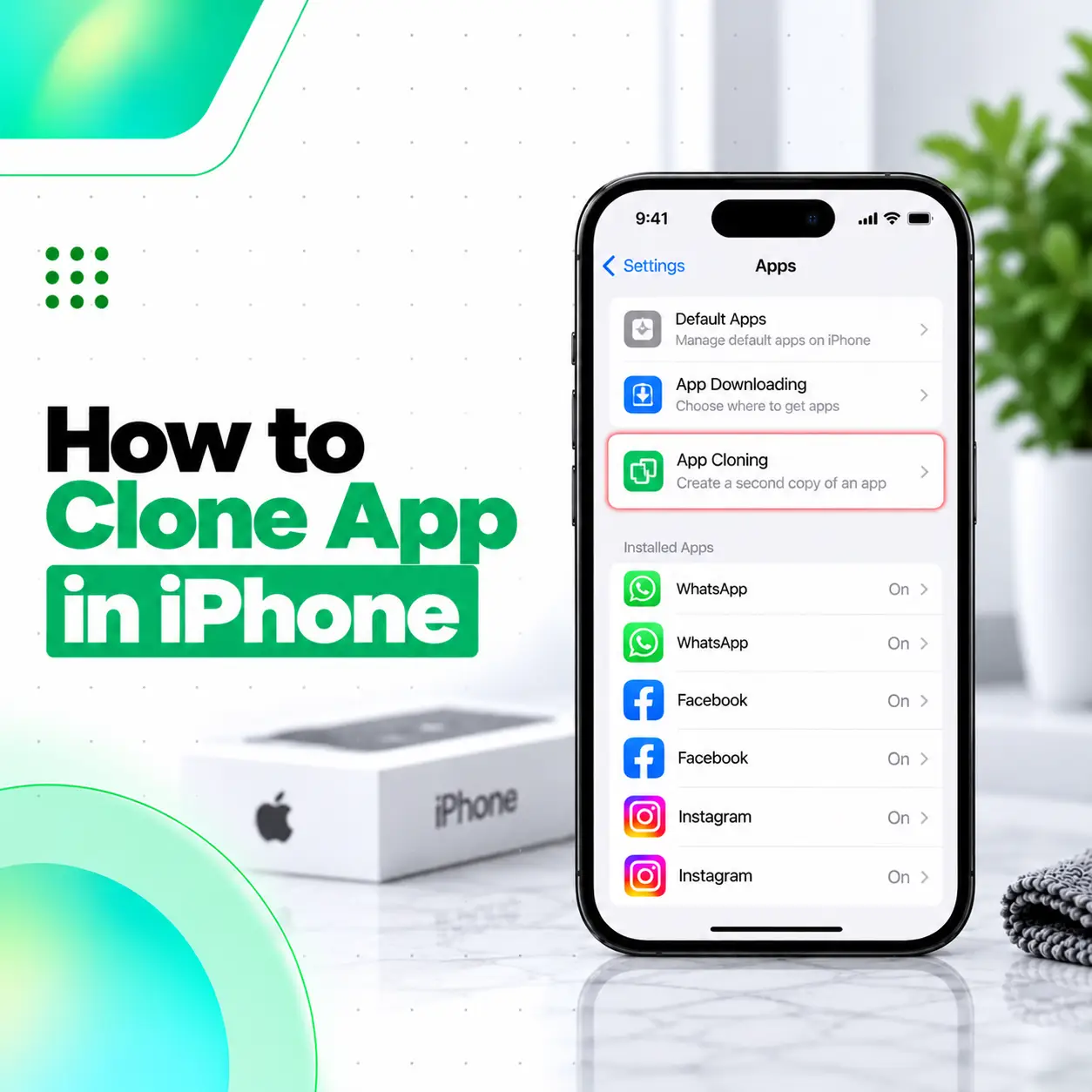
If you are searching for how to clone app in iPhone, you are probably trying to use two accounts for the same service, keep personal and work logins separate, or create a second app-like shortcut. Unlike some Android phones, iPhone does not provide a general system setting that creates a separate, independent clone of any installed app.
Apple’s current iPhone documentation focuses on installing apps through the App Store, organizing them through the Home Screen and App Library, and using supported account or web-app features instead of a universal app-cloning tool.
However, there are several practical alternatives. Depending on the app, you may be able to use built-in multiple-account support, a browser-based web app, account switching, or another official app from the same service. This guide explains what works, what does not, and which options are safest.
Can You Clone Apps on iPhone?
Not in the same way that many Android devices support Dual Apps, App Clone, or Parallel Apps.
Apple’s current iPhone user documentation does not provide a general setting that creates a second independent installation of any App Store app with separate app data. Apps are installed and managed through the App Store, Home Screen, and App Library.
That distinction matters because adding another icon to the Home Screen does not necessarily create another app installation or separate login environment.
For most users, the real goal is not technically cloning the app. It is usually one of these:
- Using two accounts for the same service.
- Separating personal and business profiles.
- Keeping two different logins active.
- Creating an app-like shortcut for a website.
- Accessing the same service through both its app and website.
The right method depends on what the specific app supports.
Method 1: Use the App’s Built-In Multiple-Account Feature
The safest way to use two accounts is to check whether the app itself supports multiple profiles or account switching.
Some apps allow you to add more than one account and switch between them without signing out each time. When available, this is generally preferable to trying to create an unofficial clone.
How to Check for Multiple-Account Support
- Open the app.
- Go to the profile or account section.
- Open Settings, Account, or a similar menu.
- Look for options such as Add Account, Switch Account, or Manage Accounts.
- Add your second login if the feature is available.
The exact steps vary because account management is controlled by the app developer rather than by iOS.
Why This Method Is Better
Built-in account switching keeps you inside the official app and avoids unofficial cloning software, modified apps, or unknown configuration profiles.
It also reduces the chance of login conflicts or losing access after an app update.
Method 2: Use the App and Its Website at the Same Time
Another useful alternative is to keep one account signed in to the official iPhone app and use another account through Safari.
For example, if a service has a functional web version, you may be able to:
- Use your first account in the installed app.
- Open Safari.
- Visit the service’s official website.
- Sign in with your second account.
- Use the website separately from the installed app.
This does not clone the original app, but for account separation it can achieve a similar practical result.
Method 3: Turn a Website Into a Web App on iPhone
If the service has a suitable website, Safari can add it to your Home Screen and open it as a web app.
Apple currently documents this feature directly. You can open the website in Safari, use the sharing or page menu, choose Add to Home Screen, and enable Open as Web App where available. The new icon then opens the website in an app-like interface.
How to Create a Web App on iPhone
- Open Safari.
- Visit the website for the service you want to use.
- Open the Share or Page Menu.
- Choose Add to Home Screen.
- Turn on Open as Web App if the option appears.
- Tap Add.
Apple states that the resulting web app appears as an icon on the Home Screen and opens much like an app.
When This Is Useful
This can be useful when:
- The service has a capable web version.
- You want a second access point for another account.
- You prefer not to repeatedly open Safari and type the website address.
However, a web app is still not a true duplicate of the native iOS application.
Method 4: Use Another Official App From the Same Service
Some companies provide separate applications for different purposes, account types, or business use.
For example, a service may offer:
- A standard consumer app.
- A business version.
- A creator or management app.
- A separate companion application.
If the developer officially provides another app that supports your second account, using it is generally safer than attempting to sideload a modified clone.
Check the App Store and confirm that the developer is legitimate before installing anything.
Method 5: Sign Out and Switch Accounts Manually
If the app supports multiple accounts but does not let you keep them active simultaneously, manual account switching may be the only supported method.
The process is usually:
- Open the app.
- Sign out of the current account.
- Sign in with the second account.
- Repeat when you need to switch back.
This is less convenient than genuine multi-account support, but it avoids unsupported cloning tools.
Does Adding the Same App Icon Twice Create a Clone?
No. A second Home Screen icon does not automatically mean you have two separate app installations.
Apple’s App Library and Home Screen features let users organize and access installed apps, but the documentation does not describe this as creating an independent duplicate with separate application data.
If you see or create another shortcut to the same app or web service, it may simply point back to the existing installation or website.
That means:
- It may use the same account.
- It may use the same app data.
- It does not necessarily provide a separate login environment.
Can You Install the Same App Twice From the App Store?
For normal App Store use, you should not expect iPhone to provide a universal option to install two independent copies of the same app.
Apple’s current documentation describes downloading an app from the App Store and choosing whether it appears on the Home Screen or only in the App Library. It does not document a standard feature for installing a second isolated copy of that same app.
If you need two accounts, use a supported account-management method instead.
What About Third-Party App Cloners?
Be cautious with websites, apps, or services claiming they can create unrestricted clones of iPhone apps.
Some may require:
- Installing configuration profiles.
- Using unofficial app stores.
- Sharing account credentials.
- Sideloading modified applications.
- Trusting unknown certificates.
- Giving unnecessary permissions.
These approaches can create privacy, security, stability, or account-access risks.
Why Modified Clones Can Be Risky
A modified version of an app is not necessarily the same software distributed by the original developer.
Possible issues include:
- Exposure of login details.
- Unwanted tracking.
- App crashes.
- Broken notifications.
- Account restrictions from the service provider.
- Failure after iOS or certificate changes.
For important accounts such as financial, business, messaging, or identity-related services, use official apps and supported login methods whenever possible.
Can Sign in With Apple Create a Second App Account?
Not automatically.
Sign in with Apple is an authentication system that lets participating apps and websites use your Apple Account for sign-in. Apple notes that when you return to a service using Sign in with Apple, you will typically be signed back into the same account previously associated with that service.
So, Sign in with Apple should not be treated as an app-cloning method.
Whether you can create or maintain multiple accounts still depends on the individual service.
Best Ways to Use Two Accounts on One iPhone
For most iPhone users, these options are the safest order to try:
| Method | Creates a True App Clone? | Useful for Two Accounts? | Recommended Approach |
| Built-in account switching | No | Yes | First choice when supported |
| Official secondary/business app | No | Yes | Good when offered by the developer |
| Native app + Safari website | No | Often | Useful for web-enabled services |
| Safari web app | No | Often | Convenient app-like alternative |
| Manual sign-out/sign-in | No | Yes | Works when simultaneous accounts are unavailable |
| Unofficial cloned or modified app | Varies | Possibly | Use caution due to security and stability concerns |
How to Use a Second Account Without Cloning an App
If your main goal is simply to use two accounts, try this sequence:
- Check the app for account switching.
- Search the App Store for an official business or companion version.
- Use one account in the app and another through Safari.
- Add the web version to the Home Screen if you use it frequently.
- Switch accounts manually if no simultaneous method is supported.
This usually solves the underlying problem without requiring a genuine duplicate app installation.
What If the Website Does Not Work Like the App?
Web versions sometimes provide fewer features than native apps.
Depending on the service, you may notice differences in:
- Notifications.
- Camera or microphone integration.
- File handling.
- Background activity.
- Offline access.
- Device-specific features.
If the service requires full native-app functionality, built-in account switching or an official second app is usually the better option.
Is Cloning an App Necessary for WhatsApp, Social Media, or Work Accounts?
Not always.
Before searching for a clone tool, check whether the app provides account switching, multiple profiles, or a separate official business application.
The available options can change when developers update their apps, so check the current settings inside the specific app and its official App Store listing rather than relying on older tutorials.
How to Keep Multiple Accounts Secure on iPhone
When using more than one account, account security matters more than the cloning method itself.
Follow these practices:
- Download apps only from trusted sources.
- Avoid entering passwords into unknown clone services.
- Use strong, unique passwords.
- Enable two-factor authentication where supported.
- Review permissions before granting access.
- Keep iOS and your apps updated.
- Avoid unknown configuration profiles unless you clearly understand their purpose.
Apple’s Sign in with Apple feature also uses two-factor authentication for the associated Apple Account, although whether a third-party service supports it depends on the developer.
When Should You Avoid an App-Cloning Method?
Avoid a method if it requires you to:
- Disable important security protections without understanding the consequences.
- Enter sensitive credentials into an unknown service.
- Install an unverified modified banking or payment app.
- Trust an unfamiliar certificate or configuration profile.
- Give broad access that is unrelated to the app’s purpose.
If the account contains financial, personal, business, or confidential information, prioritize official applications and supported account features.
What Should You Do If an App Is Not Working After Trying Multiple Accounts?
First, remove unnecessary unofficial tools and return to the official app.
Then:
- Check whether the app itself supports your account setup.
- Update the app from the App Store.
- Restart the iPhone if necessary.
- Confirm that the login credentials are correct.
- Check whether the service limits simultaneous accounts or sessions.
- Use the service’s official support resources if the issue is account-related.
If the iPhone itself is having broader software, storage, touch, battery, or hardware problems that interfere with app use, professional device inspection may be appropriate.
Frequently Asked Questions
1. Can you clone an app on iPhone?
Not through a universal built-in iPhone feature. Apple’s current documentation explains installing and organizing apps through the App Store, Home Screen, and App Library, but does not provide a standard system-wide function that makes a second independent copy of any installed app.
2. Does iPhone have Dual Apps like some Android phones?
No general Dual Apps feature is documented for iPhone in the same way it exists on some Android devices. For two accounts, check whether the specific app supports multiple logins, use an official companion app, or use the service’s web version in Safari.
3. Can I use two accounts in the same iPhone app?
It depends on the app. Some developers include an Add Account or Switch Account feature, while others allow only one active account at a time. Check the profile or account settings inside the app. If multi-account support is unavailable, the web version may provide an alternative.
4. Can I use one account in the app and another in Safari?
Yes, in many cases. If the service offers a functional website, you can keep one account signed into the native app and access another through Safari. Whether both sessions remain active depends on the individual service’s account and security policies.
5. Can I add a website to my iPhone Home Screen like an app?
Yes. Apple allows websites to be added to the Home Screen, and supported sites can open as web apps. Open the site in Safari, use the Share or Page Menu, select Add to Home Screen, and enable Open as Web App when available.
6. Are third-party cloned iPhone apps safe?
Not necessarily. Unofficial cloning tools or modified apps may require unknown certificates, configuration profiles, passwords, or unnecessary permissions. Their security and reliability cannot be assumed. For messaging, financial, work, or personal accounts, official applications and supported account-switching methods are safer choices.
7. What is the safest way to use two app accounts on an iPhone?
Usually, start with the app’s own multi-account feature. If that is unavailable, check for an official second or business app, or use the service’s web version through Safari. These options avoid depending on unofficial modified apps while still addressing the common reason people search for app cloning.
Conclusion
iPhone does not offer a universal Android-style app-cloning setting that creates an independent duplicate of any installed app. For most users searching how to clone app in iPhone, the practical solution is to use built-in account switching, an official secondary app, the service’s website, or a Safari web app.
Avoid unofficial clone tools when they require unknown profiles, modified apps, or sensitive account credentials. If app problems appear to be caused by broader iPhone software or hardware issues rather than account limitations, iCareFix can inspect the device and help identify an appropriate repair or troubleshooting path.