




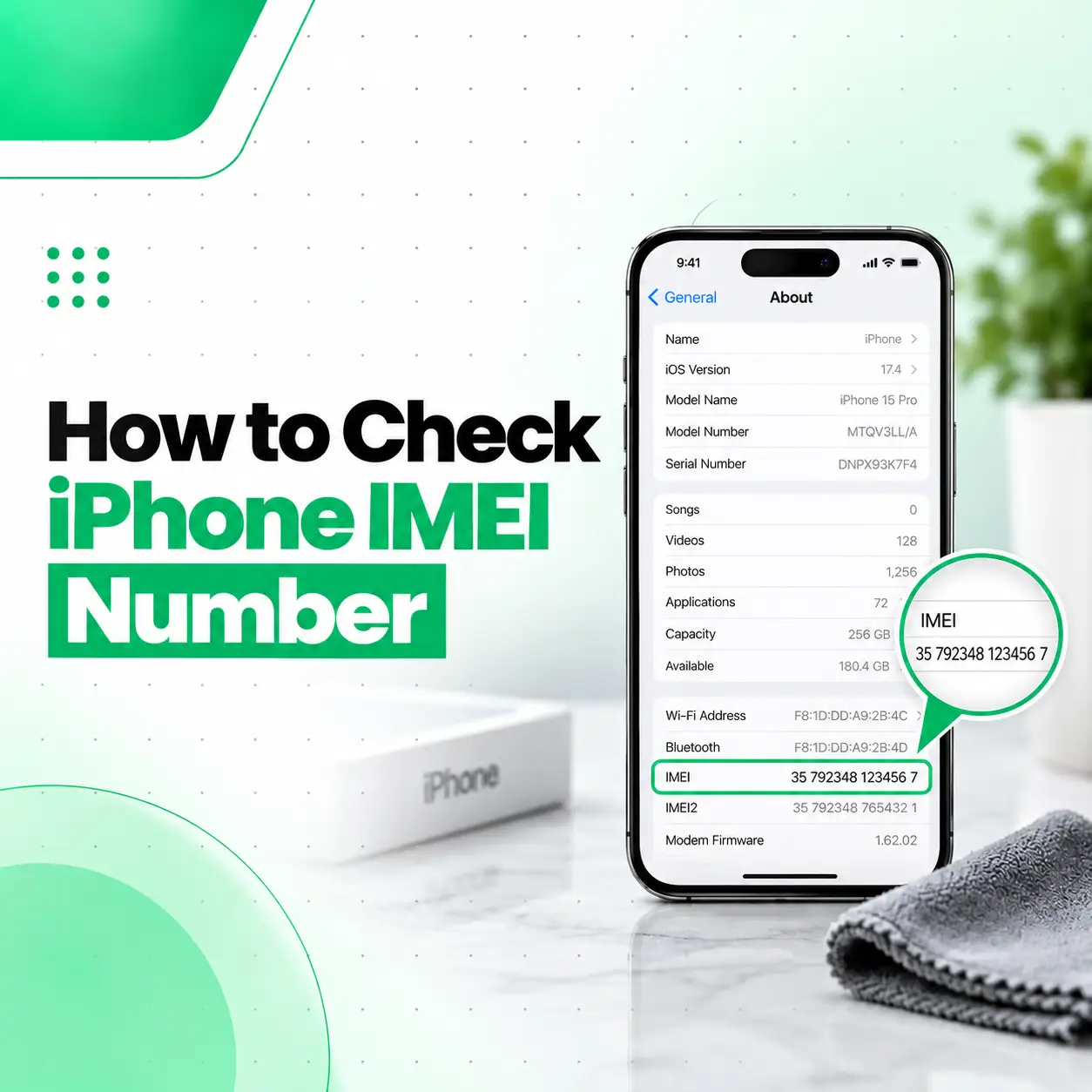
If you need to know how to check iPhone IMEI number, the easiest method is usually through Settings > General > About. Your iPhone’s IMEI is listed alongside other device identifiers such as the serial number, EID, and ICCID.
You can also find the IMEI without opening Settings in several situations—for example, if the iPhone is stuck during setup, you cannot access the screen, or you still have the original box. Depending on the iPhone model, the IMEI may also be available on the SIM tray, through your Apple Account, or on a computer using Finder or the Apple Devices app.
This guide explains each method, the difference between an IMEI and serial number, and what to consider before sharing or using your IMEI in Bangladesh.
What Is an iPhone IMEI Number?
An IMEI (International Mobile Equipment Identity) is a device identifier associated with a cellular phone. On an iPhone, it is displayed with other cellular identifiers and can be used when identifying the device for support or carrier-related purposes.
It is different from the iPhone’s serial number. Both can help identify your device, but they are separate identifiers and may be requested for different support or service situations.
If you are checking an iPhone before buying, repairing, selling, or handing it over for service, it is useful to record the correct IMEI rather than confusing it with the serial number.
How to Check iPhone IMEI Number in Settings
The simplest method is through the iPhone’s Settings app.
Follow These Steps
- Open Settings on your iPhone.
- Tap General.
- Tap About.
- Scroll down until you find IMEI or IMEI/MEID.
- Touch and hold the number if you want to copy it.
The same About screen can also show information such as the model name, model number, serial number, EID, and ICCID.
Quick path:
Settings → General → About → IMEI
For most working iPhones, this is the fastest way to check the IMEI.
How to Find the IMEI Without Opening Settings
If you cannot access Settings, you may still have other ways to find the IMEI.
Check the SIM Tray
Some iPhone models have the IMEI/MEID printed on the SIM tray. Apple lists supported models including several iPhone 13, 12, 11, XS, XR, X, 8, 7, and 6s-series devices.
This can be useful if the screen is working poorly or you cannot navigate through Settings.
However, the exact location depends on the iPhone model, so do not assume every iPhone has an IMEI printed on its SIM tray.
Check the Original iPhone Box
If you still have the original packaging, check the barcode label. Apple says the packaging can contain the serial number, EID, and IMEI/MEID.
This is particularly useful when:
- The iPhone cannot turn on.
- The display is damaged.
- You are preparing the phone for service.
- You no longer have access to the Settings screen.
Important: Make sure the box actually belongs to the iPhone you are checking. A box from another device will have different identification information.
Check Before Completing iPhone Setup
If you have just turned on an iPhone and it is still showing the Hello setup screen, Apple provides another way to access device identifiers.
On supported setup screens, tap the Info button in the bottom-right corner to view available device information before completing setup.
This can be helpful when checking a new, reset, or second-hand iPhone before completing configuration.
How to Check iPhone IMEI From Your Apple Account
If your iPhone is associated with your Apple Account, you can also find its device identifiers online.
Steps
- Open account.apple.com.
- Sign in with the Apple Account associated with the iPhone.
- Open the Devices section.
- Select the relevant iPhone.
- Review the available device information, including the IMEI/MEID where provided.
This method is useful when you do not currently have the iPhone in your hand.
You can also view devices associated with your Apple Account from another Apple device signed in to the same account.
How to Find an iPhone IMEI Using a Computer
You can also retrieve iPhone identification information through a computer.
On a Mac
For Macs running macOS Catalina or later, Apple says you can use Finder:
- Connect the iPhone to the Mac.
- Open Finder.
- Select the iPhone.
- Open the device information under the relevant section.
- Select the device information as needed to view the IMEI/MEID and other identifiers.
On Windows
Depending on your setup, Apple provides the Apple Devices app or iTunes for managing connected iPhones. These can provide device identification information when the iPhone is connected.
This method can be particularly useful when the iPhone is accessible through a computer but difficult to navigate directly.
Is iPhone IMEI the Same as the Serial Number?
No. The IMEI and serial number are different identifiers.
The IMEI is associated with the phone’s cellular-device identity, while the serial number is Apple’s hardware identification number for the particular device.
You may see both on the same Settings > General > About screen, but they should not be treated as interchangeable. Apple also lists other identifiers such as EID and ICCID.
| Identifier | What it represents |
| IMEI | Cellular device identifier |
| Serial number | Apple’s device hardware identifier |
| EID | Identifier associated with eSIM functionality |
| ICCID | Identifier associated with the SIM/eSIM |
When Apple Support or another service provider asks for a specific identifier, provide the requested number rather than substituting another one.
How to Check Your iPhone IMEI Before Buying a Used iPhone
If you are considering a second-hand iPhone, finding the IMEI is only one part of checking the device.
Compare the Device Information
If possible, compare the IMEI shown on the iPhone with the IMEI provided on its original packaging or other legitimate documentation.
A mismatch can be a reason to investigate further before purchasing.
Check the Device Details
Also review:
- Model name
- Model number
- Serial number
- Carrier information
- Physical condition
- Battery condition
- Activation/setup status
- Available storage
The IMEI by itself should not be treated as proof that a used iPhone is genuine, fully functional, or free of every possible account, network, or hardware issue.
Can You Check an iPhone IMEI Online?
You can find your iPhone’s IMEI through several official Apple-supported methods, but what you can determine from an IMEI depends on the service or organization performing the check.
For Apple warranty and coverage information, Apple’s official coverage service uses the serial number, rather than simply treating an IMEI as a universal warranty checker.
Be careful with third-party websites that ask for an IMEI. Before entering a device identifier, understand what information the service provides, who operates it, and how the submitted information is handled.
Why Might You Need Your iPhone IMEI?
Knowing your IMEI can be useful in several situations.
When Contacting Support
Apple or a service provider may ask for device identifiers when helping diagnose or service a phone. Apple specifically notes that these numbers can be used to identify your device when contacting Apple Support.
When Troubleshooting Network Problems
Because the IMEI is associated with the cellular device, it may be relevant when dealing with certain carrier or network-related issues.
However, an IMEI alone does not diagnose a network fault. Problems can also involve the SIM/eSIM, carrier service, settings, software, antenna system, or hardware.
When Sending an iPhone for Repair
A repair shop may need device-identification information as part of its intake or service process.
If you are sending an iPhone for professional repair in Bangladesh, avoid publicly posting your complete IMEI in social media posts, advertisements, or open online forums unless there is a specific reason to do so.
Is It Safe to Share Your iPhone IMEI?
Your IMEI is a device identifier, so it is better to treat it as information that should not be unnecessarily posted publicly.
Before Sharing Your IMEI
Consider:
- Why the recipient needs it.
- Whether the recipient is a legitimate repair provider, carrier, or support service.
- Whether the complete IMEI is actually required.
- Whether you are entering it into a trustworthy website.
- Whether you can provide it through a private support channel instead of a public post.
An IMEI is not the same as your Apple Account password, but that does not mean it should be distributed without a reason.
What If You Cannot Find the IMEI on Your iPhone?
If the IMEI is not visible in Settings, try another supported method:
- Check the SIM tray if your model has the IMEI printed there.
- Check the original iPhone packaging.
- Check the Info button on the setup screen.
- Check your Apple Account’s device list.
- Connect the iPhone to a Mac or PC and use the appropriate Apple software.
If the phone has serious hardware damage and you cannot access any of these options, professional inspection may help determine what information can still be retrieved.
When Should You Contact a Professional Repair Service?
You usually do not need a repair shop simply to find an IMEI if the iPhone is working normally. But professional help may be appropriate if the reason you cannot access the IMEI is a hardware problem.
For example, consider an inspection if:
- The iPhone will not turn on.
- The display is completely black.
- The phone has suffered liquid damage.
- The touchscreen does not respond.
- The device repeatedly restarts.
- The phone has suffered physical damage.
- You need to identify the device before a repair.
A technician should diagnose the actual hardware problem rather than assuming that an inaccessible IMEI means the IMEI itself is faulty.
What Information Should You Record Before iPhone Repair?
Before handing over a working iPhone for repair, it can be useful to record relevant device information privately.
Consider keeping a note of:
- IMEI
- Serial number
- Model name
- Model number
- Current device condition
- Important repair symptoms
Also protect your personal data. If a repair requires access to the device, follow the service provider’s privacy and device-preparation instructions and avoid unnecessarily sharing your Apple Account password.
How to Check iPhone IMEI Number: Quick Summary
The easiest method is:
Settings → General → About → IMEI
If you cannot use Settings, check:
- SIM tray on supported models
- Original iPhone packaging
- Info button during setup
- Apple Account device list
- Finder on Mac
- Apple Devices app or iTunes on PC
The exact options vary by iPhone model and condition.
Frequently Asked Questions
1. How do I check my iPhone IMEI number?
Go to Settings > General > About and scroll down until you see IMEI or IMEI/MEID. You can touch and hold the number to copy it. This is generally the simplest method when your iPhone is working normally.
2. How can I find my iPhone IMEI if I cannot open Settings?
You may be able to find it on the SIM tray on supported models, on the original iPhone packaging, through your Apple Account, or by connecting the iPhone to a computer using Apple’s supported software. The available method depends on your model and device condition.
3. Is the IMEI number the same as the iPhone serial number?
No. The IMEI and serial number are separate device identifiers. The IMEI is associated with the cellular device, while the serial number is Apple’s hardware identifier. Both can appear together under Settings > General > About, so check carefully which number a support or service provider has requested.
4. Can I find my iPhone IMEI from my Apple Account?
Yes. Apple says you can sign in to your Apple Account at account.apple.com, open the Devices section, select the relevant iPhone, and view available identifiers such as the IMEI/MEID. This can be useful when you do not currently have physical access to the phone.
5. Can I check an iPhone IMEI online to see its warranty?
Apple’s official coverage service currently asks users to enter a serial number to view device coverage and benefits. Therefore, do not assume that entering an IMEI into an unofficial website is the correct way to verify Apple coverage. Use Apple’s official resources for coverage-related checks.
6. Should I give my IMEI to a phone repair shop?
A legitimate repair provider may need device-identification information during service, but avoid posting your complete IMEI publicly. Ask why it is needed and provide it through an appropriate private channel. You should also protect your Apple Account credentials and personal information during the repair process.
7. What should I do if my iPhone will not turn on and I need the IMEI?
First check the original box or other legitimate device documentation. Depending on the model, the IMEI may also be available through your Apple Account or on the SIM tray. If the phone has hardware damage and you cannot retrieve the identifier yourself, a professional repair technician can inspect the device and help determine the available options.
Conclusion
Checking an iPhone IMEI is usually straightforward: open Settings > General > About and look for the IMEI. If you cannot access Settings, Apple provides several alternatives, including supported SIM trays, original packaging, Apple Account device information, and computer-based options.
If you are trying to find the IMEI because your iPhone has a damaged screen, will not turn on, has liquid damage, or is experiencing another hardware problem, identifying the number may only be part of the solution. A professional diagnosis can help determine the underlying issue before repair.
For iPhone and mobile repair support in Bangladesh, iCareFix can assess the device and recommend an appropriate repair approach based on its condition rather than assuming the problem from the IMEI alone.