




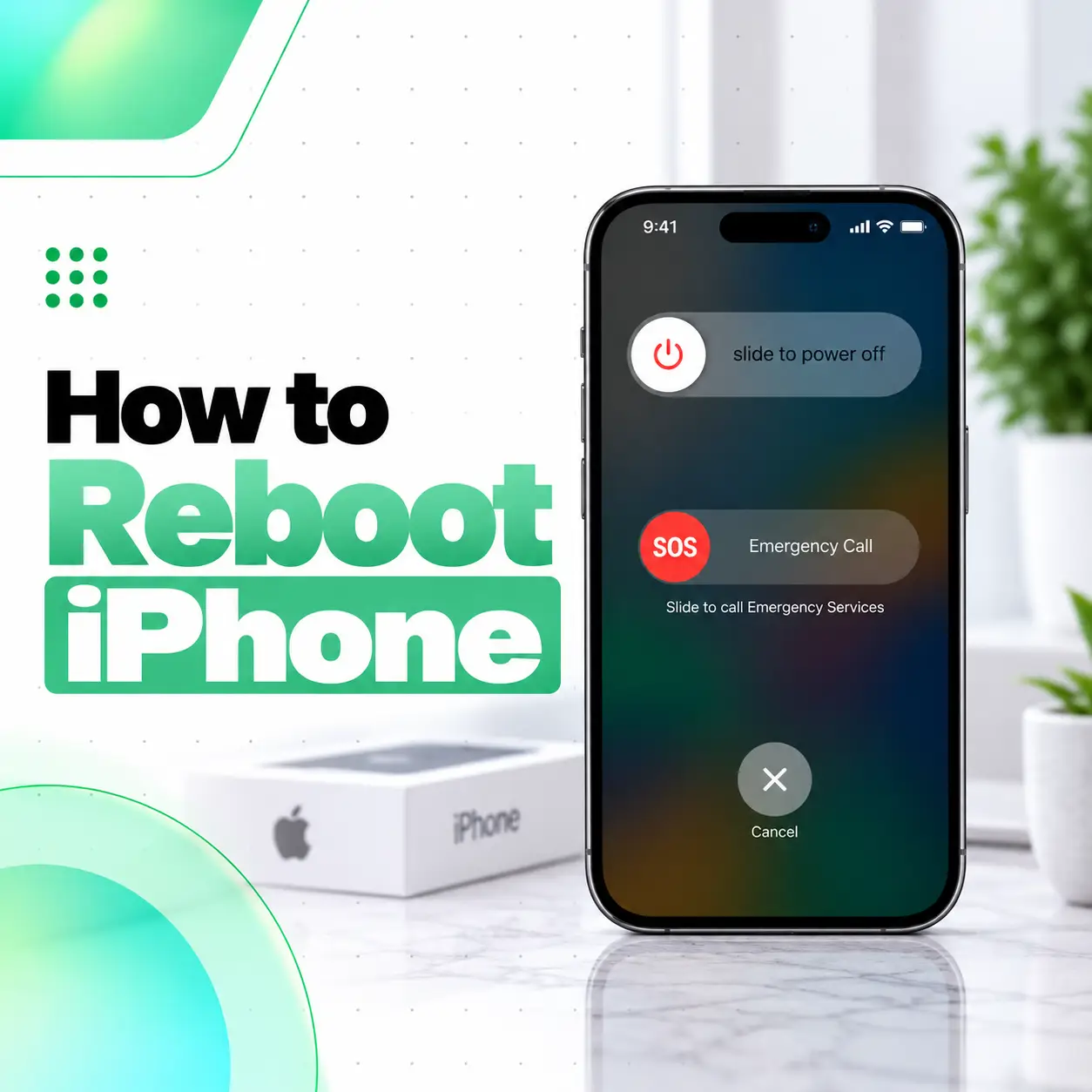
If you want to know how to reboot iPhone, the correct method depends on whether the phone is still responding. A normal reboot means turning the iPhone off and then back on. If the display is frozen or the device will not respond, you can use a force restart instead.
On iPhone X and later models, Apple says to hold the Side button and either Volume button until the Power Off slider appears, then shut the phone down and turn it back on with the Side button. If the phone is unresponsive, press Volume Up, press Volume Down, then hold the Side button until the Apple logo appears.
This guide covers newer and older iPhones, rebooting without buttons, frozen screens, black screens, and when a persistent restart problem may need professional diagnosis.
What Does Rebooting an iPhone Mean?
Rebooting an iPhone simply means restarting it.
In normal use, that usually involves:
- Turning the iPhone off.
- Waiting for shutdown.
- Turning it back on.
A reboot can help clear temporary software problems such as:
- App freezes
- Minor interface lag
- Temporary Wi-Fi or Bluetooth glitches
- Keyboard delays
- Short-lived iOS issues
A reboot is different from erasing or factory-resetting the phone.
How to Reboot iPhone X, 11, 12, 13, 14, 15, 16, and Later
For iPhones with Face ID and newer button layouts, Apple uses the Side button and either Volume button for a normal restart.
Steps
- Press and hold the Side button and either Volume Up or Volume Down.
- Keep holding until the Power Off slider appears.
- Drag the slider.
- Wait about 30 seconds for the iPhone to turn off.
- Press and hold the Side button again.
- Release it when the Apple logo appears.
This is the standard reboot method for recent iPhones.
How to Reboot iPhone 6, 7, 8, or iPhone SE
For iPhone 6, 7, 8, and iPhone SE 2nd or 3rd generation, Apple says to hold the Side button until the Power Off slider appears.
Steps
- Press and hold the Side button.
- Drag the Power Off slider.
- Wait about 30 seconds.
- Press and hold the Side button again.
- Release it when the Apple logo appears.
How to Reboot iPhone SE 1st Generation, iPhone 5, or Earlier
Older iPhones use the top power button.
Steps
- Press and hold the Top button.
- Wait for the Power Off slider.
- Drag it to shut down.
- Wait about 30 seconds.
- Press and hold the Top button again.
- Release it when the Apple logo appears.
Apple still documents this method for older supported hardware.
How to Force Reboot an iPhone
Use a force restart when the iPhone is frozen, the touchscreen is unresponsive, or normal shutdown does not work.
For recent iPhones, Apple’s current sequence is:
- Press and quickly release Volume Up.
- Press and quickly release Volume Down.
- Press and hold the Side button.
- Keep holding until the Apple logo appears.
- Release the Side button.
The first two presses should be quick.
Do not hold all three buttons together.
Which iPhones Use the Volume Up, Volume Down, Side Button Sequence?
This sequence applies to modern iPhones including:
- iPhone 8 and later
- iPhone SE 2nd generation and later
- Face ID iPhones
For an unresponsive iPhone with Face ID, Apple says the Apple logo may take more than 10 seconds to appear.
How to Force Reboot iPhone 7 or iPhone 7 Plus
The iPhone 7 series uses a different combination.
Steps
- Press and hold the Side button.
- At the same time, hold Volume Down.
- Keep holding both buttons until the Apple logo appears.
- Release the buttons.
Apple currently documents this sequence specifically for iPhone 7 and iPhone 7 Plus.
How to Force Reboot iPhone 6s, SE 1st Generation, or Earlier
Older Home-button iPhones use another combination.
Steps
- Press and hold the Home button.
- Press and hold the Side or Top button at the same time.
- Keep holding until the Apple logo appears.
- Release the buttons.
Apple says this process can take around 10 seconds.
Normal Reboot vs Force Restart
Both restart the iPhone, but they are intended for different situations.
| Method | When to Use | Touchscreen Needed? |
| Normal reboot | iPhone works normally | Yes |
| Force restart | iPhone is frozen or unresponsive | No |
| Settings shutdown | Buttons are inconvenient | Yes |
| Recovery mode | Serious startup/software issue | Computer may be needed |
A normal reboot should usually be your first choice.
Use force restart when normal controls stop responding.
Does Rebooting an iPhone Delete Data?
No. A normal reboot or force restart does not normally delete your data.
It does not erase:
- Photos
- Messages
- Contacts
- Apps
- Apple Account
- Settings
Rebooting simply reloads the operating system.
It is different from:
- Erase All Content and Settings
- Factory reset
- Recovery-mode restore
Those processes can remove data.
Is Rebooting the Same as Resetting an iPhone?
No.
The words are sometimes used interchangeably in casual conversation, but technically they mean different things.
Reboot
Turns the phone off and back on.
Reset
Can refer to changing or clearing settings, such as:
- Reset Network Settings
- Reset Keyboard Dictionary
- Reset All Settings
Factory Reset
Erases the iPhone and returns it to setup state.
If your goal is only to fix a temporary freeze or app problem, rebooting is much less disruptive than resetting.
How to Reboot iPhone Without Using the Buttons
If your touchscreen works but a physical button is difficult to use, you can shut down from Settings.
Apple currently supports this method.
Steps
- Open Settings.
- Tap General.
- Scroll down.
- Tap Shut Down.
- Drag the Power Off slider.
- Wait for the iPhone to turn off.
- Press and hold the Side button to turn it back on.
This method is useful if the Side button combination is inconvenient.
Can You Turn Off iPhone From Control Center?
Yes.
Apple also lets users shut down from Control Center.
Steps
- Open Control Center.
- Touch and hold the power icon in the upper-right corner.
- Drag the Power Off slider.
- Wait for shutdown.
- Hold the Side button to turn the iPhone on again.
What Should You Do If the iPhone Is Frozen?
If your iPhone is completely frozen, use force restart.
For recent models:
Volume Up → Volume Down → hold Side button
Keep holding until the Apple logo appears.
After the phone starts:
- Check whether the freeze returns.
- Update problematic apps.
- Check available storage.
- Update iOS if necessary.
One isolated freeze may be temporary.
Repeated freezing deserves further troubleshooting.
What If the iPhone Screen Is Black?
A black screen does not always mean the phone is permanently damaged.
First try the force-restart sequence.
Apple recommends force restarting an iPhone that will not turn on or has a black screen.
If nothing appears:
- Connect the phone to a known-good charger.
- Leave it charging.
- Try force restart again.
Apple recommends charging for up to an hour before retrying if the phone does not turn on.
Why Won’t My iPhone Reboot?
Several issues can prevent an iPhone from restarting normally.
Possible causes include:
- Completely discharged battery
- Damaged charging cable or adapter
- Charging-port issue
- Frozen iOS
- Broken Side or Volume button
- Display failure
- Battery fault
- Internal hardware problem
Start with charging and force restart before assuming the phone needs repair.
What If the iPhone Shows the Apple Logo but Does Not Finish Starting?
An iPhone that remains stuck on the Apple logo may have a deeper software or hardware problem.
Possible next steps can include:
- Allowing more startup time
- Charging the phone
- Force restarting again
- Using recovery mode if required
- Updating or restoring iOS from a computer
Recovery mode is different from a normal reboot.
It should mainly be used when regular restart troubleshooting fails.
Can Rebooting Fix Wi-Fi Problems?
Sometimes.
A reboot can clear a temporary network or system state.
It may help if:
- Wi-Fi suddenly stops connecting
- Bluetooth temporarily fails
- Mobile data behaves unusually
- AirDrop stops responding
However, repeated network problems may require:
- Router checks
- Carrier troubleshooting
- Network settings review
- iOS updates
- Hardware diagnosis
Do not repeatedly reboot without identifying a persistent underlying issue.
Can Rebooting Fix an App That Is Frozen?
Yes, but first try closing and reopening the app.
If the entire iPhone is still responsive:
- Close the affected app.
- Reopen it.
- Update the app if available.
- Reboot the iPhone if the issue continues.
If the entire device is frozen, use force restart.
Can Rebooting Improve iPhone Performance?
It can help with temporary sluggishness.
A reboot clears active system processes and reloads iOS.
However, ongoing slowness may instead be related to:
- Very low storage
- Battery condition
- Background activity
- iOS issues
- Problematic apps
- Hardware faults
A reboot is a troubleshooting step, not a permanent performance upgrade.
How Often Should You Reboot an iPhone?
There is no requirement to reboot an iPhone on a fixed daily or weekly schedule.
Restart it when needed, such as when:
- An app or system feature stops responding
- Network behavior is unusual
- The interface becomes sluggish
- Troubleshooting instructions recommend a restart
If the phone works normally, frequent manual reboots are unnecessary.
What If the Side Button Does Not Work?
If the touchscreen still works, use:
Settings > General > Shut Down
or Control Center to turn the phone off.
However, turning it back on normally still relies on the Side button.
A broken Side button may therefore require repair if it prevents normal power control.
What If a Volume Button Is Broken?
A damaged Volume button can prevent the standard force-restart sequence on newer iPhones.
If the phone is responsive, normal shutdown still works.
But if the device freezes completely, a broken Volume button can make emergency troubleshooting more difficult.
That is one situation where button repair may become important.
Why Does My iPhone Keep Rebooting by Itself?
An iPhone that restarts automatically is different from a phone you manually reboot.
Possible causes include:
- iOS instability
- App problems
- Battery faults
- Extremely low storage
- Previous repair issues
- Liquid damage
- Internal hardware problems
If random restarts happen repeatedly, note whether they occur during charging, gaming, camera use, or heavy processing.
That information can help diagnosis.
Can Low Battery Cause Reboot Problems?
Yes.
An iPhone with very low charge may fail to complete startup.
Apple recommends charging an iPhone that will not turn on and retrying the force restart.
If the phone only works while connected to power or turns off unexpectedly at moderate battery levels, the battery may need further evaluation.
Can Charging Problems Prevent an iPhone From Rebooting?
Yes.
If the battery cannot receive enough power, the iPhone may not boot.
Apple recommends checking the charging setup, charging the device, and then trying force restart if it still will not power on.
Potential hardware causes include:
- Damaged charging port
- Faulty cable
- Faulty adapter
- Battery problem
- Power-management issue
When Should You Seek Professional Repair?
Professional diagnosis may be appropriate when:
- The iPhone still will not turn on after charging and force restart
- It repeatedly reboots by itself
- The Side or Volume buttons are damaged
- The display remains black while the phone appears powered
- Charging is unreliable
- The phone was dropped
- There is liquid exposure
- Reboot loops continue after software troubleshooting
Apple states that service may be needed if the iPhone still will not turn on after recommended charging and restart steps.
For users in Bangladesh, iCareFix can inspect whether the issue involves the battery, display, charging system, buttons, or another hardware component rather than a temporary software problem.
Frequently Asked Questions
1. How do I reboot an iPhone?
For iPhone X and later, hold the Side button and either Volume button until the Power Off slider appears, drag the slider, wait for the phone to shut down, then hold the Side button until the Apple logo appears. Older iPhones use slightly different power-button combinations.
2. How do I force reboot an iPhone?
On iPhone 8 and later, quickly press Volume Up, quickly press Volume Down, then hold the Side button until the Apple logo appears. Use force restart when the device is frozen or unresponsive and cannot be shut down normally.
3. Does rebooting an iPhone delete data?
No. A normal reboot or force restart does not normally erase photos, messages, contacts, apps, or settings. Rebooting simply restarts iOS. It is different from Erase All Content and Settings or a recovery-mode restore, which can remove personal data.
4. How do I reboot an iPhone without buttons?
Open Settings > General > Shut Down, then drag the Power Off slider. Apple also supports shutting down from the power control in Control Center. After the phone turns off, press and hold the Side button to turn it back on.
5. What should I do if my iPhone is frozen?
Use a force restart. On a recent iPhone, press Volume Up, press Volume Down, then hold the Side button until the Apple logo appears. If the phone still does not respond, charge it and try again. Apple recommends further service if it still will not turn on.
6. Why won’t my iPhone reboot?
The battery may be fully discharged, a button may be damaged, the display may have failed, or the phone may have a deeper software or hardware problem. Charge it using a known-good charger, then retry the correct force-restart sequence. If the problem continues, professional diagnosis may be appropriate.
7. Is rebooting the same as resetting an iPhone?
No. Rebooting simply restarts the phone and keeps your data intact. Resetting can change system settings, while a factory reset erases personal data and returns the iPhone to setup mode. For temporary freezes or glitches, rebooting should generally be tried before more disruptive reset options.
Conclusion
Learning how to reboot iPhone is straightforward once you know whether you need a normal restart or a force restart.
For recent iPhones, a normal reboot is:
- Hold the Side button and either Volume button.
- Drag the Power Off slider.
- Wait for shutdown.
- Hold the Side button until the Apple logo appears.
If the iPhone is frozen:
- Press Volume Up.
- Press Volume Down.
- Hold the Side button until the Apple logo appears.
Rebooting does not normally erase personal data. If the device still will not turn on after charging and force restart, or if it repeatedly reboots by itself, the problem may require deeper software troubleshooting or hardware inspection.
For users in Bangladesh, iCareFix can inspect the device when symptoms point to a battery, charging, display, button, or internal hardware issue rather than a temporary iOS problem.