




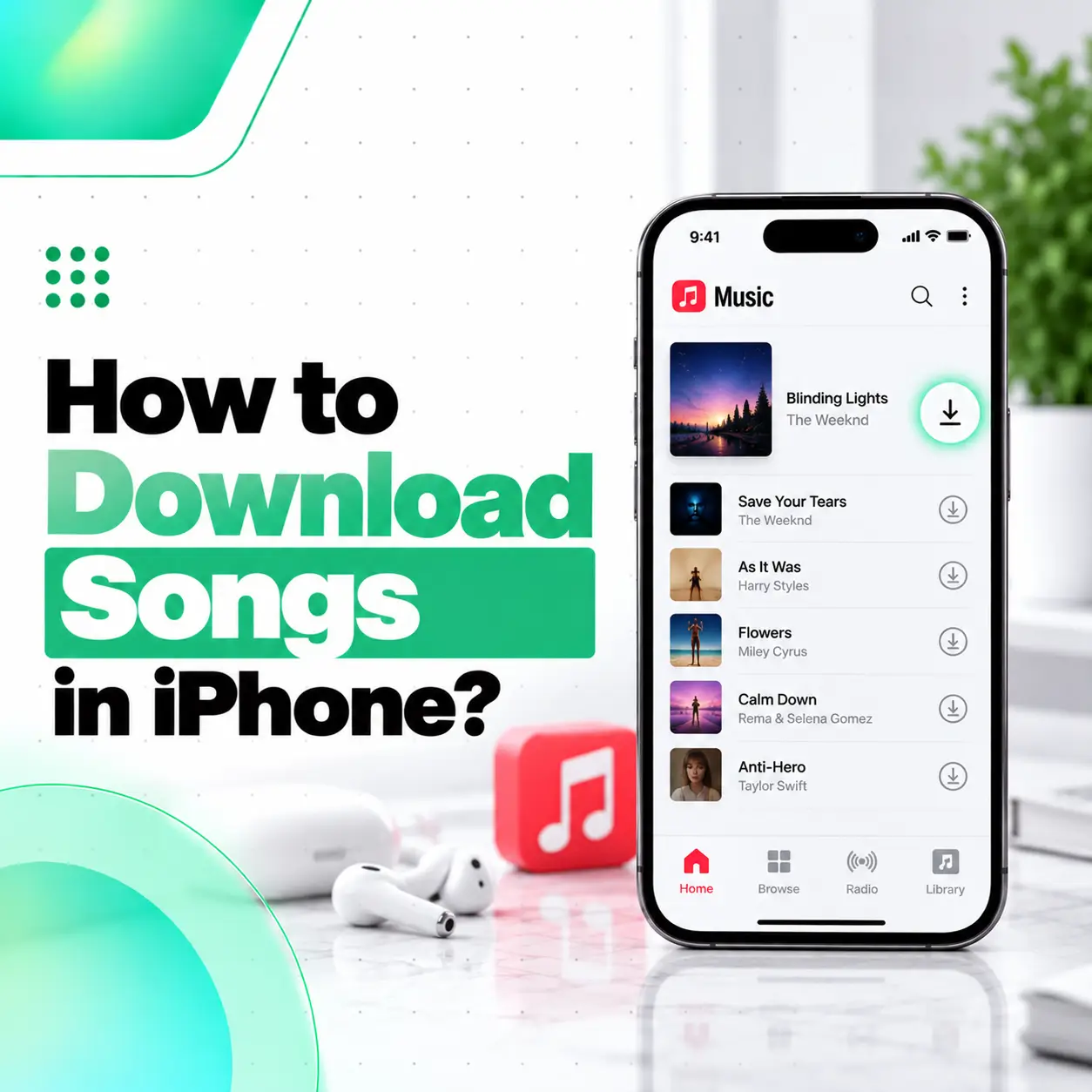
If you want to know how to download songs in iPhone, the easiest method is usually the Apple Music app. With an Apple Music subscription, you can add a song, album, or playlist to your library and then download it for offline listening. Apple also supports purchased music through the iTunes Store and lets you transfer your own music from a Mac or Windows computer to an iPhone.
The right method depends on what kind of music you want to save. A subscription download stays in Apple Music for offline playback, while purchased music can be permanently downloaded, and your own MP3 or audio library can be synced from a computer. This guide explains each method, where downloaded songs appear, how storage works, and what to do if music will not download.
What Is the Easiest Way to Download Songs on iPhone?
For most users, Apple Music is the easiest way to download songs for offline listening.
Apple’s current process is:
- Open the Music app.
- Find a song, album, or playlist.
- Add it to your library.
- Tap Download.
- Open your library later to play it without an internet connection.
Other options include:
| Method | Best For | Offline Playback | Subscription Needed? |
| Apple Music | Streaming library | Yes | Usually yes |
| iTunes Store purchase | Owning purchased music | Yes | No Apple Music subscription required |
| Computer sync | Your own MP3/music files | Yes | No |
| Files app | Storing audio files | Yes, with compatible player | No |
How to Download Songs in iPhone Using Apple Music
If you subscribe to Apple Music, you can download songs, albums, and playlists to your iPhone.
Apple states that subscribers can add music from the Apple Music catalog to their library and download it for offline playback.
Step 1: Open the Music App
Open the Music app on your iPhone.
Make sure you are signed in with the Apple Account connected to your Apple Music subscription.
Step 2: Find a Song
Search for:
- Song
- Album
- Artist
- Playlist
Open the item you want.
Step 3: Add It to Your Library
For an album or playlist, tap the Add button.
For an individual song:
- Tap the More button beside the song.
- Tap Add to Library.
Step 4: Download the Music
After adding the song to your library:
- Tap the Download button for an album or playlist.
- Or tap the More button beside a song and choose Download.
Once downloaded, the song can be played without continuously streaming it over the internet.
Can You Listen to Apple Music Offline on iPhone?
Yes.
Apple Music subscribers can download eligible music to an iPhone and listen without an active internet connection.
This is useful when:
- Travelling
- Using limited mobile data
- Commuting
- Flying
- Staying somewhere with unreliable Wi-Fi
You must download the music before going offline.
Do You Need Apple Music to Download Songs on iPhone?
No. Apple Music is one method, but it is not the only one.
You can also:
- Buy music from the iTunes Store where available
- Redownload songs you previously purchased
- Sync your own MP3 or other supported music files from a computer
Apple’s iPhone guide specifically lists Apple Music, iTunes Store purchases, and Mac/Windows transfers as ways to get music onto an iPhone.
How to Buy and Download Songs From the iTunes Store
In regions where iTunes Store music purchases are available, you can buy individual songs or albums without an Apple Music subscription.
Apple’s current instructions are:
- Open the iTunes Store app.
- Tap Music.
- Find the song or album.
- Tap its price.
- Sign in with your Apple Account to complete the purchase.
After purchase, the music appears in your library in the Apple Music app.
Is Purchased Music Different From Apple Music Downloads?
Yes.
An Apple Music subscription gives you access to subscription content while your subscription remains active and the content remains available.
Purchased digital music can be permanently downloaded to compatible Apple devices according to Apple’s current media policy.
Can You Download MP3 Songs to iPhone?
Yes, but the method depends on where the MP3 files are stored.
If you already have legally obtained MP3 files on a Mac or Windows computer, you can sync them to your iPhone.
This is useful for:
- Your own recordings
- Purchased MP3 files
- Royalty-free audio
- Music from an existing personal library
Do not assume that any song available online can legally be copied or redistributed.
How to Transfer Songs From Windows PC to iPhone
Apple now supports music syncing through the Apple Devices app on Windows.
Apple states that the Apple Devices app can sync music, movies, and other content between Windows and an iPhone.
Before You Start
You may need:
- Apple Devices app
- Apple Music app on Windows
- USB or USB-C cable
- Your music already stored on the PC
Steps
- Connect the iPhone to your Windows computer.
- Open Apple Devices.
- Select your iPhone in the sidebar.
- Select Music.
- Choose the music you want to sync.
- Click Apply.
Apple also supports wireless syncing after the initial setup when the devices are connected appropriately.
Important Note About Apple Music and Manual Syncing
If you use Apple Music with Sync Library enabled, manual music syncing works differently.
Apple notes that when Apple Music subscription syncing is active, music is transferred automatically across devices, and the standard manual sync process is not available in the same way unless Sync Library is turned off.
Do not turn off Sync Library casually if you rely on your Apple Music library across several devices.
How to Transfer Songs From Mac to iPhone
On newer versions of macOS, Finder can be used to sync music and other content to iPhone.
Apple’s current general guidance is:
- macOS Catalina or later: use Finder
- Older macOS versions: use iTunes
- Windows: use Apple Devices or supported Apple software
General Process
- Connect your iPhone to the Mac.
- Open Finder.
- Select the iPhone.
- Open the Music section.
- Select music to sync.
- Apply the changes.
This is useful for personal music files that are not part of Apple Music.
Where Are Downloaded Songs Stored on iPhone?
It depends on the method.
Apple Music Downloads
Songs downloaded through Apple Music remain managed inside the Music app.
They are not normally exposed as ordinary MP3 files that you can freely move around in Files.
Purchased Music
Purchased music also appears in your Music library.
MP3 Files Saved in Files
If you manually download or save an audio file to the Files app, it may remain as a standalone file rather than automatically becoming part of the Apple Music library.
This distinction matters if you want to:
- Edit the file
- Attach it to an email
- Move it to cloud storage
- Open it in a different audio app
Can You Download Songs Directly to the Files App?
Yes, if you have a legitimate direct audio-file download from a website, cloud service, creator, or other authorized source.
Safari may save compatible downloads to the Files app.
However, that audio file does not automatically become part of Apple Music.
You may need to:
- Play it from Files
- Open it using another compatible app
- Import it through a computer if you want it managed in a music library
Can You Download Music From YouTube to iPhone?
YouTube Music and YouTube offer their own supported offline features depending on service, subscription, region, and content availability.
However, using random websites to convert copyrighted YouTube music into MP3 files may raise copyright, security, and platform-policy issues.
For safer listening, use:
- Apple Music
- YouTube Music’s official offline feature
- A licensed music service
- Music you purchased
- Audio files provided directly by the rights holder
Avoid unfamiliar sites that request passwords, profiles, or suspicious app installations.
Can You Use Spotify to Download Songs on iPhone?
Spotify and other streaming apps can provide offline downloads under their own subscription and account rules.
Those downloads generally stay inside the relevant streaming app rather than becoming regular MP3 files in Apple Music or Files.
That means:
Offline download does not necessarily mean you own a standalone audio file.
The same distinction applies to many subscription music services.
How to Find Downloaded Songs in Apple Music
Open:
Music > Library
Then browse your downloaded library.
Depending on the current iOS interface, Apple Music may provide a Downloaded category or related filtering options.
Your downloaded content can include:
- Songs
- Albums
- Playlists
If something is missing, first confirm that the download actually completed.
How to Automatically Download Music on iPhone
Apple Music can be configured so that music added to your library is automatically downloaded, depending on your current Music settings.
Check:
Settings > Apps > Music
Look for available download-related options.
Automatic downloads can be useful if you regularly add music and want it available offline.
However, it can also consume storage quickly.
How Much Storage Do Downloaded Songs Use?
Music storage depends on:
- Number of songs
- Audio quality
- Song length
- Lossless settings
- Dolby Atmos downloads
- Other format choices
Higher-quality files generally use more storage.
Apple Music supports features such as lossless and Dolby Atmos in supported regions and configurations, which can increase storage use compared with standard audio.
How to Check iPhone Storage Before Downloading Music
Go to:
Settings > General > iPhone Storage
Check how much free space remains.
If storage is low, consider removing:
- Old videos
- Large downloads
- Unused apps
- Music you no longer need offline
Avoid filling the device completely.
How to Remove Downloaded Music Without Deleting It From Your Library
If you want to free storage but keep a song in your Apple Music library, remove only the downloaded copy rather than deleting the song from the library.
This lets you stream it again later.
Apple specifically provides the ability to remove downloaded music to free space.
Be careful with options such as:
- Remove Download
- Delete from Library
They do different things.
Why Are Songs Not Downloading on iPhone?
Common reasons include:
- No internet connection
- Apple Music subscription issue
- Low iPhone storage
- Song unavailable in your region
- Apple Account mismatch
- Sync Library problem
- Temporary Music app issue
- Music catalog changes
Quick Troubleshooting Table
| Problem | What to Check |
| Download button missing | Confirm music is added to Library |
| Download stuck | Check Wi-Fi/mobile data |
| Not enough storage | Check iPhone Storage |
| Song greyed out | Check region/account/content availability |
| Library missing | Check Apple Account and Sync Library |
| Download disappears | Check subscription and library status |
How to Fix Apple Music Songs Not Downloading
Try these steps in order:
- Confirm your internet connection works.
- Make sure your Apple Music subscription is active.
- Check available iPhone storage.
- Confirm you are using the correct Apple Account.
- Add the song to your library before downloading.
- Close and reopen the Music app.
- Restart your iPhone.
- Check for iOS updates if the issue continues.
If only one song is affected, the issue may be with that particular track rather than your iPhone.
Why Does Apple Music Say a Song Is Unavailable?
Music availability can vary by country or region.
Apple’s media-service documentation explicitly notes that access to music, purchases, downloads, and subscriptions varies depending on location.
A song can also become unavailable because:
- Licensing changes
- Artist or label changes
- Catalog changes
- Explicit-content restrictions
- Different regional versions
This does not necessarily indicate an iPhone fault.
Is Apple Music Available Everywhere?
No.
Apple notes that Apple Music and certain related features are not available in every country or region.
Availability, payment methods, catalogs, and purchase options can differ by Apple Account region.
For users in Bangladesh, check the services shown for your Apple Account region rather than assuming another country’s Apple Music or iTunes Store options will be identical.
Can You Move Playlists From Another Music Service to Apple Music?
Apple now supports transferring eligible playlists and libraries from other music services in supported regions.
Apple says some music may require review if an exact catalog match cannot be found.
This is different from downloading MP3 files.
The feature primarily moves library or playlist information into Apple Music where matching content is available.
Is Downloading Songs From Random Websites Safe?
Not always.
Unfamiliar music-download sites may expose users to:
- Misleading advertisements
- Pop-ups
- Fake download buttons
- Malicious profiles
- Suspicious apps
- Privacy tracking
- Copyright problems
Avoid entering your Apple Account credentials into a third-party music downloader.
Use official or authorized sources whenever possible.
Does Downloading Music Damage iPhone Battery?
Normal music downloading does not damage a healthy iPhone battery.
However, downloading large libraries can temporarily increase:
- Network activity
- Processing
- Storage activity
- Battery consumption
If your iPhone becomes unusually hot, restarts, or drains battery rapidly across multiple apps, that may require separate troubleshooting.
Does Downloading Too Much Music Slow Down iPhone?
Music itself does not normally slow an iPhone simply because it is stored locally.
However, performance can be affected when storage becomes extremely limited.
Keep some free space available for:
- iOS
- Temporary files
- App updates
- Photos
- System operations
If the iPhone is almost full, remove unnecessary offline downloads.
When Is Professional iPhone Support Relevant?
Most music-download problems are software, account, licensing, subscription, or storage issues.
Professional repair is more relevant if the iPhone has broader symptoms such as:
- Wi-Fi failing across multiple apps
- USB connection not working with a computer
- Charging-port problems
- Repeated restarts
- Severe battery problems
- Touchscreen failure
- Storage-related hardware errors
A repair shop cannot make unavailable music appear in Apple Music or change licensing restrictions.
If your iPhone has an actual hardware issue preventing normal music transfer or use, iCareFix can inspect the device and identify whether a charging port, battery, display, connectivity component, or another part needs attention.
Frequently Asked Questions
1. How do I download songs on my iPhone?
The easiest method is Apple Music. Open the Music app, add a song, album, or playlist to your library, then tap the Download button or choose Download from the song’s menu. Once downloaded, the music can be played offline from your library. An active Apple Music subscription is required for subscription-catalog downloads.
2. Can I download songs on iPhone for offline listening?
Yes. Apple Music subscribers can download songs, albums, and playlists for offline playback. You can also listen offline to music you purchased or synced from your computer. The method determines whether the audio remains subscription-based inside Music or exists as purchased or personally owned content.
3. Do I need Apple Music to download songs on iPhone?
No. Apple Music is convenient, but you can also buy music from the iTunes Store where available or transfer your own music files from a Mac or Windows computer. Apple currently documents all of these as supported ways to get music onto an iPhone.
4. Can I put MP3 files on my iPhone?
Yes. If you already own or legally obtained MP3 files, you can sync them from a Mac or Windows PC. On Windows, Apple’s current workflow uses the Apple Devices app together with the relevant Apple media apps. You can select the music you want and sync it to the connected iPhone.
5. Where are downloaded songs stored on iPhone?
Apple Music downloads are managed within the Music app and are intended for offline playback there. They do not normally appear as freely movable MP3 files in the Files app. Audio downloaded directly from an authorized website may instead be stored in Files, depending on how it was downloaded.
6. Why are songs not downloading in Apple Music?
Common causes include weak internet, low storage, an inactive subscription, an Apple Account issue, regional availability, or a temporary app problem. First check your connection, storage, subscription, and whether the song has been added to your library. If only one track fails, that specific song may be unavailable.
7. Can I transfer songs from my computer to my iPhone?
Yes. Apple supports syncing music from both Mac and Windows computers. Newer Macs generally use Finder, while Windows users can use the Apple Devices app. You can select all music or specific songs and playlists, then sync them to the iPhone.
Conclusion
Learning how to download songs in iPhone is easier once you know which type of download you need.
For Apple Music offline listening:
- Open Music.
- Add the song to your library.
- Tap Download.
- Play it later without streaming.
For music you want to own rather than access through a subscription, you may be able to purchase it through the iTunes Store depending on your region. If you already have your own MP3 or music library, Apple also supports transferring music from a Mac or Windows PC.
Remember that Apple Music offline downloads, purchased music, manually synced music, and standalone audio files are not exactly the same thing. Choose the method that fits how you want to use the songs.
If music problems appear alongside broader iPhone issues—such as failing Wi-Fi, a damaged USB/charging port, repeated shutdowns, or battery problems—iCareFix can inspect the device and determine whether a genuine hardware fault is interfering with normal use.