




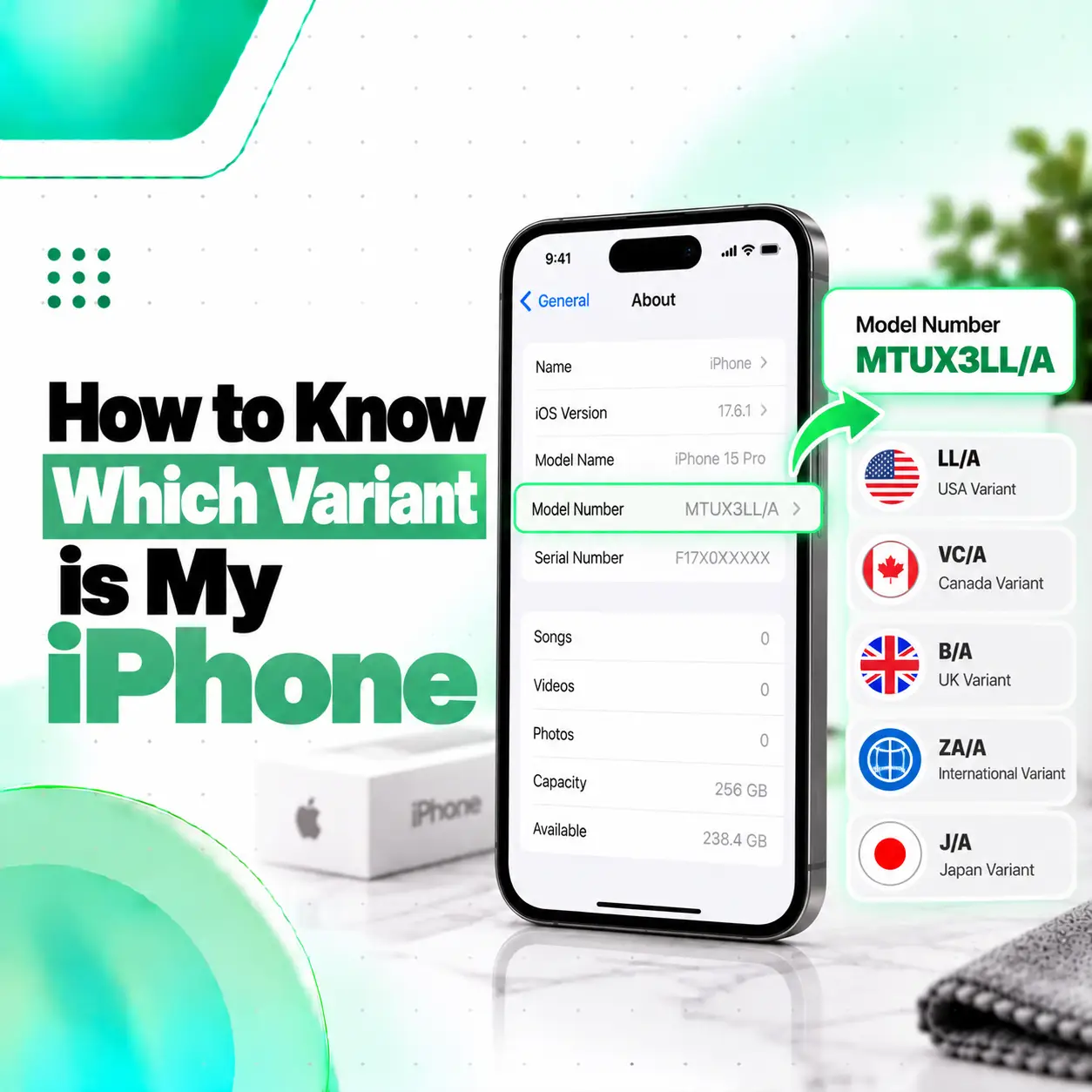
If you want to know which variant your iPhone is, the easiest way is to open Settings → General → About and check the Model Name and Model Number. Tap the number beside Model Number to switch between Apple’s part number and the hardware model number, which usually starts with the letter A. These details help identify your iPhone model and its supported regional configuration.
Apple Support
+1
Knowing your iPhone variant is useful when buying a used iPhone, checking physical SIM or eSIM support, confirming network compatibility, or choosing replacement parts. In Bangladesh, it can also help you ask the right questions before purchasing a second-hand device or arranging a repair. This guide explains how to check your iPhone variant step by step, understand the codes, and know which details matter when seeking professional assistance from iCareFix.
What Does an iPhone Variant Mean?
An iPhone variant is a version of an iPhone model designed for a particular market or with a specific hardware configuration. Two iPhones with the same model name can differ in cellular features, SIM support, or other region-dependent specifications.
For example, an iPhone 17 Pro sold in one market may have a different hardware model number from an iPhone 17 Pro sold in another market. Both may be genuine iPhone 17 Pro devices, but their regional configurations can differ.
Apple Support
+1
When identifying your iPhone, distinguish between these four details:
| Detail | What it tells you |
| Model Name | The product name, such as iPhone 16 Pro |
| Part Number | Apple’s product identifier, which can include a market-specific suffix |
| A-number (Model Number) | The hardware model identifier used to distinguish model configurations |
| IMEI | A device identifier used for cellular network identification and other device-related checks |
These identifiers serve different purposes. You should not treat your IMEI, serial number, part number, and A-number as interchangeable.
How to Know Which Variant Is My iPhone Using Settings
The quickest way to identify your iPhone variant is through the built-in Settings app. You do not need the original box, a third-party application, or a computer for this basic check.
Step 1: Open Settings
Unlock your iPhone and open the Settings app.
Step 2: Go to General and About
Follow this path:
- Open Settings.
- Tap General.
- Select About.
- Look for Model Name and Model Number.
Your iPhone’s About screen also displays information such as the iOS version, serial number, storage capacity, and IMEI.
Apple Support
Step 3: Tap Model Number
Initially, the field beside Model Number may display a longer code resembling a retail part number.
Tap that code once. It should change to a hardware model number beginning with A, followed by four digits.
For example, Apple’s published model information lists different A-numbers for regional configurations of the same iPhone family. The exact numbers depend on the model and generation, so check the official identification list for your particular iPhone.
Apple Support
+1
Step 4: Match the A-number with Apple’s Model List
Visit Apple’s official Identify your iPhone model guide.
Find your iPhone generation and compare the A-number with the listed models and regions. This is more reliable than guessing the variant from the device’s appearance, color, or seller description.
Step 5: Check SIM Support and Other Regional Features
After identifying the hardware model, confirm the features that matter to you:
- Does it have a physical nano-SIM tray?
- Does it support eSIM in your intended country?
- Does it support the cellular bands required by your mobile operator?
- Is the phone carrier-locked?
- Are the regional specifications suitable for your intended use?
The A-number can help identify the hardware configuration, but it does not establish every detail about the phone’s sales history, carrier status, or current condition.
How to Identify Your iPhone’s Country or Region Variant
To identify the likely sales-region configuration, examine the part number in Settings → General → About. Its final characters may help distinguish versions intended for different markets, but you must interpret the complete code using reliable model-specific information.
What Does the Letter Before the Slash Mean?
Apple’s part number can contain a regional suffix at the end, such as LL/A or CH/A. These are commonly associated with particular sales markets, but the suffix should be treated as a clue rather than definitive proof of the phone’s complete history.
For example:
| Part-number suffix | Common association |
| LL/A | United States market |
| CH/A | Mainland China market |
| J/A | Japan market |
| ZP/A | Hong Kong or Macau market |
These examples are not a complete list, and regional codes can vary by product and generation. Confirm the specific iPhone using Apple’s model information instead of relying on a suffix alone.
How to Read an iPhone Part Number
Suppose the About screen shows a code ending in LL/A.
You can use that suffix as an initial clue about the intended sales market. Then:
- Record the complete part number.
- Tap it to reveal the A-number.
- Match the A-number with Apple’s official iPhone model list.
- Check the SIM configuration and specifications for that hardware model.
- Verify the carrier lock separately if you intend to use a different mobile operator.
Important: The region suffix does not reliably prove the country where the phone was manufactured, whether it is new or refurbished, or whether every component is original.
How to Check Your iPhone Variant Without the Original Box
You can identify your iPhone without its original packaging by checking the About screen or matching its hardware model number against Apple’s official documentation.
If the phone cannot turn on, try these alternatives:
- SIM tray: Some iPhone models have a model number printed inside the SIM tray opening. Availability and placement depend on the model.
- Original receipt or packaging: If available, compare the listed product number with the device.
- Apple model identification guide: Use visible design details and other available information to narrow down the model.
- Professional inspection: If the phone has suffered physical damage and its identifiers are inaccessible, a repair technician may be able to help identify its hardware.
Do not rely on the SIM tray alone, because many newer iPhones have no physical SIM tray in certain regional configurations.
Apple Support
+1
How to Check Whether Your iPhone Is a US, Japan, China, or International Variant
The most reliable approach is to combine the part number, A-number, and documented hardware features rather than relying on a single code.
US iPhone Variant
Some US-market iPhone models have an eSIM-only design without a physical SIM tray, while others have different configurations depending on the generation. Check the exact model rather than assuming all US iPhones share the same SIM arrangement.
Apple Support
+1
Japan iPhone Variant
A Japanese-market iPhone can have region-specific hardware or software behavior. If you are buying one in Bangladesh, verify the exact model, SIM compatibility, carrier lock, and any features important to you before purchasing.
China iPhone Variant
Certain iPhones sold in mainland China, Hong Kong, and Macau support dual physical nano-SIM configurations. However, the available arrangement depends on the specific generation and sales region. Do not assume every China-region iPhone supports the same SIM setup.
Apple Support (IN)
+1
International iPhone Variant
“International variant” is a broad retail description, not a single universal hardware configuration. An international iPhone may have a physical SIM tray, eSIM support, or other features depending on its actual model and intended market.
For buyers in Bangladesh, verify local network compatibility and SIM requirements instead of relying solely on a seller’s claim that a phone is an international version.
Does Your iPhone Variant Affect SIM Cards and Network Compatibility?
Yes. Your iPhone’s regional hardware configuration can affect whether it supports a physical SIM, an eSIM, or a particular combination of cellular features. Network compatibility also depends on supported frequency bands, carrier requirements, and whether the phone is unlocked.
Apple Support
+1
If you use an imported iPhone in Bangladesh, check these details before buying or activating it.
| What to check | Why it matters |
| Physical SIM support | Determines whether you can insert a conventional nano-SIM card |
| eSIM support | Determines whether the device can use a digital SIM, subject to carrier availability |
| Network bands | Affects compatibility with the frequencies used by your mobile operator |
| Carrier Lock | A locked device may not accept SIM cards from other carriers |
| Regional restrictions | Certain hardware or features may differ between markets |
How to Check Whether Your iPhone Is Carrier-Locked
Go to Settings → General → About and look for Carrier Lock. If the field displays “No SIM restrictions,” the iPhone is reported as unlocked. If it indicates a SIM restriction, contact the relevant carrier to confirm the applicable unlocking options.
Apple Support
+1
Remember that an unlocked iPhone is not necessarily compatible with every network, and a compatible model is not necessarily unlocked.
How to Check Physical SIM and eSIM Support
- Inspect the device for a physical SIM tray.
- Open Settings and look for Cellular or Mobile Data options.
- Check the exact hardware model in Apple’s documentation.
- Confirm that your intended carrier supports the iPhone’s SIM configuration.
The absence of a physical SIM tray can indicate an eSIM-only configuration, but verify the model because SIM arrangements vary across generations and regions.
What Is the Difference Between an iPhone Model Number, Part Number, and IMEI?
These identifiers are often confused, particularly when checking a used iPhone or purchasing replacement parts.
1. Model number (A-number)
Identifies a hardware model or configuration. Use it to look up model-specific features and regional differences.
2. Part number
Identifies a specific product configuration and may include a suffix associated with its intended sales market.
3. IMEI number
A unique cellular equipment identifier. It is useful for certain device-status and network checks, but it is not a regional variant code.
4. Serial number
A separate device identifier that may be used for Apple support and service-related checks.
Apple’s About screen provides access to these identifiers, although the information available and the location of certain details can vary by model.
Apple Support
Can You Identify an iPhone Variant by IMEI?
An IMEI can help identify or check a device through appropriate manufacturer, carrier, or authorized verification services. However, you should not treat an online IMEI lookup as definitive proof of the original sales region, component originality, or complete ownership history.
For routine model identification, start with the Model Name and A-number. Avoid publishing your full IMEI or serial number in public posts.
Why Does Your iPhone Variant Matter When Buying Replacement Parts?
Your iPhone variant can matter when selecting replacement parts, but the exact iPhone model and component compatibility are more important than the region suffix alone.
Two iPhones with similar names may have different internal designs or part requirements. Conversely, some regional variants of the same model may share compatible components.
Before buying a replacement display, battery, charging port, or camera, confirm:
- The exact iPhone generation and model.
- The part’s compatibility with that model and hardware revision.
- Whether the replacement is original, refurbished, OEM-sourced, or aftermarket, as applicable.
- Whether the repair requires calibration, component pairing, or additional configuration.
- Whether the repair affects any existing functions or service-related warnings.
Why the Correct Model Matters for Display Replacement
An incorrect display assembly may not fit properly or support all the intended functions. A technician should confirm the model and part compatibility before installation.
Why the Correct Model Matters for Battery Replacement
Battery assemblies must match the intended device. Using an unsuitable battery can create fitment, connection, or safety problems.
Why the Correct Model Matters for Charging Port Repair
Charging port assemblies and related flex cables can differ between iPhone generations and designs. Identifying the exact device before ordering a part reduces the risk of choosing an incompatible component.
If you are unsure about the model or part compatibility, a professional inspection can help establish the correct repair requirements.
How to Check Your iPhone Variant Before Buying a Used iPhone in Bangladesh
When purchasing a second-hand or imported iPhone, do not rely only on the advertised model name or regional label. Check the device itself and confirm that the information matches the seller’s description.
Use this checklist before completing the purchase:
- Check the model name: Open Settings → General → About.
- Record the A-number: Tap Model Number to reveal the hardware model identifier.
- Check the part number: Note its complete suffix and use it as a regional clue.
- Check the carrier lock: Look for “No SIM restrictions” under Carrier Lock.
- Test the SIM: Confirm that the intended SIM or eSIM setup works, where supported.
- Inspect the physical condition: Check the screen, cameras, buttons, speakers, charging port, and battery condition.
- Check device status appropriately: Use available official support or carrier channels where applicable.
- Verify ownership and activation: Make sure the seller can legitimately transfer the device and that it can be activated as expected.
For a used iPhone, the region variant is only one part of the decision. A phone’s repair history, condition, network compatibility, and activation status also matter.
Common Mistakes When Identifying an iPhone Variant
Avoid these common errors when checking your device:
- Confusing the part number with the A-number: They serve different purposes.
- Assuming the suffix proves manufacturing origin: It generally indicates a product configuration or sales-market association, not necessarily where the device was manufactured.
- Assuming every imported iPhone supports two physical SIM cards: SIM configurations differ by model and market.
- Treating an unlocked phone as universally compatible: Supported cellular bands and carrier requirements still matter.
- Using an IMEI website as the only source of truth: Unverified lookup sites may provide incomplete or incorrect information.
- Assuming the regional variant determines part compatibility by itself: Always verify the exact model and replacement component.
- Sharing identifiers publicly: Keep your full IMEI and serial number private unless you are using a trusted service that legitimately requires them.
Official Resources for Checking Your iPhone
For the most reliable identification, use Apple’s official documentation rather than relying solely on seller listings or third-party code lists.
- Identify your iPhone model — Apple Support: Match the A-number with the appropriate iPhone model.
- Get information about your iPhone — Apple Support: Learn where to find the model number, part number, IMEI, and other device information.
- Use Dual SIM on iPhone — Apple Support: Review supported SIM configurations and dual-SIM features.
These resources help you confirm model-specific details before buying a device, activating a SIM, or arranging a repair.
Frequently Asked Questions
1. How do I know which variant my iPhone is?
Open Settings → General → About and check Model Name and Model Number. Tap Model Number to switch from the part number to the A-number. Use Apple’s official iPhone identification guide to match the A-number with the appropriate hardware model and regional information. This is the most practical starting point for identifying your iPhone variant.
2. How can I check whether my iPhone is a US variant?
Check the complete part number in Settings → General → About, then compare the A-number with Apple’s official model list. A suffix such as LL/A is commonly associated with the US sales market, but it is not conclusive proof of the device’s history. Also check the SIM configuration and carrier lock before purchasing an imported iPhone.
3. Can I identify my iPhone variant without the original box?
Yes. You can usually identify your iPhone using the Settings app without its original packaging. Go to General → About and record the model name, part number, and A-number. If the phone cannot turn on, check any available documentation or consult a professional technician who may be able to identify the hardware from its physical characteristics.
4. Does my iPhone variant affect SIM card compatibility in Bangladesh?
It can. Regional configurations may differ in physical SIM support, eSIM availability, and supported cellular bands. Before using an imported iPhone with a Bangladeshi mobile operator, confirm the exact hardware model, network compatibility, and carrier lock status. Also check whether your chosen operator supports eSIM if you plan to use a digital SIM.
5. Is the iPhone IMEI number the same as the variant number?
No. The IMEI identifies cellular equipment, while the A-number identifies a hardware model or configuration. The part number can provide clues about the intended sales market. Although an IMEI may support certain device-status checks, it should not be used alone to establish the original region, component authenticity, or full ownership history.
6. Does the iPhone variant affect display or battery replacement?
The exact model and component compatibility determine which display or battery is appropriate. Some regional versions share compatible components, while other models require different parts. Before replacing a component, have the technician verify the device model, replacement part specifications, and any calibration or configuration requirements. The region suffix alone is not enough to select a replacement part.
7. Can iCareFix help identify my iPhone variant before repair?
Yes, you can contact iCareFix to ask about identifying your iPhone model and checking part compatibility before a repair. Sharing the model name and A-number can help clarify your device’s requirements. If the phone is damaged or will not turn on, a physical inspection may be necessary. Confirm the available diagnostic service and any applicable charges before proceeding.
Conclusion
Knowing how to identify your iPhone variant starts with one simple step: open Settings → General → About and check the Model Name, part number, and A-number. Use Apple’s official documentation to verify the hardware model, then check SIM support, carrier lock, and network compatibility if you use an imported iPhone in Bangladesh.
If your goal is to purchase a used iPhone or arrange a screen, battery, charging port, or other repair, accurate model identification can help you avoid incompatible parts and unnecessary confusion.
If you are uncertain about your device or its replacement parts, iCareFix can help you explore the appropriate identification and repair options. Confirming the exact model before repair is a practical first step toward choosing a suitable solution.