




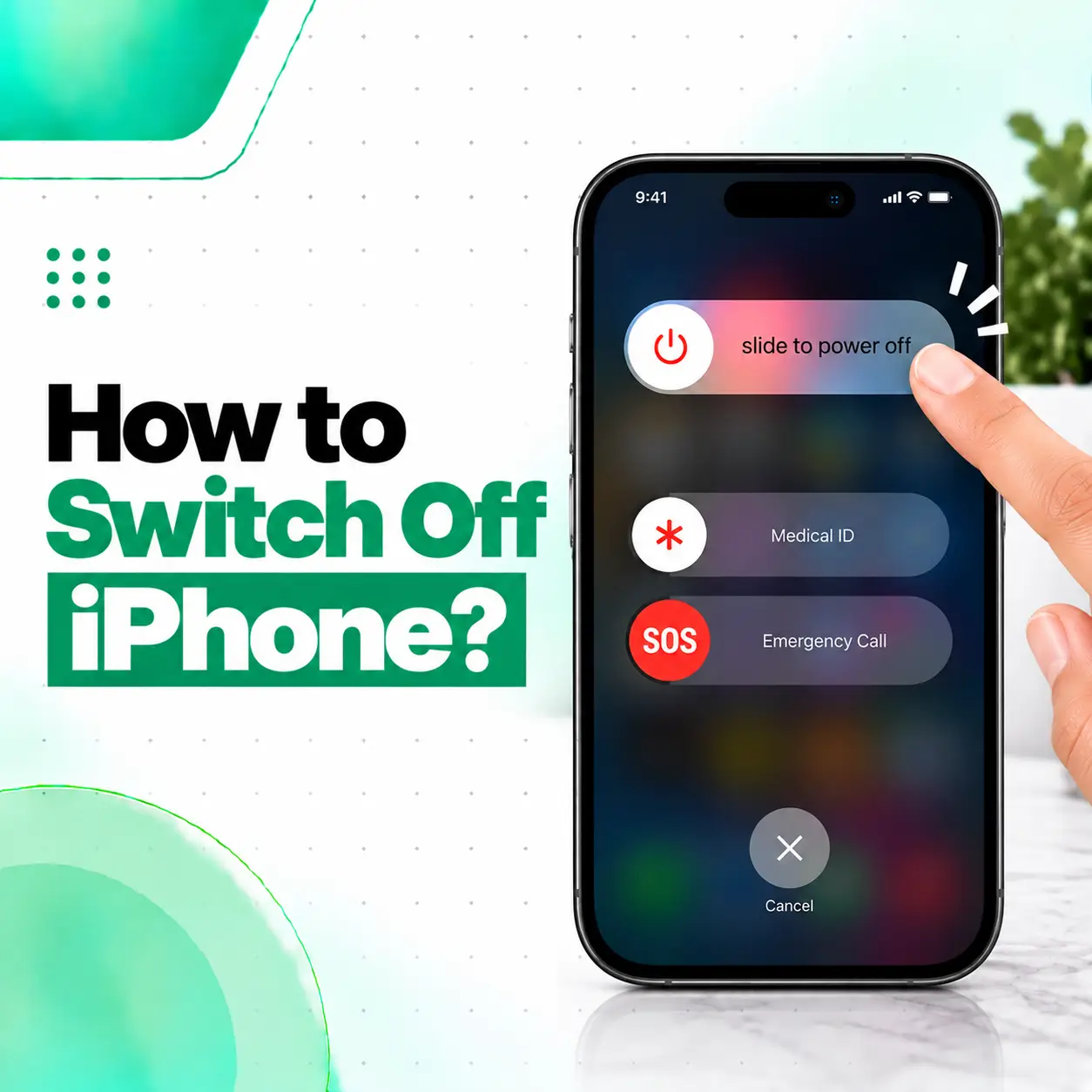
If you’re wondering how to switch off iPhone, the process is straightforward, but the exact button combination depends on your iPhone model. On newer iPhones with Face ID, you normally press and hold the Side button and either Volume button until the power-off slider appears. iPhones with a Home button generally use the Side button alone. Apple also provides ways to shut down an iPhone through Settings and, on supported versions of iOS, Control Center.
This guide explains each method, how to restart your iPhone, and what to do if the device is frozen or the buttons are not responding.
How Do You Switch Off an iPhone?
The quickest way to switch off most iPhones is to display the Power Off slider and drag it across the screen.
For iPhones With Face ID
This applies to iPhone models without a physical Home button.
- Press and hold the Side button and either Volume Up or Volume Down button at the same time.
- Keep holding until the power-off sliders appear.
- Drag the Power Off slider from left to right.
- Wait for the iPhone to shut down.
Apple’s current instructions use this button combination for iPhones with Face ID.
For iPhones With a Home Button
If your iPhone has a physical Home button:
- Press and hold the Side button.
- Wait for the power-off slider to appear.
- Drag the slider to the right.
- Wait for the iPhone to turn off.
Older iPhone models may instead have a Top button rather than a Side button. Apple lists this distinction for older devices.
How to Turn Off iPhone From Settings
You don’t have to use the physical buttons to shut down an iPhone.
To switch off your iPhone through Settings:
- Open Settings.
- Tap General.
- Scroll toward the bottom.
- Tap Shut Down.
- Drag the Power Off slider.
This is particularly useful if you prefer not to use the physical buttons or if one of the buttons is difficult to press. Apple’s current iPhone guide confirms the Settings > General > Shut Down method.
How to Switch Off iPhone Using Control Center
On supported iPhone software, you can also shut down the device from Control Center.
- Open Control Center.
- Touch and hold the Power button in the top-right area.
- When the shutdown slider appears, drag it to turn off your iPhone.
This provides another button-free method for powering down the device.
How to Switch Off iPhone When the Buttons Are Not Working
If your physical buttons aren’t working properly, try using Settings instead.
Go to:
Settings → General → Shut Down → Drag Power Off slider
You can also use the Control Center method if it is available on your iPhone.
If the screen works normally but a physical button is damaged, these software-based shutdown methods can allow you to turn the phone off without relying on the faulty button.
If the screen or iPhone itself is also unresponsive, however, the normal shutdown process may not work.
What Is the Difference Between Turning Off and Restarting an iPhone?
Turning off an iPhone means the device is completely powered down. Restarting means turning it off and then turning it back on.
For a normal restart:
- Turn off the iPhone using one of the methods above.
- Wait until the device has shut down.
- Press and hold the Side button until the Apple logo appears.
For iPhone X, 11, 12, 13 and later, Apple describes this as pressing the Side and Volume buttons to access the power-off slider, waiting for the device to turn off, and then holding the Side button to turn it back on.
A normal restart can be useful when an iPhone is behaving unexpectedly but is still responding to touch and buttons.
What If Your iPhone Won’t Switch Off?
If your iPhone won’t switch off normally, first determine whether the problem is with the screen, buttons, or the entire device.
If the Screen Still Responds
Try shutting it down through:
Settings → General → Shut Down
This avoids depending on the physical buttons.
If the iPhone Is Frozen or Unresponsive
If the screen and buttons aren’t responding normally, a force restart may be necessary.
For an iPhone with Face ID and many newer models:
- Quickly press and release Volume Up.
- Quickly press and release Volume Down.
- Press and hold the Side button.
- Release the Side button when the Apple logo appears.
Apple recommends this procedure when an iPhone is unresponsive and cannot be turned off and back on normally.
Important: A force restart is different from a normal shutdown. It is primarily a troubleshooting step for an iPhone that is frozen or not responding.
What If the iPhone Has a Black Screen?
A black screen does not necessarily mean the iPhone is permanently damaged. The device may have a depleted battery, a software problem, or another issue preventing normal startup.
If the iPhone doesn’t turn on, Apple recommends trying the appropriate force-restart procedure and charging the device when necessary. If it still doesn’t respond, service may be required.
If the phone has suffered a drop, liquid exposure, charging problem, or previous repair, professional diagnosis can help determine whether the problem is software-related or hardware-related.
Do You Need to Switch Off Your iPhone Before Repair?
Yes, when possible, powering off an iPhone before physical handling or cleaning is a sensible safety step. Apple itself instructs users to disconnect cables and turn off the iPhone before certain cleaning procedures.
Before taking an iPhone for repair:
- Back up important data when the phone is working normally.
- Disconnect charging cables and accessories.
- Tell the technician about previous repairs or physical damage.
- Avoid repeatedly forcing the device to restart if it is showing signs of hardware failure.
- If the phone has liquid damage, avoid connecting it to a charger just to test whether it works.
For privacy, only provide the access information necessary for the diagnostic or repair process, and ask how your data will be handled before handing over the device.
Can You Switch Off an iPhone Without Touching the Screen?
Yes, if the physical buttons are working, you can initiate the normal shutdown process using the appropriate button combination for your model.
However, if both the buttons and touchscreen are unresponsive, the normal shutdown process may not be possible. In that situation, the appropriate force-restart procedure may be needed.
When Should You Get Professional iPhone Repair?
Simply being unable to remember the shutdown procedure does not mean your iPhone needs repair. However, professional inspection is reasonable if the device repeatedly fails to respond to normal controls.
Consider getting the phone checked if:
- The Side or Volume buttons don’t work.
- The touchscreen frequently becomes unresponsive.
- The iPhone repeatedly freezes.
- The device shuts down unexpectedly.
- The iPhone won’t turn on after charging.
- The screen remains black.
- The phone becomes unusually hot.
- The device has been dropped or exposed to liquid.
- A force restart does not resolve the problem.
The underlying cause could range from a damaged button or display problem to a battery, charging, software, or internal hardware issue. Proper diagnosis should come before deciding on a repair.
Frequently Asked Questions
1. How do I switch off my iPhone quickly?
For an iPhone with Face ID, press and hold the Side button and either Volume button until the power-off slider appears, then drag the slider. On an iPhone with a Home button, press and hold the Side button and drag the slider.
2. How do I turn off my iPhone without using the buttons?
Open Settings → General → Shut Down, then drag the Power Off slider. This method is useful when you prefer not to use the physical buttons or when a button is difficult to operate.
3. How do I turn off an iPhone with Face ID?
Press and hold the Side button and either Volume button together until the power-off slider appears. Then drag the slider to switch off the iPhone. Face ID itself does not need to be disabled to power off the phone.
4. What should I do if my iPhone won’t turn off?
If the screen responds, try Settings → General → Shut Down. If the iPhone is frozen or completely unresponsive, you may need to force restart it using the button sequence appropriate for your model.
5. Does switching off an iPhone delete anything?
No. A normal shutdown does not erase your photos, apps, messages, or other stored information. It simply powers the device down. Erasing content is a separate process that requires specific actions in the iPhone’s settings.
6. How long should I wait before turning my iPhone back on?
After dragging the Power Off slider, wait for the iPhone to finish shutting down. Apple recommends waiting about 30 seconds before turning the device back on when following its restart procedure.
7. Why won’t my iPhone turn on after I switch it off?
If an iPhone doesn’t turn back on, the battery may be depleted, or there could be a software or hardware problem. Try charging it and then use the appropriate restart procedure. If it remains unresponsive, professional diagnosis may be necessary.
Conclusion
Knowing how to switch off iPhone is simple once you know which method matches your device. For most newer iPhones, the Side button and a Volume button bring up the Power Off slider, while Settings → General → Shut Down provides a button-free option. If the iPhone is frozen or unresponsive, a force restart may be more appropriate than a normal shutdown.
If your iPhone repeatedly freezes, the buttons don’t respond, the screen stays black, or the device won’t power on normally, the shutdown problem may be a symptom of a deeper hardware or software issue. In that situation, iCareFix can assess the device and help determine whether professional repair or further troubleshooting is appropriate.