




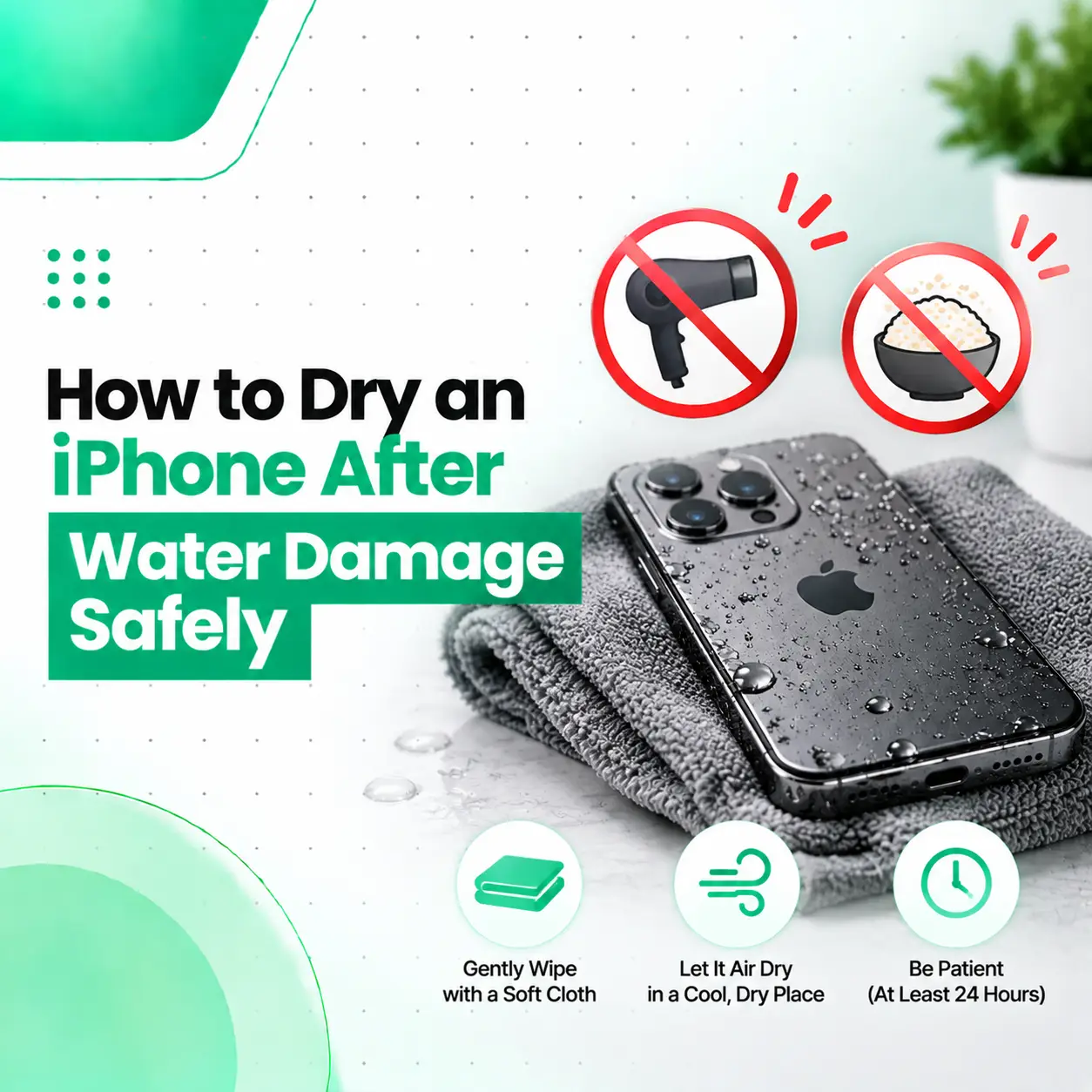
If your iPhone has been exposed to water, do not immediately charge it or use heat to dry it. The safest approach is to disconnect cables and accessories, remove excess liquid from the outside, and allow the device and charging connector to dry naturally in a well-ventilated area. Apple specifically advises against using external heat, compressed air, foreign objects, or rice to dry a wet iPhone.
Knowing how to dry an iPhone after water damage can help you avoid making the situation worse. However, drying the exterior does not guarantee that no liquid has entered the device. If your iPhone develops charging problems, repeatedly shows a liquid-detection warning, will not turn on, or behaves unusually after exposure, professional inspection may be necessary.
What Should You Do Immediately After Your iPhone Gets Wet?
The first priority is to stop charging and minimize further exposure to liquid. Disconnect any charging cable or accessory, remove excess liquid carefully, and let the phone dry naturally.
Follow these steps:
- Disconnect the charging cable and accessories.
- Remove the iPhone from the source of liquid.
- Wipe the exterior gently with a soft, lint-free cloth.
- Hold the charging connector facing downward.
- Gently tap the iPhone against your hand to help remove excess liquid.
- Leave it in a dry area with airflow.
- Do not reconnect a cable until the connector is dry.
The goal is not to force water out of the phone. It is to prevent additional liquid exposure and give moisture time to evaporate naturally.
How to Dry an iPhone After Water Damage
1. Disconnect the iPhone From Power
If the iPhone is connected to a charger, unplug it immediately.
Do not continue charging simply because the phone still appears to work. Moisture around the charging connector can create charging and corrosion problems.
If the phone is already powered off, avoid turning it on repeatedly just to check whether it works.
2. Remove Excess Water From the Exterior
Use a clean, soft, lint-free cloth to gently wipe the outside of the iPhone.
Pay attention to areas where water can collect, including:
- Charging port
- Speaker openings
- Microphone openings
- Buttons
- SIM tray area
Do not push the cloth into openings.
3. Position the Charging Port Downward
Hold the iPhone with the charging connector facing downward and gently tap it against your hand.
This can help excess liquid leave the connector. Apple recommends this approach for an iPhone exposed to liquid.
Avoid shaking the phone aggressively.
4. Allow the iPhone to Air-Dry
Place the iPhone somewhere dry with reasonable airflow.
A fan providing cool air can help airflow around the device. However, do not use hot air or high-pressure air to force moisture out.
Apple advises against using an external heat source or compressed air when drying an iPhone.
How Long Should an iPhone Take to Dry?
There is no single drying time for every water-damaged iPhone.
The time depends on:
- How much liquid reached the device
- Whether liquid entered the charging connector
- The type of liquid
- How long the iPhone was exposed
- Environmental humidity
- Whether a liquid-detection warning continues to appear
For a liquid-detection alert involving the charging connector, Apple advises waiting at least 30 minutes before trying the cable again. If the warning returns, additional drying time may be required, and Apple notes that the connector can take up to 24 hours to dry completely.
For broader liquid exposure, avoid treating a specific waiting period as proof that the entire phone is dry.
What Should You NOT Do to Dry a Wet iPhone?
Some popular drying methods can cause additional damage.
Don’t Use a Hair Dryer
Do not use a hair dryer, heater, heat gun, or other external heat source.
Apple specifically advises against using external heat to dry an iPhone.
Excessive heat can create risks for components and materials inside the device.
Don’t Put Your iPhone in Rice
Do not place a wet iPhone inside a bag of rice.
Apple warns that small particles from rice can potentially enter the iPhone and cause damage.
Rice also does not provide a reliable way to remove moisture from internal components.
Don’t Use Compressed Air
Avoid using compressed air to force water out of the charging port or other openings.
High-pressure air can push moisture or debris further into areas where it is difficult to remove.
Don’t Insert Objects Into the Charging Port
Never use pins, toothpicks, cotton buds, tissues, paper, or other objects to reach inside the charging connector.
Apple advises against inserting foreign objects into the connector.
Don’t Immediately Test the Charger
If the iPhone got wet, repeatedly plugging in the charging cable is not a good way to determine whether it has dried.
Wait until the connector is dry before testing wired charging.
What If the iPhone Says “Liquid Detected”?
A liquid-detection alert means the iPhone has detected liquid in the Lightning or USB-C connector, or potentially on the connected cable or accessory. Apple uses this protection to help prevent charging while moisture is present.
If you see the warning:
- Disconnect the cable.
- Let the connector dry naturally.
- Keep the charging port facing downward when removing excess liquid.
- Wait before trying the cable again.
- Check the cable and accessory as well.
- Try again only after adequate drying.
If the alert repeatedly appears with a known-good dry cable after sufficient drying, professional inspection may be appropriate.
Can You Charge an iPhone After Water Damage?
You should not use wired charging while the iPhone or charging connector is wet.
Apple warns that charging a wet Lightning or USB-C connector can cause corrosion of the connector pins and potentially result in permanent damage or connectivity problems.
Once the connector is completely dry, you can try wired charging again.
If the iPhone continues to display a liquid-detection warning, do not keep reconnecting the cable.
Can You Use Wireless Charging?
If your iPhone supports wireless charging, it may be possible to use a compatible wireless charger while the charging port is drying.
However, the back of the iPhone must be dry before placing it on a wireless charging pad. Apple recommends ensuring the back is dry before using a compatible Qi-certified charger.
Wireless charging does not mean the phone is free from internal water damage. If other symptoms appear, the device may still require inspection.
What If the iPhone Was Exposed to Something Other Than Water?
Water is not the only liquid that can damage an iPhone.
Your device may be exposed to:
- Coffee
- Tea
- Soft drinks
- Juice
- Salt water
- Soapy water
- Sweat
- Other liquids
Different liquids can leave residues or contain substances that may affect electronic components.
Apple recommends minimizing exposure to liquids such as soap, detergent, acids, and salt water. For certain external exposures, Apple provides specific cleaning guidance, including rinsing an affected external area with tap water and drying the device with a soft, lint-free cloth.
This does not mean you should pour water into the charging port or deliberately rinse the entire phone.
If a non-water liquid entered the device or charging connector, professional inspection may be useful if problems develop.
Does Water Resistance Prevent iPhone Water Damage?
No. Water resistance does not make an iPhone completely waterproof.
Apple states that splash, water, and dust resistance are laboratory-tested characteristics and that resistance can decrease with normal wear. Apple also advises against intentionally submerging the iPhone and recommends not charging it while wet.
Water resistance can reduce the likelihood of damage from some accidental exposure, but it should not be treated as permanent protection.
Previous repairs, physical damage, aging, and other factors can also affect the practical condition of the device.
What Are the Signs of iPhone Water Damage?
A wet iPhone may continue working normally at first, so the absence of an immediate problem does not necessarily prove that there is no damage.
Possible warning signs include:
- Liquid-detection alerts
- iPhone not charging
- Intermittent charging
- Charging cable repeatedly disconnecting
- Speaker sound becoming abnormal
- Microphone problems
- Camera fogging or condensation
- Display problems
- Unexpected shutdowns
- iPhone failing to turn on
- Unusual battery behavior
- Connectivity problems
Not every symptom proves that water caused the problem. A proper diagnosis is needed to identify the actual cause.
What If Your iPhone Won’t Turn On After Getting Wet?
If your iPhone will not turn on after significant liquid exposure, avoid repeatedly trying to power it on or charge it.
The safest approach is to:
- Disconnect it from power.
- Wipe away visible liquid.
- Allow the exterior to dry naturally.
- Avoid heat and foreign objects.
- Arrange a professional inspection if the phone remains unresponsive.
An iPhone that does not turn on after water exposure may have a problem involving the battery, charging system, logic board, display, or another internal component.
Drying the outside of the device cannot diagnose these internal issues.
What If Your iPhone Won’t Charge After It Gets Wet?
If the iPhone still will not charge after proper drying, first check the cable and connector.
Try to determine whether:
- The cable is completely dry.
- The charging port is dry.
- The cable is damaged.
- A different compatible cable works.
- The liquid warning continues to appear.
- Wireless charging works, if supported.
If multiple known-good cables fail after the phone has had enough time to dry, the charging port or another internal component may need professional diagnosis.
How Is Water Damage Diagnosed at a Repair Shop?
A professional technician can evaluate the symptoms and inspect the device before recommending a repair.
External Inspection
The technician can check the exterior, charging connector, buttons, speakers, and other accessible areas for signs of liquid exposure or physical damage.
Charging and Function Tests
Testing can help identify whether the iPhone charges normally and whether other functions have been affected.
Connector Inspection
The charging port can be inspected for contamination, physical damage, or signs associated with liquid exposure.
Internal Diagnosis
If symptoms suggest that liquid has reached internal components, additional inspection may be required.
The appropriate repair depends on what the diagnosis finds. A water-damaged iPhone should not automatically be assumed to need a charging-port replacement.
Can Water-Damaged iPhones Be Repaired?
Some water-damaged iPhones can be repaired, but the outcome depends on the extent and location of the damage.
Possible repair requirements can include:
- Charging-port repair
- Component replacement
- Cleaning affected areas
- Connector-related repair
- Battery-related service
- Display-related repair
- Further board-level diagnosis
The correct repair cannot be determined from water exposure alone.
A professional technician should identify the affected component before recommending a repair.
How Much Does iPhone Water Damage Repair Cost in Bangladesh?
There is no reliable single price for iPhone water damage repair in Bangladesh.
The cost can vary according to:
| Cost Factor | Why It Matters |
| iPhone model | Different models use different components |
| Liquid type | Some liquids leave more residue than others |
| Damage severity | Minor connector issues differ from internal damage |
| Affected component | Repair requirements vary by component |
| Parts required | Replacement parts affect total cost |
| Part availability | Availability can affect repair options |
| Labor | Complex diagnosis and repair may require more work |
| Repair vs replacement | The appropriate solution depends on the diagnosis |
If your iPhone has water damage, getting the device assessed is more useful than assuming a repair cost based only on the symptoms.
When Should You Take a Water-Damaged iPhone to a Repair Professional?
Professional inspection is recommended when:
- The phone will not turn on.
- It will not charge after adequate drying.
- A liquid-detection warning continues appearing.
- Charging is intermittent.
- The screen develops problems.
- The camera shows condensation or abnormal behavior.
- The speaker or microphone stops working normally.
- The phone repeatedly shuts down.
- Several functions stop working after liquid exposure.
- The device was exposed to a significant amount of liquid.
If the phone is still functioning, professional inspection can also help identify problems before they become more noticeable.
How Can You Prevent Further Water Damage?
After an iPhone gets wet, prevention is mainly about avoiding additional exposure and unsafe drying methods.
Keep these habits in mind:
- Do not charge the phone while the connector is wet.
- Keep charging cables dry.
- Do not use heat to dry the device.
- Do not put the iPhone in rice.
- Do not insert objects into the charging port.
- Avoid unnecessary liquid exposure.
- Keep the device away from high-pressure water and steam.
- Do not assume water resistance will last forever.
- Seek professional inspection if symptoms continue.
Frequently Asked Questions
1. How do I dry an iPhone after water damage?
Disconnect the charger, remove visible moisture with a soft lint-free cloth, hold the charging connector downward, and gently tap the iPhone against your hand to remove excess liquid. Then leave it in a dry area with airflow. Avoid rice, external heat, compressed air, and inserting objects into the charging port.
2. How long does it take for a wet iPhone to dry?
There is no universal drying time because it depends on the amount and location of the liquid. For a liquid-detection warning, Apple recommends waiting at least 30 minutes before trying the cable again, while noting that complete connector drying can take up to 24 hours.
3. Can I use a hair dryer to dry my iPhone?
No. A hair dryer, heater, or other external heat source should not be used to dry a wet iPhone. Apple also advises against compressed air. Natural drying with reasonable airflow is the safer approach.
4. Should I put my wet iPhone in rice?
No. Apple advises against putting an iPhone in rice because small rice particles can potentially enter the device and cause damage. Instead, disconnect the phone from power and allow it to dry naturally in an area with airflow.
5. Can I charge my iPhone after water damage?
Do not use wired charging while the iPhone or charging connector is wet. Once the connector is completely dry, you can try charging again. If the liquid warning remains or the phone will not charge normally, professional inspection may be needed.
6. What if my iPhone won’t turn on after getting wet?
Avoid repeatedly attempting to power on or charge the device. Disconnect it from power, remove visible moisture, and allow it to dry naturally. If it remains unresponsive, professional diagnosis can determine whether the battery, display, charging system, logic board, or another component has been affected.
7. When should I take a water-damaged iPhone to a repair shop?
Consider professional inspection if the iPhone remains unresponsive, will not charge after adequate drying, repeatedly shows a liquid warning, or develops display, camera, speaker, microphone, battery, or connectivity problems. Persistent symptoms can indicate that the issue extends beyond temporary moisture in the charging port.
Conclusion
The safest way to dry an iPhone after water damage is to disconnect it from power, remove visible moisture, position the charging connector downward, and allow the device to dry naturally with airflow. Avoid hair dryers, heaters, compressed air, rice, and objects inserted into the charging port. Apple recommends specific precautions for liquid-detection alerts and warns against charging a wet connector.
If your iPhone continues to show a liquid warning, will not charge or turn on, or develops other problems after water exposure, drying alone may not resolve the issue. iCareFix can inspect the device and help identify whether the problem involves the charging port, battery, display, logic board, or another component before recommending an appropriate repair.