




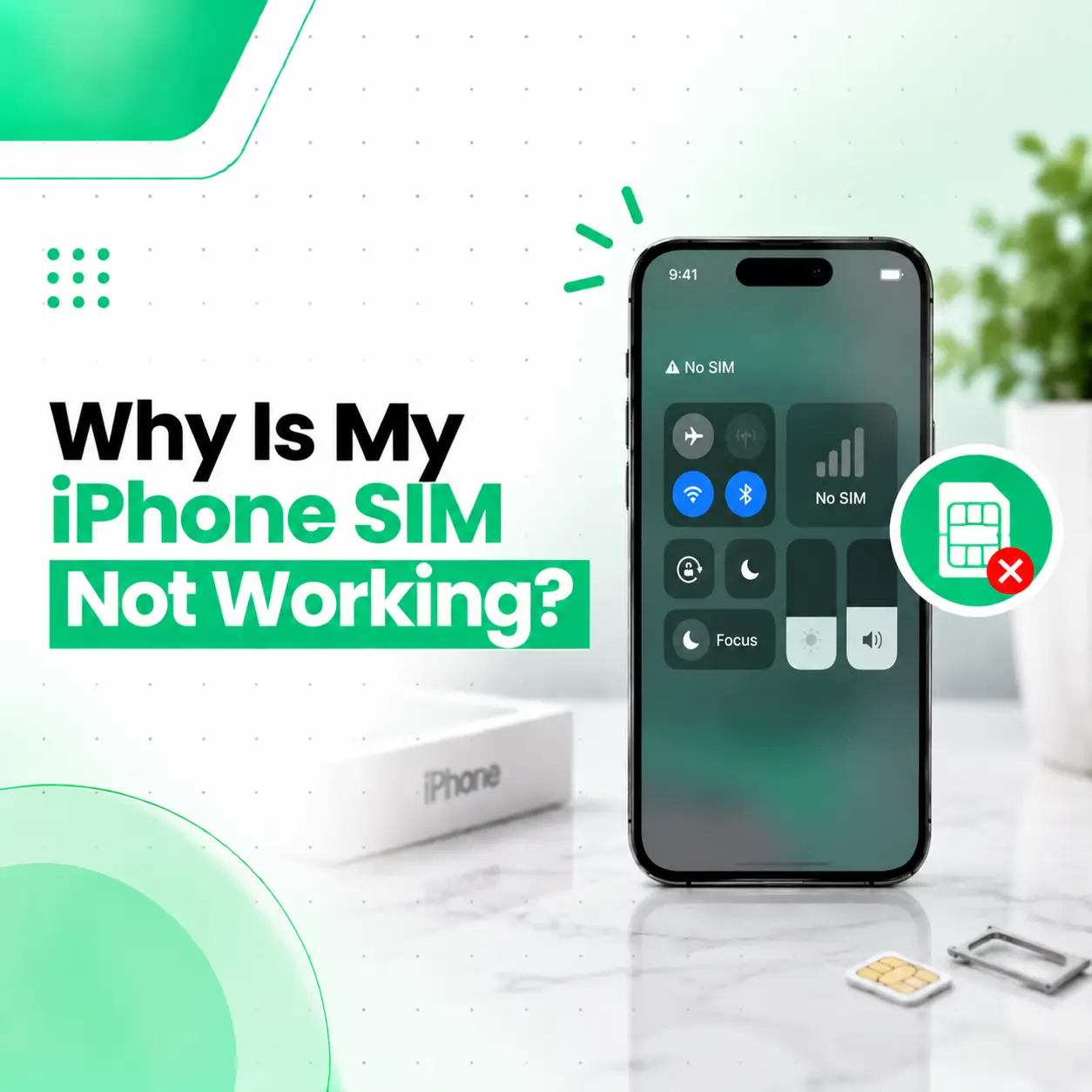
If your iPhone SIM is not working, the problem may be caused by something as simple as an incorrectly seated SIM card or outdated carrier settings—or by a damaged SIM, SIM tray, cellular configuration, or internal hardware component. Messages such as “No SIM,” “Invalid SIM,” “No Service,” “SOS,” or “Searching” can have different causes.
This guide explains why an iPhone SIM may stop working, how to identify the likely cause, what you can safely try at home, and when professional inspection is appropriate. It also covers physical SIM cards and eSIM problems, including situations where the SIM works in another phone but not in your iPhone.
For users in Bangladesh, the same basic troubleshooting principles apply whether the line is from Grameenphone, Robi, Banglalink, or another supported network provider. Apple also lists Banglalink, Grameenphone, and Robi among providers supporting certain eSIM activation methods in Bangladesh.
Why Is My iPhone SIM Not Working?
An iPhone SIM may stop working because the SIM is damaged or incorrectly positioned, the carrier account or network has a problem, the iPhone is carrier-locked, carrier settings need updating, an eSIM is incorrectly configured, or the phone has a hardware fault.
The fastest way to narrow down the problem is to identify what message or symptom appears on the iPhone.
Common symptoms include:
- No SIM or No SIM Card Installed
- Invalid SIM
- No Service
- SOS
- Searching
- Mobile network disappears after inserting a SIM
- SIM works in another phone but not in the iPhone
- iPhone detects the SIM but cannot connect to the network
- Physical SIM works intermittently
- eSIM line is missing or cannot be activated
Apple recommends checking the carrier plan, carrier lock status, restarting the device, checking for carrier settings updates, reseating a physical SIM, and testing another SIM when an iPhone displays “No SIM” or “Invalid SIM.”
What Does “No SIM” or “Invalid SIM” Mean?
“No SIM” generally means the iPhone is not detecting the physical SIM or configured cellular line. “Invalid SIM” can indicate a SIM, carrier, compatibility, or carrier-lock issue.
These messages do not automatically mean that the iPhone’s SIM reader is damaged.
For example, a loose SIM tray, damaged SIM card, incorrect SIM placement, unsupported carrier configuration, or carrier lock can produce similar symptoms.
Before assuming a hardware failure, test the basic causes first.
What Does “No Service,” “SOS,” or “Searching” Mean?
“No Service,” “SOS,” and “Searching” generally indicate that the iPhone is not currently connected to the cellular network.
This is slightly different from a simple “No SIM” message. The iPhone may recognize the SIM but still be unable to establish cellular service.
Possible causes include:
- Temporary carrier or network problems
- SIM or eSIM configuration issues
- Weak or unavailable cellular coverage
- Carrier account problems
- Carrier settings issues
- A disabled cellular line
- Device compatibility or carrier-lock issues
- iPhone hardware problems
Apple specifically recommends checking cellular lines and SIM/eSIM configuration when troubleshooting “No Service” or related cellular problems.
Common Reasons an iPhone SIM Is Not Working
1. The SIM Card Is Damaged
A physical SIM can become damaged through bending, scratching, corrosion, or general wear.
A damaged SIM may:
- Stop being detected
- Work intermittently
- Show “No SIM”
- Lose network connectivity
- Work in one phone but fail in another
If possible, test another known-working SIM in the iPhone. Apple recommends trying another SIM when troubleshooting a physical SIM that is not being recognized.
2. The SIM Is Not Properly Seated
A SIM card must sit correctly inside the SIM tray.
If the SIM is slightly misaligned, the tray is not fully closed, or the tray is loose, the phone may fail to establish reliable contact with the SIM.
Remove the SIM carefully, check its position, and reinstall it correctly. Apple also advises ensuring that the tray closes completely and is not loose.
3. The SIM Tray Is Damaged
The SIM tray can become bent, cracked, loose, or otherwise damaged.
A damaged tray may prevent the SIM from maintaining proper contact with the phone’s internal SIM-reading components.
This can be particularly noticeable if:
- The SIM works when the tray is pressed
- The phone detects the SIM intermittently
- The tray does not sit correctly
- The SIM appears loose inside the tray
Avoid forcing the tray into the phone.
4. The iPhone Is Carrier-Locked
A carrier-locked iPhone may be restricted to a particular network provider.
You can check this by going to:
Settings → General → About → Carrier Lock
If the iPhone is unlocked, Apple states that “No SIM restrictions” appears next to Carrier Lock. If the device is locked, contact the relevant carrier regarding unlocking rather than attempting hardware modifications.
5. Carrier Settings Need an Update
Carrier settings help the iPhone communicate with the mobile network.
If an update is available, Apple instructs users to check:
Settings → General → About
If a carrier settings update is available, the iPhone may display an option to update it.
This can be particularly relevant after changing SIM cards or carriers.
6. Your Carrier Account or SIM Plan Has an Issue
Sometimes the iPhone itself is working normally while the cellular account has a problem.
Possible examples include:
- Inactive mobile plan
- SIM not properly activated
- Account-related restrictions
- Network-provider issue
- New SIM requiring activation
- Number transfer or replacement still being processed
Apple recommends confirming that you have an active plan with your wireless provider when troubleshooting “No SIM” or “Invalid SIM.”
7. The eSIM Is Not Properly Configured
An eSIM does not use a removable physical SIM card. Instead, the cellular plan is stored digitally on the iPhone.
An eSIM problem can occur when:
- The cellular line is not activated
- The line is turned off
- The carrier does not support the required activation method
- The eSIM setup was interrupted
- Carrier settings need updating
- The device or plan has compatibility limitations
Apple recommends checking the cellular line, restarting the iPhone, checking carrier settings, and contacting the carrier if eSIM setup still fails.
8. The iPhone Has a SIM Reader or Cellular Hardware Problem
If different known-working SIM cards consistently fail in the same iPhone, the problem may be related to the device rather than the SIM itself.
Possible hardware-related causes can include:
- Damaged SIM reader
- Damaged SIM contacts
- Internal connector problems
- Liquid or corrosion damage
- Physical impact
- Cellular circuit problems
- Logic board damage
Hardware diagnosis should be performed by a qualified technician rather than by repeatedly inserting or manipulating the SIM.
How to Fix an iPhone SIM That Is Not Working
Before seeking repair, work through these steps in order.
Step 1: Check the SIM and Carrier
Confirm that:
- Your mobile plan is active
- The SIM belongs to a supported carrier
- The SIM has not been physically damaged
- The iPhone is not locked to another carrier
If another phone is available, test the SIM there.
Step 2: Restart the iPhone
A restart can resolve temporary cellular or software communication problems.
Turn the iPhone off, wait briefly, and turn it back on.
Step 3: Turn Airplane Mode On and Off
Turn Airplane Mode on for a few seconds and then turn it off.
This can force the iPhone to re-establish its wireless connections.
Step 4: Check the Carrier Settings
Go to:
Settings → General → About
Wait briefly on the About screen. If a carrier settings update is available, follow the on-screen instructions. Apple recommends this step for “No SIM” and “Invalid SIM” troubleshooting.
Step 5: Remove and Reinsert the Physical SIM
If your iPhone uses a physical SIM:
- Turn the iPhone off if appropriate for your situation.
- Open the SIM tray using the proper eject tool.
- Remove the SIM.
- Inspect it for visible damage or corrosion.
- Check that the SIM is positioned correctly.
- Reinsert it into the tray.
- Make sure the tray closes completely.
- Turn the iPhone back on.
Do not force the tray or use an incorrectly sized SIM.
Step 6: Test Another SIM
This is one of the most useful diagnostic steps.
If your SIM does not work but another known-working SIM works normally in the iPhone, the original SIM or its carrier account becomes a stronger suspect.
If multiple known-working SIM cards fail in the same iPhone, the phone itself may require further diagnosis.
Step 7: Check the Cellular Line for eSIM
For an eSIM, open:
Settings → Cellular
Check whether the relevant cellular line appears and whether it is enabled.
If the line is missing or cannot be activated, contact your carrier for eSIM setup assistance. Apple provides similar guidance for eSIM troubleshooting.
How Can You Tell Whether the SIM or iPhone Is the Problem?
A simple cross-test can help narrow down the issue.
| Test | Result | Likely Direction |
| Your SIM in another phone | SIM works | iPhone may need diagnosis |
| Your SIM in another phone | SIM fails | SIM/carrier issue is possible |
| Another working SIM in your iPhone | Works | Original SIM/account may be the issue |
| Another working SIM in your iPhone | Also fails | iPhone configuration or hardware may be involved |
| eSIM line missing | Cannot activate | Carrier/eSIM configuration needs checking |
| SIM intermittently detected | Unstable connection | Tray, contacts, SIM, or hardware may need inspection |
This is not a definitive hardware diagnosis, but it can help separate a SIM-related problem from an iPhone-related problem.
What If My SIM Works in Another Phone but Not My iPhone?
If your SIM works normally in another compatible phone but not in your iPhone, the iPhone’s configuration, carrier lock, SIM tray, SIM reader, or cellular hardware should be investigated.
Start by checking the Carrier Lock status, restarting the phone, updating carrier settings, and reseating the SIM.
Then test another known-working SIM.
If multiple working SIMs fail in the iPhone, professional inspection becomes more appropriate.
What If Another SIM Works in My iPhone?
If another SIM works normally in the same iPhone, the original SIM or its carrier account is more likely to be the source of the problem.
Contact the network provider to test or replace the SIM.
This test is particularly useful because it can prevent unnecessary phone repair when the actual issue is the SIM or cellular account.
How to Troubleshoot an iPhone eSIM That Is Not Working
An eSIM problem requires a slightly different approach because there is no physical SIM card to remove.
Check Whether the Cellular Line Appears
Go to:
Settings → Cellular
Look for the affected cellular plan.
If it appears, check whether the line is enabled.
Restart the iPhone
Restarting the device can help after an eSIM activation or cellular configuration problem.
Check Carrier Settings
Go to:
Settings → General → About
If a carrier settings update is available, install it.
Check With the Carrier
If the eSIM cannot be activated or the cellular line does not appear correctly, the carrier may need to reconfigure or issue the eSIM.
Apple recommends contacting the carrier when eSIM setup continues to fail.
When Is iPhone SIM Repair Necessary?
Professional iPhone repair is appropriate when basic SIM and carrier troubleshooting does not resolve the problem and evidence points toward a device-side fault.
Consider professional diagnosis if:
- Multiple known-working SIMs fail
- The SIM is detected only intermittently
- The SIM tray is physically damaged
- The phone suffered a drop before the problem began
- The phone has liquid exposure
- Cellular service disappeared after hardware repair
- The iPhone repeatedly displays “No SIM”
- The device has a suspected SIM-reader or logic-board problem
- eSIM and physical SIM troubleshooting both fail where applicable
A technician can inspect the relevant hardware before recommending repair or replacement.
How Is an iPhone SIM Problem Diagnosed?
A professional diagnosis typically begins with simple tests rather than immediately replacing components.
Visual Inspection
The technician may inspect:
- SIM tray
- SIM card
- SIM contacts
- Signs of corrosion
- Physical damage
- Liquid exposure
- Previous repair damage
SIM and Network Testing
A technician may test the device with a known-working SIM or examine whether the iPhone recognizes the cellular line.
Software and Configuration Checks
The device may be checked for:
- Carrier settings
- Cellular configuration
- Carrier lock
- eSIM status
- Relevant iOS behavior
Hardware Diagnosis
If basic tests do not identify the cause, the technician may investigate the SIM-reading and cellular hardware.
The exact repair depends on the failed component and the iPhone model.
How Much Does iPhone SIM Repair Cost in Bangladesh?
There is no single repair price for every iPhone SIM problem because the required service depends on the actual cause.
Factors that can affect repair cost include:
- iPhone model
- SIM tray condition
- SIM replacement requirement
- Type of hardware fault
- Cellular component involved
- Logic-board damage
- Liquid or corrosion damage
- Parts availability
- Labor and diagnostic requirements
A SIM replacement from the network provider may be different from repairing an iPhone with an internal hardware fault.
For this reason, it is better to diagnose the problem first rather than assuming that every “No SIM” message requires the same repair.
Can You Fix an iPhone SIM Problem Yourself?
You can safely try basic troubleshooting such as restarting the iPhone, checking carrier settings, checking Carrier Lock, and reseating a physical SIM. More advanced internal repair should be left to a qualified technician.
Avoid opening the iPhone or attempting to repair internal cellular components without the appropriate tools and experience.
An incorrect repair can create additional hardware problems or damage components that were originally functioning.
Will Fixing the SIM Problem Delete My Data?
Basic SIM troubleshooting normally does not require erasing the iPhone.
However, some more extensive software procedures may involve resetting or restoring the device.
Before any repair or major software procedure, make a current backup whenever possible.
For a hardware repair, tell the technician if the phone contains important personal, business, financial, or authentication information. Avoid sharing passwords or passcodes unless they are genuinely required for a specific diagnostic procedure and you understand why they are needed.
How to Prevent Future SIM Problems
You can reduce the risk of SIM-related issues by:
- Handling the SIM card carefully
- Avoiding damaged or loose SIM trays
- Using the correct SIM size
- Keeping the phone away from liquid
- Avoiding forcing the SIM tray
- Keeping iOS and carrier settings reasonably up to date
- Getting damaged SIM cards replaced through the carrier
- Using supported carrier/eSIM activation methods
- Having physical damage inspected before it causes additional problems
If you frequently experience intermittent SIM detection, do not repeatedly force or reposition the SIM tray. That can make a physical problem worse.
When Should You Contact Your Mobile Carrier Instead of a Repair Shop?
A carrier is generally the appropriate first contact when the issue appears to involve the mobile account or SIM itself.
Contact your carrier if:
- Your SIM does not work in another compatible phone
- Your account appears inactive
- You need a replacement SIM
- You need eSIM activation
- You need to resolve a carrier-lock issue
- Your number or cellular plan has an activation problem
A repair service becomes more relevant when the SIM or account works elsewhere but the iPhone continues to have a device-specific problem.
When Should You Visit a Professional iPhone Repair Service?
If you’ve confirmed that the SIM and carrier account are working but the iPhone still cannot detect or use the cellular line, professional diagnosis can help determine whether the problem is related to the SIM tray, SIM-reading components, cellular circuitry, or another internal fault.
For users seeking professional iPhone repair in Bangladesh, iCareFix can inspect the device and help identify the appropriate repair path based on the actual fault rather than replacing components unnecessarily.
Frequently Asked Questions
1. Why is my iPhone not detecting my SIM?
An iPhone may fail to detect a SIM because the SIM is damaged, incorrectly seated, the SIM tray is loose or damaged, carrier settings need updating, the phone is carrier-locked, or the iPhone has a hardware problem. Restart the device, reseat the SIM, check Carrier Lock and carrier settings, and test another working SIM.
2. Why does my iPhone say “No SIM”?
“No SIM” means the iPhone is not detecting a usable physical SIM or cellular configuration. Check that the SIM is correctly positioned and that the tray closes completely. Restart the iPhone and check for carrier settings updates. If another known-working SIM also fails, the iPhone may require further diagnosis.
3. Why is my SIM working in another phone but not my iPhone?
If the SIM works in another compatible phone, the SIM itself may be functioning correctly. Check whether your iPhone is carrier-locked, update carrier settings, reseat the SIM, and test another known-working SIM. If multiple SIMs fail in your iPhone, a device-side configuration or hardware problem may be involved.
4. Can a damaged SIM tray cause an iPhone SIM problem?
Yes. A damaged, bent, loose, or incorrectly fitted SIM tray can prevent reliable contact between the physical SIM and the phone’s internal SIM-reading components. If the tray does not sit properly or the SIM is detected intermittently, avoid forcing it and have the tray and related components inspected.
5. How do I fix an iPhone eSIM that is not working?
Check Settings → Cellular to see whether the affected line appears and is enabled. Restart the iPhone and check Settings → General → About for a carrier settings update. If the eSIM cannot be activated or the line remains unavailable, contact the carrier for assistance with activation or reconfiguration.
6. How much does it cost to repair an iPhone SIM problem in Bangladesh?
The cost depends on the cause and iPhone model. A carrier SIM replacement is different from repairing a damaged SIM tray, SIM-reading component, or internal cellular hardware. Parts, labor, damage severity, and parts availability can all affect the final cost. A diagnosis should be completed before quoting a hardware repair.
7. When should I take my iPhone to a professional repair service?
Consider professional inspection when basic troubleshooting fails, multiple working SIM cards are not detected, the SIM is intermittently recognized, the SIM tray is damaged, or the problem started after a drop, liquid exposure, or previous repair. A technician can determine whether the issue is with the SIM, tray, configuration, or internal hardware.
Conclusion
An iPhone SIM that is not working does not necessarily mean the phone needs a hardware repair. Start by checking the SIM, carrier account, Carrier Lock status, carrier settings, cellular line, and SIM tray. Testing the SIM in another compatible phone—and testing another known-working SIM in the iPhone—can also help narrow down the cause.
If the problem remains after these basic checks, particularly when multiple working SIMs fail in the same iPhone, professional diagnosis can help identify whether the issue involves the SIM tray, SIM-reading components, cellular circuitry, or another internal fault.
If your iPhone still shows No SIM, Invalid SIM, SOS, No Service, or Searching, iCareFix can assess the device and recommend an appropriate repair option based on the diagnosed problem rather than assuming the cause.