




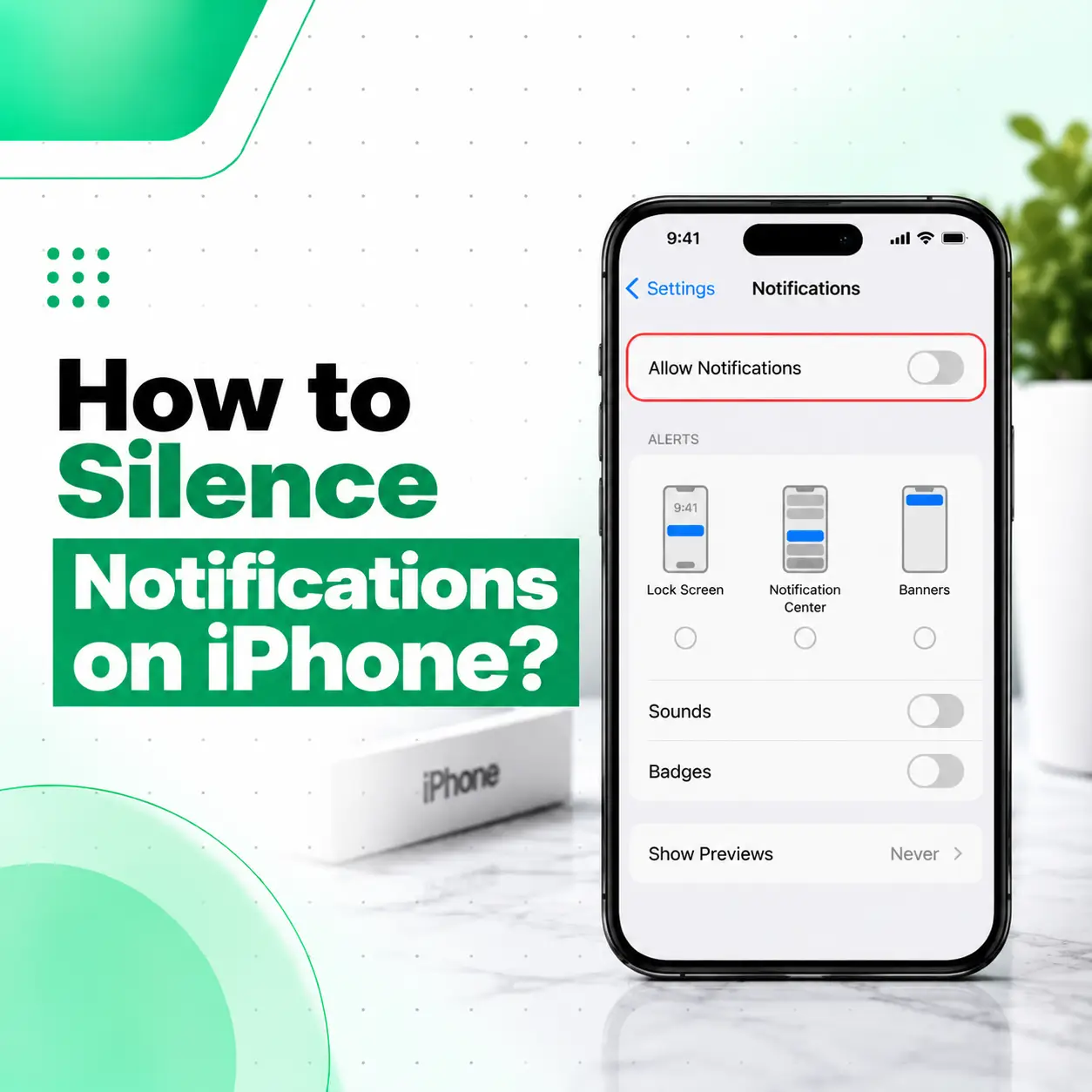
If your iPhone keeps buzzing, ringing, or lighting up with notifications, you can silence them without necessarily turning every alert off permanently. The easiest options are Do Not Disturb or another Focus for broader quiet periods, while individual apps can be muted or configured separately through Notification settings.
You can also mute notifications temporarily, schedule when notifications are delivered, hide notification previews, or completely disable alerts from a particular app. The right method depends on whether you want a few minutes of quiet, a distraction-free period, or permanent control over certain apps.
This guide explains the practical ways to silence iPhone notifications and what to do if notification sounds or alerts continue even after changing your settings.
What Is the Easiest Way to Silence Notifications on iPhone?
The quickest way to silence notifications across your iPhone is to turn on Do Not Disturb through Focus. Open Control Center, tap Focus, and select Do Not Disturb. Focus can silence notifications while still allowing you to configure exceptions for people or apps you consider important.
This is useful when you want temporary quiet during:
- Meetings
- Classes
- Work sessions
- Sleep
- Travel
- Reading
- Watching a movie
- Personal downtime
If you only want to silence one particular app, using that app’s notification settings is usually more appropriate than turning on Do Not Disturb for everything.
How to Silence All Notifications on iPhone
Use Do Not Disturb
Do Not Disturb is a Focus option designed to silence calls, alerts, and notifications.
To turn it on:
- Open Control Center.
- Tap Focus.
- Tap Do Not Disturb.
- Leave it enabled for as long as you need.
- Turn it off when you want normal notifications again.
On newer iPhone models, Control Center opens by swiping down from the top-right corner. On older models with a Home button, swipe up from the bottom edge.
Customize What Can Still Get Through
You do not necessarily have to silence everyone and every app.
Go to:
Settings → Focus → Do Not Disturb
Depending on your iOS version and settings, you can configure which people and apps are allowed or silenced during the Focus.
This makes Focus more flexible than simply putting your iPhone into Silent mode.
How to Silence Notifications From One App
If one app is responsible for most of your unwanted alerts, you can control that app without affecting everything else.
Go to:
Settings → Notifications → Select the App
From there, you can turn Allow Notifications off completely or customize how notifications appear and sound. Apple also allows supported apps to use settings such as notification sounds, Lock Screen alerts, banners, badges, and delivery options.
Turn Off Notifications Completely
If you never want a particular app to send notifications:
- Open Settings.
- Tap Notifications.
- Select the app.
- Turn off Allow Notifications.
The app can still function, but its notifications will no longer be delivered through the iPhone’s normal notification system.
Keep Notifications but Reduce Their Disruption
You can also keep notifications enabled while changing where they appear.
Depending on the app and iOS version, you can control whether alerts appear on:
- Lock Screen
- Notification Center
- Banners
You can also adjust notification sounds and badges when those options are available.
This is often a better option when you still need to see an alert but don’t want every notification interrupting you.
How to Temporarily Mute an iPhone Notification
You can mute notifications from an app directly from an incoming notification without permanently changing all of its settings.
Apple’s current notification controls can provide options such as:
- Mute for 1 Hour
- Mute for Today
- View Settings
- Turn Off
The exact options can depend on the notification and app.
This is useful when an app suddenly becomes noisy but you do not want to permanently disable its notifications.
When Temporary Muting Makes Sense
Use temporary muting when:
- A group chat is unusually active
- An app is sending repeated alerts
- You are working for the next hour
- You want fewer interruptions for the rest of the day
For a recurring quiet period, Focus or Scheduled Summary may be more appropriate.
How to Silence Notifications With Focus
Focus lets you create a more controlled notification environment. Instead of simply silencing everything, you can decide which people and apps can notify you during a particular Focus.
To configure a Focus:
- Open Settings.
- Tap Focus.
- Select an existing Focus such as Do Not Disturb, Work, Personal, or Sleep.
- Configure the people and apps you want to allow or silence.
- Turn the Focus on when needed.
You can also schedule a Focus to activate at particular times, locations, or when opening a specific app.
Can You Silence Only Certain Apps With Focus?
Yes. Focus can be configured to either allow notifications from selected apps or silence notifications from selected apps.
For example, you could create a Work Focus that allows work-related apps while silencing social media notifications.
This approach is useful if you want to remain reachable for important communication without allowing every app to interrupt you.
How to Silence Notifications Without Missing Them Completely
Sometimes you don’t want to stop notifications—you simply want them delivered less often.
Use Scheduled Summary
Scheduled Summary groups selected notifications and delivers them at scheduled times rather than immediately.
To configure it:
- Open Settings.
- Tap Notifications.
- Tap Scheduled Summary.
- Turn it on.
- Set your preferred summary times.
- Select the apps whose notifications you want included.
Apple provides Scheduled Summary specifically to reduce interruptions throughout the day.
This can be particularly useful for apps where immediate alerts are not important.
When Should You Use Scheduled Summary?
Consider it for notifications from apps such as:
- Shopping apps
- Social media
- News apps
- Entertainment apps
- Promotional apps
For messages or alerts that you need immediately, keeping immediate delivery may make more sense.
How to Stop Notification Sounds but Still See Alerts
If you want notifications to appear visually but don’t want notification sounds, you have several options depending on the type of notification.
For individual apps, open:
Settings → Notifications → [App]
If the app supports it, you can customize its notification sound and alert behavior.
You can also use the iPhone’s Silent mode for a broader reduction in alert sounds. However, Silent mode and Focus are not identical: Silent mode primarily affects sounds, while Focus controls which notifications are allowed to interrupt you.
What Is the Difference Between Silent Mode and Do Not Disturb?
Silent mode and Do Not Disturb solve different problems.
| Feature | Silent Mode | Do Not Disturb / Focus |
| Reduces notification sounds | Yes | Yes |
| Controls which apps can notify you | Limited | Yes |
| Controls which people can notify you | Limited | Yes |
| Can be scheduled | Not in the same way as Focus | Yes |
| Can create exceptions | Limited | Yes |
| Useful for temporary quiet | Yes | Yes |
| Controls notification delivery | Limited | More extensive |
If your main problem is sound, Silent mode may be enough.
If you want to control which notifications can interrupt you, Focus is generally more appropriate.
How to Hide Notification Previews
If the problem is not the sound but the content appearing on your Lock Screen, you can change notification previews.
Go to:
Settings → Notifications
Then select the relevant app and look for Show Previews.
Depending on the available settings, you can choose options such as:
- Always
- When Unlocked
- Never
Apple notes that not every app supports notification previews in the same way.
This can help protect the content of messages, emails, calendar invitations, and other alerts from appearing openly on the Lock Screen.
How to Mute One Conversation in Messages
You don’t always need to silence the entire Messages app.
To mute a particular conversation, you can:
- Open Messages.
- Find the conversation.
- Swipe left on the conversation.
- Tap the Mute option.
Alternatively, open the conversation, tap the contact or conversation icon at the top, and enable Hide Alerts where available.
You will continue receiving the messages, but notifications for that particular conversation can be silenced.
Why Are iPhone Notifications Still Making Sounds?
If notifications continue making sounds after you tried to silence them, check which notification-control method you actually enabled.
Common reasons include:
- The relevant app is still allowed to notify you.
- A Focus configuration allows that app or person.
- You changed notification appearance but not notification sounds.
- The iPhone is not actually in Silent mode.
- A Focus schedule has ended.
- A different Focus is currently active.
- The notification is subject to special settings such as time-sensitive notifications.
Apple allows individual apps to have their own notification behavior, while Focus can separately determine which people and apps are allowed or silenced.
Check Your App Notification Settings
Go to:
Settings → Notifications → [App Name]
Check whether Allow Notifications is enabled and review the available alert and sound settings.
Check Focus
Go to:
Settings → Focus
Check whether Do Not Disturb, Work, Sleep, Personal, or another Focus is active and review its allowed or silenced notifications.
Can Apple Intelligence Help Reduce Notification Interruptions?
On supported iPhone models and supported software configurations, Apple Intelligence can summarize notifications and help prioritize them. Apple also provides a Reduce Interruptions Focus that is designed to allow important notifications through while silencing less important ones.
Availability depends on the iPhone model, software version, language, and region, so this option may not appear on every device.
If available, you can find notification-related Apple Intelligence controls under:
Settings → Notifications
and Focus-related controls under:
Settings → Focus
What If Notification Settings Are Not Working Correctly?
If your iPhone continues behaving differently from the notification settings you selected, first check the basics:
- Restart the iPhone.
- Check Settings → Notifications.
- Check Settings → Focus.
- Check whether a Focus schedule is active.
- Check the individual app’s notification settings.
- Install available iOS updates if appropriate.
- Test whether the problem affects one app or multiple apps.
If only one app has the problem, the issue may be related to that app’s own notification configuration.
If notification behavior is inconsistent across multiple apps and persists after normal troubleshooting, professional inspection may be appropriate, particularly if the iPhone also has other software or hardware symptoms.
Does Silencing Notifications Affect Messages and Calls?
Silencing notifications does not necessarily mean that messages or calls stop arriving.
The result depends on the method you use and the exceptions configured within Focus.
For example, Focus can be configured to allow notifications from selected people, and Apple provides options for emergency contacts that can allow sounds and vibrations even when notifications are otherwise silenced.
Therefore, if you need to remain reachable for particular people, review your Focus settings instead of simply disabling every notification.
When Should You Consider Professional iPhone Repair?
Notification problems are usually related to software settings, but professional assistance can make sense if notification issues occur alongside other persistent problems.
Consider getting the device inspected if your iPhone also:
- Freezes frequently
- Restarts unexpectedly
- Has an unresponsive touchscreen
- Has problems opening Settings
- Fails to save settings consistently
- Has suffered liquid or physical damage
- Experiences multiple unrelated system problems
A technician can help determine whether the problem is limited to software configuration or whether another device issue needs investigation.
For customers in Bangladesh, a professional mobile repair service can also help when basic settings and software troubleshooting do not resolve persistent device behavior.
Frequently Asked Questions
1. How do I silence notifications on my iPhone?
The quickest way to silence broader notifications is to use Do Not Disturb through Focus. Open Control Center, tap Focus, and select Do Not Disturb. If you only want to silence one app, go to Settings → Notifications and customize that app instead. Focus can also be configured to allow selected people or apps.
2. How do I silence notifications from only one app?
Go to Settings → Notifications → select the app. You can turn off Allow Notifications completely or customize how that app’s alerts appear and sound. If you want the app’s notifications to remain available but not interrupt you during certain activities, you can instead configure a Focus to silence that app.
3. Can I temporarily mute iPhone notifications?
Yes. Depending on the notification and app, you may be able to swipe left on a notification, tap Options, and choose a temporary mute option such as Mute for 1 Hour or Mute for Today. This is useful when you want a short break from an app without permanently changing its notification settings.
4. What is the difference between Silent mode and Do Not Disturb?
Silent mode primarily reduces or stops alert sounds, while Do Not Disturb is a Focus designed to control which notifications can interrupt you. Focus provides more detailed controls for people, apps, schedules, and exceptions. If you only want less sound, Silent mode may be sufficient; if you want notification filtering, Focus is more suitable.
5. How can I receive notifications later instead of immediately?
Use Scheduled Summary. Go to Settings → Notifications → Scheduled Summary, enable it, choose your delivery times, and select the apps to include. Their notifications can then be grouped for scheduled delivery instead of interrupting you individually throughout the day.
6. Why do notifications still appear when Do Not Disturb is on?
Focus settings can allow specific people or apps to notify you. Certain notification features may also have their own behavior. Open Settings → Focus → Do Not Disturb and review the people and apps that are allowed. If your iPhone supports Apple Intelligence, additional interruption-management features may also be available.
7. What should I do if my iPhone notification settings are not working?
First, check the individual app’s notification settings and your active Focus configuration. Restart the iPhone and check whether the problem affects one app or several. If notification problems persist together with freezing, unexpected restarts, touchscreen issues, or other system problems, a professional inspection can help determine whether there is a deeper software or hardware issue.
Conclusion
Learning how to silence notifications on iPhone gives you several options instead of forcing you to turn everything off. For temporary quiet, Do Not Disturb or another Focus can reduce interruptions. For individual apps, Notification settings provide more precise control. Scheduled Summary is useful when you want less frequent interruptions while still receiving notifications later.
If notification problems continue even after checking your settings—or if they occur alongside freezing, unexpected restarts, touchscreen problems, or other device issues—professional diagnosis may be worthwhile. iCareFix can inspect the iPhone and help determine whether the problem is related to software behavior, settings, or another device issue.