




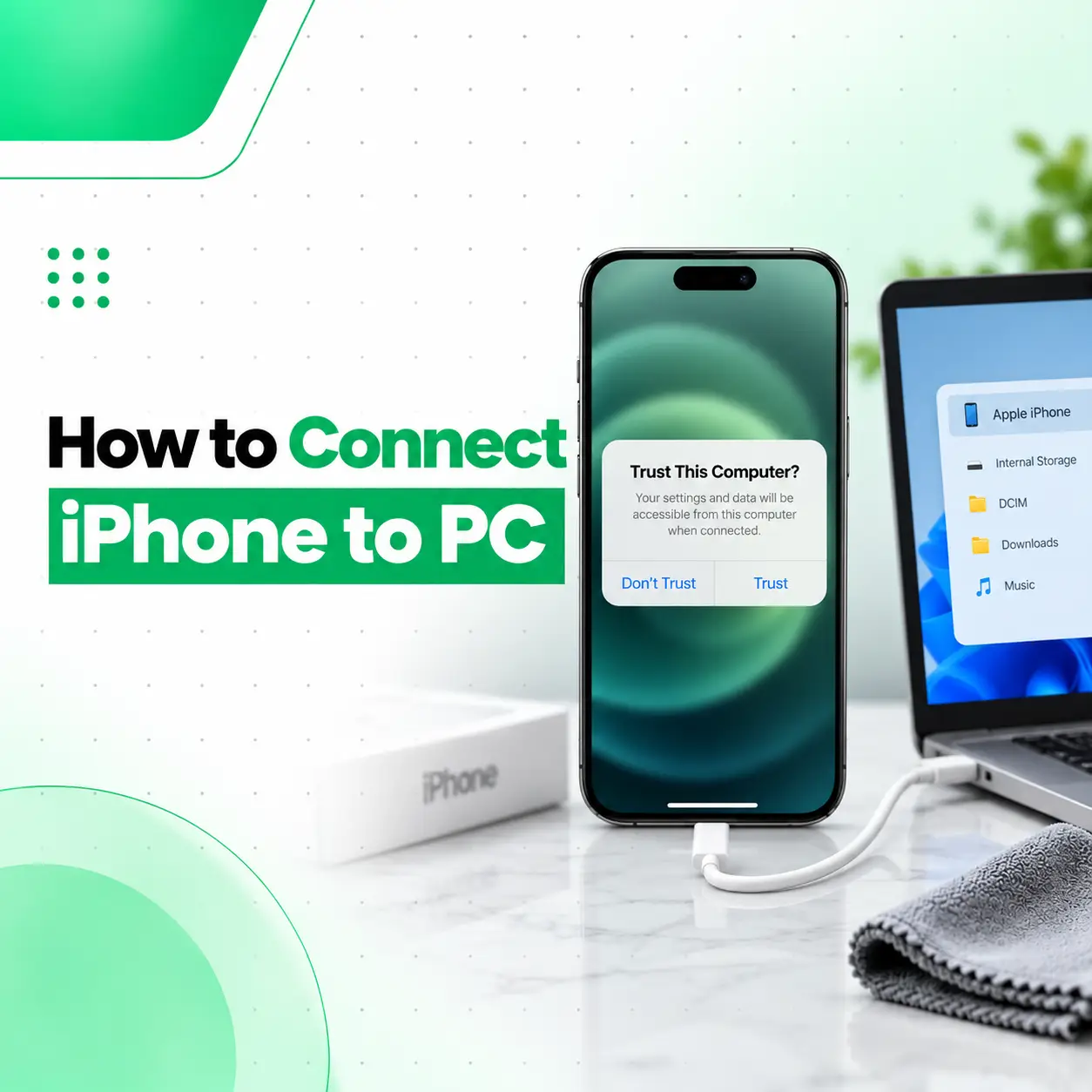
Knowing how to connect iPhone to PC is useful when you want to transfer photos, create a backup, manage files, sync content, or troubleshoot your device. On a modern Windows computer, the process is usually straightforward: connect the iPhone with a compatible USB cable, unlock it, approve the Trust This Computer prompt, and use the appropriate Windows or Apple app.
The best method depends on what you want to do. Apple Devices is useful for device management, backups and syncing, Microsoft Photos can import photos and videos, while iCloud for Windows provides wireless access to supported iCloud content.
This guide explains each method, common connection problems, and when a hardware issue may require professional inspection from a service provider such as iCareFix.
Quick Answer: How Do You Connect an iPhone to a PC?
The simplest way to connect an iPhone to a Windows PC is:
- Install or open the Apple Devices app on your PC.
- Connect the iPhone using a compatible USB cable.
- Unlock your iPhone.
- Tap Trust or Allow if prompted.
- Enter your iPhone passcode if required.
- Open Apple Devices and select your iPhone.
Apple confirms that an iPhone can be connected directly to a Windows computer with a compatible cable for syncing, updating, transferring supported files and other device-management tasks.
Best Ways to Connect iPhone to a Windows PC
Different connection methods are better suited to different tasks.
| Method | Best For | Cable Required? |
| Apple Devices | Backup, sync and device management | Initially, yes |
| Microsoft Photos | Importing photos and videos | Yes |
| Wi-Fi Sync | Regular syncing after setup | Initial USB setup required |
| iCloud for Windows | Photos, files and other iCloud data | No |
| Microsoft Phone Link | Calls, messages and notifications | No, uses Bluetooth |
Choosing the right method avoids unnecessary troubleshooting. For example, someone who only wants photos does not necessarily need the same workflow as someone creating a full iPhone backup.
How to Connect iPhone to PC Using a USB Cable
A wired USB connection is usually the most direct method because Windows and the iPhone can communicate without depending on Wi-Fi.
1. Install Apple Devices on Windows
Apple Devices is Apple’s Windows application for managing an iPhone, iPad or iPod from a compatible PC.
When your iPhone is connected, it should appear in the sidebar of the Apple Devices app. From there, you can access device-management and synchronization options.
Apple still documents iTunes for some Windows workflows, but Apple Devices is the more current dedicated application for managing Apple devices on Windows.
2. Use a Compatible Data Cable
Connect the cable between your iPhone and a USB port on the computer.
Depending on your iPhone and PC, this may involve:
- USB-C to USB-C
- USB-C to USB-A
- Lightning to USB-A
- Lightning to USB-C
A cable that can charge a phone is not always reliable for data communication. If your iPhone charges but Windows cannot detect it, testing another known-working data-capable cable is a sensible troubleshooting step.
3. Unlock Your iPhone
Keep the iPhone unlocked while establishing the connection.
Microsoft notes that Windows may not detect a connected phone correctly when the device is locked, particularly during photo importing.
4. Tap Trust This Computer
When an iPhone connects to a computer for the first time, you may see a Trust This Computer? message.
Tap Trust, then enter your passcode when requested.
Trusting the computer allows it to communicate with and access supported information on the iPhone. You should only approve computers that you recognize and trust.
5. Open Apple Devices
Open Apple Devices on the PC.
Your iPhone should appear in the sidebar. Select it to access the available management, synchronization and backup functions.
What Can You Do After Connecting an iPhone to a PC?
Connecting an iPhone does not automatically expose every file stored on the device like a conventional USB flash drive.
What you can access depends on the application and connection method being used.
Back Up Your iPhone
The Apple Devices app can create a local iPhone backup on a Windows PC.
After selecting your device, use the backup options under the General section and choose Back Up Now when appropriate. Apple also offers encrypted local backups for information that requires additional protection.
Regular backups can be valuable before:
- installing major software updates;
- troubleshooting serious software problems;
- sending a phone for repair;
- replacing an iPhone;
- transferring to another device.
Sync Supported Content
Apple Devices can sync supported content between a Windows PC and an iPhone.
Apple describes syncing as transferring supported items and keeping them updated between the Windows computer and Apple device.
Transfer Supported App Files
Some iPhone applications support file sharing through Apple Devices.
However, Apple notes that cable-based file transfer through this method applies only to files from apps that support file sharing.
For general documents, iCloud Drive or another supported cloud-storage workflow may be more convenient.
How to Transfer Photos from iPhone to PC
If your main goal is moving photos and videos, Microsoft Photos provides a straightforward workflow.
Transfer Photos with a USB Cable
- Connect your iPhone to the PC.
- Unlock the iPhone.
- Approve the Trust or Allow prompt if it appears.
- Open Photos on Windows.
- Select Import.
- Choose the connected iPhone.
- Select the photos or videos you want.
- Choose where you want the files saved.
- Start the import.
Microsoft supports importing media from connected iPhones through the Windows Photos app, while Apple also recommends installing Apple Devices before importing from an iPhone to Windows.
What If Some iPhone Photos Do Not Appear?
If iCloud Photos is enabled, some original photos may primarily be stored in iCloud rather than fully downloaded to the device.
Apple advises that original, full-resolution files may need to be downloaded to the iPhone before certain direct PC imports.
Alternatively, iCloud for Windows can provide direct access to photos stored in iCloud.
How to Connect iPhone to PC Without a USB Cable
A physical cable is not always necessary. The right wireless option depends on what you are trying to access.
Use iCloud for Windows
For users who regularly need photos, documents and other supported iCloud data, iCloud for Windows can be more convenient than repeatedly connecting a cable.
Apple states that iCloud for Windows can provide access to content including:
- iCloud Photos
- videos
- iCloud Drive files
- passwords
- calendars
- contacts and other supported information
Availability can vary by feature and configuration.
Basic Setup
- Install iCloud for Windows.
- Sign in using your Apple Account.
- Enable the iCloud features you want to use.
- Allow the content to synchronize.
- Access supported files through Windows apps or File Explorer.
For example, iCloud Photos can appear through File Explorer and Microsoft Photos after it has been configured.
How to Sync iPhone With PC Over Wi-Fi
Apple Devices also supports Wi-Fi synchronization.
However, you normally need to establish the relationship with the PC using a cable first.
Set Up Wi-Fi Sync
- Connect the iPhone to the PC with USB.
- Open Apple Devices.
- Select the iPhone.
- Open General.
- Enable Show this [device] when on Wi-Fi.
- Apply the settings.
- Keep the PC and iPhone connected to the same Wi-Fi network when syncing wirelessly.
After setup, Apple Devices can recognize the iPhone over the local Wi-Fi network when the required conditions are met.
Can You Connect an iPhone to Windows With Phone Link?
Yes, but Phone Link serves a different purpose from Apple Devices.
Microsoft Phone Link can connect compatible iPhones to Windows using Bluetooth for functions such as supported:
- messages;
- phone calls;
- notifications.
Microsoft currently states that its iPhone Phone Link experience requires a compatible iPhone, Windows 11, Bluetooth and an up-to-date Phone Link application. Device and regional availability can vary.
Phone Link should therefore not be confused with a full iPhone backup or Apple Devices synchronization solution.
Why Is My iPhone Not Connecting to My PC?
An iPhone may fail to connect because of the cable, USB port, trust permission, Windows software, device settings or hardware.
Start with the simplest checks before assuming that the phone needs repair.
1. Keep the iPhone Unlocked
Disconnect the cable, unlock the iPhone and reconnect it.
Watch for the Trust or Allow message.
2. Check the USB Cable
Try another reliable data-capable cable.
A damaged cable may:
- charge intermittently;
- disconnect when moved;
- charge normally but fail during data transfer;
- produce repeated Windows connection sounds.
3. Try Another USB Port
Connect directly to another port on the computer.
If possible, temporarily avoid unpowered USB hubs or questionable adapters while troubleshooting.
4. Update Apple Devices
Use the latest available version of Apple Devices or other relevant Apple software.
Apple specifically recommends checking that the Apple Devices app or iTunes is up to date when connection or backup problems occur.
5. Restart the iPhone and PC
Temporary USB, driver or software communication problems can sometimes be cleared by restarting both devices.
Apple includes restarting the devices among its troubleshooting recommendations when a PC fails to communicate properly with an iPhone.
6. Reset the Trust Permission if Necessary
If Trust This Computer never appears or the previous permission appears to be causing problems, Apple documents a reset option at:
Settings → General → Transfer or Reset iPhone → Reset → Reset Location & Privacy
Afterward, reconnect the phone and respond to the Trust prompt again.
Be aware that resetting privacy settings affects more than just the current PC relationship, so use the option intentionally.
Why Does My iPhone Charge but Not Connect to the PC?
Charging and data communication use different electrical connections within the cable and device connector.
Therefore, an iPhone can sometimes receive power even when data communication is unreliable.
Possible causes include:
- charge-only or damaged cable;
- damaged USB connector;
- contaminated or worn iPhone charging port;
- PC USB-port problem;
- connection permission issue;
- outdated or malfunctioning software;
- hardware-level communication fault.
Before assuming that the iPhone itself is damaged, test another known-working cable and USB port.
How to Transfer Files From iPhone to PC
The best method depends on the type of file.
For Photos and Videos
Use:
- Microsoft Photos;
- iCloud Photos.
For iCloud Documents
Use:
- iCloud Drive through iCloud for Windows.
For Files Inside Compatible Apps
Use Apple Devices file-sharing features when the specific iPhone app supports them.
Apple notes that direct cable file sharing is limited to applications that support this functionality.
For Full Device Data
Use an iPhone backup rather than attempting to manually copy system files.
An iPhone is not designed to expose its complete internal storage to Windows as a normal removable USB drive.
Should You Use Apple Devices or iTunes?
For most modern Windows setups, Apple Devices is the logical starting point for managing an iPhone.
Apple currently documents both Apple Devices and iTunes as PC synchronization options, while its Windows-specific guides use Apple Devices for modern device management and syncing.
If you are following an old tutorial that tells you to look for an iPhone icon in iTunes, the instructions may not match your current Apple software configuration.
Is It Safe to Connect an iPhone to a PC?
Yes, when you are using a trusted computer, legitimate software and a reliable cable.
However, the Trust This Computer prompt has important privacy implications because trusted computers may access supported information from the iPhone.
For better privacy:
- do not trust unknown public computers;
- use your own Windows account where possible;
- disconnect after finishing on shared computers;
- keep Windows and Apple applications updated;
- protect local backups;
- avoid unknown third-party “iPhone management” tools unless you understand their permissions and reputation.
When Could the Connection Problem Be Hardware-Related?
Consider a hardware inspection when an iPhone repeatedly fails with multiple known-working cables and computers, especially when other symptoms appear.
Possible warning signs include:
- cable feels unusually loose inside the connector;
- connection repeatedly drops when the cable moves;
- charging is also intermittent;
- multiple PCs fail to detect the iPhone;
- the connector appears physically damaged;
- the issue started after impact or liquid exposure.
These symptoms do not automatically confirm that the charging port needs replacement. Proper diagnosis is important because similar behavior can originate from the cable, connector assembly, software or another internal component.
Should You Repair an iPhone That Will Not Connect to a PC?
Professional inspection makes sense when basic software, cable and USB-port troubleshooting does not resolve the issue.
A technician may need to determine whether the problem involves:
- the charging/data connector;
- internal connector damage;
- contamination inside the port;
- related flex components;
- software communication;
- another board-level issue.
Repair cost in Bangladesh can vary depending on the iPhone model, the actual fault, required parts, part quality and repair complexity. An exact repair price should therefore be based on proper diagnosis rather than a generic estimate.
Avoid replacing components before confirming the cause.
How to Reduce Future iPhone Connection Problems
A few practical habits can reduce unnecessary connection failures:
- Use good-quality, compatible data cables.
- Avoid pulling a cable sideways while connected.
- Keep connectors away from moisture.
- Do not force an incompatible plug into the charging port.
- Replace visibly damaged cables.
- Keep Windows, iOS and Apple applications updated.
- Back up important information regularly.
If debris appears to be deep inside the charging port, avoid using sharp metal objects that could damage internal contacts.
Frequently Asked Questions
1. How do I connect my iPhone to my PC?
Connect your iPhone to the PC with a compatible USB data cable, unlock the iPhone and approve Trust This Computer if prompted. Open Apple Devices on Windows and select the iPhone when it appears. The exact next step depends on whether you want to back up, sync content, transfer supported files or troubleshoot the device.
2. Can I connect my iPhone to a PC without iTunes?
Yes. Apple Devices can manage and sync an iPhone on modern Windows systems without relying on the traditional iTunes interface. You can also use Microsoft Photos for photo importing, iCloud for Windows for cloud-based files and photos, or Phone Link for certain calls, messages and notifications.
3. Why is my PC not detecting my iPhone?
Common causes include a locked iPhone, damaged or charge-only cable, faulty USB port, missing Trust permission, outdated Apple software or a device hardware issue. Unlock the phone, reconnect it, approve the Trust prompt, test another cable and USB port, update the relevant software and restart both devices before considering repair.
4. How can I transfer photos from iPhone to PC?
Connect the unlocked iPhone using USB, approve access when prompted, then open Microsoft Photos and choose Import from the connected device. If you use iCloud Photos, iCloud for Windows provides another option for accessing your photo library without manually connecting the phone every time.
5. Can I transfer any iPhone file directly through File Explorer?
Not in the same way as a conventional USB flash drive or many Android devices. Windows can access certain media and supported content, while Apple Devices supports file sharing for compatible apps. For documents stored in iCloud, iCloud Drive is often easier because it integrates with Windows File Explorer after setup.
6. Why does my iPhone charge when connected but not show up on my PC?
Charging does not guarantee that the data connection is working. A damaged cable, charge-only cable, USB-port issue, connector problem or software communication failure may allow electrical power while preventing data transfer. Test another known-working data cable and PC port before assuming the iPhone connector itself is faulty.
7. When should I take my iPhone for professional inspection?
Consider professional diagnosis if several known-working cables and USB ports fail, multiple computers cannot detect the device, the connector is loose or damaged, or charging and data connections repeatedly disconnect. iCareFix can inspect the device to determine whether the issue is software-related, connector-related or caused by another internal component before recommending a repair.
Conclusion
Learning how to connect iPhone to PC starts with identifying what you actually want to accomplish. For backup and device management, Apple Devices is the primary option. Microsoft Photos works well for importing photos and videos, while iCloud for Windows provides convenient access to cloud-based photos and files. Wi-Fi syncing and Phone Link are useful for specific wireless workflows.
If Windows still cannot recognize your iPhone after checking the cable, USB port, Trust permission, software and device settings, the problem may require closer inspection.
iCareFix can professionally assess connection, charging-port and related iPhone issues and recommend an appropriate repair option based on the actual fault rather than replacing parts unnecessarily.