




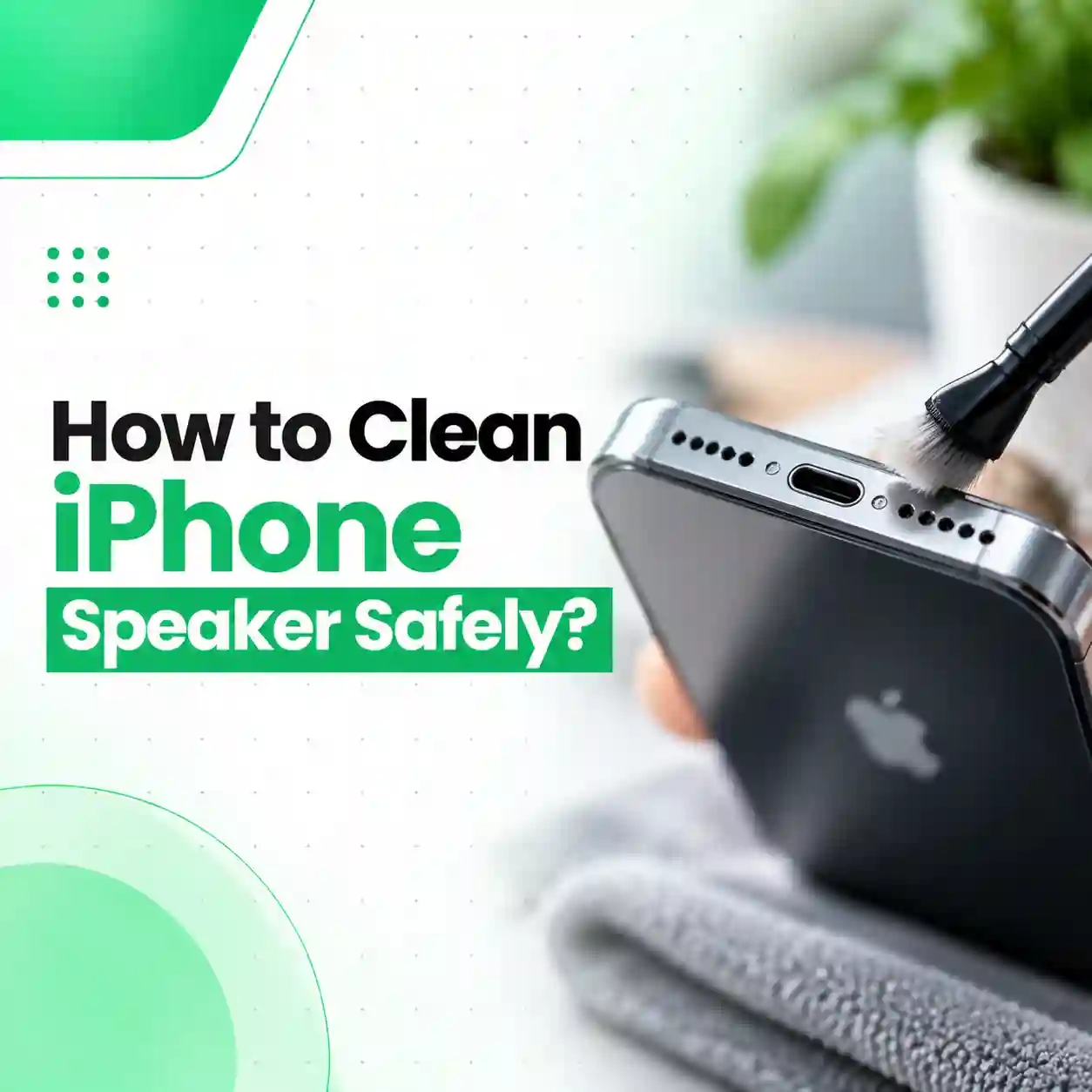
If your iPhone speaker sounds quieter, muffled, or less clear than usual, dust and lint around the speaker opening may be contributing to the problem. The safest way to clean an iPhone speaker is to turn the device off, remove anything covering the speaker opening, inspect it under good lighting, and gently clean it with a small, clean, dry, soft-bristled brush.
Avoid inserting pins, needles, SIM tools, or other sharp objects into the speaker grille. Do not spray liquid into the opening, and avoid compressed air.
This guide explains how to clean an iPhone speaker safely, how to tell whether debris is actually causing the problem, what cleaning methods to avoid, and when poor sound quality may indicate a hardware issue rather than dirt.
Why Does an iPhone Speaker Get Dirty?
iPhone speaker openings are exposed to the surrounding environment during everyday use. Dust, pocket lint, skin particles, makeup, and other small debris can accumulate around the speaker grille over time.
Even a relatively small amount of buildup can affect how sound passes through the opening. This may be more noticeable with the small receiver opening used during phone calls.
Common symptoms include:
- Calls sound quieter than usual.
- Voices sound muffled.
- Music or videos sound less clear.
- Speakerphone audio seems weaker.
- Sound quality changes after the phone has been carried in a pocket or bag.
- You can visibly see dust or debris around the speaker opening.
However, muffled sound does not automatically mean the speaker is dirty. A case, screen protector, software setting, audio-routing issue, liquid exposure, or damaged speaker can produce similar symptoms.
Which iPhone Speaker Should You Clean?
Before cleaning, identify which audio opening is actually causing the problem.
Top Receiver or Earpiece Opening
The receiver near the top of the display is primarily used when holding the iPhone to your ear during a phone call.
If normal calls sound unusually quiet while other audio is fine, inspect this opening first.
A screen protector that overlaps the receiver area can also interfere with sound, so check the protector before assuming the speaker itself is dirty.
Bottom Speaker Opening
The speaker openings along the bottom edge are involved in playing music, videos, ringtones, alarms, and speakerphone audio.
If media or speakerphone audio sounds weak but normal call audio is clear, inspect the bottom speaker area.
Not every opening along the bottom edge is necessarily a speaker. Some openings serve other functions, so avoid probing individual holes with sharp objects.
How to Clean an iPhone Speaker Safely
The safest approach is gentle surface cleaning rather than trying to dig debris out of the grille.
1. Turn Off Your iPhone
Before cleaning, turn off the iPhone and disconnect any cables or accessories.
This makes the cleaning process easier to control and avoids handling the device while it is actively operating or connected to power.
2. Remove the Case and Check the Screen Protector
Remove the case temporarily and inspect the speaker openings.
If the problem involves the top receiver, check whether the screen protector or protective film overlaps the receiver opening.
Play audio briefly after removing the accessory if necessary. If the sound immediately improves, the accessory may have been obstructing the opening rather than the speaker itself being dirty.
3. Inspect the Speaker Under Good Lighting
Use a flashlight or another bright light to inspect the speaker opening.
Look for:
- Dust
- Pocket lint
- Makeup
- Visible debris
- Foreign material
- Signs of moisture
- Unusual discoloration
Do not assume that every visible dark area is dirt. Some parts of the speaker assembly are part of the normal hardware.
If you cannot clearly identify what you are seeing, do not scrape it.
4. Use a Small, Clean, Dry, Soft-Bristled Brush
Use a small brush with soft bristles that is clean and completely dry.
Gently brush across the speaker or receiver opening.
The goal is to loosen surface debris—not to push the bristles deeply into the grille.
Use light pressure and controlled movements. Avoid repeatedly scrubbing the same area with force.
5. Keep the Brush Dry
Do not wet the brush before cleaning the speaker.
The speaker opening is not the place to introduce cleaning liquid. Moisture can enter through openings and create a separate problem from ordinary dust.
For the outside surfaces of the iPhone, a suitable lint-free cloth can be used according to the device’s cleaning guidance, but keep moisture away from speaker and other openings.
6. Test the Speaker After Cleaning
Once the cleaning is complete, turn the iPhone back on and test the affected audio.
You can check:
- A ringtone
- Music
- A video
- Speakerphone
- A normal phone call
If the sound becomes clearer, surface debris may have contributed to the problem.
If there is no improvement, do not automatically assume that more aggressive cleaning is required.
What Should You NOT Use to Clean an iPhone Speaker?
Some popular DIY methods can damage the speaker grille or introduce moisture.
| Cleaning Method | Recommendation | Why |
| Small soft-bristled brush | Recommended | Suitable for gentle removal of surface debris |
| Clean, dry lint-free cloth | Suitable for exterior surfaces | Helps remove surface dirt without introducing fibers |
| Needle or pin | Avoid | Sharp objects can damage delicate components |
| SIM eject tool | Avoid | Too rigid and sharp for speaker cleaning |
| Metal wire | Avoid | Can damage the grille or internal components |
| Liquid sprayed into speaker | Avoid | Moisture should not enter openings |
| Compressed air | Avoid | Can introduce unnecessary pressure into openings |
| Wet toothbrush | Avoid | Introduces moisture near the speaker |
| Household cleaner | Avoid | Not intended for speaker openings |
| Aggressive scraping | Avoid | Can damage the grille or components |
The basic rule is simple: clean the surface gently; do not probe the speaker opening.
Can You Use a Toothbrush to Clean an iPhone Speaker?
Yes, a clean, dry, soft-bristled toothbrush can be suitable if it is small enough to control and is used very gently.
The important factor is not simply whether the tool is called a toothbrush. The bristles should be soft, clean, and dry.
Do not use a stiff brush, wet brush, or excessive pressure. Do not force the bristles into the speaker grille.
A small electronics-cleaning brush with soft bristles can provide better control than a large household toothbrush.
Can You Use a Toothpick or Pin to Clean iPhone Speaker Holes?
It is best to avoid inserting toothpicks, pins, needles, or similar objects into the speaker grille.
The holes are small, and it can be difficult to see exactly what a sharp object is contacting. Pushing or scraping can damage the speaker mesh or other components.
If debris is compacted so tightly that a soft brush cannot remove it, that is a good point to stop DIY cleaning rather than switching to a sharper tool.
Can You Use Compressed Air to Clean an iPhone Speaker?
No. Compressed air is not a recommended cleaning method for an iPhone speaker.
A forceful air stream can move debris unpredictably and introduce unnecessary pressure into small openings. It also does not provide precise control over where the debris goes.
If loose dust is visible, use a clean, dry, soft-bristled brush instead.
Can You Use Alcohol to Clean an iPhone Speaker?
Do not put alcohol directly into the speaker opening.
Some iPhone exterior surfaces can be cleaned with approved disinfecting products when used according to the manufacturer’s instructions, but that does not mean those products should be applied to speaker openings.
For speaker cleaning, keep the opening dry and use the appropriate dry brush method.
If the phone needs broader cleaning because of a spill or contamination, treat the exterior and speaker openings as separate cleaning areas.
Why Is My iPhone Speaker Still Muffled After Cleaning?
If the speaker remains muffled after gentle cleaning, debris may not be the underlying problem.
Possible causes include:
- A case or screen protector obstructing an opening
- Moisture around or inside the speaker
- Physical speaker damage
- Previous liquid exposure
- A damaged speaker component
- Software or audio-routing issues
- Another hardware problem
Before assuming the speaker needs replacement, remove the case and check the relevant opening again.
If the iPhone still produces distorted, crackling, unusually quiet, or inconsistent sound, professional diagnosis can help distinguish an obstruction from a hardware fault.
What If Your iPhone Speaker Got Wet?
If the speaker became wet, do not try to force the water out by inserting objects into the grille.
Do not use a hair dryer, heater, or aggressive compressed air.
Instead, disconnect the device from power if appropriate, keep unnecessary moisture away from openings, and allow the device to dry appropriately.
If sound remains muffled or distorted after liquid exposure, especially if other functions are affected, professional inspection is more appropriate than repeatedly cleaning the speaker.
How Can You Tell if the Speaker Needs Repair?
Cleaning is more likely to help when there is visible surface debris and the sound problem appeared gradually.
Professional diagnosis becomes more appropriate when:
- Cleaning produces no improvement.
- The speaker produces crackling or distortion.
- Sound cuts in and out.
- The problem began after a drop.
- The phone was exposed to liquid.
- The speaker suddenly became extremely quiet.
- You notice visible damage around the speaker opening.
- Multiple audio functions are affected.
A speaker problem is not always a speaker-grille problem.
That distinction can prevent unnecessary cleaning attempts and help identify when actual hardware diagnosis is needed.
Quick Troubleshooting Before Repair
Before paying for a speaker repair, check the simplest possibilities first.
Check the Case and Screen Protector
Remove the case and inspect whether a screen protector overlaps the receiver.
Check the Speaker Opening
Look for visible dust or lint under good lighting.
Clean Gently
Use only a clean, dry, soft-bristled brush when cleaning the speaker opening.
Test Different Audio
Compare a ringtone, music, video, normal call, and speakerphone.
Check for Liquid Exposure
If the problem started after water, rain, sweat, or another liquid exposure, treat it differently from ordinary dust buildup.
Stop if the problem persists
If the sound remains distorted or unusually quiet after basic checks, further DIY cleaning may not solve the problem.
How to Keep Your iPhone Speaker Cleaner
You cannot completely prevent dust and lint from reaching an exposed speaker opening, but a few habits can reduce buildup.
- Keep the iPhone away from heavily dusty environments when practical.
- Avoid placing the speaker directly against dirty surfaces.
- Keep your phone case clean.
- Check the speaker opening when you notice a change in audio quality.
- Do not use sharp objects to remove debris.
- Keep liquids away from the openings.
- Clean the exterior regularly using an appropriate lint-free cloth.
- Address liquid exposure promptly instead of treating it as ordinary dirt.
Routine gentle cleaning is safer than aggressive deep cleaning.
Frequently Asked Questions
1. How do I safely clean my iPhone speaker?
Turn off your iPhone and gently clean the speaker opening with a small, clean, dry, soft-bristled brush. Remove the case and inspect the opening first. Avoid pins, needles, liquids, aggressive scraping, and compressed air. If the speaker remains muffled or distorted afterward, the problem may require diagnosis rather than additional cleaning.
2. Can I use a toothbrush to clean my iPhone speaker?
Yes, if the toothbrush has soft, clean, dry bristles and you use it gently. Avoid stiff bristles and excessive pressure. The goal is to loosen surface debris rather than push anything into the speaker opening. A small electronics-cleaning brush may provide better control around the narrow receiver and speaker grilles.
3. Can I use compressed air to clean my iPhone speaker?
No, compressed air is not recommended for cleaning the iPhone speaker opening. It can introduce unnecessary pressure into a small opening and may move debris farther into the device. A clean, dry, soft-bristled brush provides a more controlled method for removing accessible surface debris.
4. Can I use a toothpick to remove dirt from my iPhone speaker?
It is better not to insert a toothpick into the speaker grille. The speaker mesh and components behind the opening are delicate, and a rigid object can cause damage if pushed or scraped. If a soft brush cannot remove the debris, stop rather than switching to a sharp or rigid tool.
5. Why does my iPhone speaker sound muffled even after cleaning?
Persistent muffled sound does not necessarily mean more cleaning is needed. The cause could be moisture, a blocked receiver, a screen protector, physical damage, software-related audio behavior, or a speaker hardware fault. If gentle cleaning makes no difference, broader troubleshooting or professional diagnosis is more appropriate.
6. Can water damage make an iPhone speaker sound quiet?
Yes, liquid exposure can temporarily affect speaker sound and may also indicate a more serious problem. Do not insert tools into the speaker or use aggressive heat or compressed air. If muffled or distorted audio continues after liquid exposure, professional inspection can help determine whether moisture or hardware damage is involved.
7. When should I get my iPhone speaker professionally repaired?
Consider professional diagnosis when cleaning does not restore normal sound, or when the problem follows liquid exposure, a drop, or visible physical damage. Crackling, distortion, intermittent audio, or a very quiet speaker can indicate something beyond surface debris. A technician can determine whether the issue is contamination, a damaged component, or another fault.
Conclusion
The safest way to clean an iPhone speaker is surprisingly simple: turn off the device, remove anything obstructing the opening, inspect it carefully, and use a small, clean, dry, soft-bristled brush with light pressure.
Avoid pins, needles, toothpicks, liquids, aggressive scraping, and compressed air. If the speaker remains muffled, distorted, or unusually quiet after basic cleaning, continuing to poke or brush the grille is unlikely to solve a hardware problem.
If your iPhone has persistent speaker issues or signs of liquid or physical damage, iCareFix can help with professional diagnosis and determine whether the problem is cleaning-related or requires appropriate repair.