




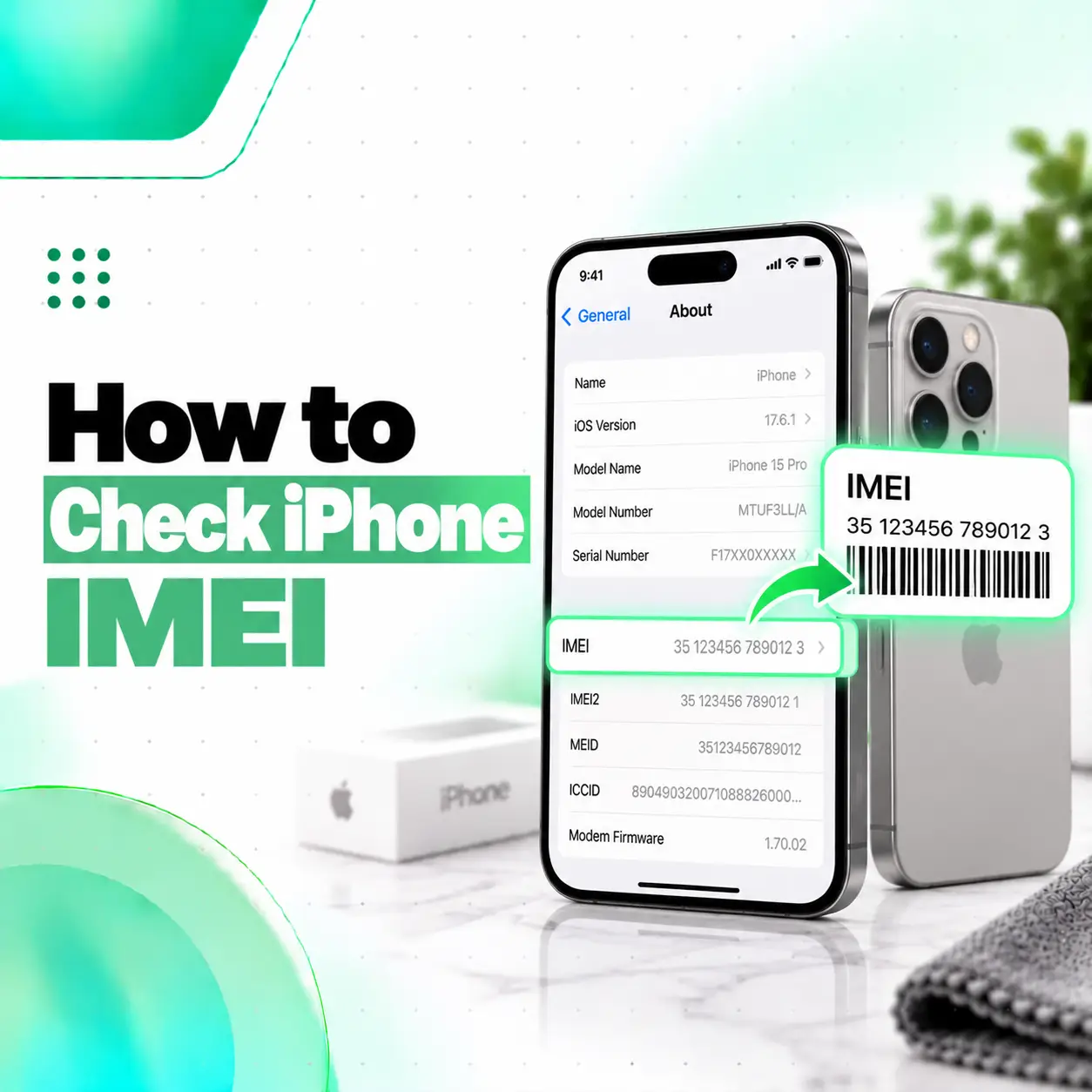
Knowing how to check iPhone IMEI is useful when identifying your device, requesting technical support, checking a used iPhone, or confirming device information before repair or resale. The IMEI, or International Mobile Equipment Identity, is a unique identifier associated with a cellular device.
The easiest method is to open Settings > General > About and scroll down until you see the IMEI. Apple also allows you to find device identifiers through your Apple Account, Finder or the Apple Devices app, the original packaging, and—in some supported models—the device itself.
This guide explains each method, what IMEI means, how it differs from other identifiers, and what users in Bangladesh should consider when checking an iPhone before purchase.
What Is an iPhone IMEI Number?
An IMEI is a device identifier used for cellular equipment. IMEI stands for International Mobile Equipment Identity.
On an iPhone, you may see several related identifiers, including:
- IMEI
- IMEI2
- Serial number
- EID
- ICCID
- Model number
These numbers serve different purposes.
Apple lists IMEI, EID, serial number, ICCID, and other cellular identifiers in the iPhone’s device-information section.
What Is IMEI Used For?
An IMEI can be useful when:
- Identifying an iPhone
- Contacting Apple or a carrier for support
- Checking device information
- Recording details before a repair
- Checking a used phone before purchase
- Working with mobile-network or regulatory systems
- Reporting certain lost or stolen-device issues to relevant providers
An IMEI should be treated as device-identifying information rather than something to post publicly without a reason.
How to Check iPhone IMEI in Settings
The easiest way to check an iPhone IMEI is through the Settings app.
Follow these steps:
- Open Settings.
- Tap General.
- Tap About.
- Scroll down.
- Find IMEI.
Apple identifies Settings > General > About as the standard location for viewing IMEI and other device information.
Quick Path
Settings > General > About > IMEI
You may also see:
- IMEI2
- EID
- ICCID
- Serial Number
depending on the iPhone model and cellular configuration.
How to Copy the IMEI Number
You do not need to type the number manually.
On supported iOS versions:
- Go to Settings > General > About.
- Find IMEI.
- Touch and hold the number.
- Tap Copy if prompted.
Apple specifically notes that users can touch and hold device identifiers to copy them into registration or support forms.
Can You Check an iPhone IMEI Without Opening Settings?
Yes. If Settings is unavailable, there are several alternative ways to locate an iPhone’s IMEI.
Apple documents methods involving:
- The device itself on supported models
- The setup screen
- Finder
- Apple Devices or iTunes
- Your Apple Account
- Another Apple device signed in to the same account
- The original packaging
These options can be useful if the display is damaged, the phone is not fully set up, or you do not currently have physical access to the iPhone.
How to Check iPhone IMEI Before Setup
If an iPhone has been erased or has not yet been configured, you may still be able to view its identifiers.
Apple provides the following method:
- Turn on the iPhone.
- Wait for the Hello setup screen.
- Find the information icon on the setup screen.
- Tap it.
- View the available device identifiers.
Apple documents this method for checking device information before setup.
This is especially useful when inspecting a used or reset iPhone.
How to Find iPhone IMEI Using a Mac
You can also check device identifiers through a Mac.
Using Finder
For supported macOS versions:
- Connect the iPhone to the Mac.
- Open Finder.
- Select the iPhone from the sidebar.
- Open the General tab.
- Click the phone number or relevant device information under the iPhone name.
Apple states that Finder can display the iPhone’s IMEI/MEID, EID, ICCID, and other identifiers.
This can be useful if the phone’s display is difficult to use but the computer can still recognize the device.
How to Check iPhone IMEI on a Windows PC
Apple also supports finding iPhone identifiers from a Windows computer.
Depending on your system, you may use:
- Apple Devices
- iTunes
General steps are:
- Connect the iPhone to the PC.
- Open Apple Devices or iTunes.
- Select the connected iPhone.
- View its device information.
- Click the relevant phone or device field to reveal identifiers such as IMEI.
Apple currently lists Apple Devices and iTunes as supported methods for finding iPhone device identifiers on a PC.
How to Check iPhone IMEI From Your Apple Account
You may be able to find an iPhone’s IMEI even if the phone is not physically with you.
Apple’s documented method is:
- Open your Apple Account website.
- Sign in using the Apple Account connected to the iPhone.
- Open the Devices section.
- Select the iPhone.
- View its available identifiers.
Apple states that the selected device can show information including the serial number, EID, and IMEI/MEID.
This method can be particularly useful if:
- The iPhone is lost
- The screen is broken
- The phone will not turn on
- You need device information remotely
Can You Find an iPhone IMEI From Another Apple Device?
Yes, if another Apple device is signed in to the same Apple Account.
On another iPhone or iPad:
- Open Settings.
- Tap your name.
- Scroll down to the list of devices.
- Tap the relevant iPhone.
- View the available device information.
Apple documents this as another way to access device identifiers associated with your Apple Account.
How to Check iPhone IMEI From the Original Box
If you still have the original packaging, check the barcode label.
Apple states that the original device packaging can show identifiers including:
- Serial number
- EID
- IMEI/MEID
This can be useful when the phone:
- Does not turn on
- Has a broken screen
- Is unavailable
- Is being checked before resale
However, when buying a used iPhone, do not rely on the box alone.
Compare the identifier on the packaging with the IMEI shown by the phone itself whenever possible. A box can be separated from the device it originally came with.
Is the IMEI Printed on the iPhone?
That depends on the iPhone model.
Apple notes that some supported iPhone models may show IMEI information on the device or SIM tray. Apple also states that iPhone 14 models and later do not have an IMEI/MEID engraving.
Therefore, checking the physical device is not a universal method.
The most reliable general method remains:
Settings > General > About
Why Does an iPhone Have IMEI and IMEI2?
Some iPhones can have more than one cellular identity, particularly models that support multiple SIM or eSIM configurations.
As a result, the About screen may display:
- IMEI
- IMEI2
- EID
The first and second IMEI can correspond to different cellular capabilities or lines supported by the device.
Do not assume that seeing two IMEI numbers means something is wrong with the iPhone.
What Is the Difference Between IMEI, Serial Number, EID, and ICCID?
These identifiers are related but not interchangeable.
| Identifier | What It Identifies |
| IMEI | Cellular device/equipment identity |
| Serial Number | The individual Apple hardware device |
| EID | Embedded identity associated with eSIM functionality |
| ICCID | SIM or cellular subscription card identifier |
| Model Number | iPhone model/hardware variant information |
Apple lists these separately in the About section because they serve different technical and administrative purposes.
Is IMEI the Same as Serial Number?
No.
The serial number identifies the individual Apple device, while the IMEI is associated with its cellular equipment identity.
You may be asked for one or the other depending on whether you are dealing with:
- Apple Support
- A mobile carrier
- Device identification
- Repair
- Cellular-service issues
Why Should You Check IMEI Before Buying a Used iPhone?
Checking the IMEI is an important part of inspecting a second-hand iPhone because it helps you confirm the device information you are being shown.
Before buying, compare the IMEI shown in:
Settings > General > About
with any device documentation or packaging supplied by the seller.
You should also inspect other factors such as:
- Model number
- Serial number
- Activation status
- Apple Account/Activation Lock status
- Battery condition
- Parts and Service History where available
- Display condition
- Cameras
- Face ID
- Charging
- Cellular connectivity
An IMEI check should be part of the inspection, not the entire inspection.
How to Check an iPhone IMEI in Bangladesh
For users in Bangladesh, finding the IMEI on the iPhone itself works exactly the same way:
Settings > General > About > IMEI
Bangladesh also uses IMEI information within its telecom-device regulatory systems. BTRC documents an IMEI database used for handset verification and has historically provided an IMEI-checking process for legally imported devices.
For a second-hand or imported iPhone, it is sensible to:
- Find the IMEI directly from the device.
- Compare it with the box if available.
- Confirm that the model information matches.
- Check applicable BTRC/device-registration requirements using current official channels.
- Test cellular connectivity before purchase.
Because telecom registration procedures can change, use current BTRC information rather than relying only on old social-media posts or screenshots.
Can IMEI Tell You If an iPhone Is Original?
IMEI alone should not be treated as proof that an iPhone is genuine.
An IMEI is useful for identifying cellular equipment, but determining whether a used iPhone is genuine requires checking multiple details.
Consider verifying:
- iOS interface
- Model information
- Serial number
- Apple Account behavior
- Hardware functions
- Face ID or Touch ID where applicable
- Cameras
- Display quality
- Parts and Service History
- Device activation
A copied or misleading identifier can make an IMEI-only check insufficient.
Can IMEI Tell You Whether an iPhone Was Repaired?
Not by itself.
An IMEI identifies the device; it does not provide a complete repair history directly on the About screen.
On supported iPhone models and software versions, Parts and Service History may provide information about certain replaced components.
Therefore, if you are checking a used iPhone, inspect:
Settings > General > About
for both the device identifiers and any relevant service information shown by iOS.
Can You Find IMEI If the iPhone Screen Is Broken?
Yes, there may still be several options.
Try:
- Apple Account
- Another Apple device signed in to your account
- Finder
- Apple Devices or iTunes
- Original packaging
These Apple-supported alternatives are useful when the display is unusable.
If the phone cannot be recognized by a computer and you no longer have access to its Apple Account or packaging, identifying the device can become more difficult.
What Should You Do If IMEI Is Missing From Settings?
Normally, a cellular iPhone should show cellular identifiers in the About section.
If expected device information is missing:
- Restart the iPhone.
- Reopen Settings > General > About.
- Check whether the phone detects its cellular hardware.
- Confirm that the device is actually a cellular iPhone.
- Check for other cellular-related errors.
If IMEI information is missing together with symptoms such as:
- No cellular service
- Modem-related errors
- Activation problems
- Device information missing
then further technical diagnosis may be appropriate.
Do not assume that a missing IMEI is simply a display or SIM-card issue.
Should You Share Your iPhone IMEI Publicly?
It is better not to publish the complete IMEI openly unless there is a legitimate reason.
You may need to provide it to:
- Apple Support
- Your mobile carrier
- An authorized or trusted service provider
- A relevant regulator or device-verification service
However, avoid posting a full IMEI in:
- Public Facebook posts
- Marketplace photos
- Public forums
- Social media comments
- Untrusted verification websites
Treat it as device-identifying information.
Do You Need Repair Service to Check an iPhone IMEI?
Usually, no.
Checking IMEI is normally a simple device-information task and does not require repair.
A repair technician may only become relevant when hardware problems prevent you from accessing the identifier—for example:
- Broken display
- Non-responsive touchscreen
- Phone not powering on
- Cellular hardware failure
- Severe device damage
If a hardware problem prevents access to important device information, iCareFix can inspect the iPhone and identify whether the underlying issue involves the display, battery, charging system, or another component.
Frequently Asked Questions
1. How do I check the IMEI number on my iPhone?
Open Settings > General > About, then scroll down until you find IMEI. Apple identifies this as the easiest method for finding an iPhone’s IMEI and other identifiers. You can also touch and hold the number to copy it when you need to enter it into a support or registration form.
2. Can I find my iPhone IMEI if the phone will not turn on?
Yes, depending on what information you still have access to. Apple allows users to find IMEI information through their Apple Account, another Apple device signed in to the same account, Finder, Apple Devices or iTunes, and the original packaging. These options are useful when the iPhone itself is unavailable or unusable.
3. Can I check an iPhone IMEI from the box?
Yes. Apple states that the original packaging barcode can include IMEI/MEID, serial number, and EID information. However, when buying a used iPhone, compare the number on the box with Settings > General > About because the box and phone may not necessarily belong together.
4. Is an iPhone IMEI the same as its serial number?
No. An IMEI identifies cellular equipment, while the serial number identifies the individual Apple hardware device. Both may appear under Settings > General > About, along with identifiers such as EID and ICCID. Different support, repair, carrier, or registration processes may ask for different identifiers.
5. Why does my iPhone show two IMEI numbers?
Some iPhones support multiple cellular identities, such as dual SIM or eSIM configurations, and may therefore show IMEI and IMEI2. This is not automatically a fault. The About screen may also show an EID related to eSIM functionality. Which identifiers appear depends on the iPhone model and cellular capabilities.
6. Should I check the IMEI before buying a second-hand iPhone?
Yes. Checking the IMEI directly from Settings > General > About helps confirm the device information before purchase. However, IMEI should not be your only check. Also inspect Activation Lock status, battery health, display, cameras, Face ID, cellular connectivity, repair history where available, and whether the information matches the seller’s documentation.
7. Can an IMEI check confirm that an iPhone is original?
Not by itself. An IMEI is a useful device identifier, but authenticity should be assessed using several checks. Verify the model and serial information, iOS behavior, hardware functions, Activation Lock status, cellular operation, and relevant service information. Avoid relying solely on an IMEI lookup or an untrusted third-party website to determine whether a device is genuine.
Conclusion
Learning how to check iPhone IMEI is straightforward. The fastest method is:
Settings > General > About > IMEI
If you cannot use the iPhone normally, Apple also supports checking identifiers through Finder, Apple Devices or iTunes, your Apple Account, another signed-in Apple device, the setup screen, or the original packaging.
For people buying a used iPhone in Bangladesh, checking the IMEI is particularly useful as part of a broader device inspection. Compare the number shown by the phone with available documentation and follow current BTRC requirements where applicable.
If physical damage or a hardware fault prevents you from accessing the device information, iCareFix can inspect the iPhone and identify the underlying hardware issue before recommending an appropriate repair.