




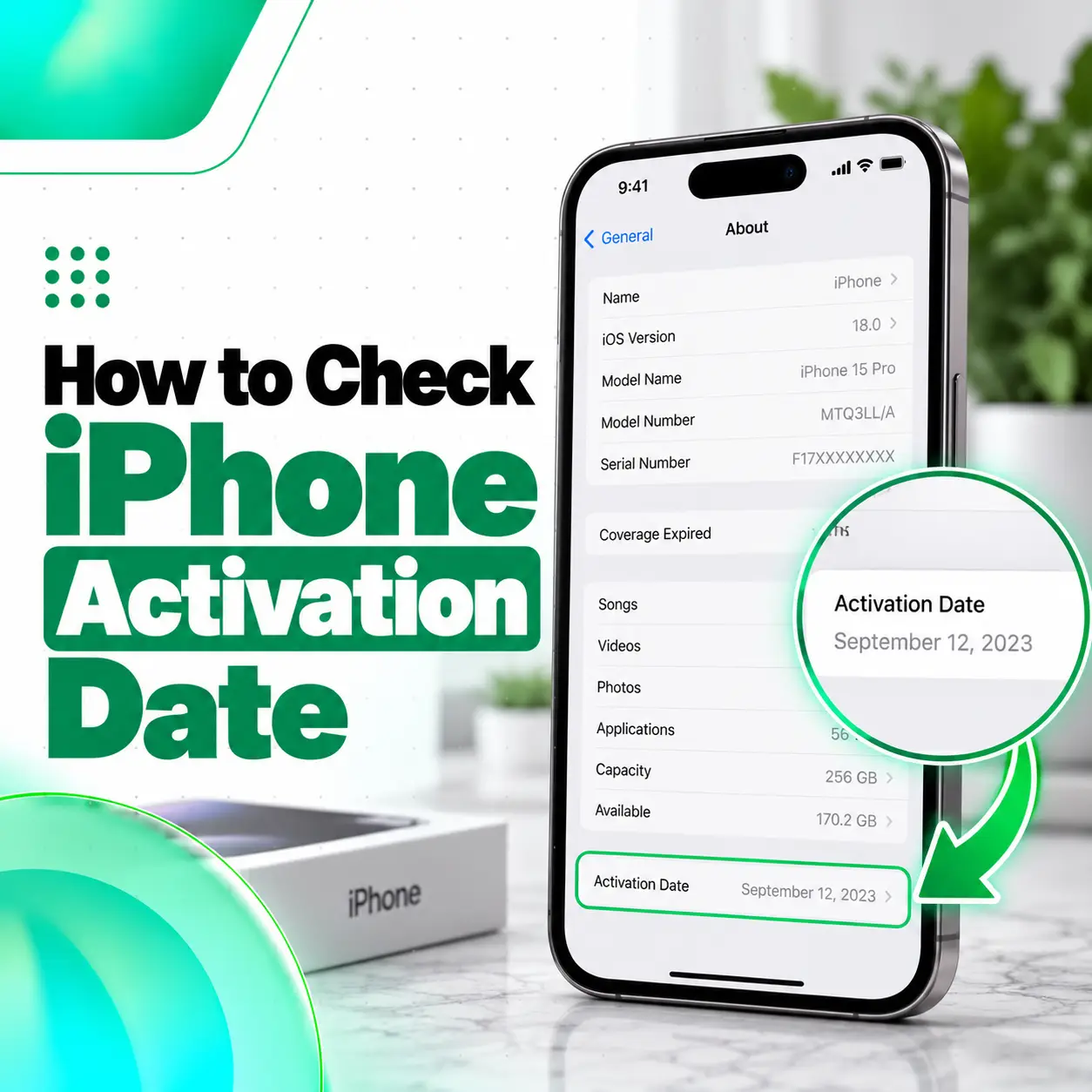
Apple’s official coverage system is one of the most reliable places to begin checking the history associated with an iPhone.
Apple’s Check Coverage service allows a user to enter a device serial number to view available coverage information.
Step 1: Find Your iPhone Serial Number
On your iPhone:
- Open Settings.
- Tap General.
- Tap About.
- Scroll to Serial Number.
- Touch and hold the serial number if you want to copy it.
Apple confirms that the serial number, IMEI, model information, and other device identifiers can be found under Settings > General > About.
Step 2: Open Apple’s Check Coverage Page
Go to Apple’s official Check Coverage service.
Enter the iPhone serial number and complete any verification requested by Apple.
Depending on the device, account, country, and coverage status, Apple may display information related to:
- Device identification
- Limited warranty coverage
- AppleCare coverage
- Coverage expiration
- Service eligibility
The page should primarily be treated as an Apple coverage verification tool, not as a guaranteed exact activation-date database.
Step 3: Interpret the Coverage Information Carefully
Coverage dates can provide clues about the age of an iPhone, but avoid assuming that a warranty expiration date directly reveals the first activation date.
Apple states that its service coverage information is based on the purchase-date information available in its system and that the estimated purchase date may sometimes be incorrect.
Therefore, coverage information is useful for verification, but it may not establish an exact first-use timestamp.
How to Check iPhone Warranty Information From Settings
You may also be able to view warranty information directly from the iPhone.
Go to:
Settings > General > AppleCare & Warranty
Then select the device if necessary.
Apple currently documents this path for viewing AppleCare and warranty information on supported devices.
Depending on the device and coverage status, you may see information about the current coverage or expiration date.
Can the Warranty Date Tell You the Activation Date?
Not reliably.
Apple’s standard Limited Warranty is generally tied to the original retail purchase date, rather than being officially defined as one year from the date you first activated the phone. Apple’s warranty documentation describes the warranty period as one year from the original retail purchase by the end-user purchaser.
Therefore, subtracting exactly one year from an expiration date and calling the result the “activation date” can be inaccurate.
Use that calculation only as a rough clue where appropriate, not as proof.
Check Your iPhone Through Your Apple Account
Another useful method is to review the devices associated with your Apple Account.
Apple allows users to sign in to their account and view devices associated with it. Device information can include identifiers such as serial number and IMEI.
You can also use Apple’s My Support service to review eligible support and coverage details associated with your device.
This method is especially useful when you:
- Own multiple Apple devices
- Cannot easily access the iPhone’s About page
- Want to confirm that you are checking the correct device
- Need AppleCare or warranty information
However, the date a phone appears in an Apple Account should not automatically be interpreted as the device’s original activation date.
Check the Original Purchase Receipt
If you need a documented date, the original sales receipt or invoice is usually stronger evidence of the purchase date than an estimated online calculation.
Apple specifically uses proof of purchase when correcting inaccurate purchase-date information.
Apple says an acceptable sales receipt used for this purpose should contain information such as:
- Device description
- Date of purchase
- Invoice or receipt number
- Purchase price
- Reseller information
- Serial number where applicable
For a second-hand iPhone, ask the seller for the original invoice when possible.
Remember that the receipt verifies the purchase date. The first activation might have occurred on the same day or at a later time.
iPhone Activation Date vs Purchase Date vs Warranty Date
These terms are often confused, but they do not necessarily mean the same thing.
| Date or Status | What It Means | Reliability |
| Activation date | When the iPhone was first activated for use | Exact public date may not be available |
| Purchase date | When the device was originally sold | Best verified using invoice or Apple purchase records |
| Warranty start | Start of Apple’s applicable warranty period | Generally linked to original retail purchase |
| Warranty expiry | Date standard or additional coverage ends | Can be viewed through Apple coverage tools where available |
| AppleCare status | Additional Apple coverage information | Check through AppleCare & Warranty or Apple services |
If you are checking the age of an iPhone, the purchase and coverage records are generally more useful than relying on an unofficial “activation checker.”
Can You Check iPhone Activation Date by Serial Number?
A serial number can be used with Apple’s systems to identify the iPhone and check coverage information, but the serial number itself does not provide a simple public exact activation date.
Your iPhone serial number can be found under:
Settings > General > About
You can then use it with Apple’s official coverage service.
This is safer than entering your device identifiers into an unknown website promising an exact activation date.
Can You Check iPhone Activation Date Using IMEI?
An IMEI identifies the cellular device, but Apple’s standard public coverage-check process primarily allows you to submit the serial number.
Apple also allows users to locate the IMEI in several places, including Settings and, on certain iPhone models, the SIM tray.
Some third-party services claim to use an IMEI to provide activation history. Their data sources, accuracy, freshness, and privacy practices can vary significantly.
For important buying or ownership decisions, prioritize:
- Apple’s official records
- Original proof of purchase
- Physical device inspection
- Seller documentation
Do not rely entirely on an unknown IMEI-checking website.
Why Would You Need to Know an iPhone’s Activation or Purchase Date?
Checking an iPhone’s history can be useful in several situations.
Buying a Used iPhone
The age of an iPhone can affect:
- Battery condition
- Remaining warranty
- Expected resale value
- Device wear
- Repair history
- Overall buying decision
This is particularly relevant in Bangladesh, where pre-owned and imported iPhones are commonly evaluated based on model, condition, battery health, region or variant, and warranty status.
Checking Warranty Status
Purchase and coverage information helps determine whether the device may still have Apple warranty or AppleCare coverage.
Verifying a Seller’s Claim
If a seller describes an iPhone as “only a few months old,” coverage details and the original purchase invoice can provide useful supporting evidence.
Neither should replace a complete inspection of the phone.
Estimating Device Age
Knowing approximately when an iPhone was originally purchased can help you judge how long it may have been in use.
This is particularly useful when comparing two used iPhones of the same model.
How to Check a Used iPhone Before Buying
If you are checking the activation date because you intend to buy a used iPhone, do not stop at the date.
A device can be relatively new and still have major hardware, account, or repair-related problems.
1. Check Activation Lock
Activation Lock and activation date are completely different things.
Activation Lock is Apple’s anti-theft feature associated with Find My. Apple explains that Activation Lock is turned on automatically when Find My is set up and can prevent another person from reactivating the device without the appropriate Apple Account credentials.
When buying a used iPhone, do not take ownership of a phone that remains linked to the previous owner’s account.
Apple specifically recommends confirming that a pre-owned device is erased and no longer linked to the previous owner before purchasing it.
2. Check Battery Health
Go to the relevant battery settings on the iPhone and review battery condition and maximum capacity where supported.
Battery wear can tell you more about the practical condition of a used device than its age alone.
3. Check Parts and Service History
On supported iPhone models and iOS versions, go to:
Settings > General > About
Look for Parts and Service History if it appears.
Apple recommends checking this information when evaluating a pre-owned iPhone because it may provide details about replaced components.
4. Verify the Serial Number and IMEI
Compare identifiers where appropriate with:
- Device settings
- Packaging
- Invoice
- Seller documentation
Any unexplained mismatch deserves further investigation before payment.
5. Test Major Functions
Before buying, test:
- Display and touch
- Face ID or Touch ID
- Cameras
- Microphones
- Speakers
- Wi-Fi
- Bluetooth
- Cellular network
- Charging
- Physical buttons
- Battery performance
A professional inspection can also be useful when the device’s repair history or internal condition is unclear.
What If Apple’s Purchase Date Is Incorrect?
Apple acknowledges that the estimated purchase date in its system can sometimes be inaccurate.
If Apple’s purchase information is incorrect, you may be able to request a correction by providing the original proof of purchase. Apple requires appropriate purchase documentation to update these records.
This is another reason not to treat an estimated warranty calculation as unquestionable proof of an exact activation date.
Are Third-Party iPhone Activation Checkers Accurate?
Some third-party sites advertise services such as:
- iPhone activation check
- IMEI history
- warranty lookup
- device age lookup
- purchase-date lookup
These services may occasionally provide useful information, but their accuracy depends on the source of their data.
Apple does not verify every third-party checker.
Before entering a serial number or IMEI into an unfamiliar website, consider:
- Whether the company is identifiable
- Its privacy policy
- Whether payment is required
- Whether the result can be independently verified
- Whether the website is making unrealistic promises
For sensitive buying decisions, use official Apple information wherever possible.
Which Method Is Best for Checking iPhone Activation History?
For most people, the following order works well:
- Find the serial number in Settings > General > About.
- Check Apple’s official coverage information.
- Review AppleCare & Warranty in Settings.
- Check the original invoice or receipt.
- Verify the device through the owner’s Apple Account records where applicable.
- Inspect Activation Lock, battery condition, and Parts and Service History if buying used.
The goal should be to establish a reliable overall device history rather than depend on one unofficial activation-date result.
Frequently Asked Questions
1. How can I check when my iPhone was activated?
Apple’s public tools do not currently provide a simple field showing the exact first activation date. Start by checking the device serial number through Apple’s coverage service and reviewing AppleCare & Warranty information. An original purchase invoice can provide stronger evidence of when the device was purchased, although purchase and first activation can occur on different dates.
2. Can I check the exact iPhone activation date from the serial number?
Not directly. Your iPhone serial number can be used with Apple’s official systems to verify the device and available coverage information, but the serial number itself does not reveal a publicly accessible exact first-activation timestamp. Be cautious with websites that claim they can guarantee an exact activation date solely from a serial number.
3. Is the iPhone warranty start date the same as the activation date?
Not necessarily. Apple’s standard Limited Warranty documentation bases the warranty period on the date of original retail purchase by the end-user purchaser. An iPhone may be activated on the purchase date or later, so warranty information should not automatically be interpreted as proof of the exact first activation date.
4. Can I find the iPhone activation date using IMEI?
An IMEI identifies your cellular device, but Apple’s public coverage system does not treat it as a straightforward activation-date lookup. Third-party IMEI services may provide additional information, but accuracy varies. For reliable verification, use Apple’s coverage records, the device serial number, original proof of purchase, and a physical inspection of the iPhone.
5. How can I tell how old my iPhone is?
Check the original purchase invoice first if you have it. You can also review Apple coverage and warranty information using the serial number. These records can help estimate when the device was originally purchased. Keep in mind that the model’s release date only tells you when that model became available, not when your individual iPhone was purchased or activated.
6. What should I check before buying a used iPhone in Bangladesh?
Check the serial number and IMEI, warranty information, battery condition, display, cameras, charging, network functions, Face ID or Touch ID, and Parts and Service History where available. Most importantly, make sure Activation Lock has been removed and the phone is no longer linked to the previous owner’s Apple Account before completing the purchase.
7. Is a third-party iPhone activation checker safe to use?
It depends on the provider. Third-party checkers can differ significantly in data quality, privacy practices, and accuracy. Avoid entering device identifiers on suspicious websites or paying for reports that make unverifiable promises. Apple’s official coverage service and genuine proof of purchase should be your primary sources when verifying an iPhone’s age or ownership history.
Conclusion
If you want to know how to check iPhone activation date, start with Apple’s official coverage information, your iPhone serial number, AppleCare & Warranty details, and the original purchase receipt. These sources can help establish the device’s purchase and coverage history, but they should not be misrepresented as an exact public first-activation record when Apple does not provide one.
For anyone buying a used iPhone in Bangladesh, the date is only one part of the evaluation. Activation Lock status, battery condition, replaced parts, display quality, charging, cameras, network performance, and previous repairs can be equally important.
If you are unsure about the physical or technical condition of a used iPhone, iCareFix can professionally inspect the device and help identify potential hardware or repair-related issues before they become larger problems.