




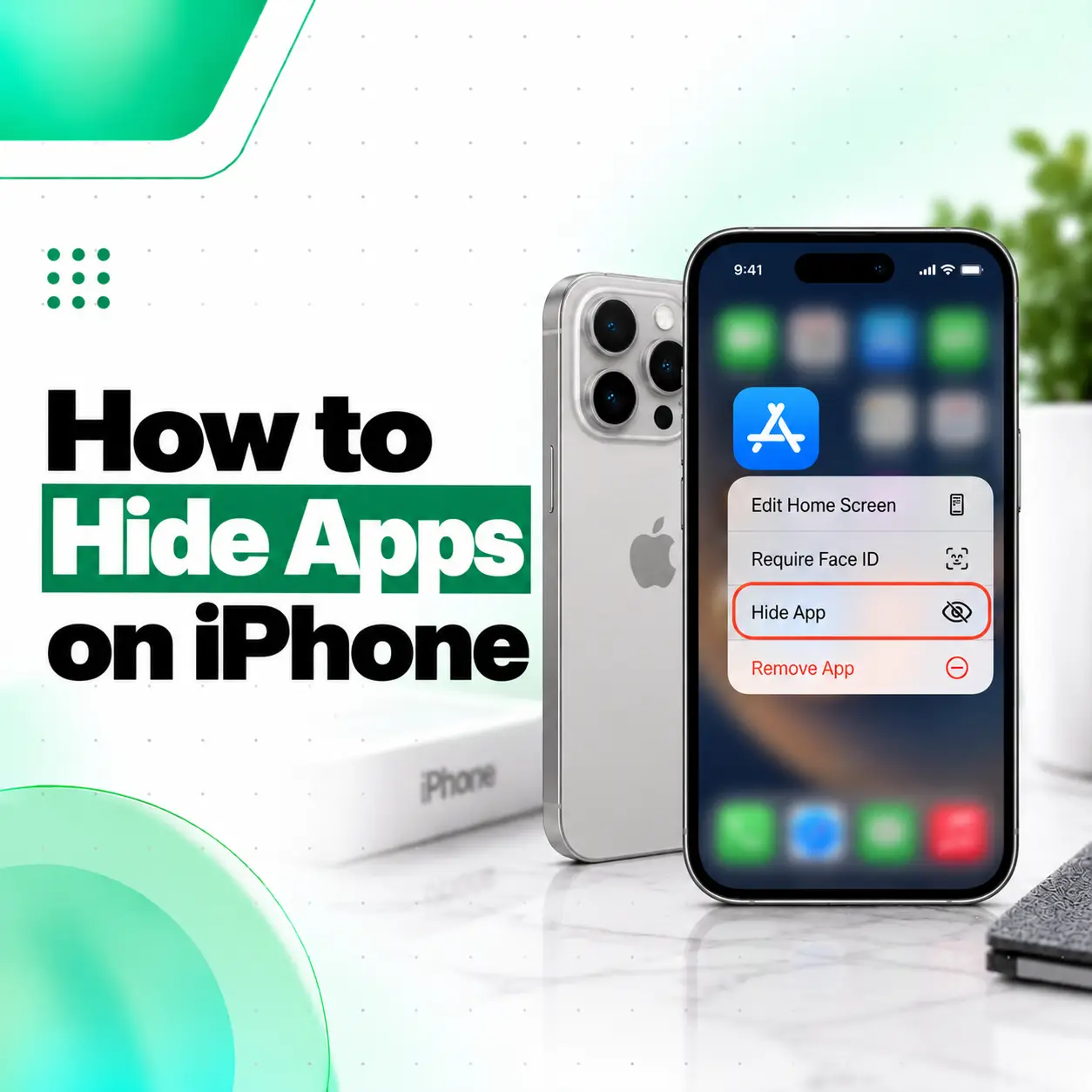
If you want to keep certain apps out of sight on your iPhone, you can hide them without deleting them. Apple provides several options, including removing an app from the Home Screen, hiding an entire Home Screen page, and using the app-hiding feature introduced in iOS 18. You can also lock supported apps with Face ID, Touch ID, or your passcode for additional privacy.
The right method depends on your iPhone model, iOS version, and whether you want to declutter your screen or restrict access to an app. This guide explains how to hide apps on iPhone step by step, how to find hidden apps later, and how to manage notifications and search visibility. If you encounter unusual software problems while changing settings, iCareFix can be considered for professional iPhone support and diagnosis.
How to Hide Apps on iPhone Using iOS 18 or Later
On an iPhone running iOS 18 or later, you can hide many downloaded apps by pressing and holding an app icon, selecting Require Face ID, and choosing Hide and Require Face ID. The app moves to a protected Hidden folder in the App Library.
Follow these steps:
- Unlock your iPhone and go to the Home Screen.
- Find the app you want to hide.
- Touch and hold the app icon until its quick-action menu appears.
- Tap Require Face ID. Depending on your device, the option may mention Touch ID or your passcode.
- Select Hide and Require Face ID.
- Authenticate using Face ID, Touch ID, or your passcode.
- Tap Hide App to confirm, if prompted.
The app disappears from the Home Screen and moves into the Hidden folder at the bottom of the App Library.
Which Apps Can You Hide?
Apple’s built-in apps generally cannot be hidden using this feature. The option is intended for eligible apps downloaded from the App Store, with some additional restrictions.
If you do not see the Hide and Require Face ID option, check your iOS version and whether the app supports hiding. Some apps may only offer the option to require authentication, while others cannot be locked or hidden through this feature.
How to Hide Apps from the iPhone Home Screen Without Deleting Them
If you only want to remove an app icon from your Home Screen, you do not need to hide or lock the app. You can move it to the App Library, where it remains installed and available.
Steps to Remove an App from the Home Screen
- Find the app on your Home Screen.
- Touch and hold its icon.
- Tap Remove App.
- Select Remove from Home Screen.
The app will disappear from that Home Screen page but remain in your App Library. You can still open it from there.
Important: Choose Remove from Home Screen, not Delete App, if you want to keep the app installed and preserve its locally stored data.
What Is the Difference Between Removing and Hiding an App?
| Feature | Remove from Home Screen | Hide with Face ID |
| App stays installed | Yes | Yes |
| Icon removed from Home Screen | Yes | Yes |
| App remains in normal App Library | Yes | No; it moves to Hidden |
| Authentication required to open | Not automatically | Yes |
| Hidden from normal search results | Not necessarily | Yes, subject to Apple’s stated limitations |
| Suitable for | Screen organisation | Additional privacy |
Choose the first method to make your Home Screen cleaner. Choose the second when you want additional protection against someone casually opening an app.
How to Hide an Entire Home Screen Page on iPhone
You can hide a whole Home Screen page if you want to conceal several app icons at once. This method is available on iOS 14 and later and does not delete the apps.
Steps to Hide a Home Screen Page
- Touch and hold an empty area on your Home Screen until the icons begin to jiggle.
- Tap the page indicator dots near the bottom of the screen.
- Find the page you want to hide.
- Tap the checkmark beneath that page to deselect it.
- Tap Done.
The selected page will no longer appear when you swipe through your Home Screen pages. The apps on it remain installed and can still be accessed through the App Library or other available locations.
Remember that hiding a page is mainly an organisational feature, not an app-level security feature. It does not require authentication to open the individual apps.
How to Find Hidden Apps on iPhone
You can find an app hidden using iOS 18’s privacy feature in the Hidden folder at the bottom of the App Library. You must authenticate to access the folder.
Follow these steps:
- Swipe left across your Home Screen pages until you reach the App Library.
- Scroll to the bottom of the App Library.
- Tap the Hidden folder.
- Authenticate using Face ID, Touch ID, or your passcode.
- Find and tap the app you want to open.
If you removed an app from the Home Screen rather than hiding it, look for it in the regular App Library instead.
How to View the List of Hidden Apps in Settings
On supported iOS versions, you can also check the hidden-app list:
- Open Settings.
- Tap Apps.
- Select Hidden Apps.
- Authenticate when prompted.
Menu names and availability may vary slightly with the installed iOS version.
How to Unhide Apps on iPhone
To make a hidden app visible again, open the Hidden folder in the App Library, authenticate, and remove the hiding restriction.
Steps to Unhide an App
- Swipe left to open the App Library.
- Tap Hidden and authenticate.
- Touch and hold the app you want to restore.
- Tap Don’t Require Face ID, or the equivalent Touch ID or passcode option.
- Authenticate again if prompted.
The app will no longer be in the Hidden folder and can be found in the App Library. You may need to add it back to your preferred Home Screen page.
To restore an app that was only removed from the Home Screen, find it in the App Library, touch and hold its icon, and choose the option to add it to the Home Screen.
How to Hide Apps from Search and Siri Suggestions
If your goal is to keep an app from appearing when someone searches your iPhone, use Apple’s built-in Hide App feature where available. Hiding an eligible app in iOS 18 or later removes it from normal search results and limits certain other exposures.
If you only removed an app from the Home Screen, it may still appear in search.
Adjust Search Visibility for an App
For apps that remain visible in search, you may be able to adjust their search settings:
- Open Settings.
- Tap Search or locate the app’s settings under the relevant Siri and Search options. The exact menu varies by iOS version.
- Select the relevant app.
- Turn off available options for showing the app in search results or suggestions.
The available controls vary by app and iOS version. These settings do not provide the same protection as locking an app with Face ID.
How to Lock an App with Face ID Without Hiding It
You can protect an eligible app with Face ID while keeping its icon visible on your Home Screen. This is useful if you want quick access but do not want other people opening the app without authentication.
Steps to Lock an App
- Touch and hold the app icon on your Home Screen.
- Tap Require Face ID, or the equivalent authentication option.
- Confirm the choice and authenticate when prompted.
The app will require authentication when opened. Apple also limits the appearance of certain information from locked apps in places such as notification previews, search, and Siri suggestions.
Not every built-in or third-party app supports this feature. If you do not see the option, check the app and iOS compatibility.
How to Reduce App Notifications and Previews
Hiding an app does not replace all notification and privacy settings. If you want to prevent private information from appearing on your Lock Screen, review notification settings separately.
Turn Off Notifications for an App
- Open Settings.
- Tap Notifications.
- Select the relevant app.
- Turn off Allow Notifications if you do not want its notifications to appear.
If you want to receive notifications but hide their content, look for the available preview options and choose when previews should appear.
The exact controls depend on the app. Apple’s built-in hiding feature also suppresses certain notifications from hidden apps, but you should review other privacy settings for your specific needs.
Can You Hide Apps on Older iPhones?
Yes. Even if your iPhone does not support iOS 18’s app-hiding feature, you can remove apps from the Home Screen and hide entire Home Screen pages on supported older iOS versions.
| iPhone software | Available approach |
| iOS 18 or later | Hide eligible apps with authentication, remove apps from the Home Screen, or hide Home Screen pages |
| iOS 14–17 | Remove apps from the Home Screen, hide Home Screen pages, and use available Screen Time restrictions |
| Earlier iOS versions | Options vary; use the Home Screen and restrictions features supported by that version |
To check your software version, go to Settings → General → About and look for iOS Version. Menu labels can differ depending on the software installed.
Can Screen Time Help Hide Apps?
Screen Time offers restrictions for app use, content, and purchases. Depending on the iOS version and restriction settings, it can limit access to certain apps or app categories.
However, Screen Time is not the same as moving an app into the Hidden folder. Use it when your goal is to restrict usage, particularly on a device managed by a parent or guardian. Availability and controls depend on the iOS version and the device’s configuration.
Does Hiding an App Make It Completely Private?
No. Hiding an app reduces its visibility, but it does not make every trace of its use disappear from the device or associated accounts.
Depending on the app and iOS version, information may still be visible in places such as Screen Time, battery usage, or App Store purchase history. A hidden app’s status also does not automatically synchronise across devices through iCloud.
For better privacy:
- Use a strong iPhone passcode that other people do not know.
- Enable Face ID or Touch ID where supported.
- Review notification previews and Lock Screen access.
- Avoid sharing your device passcode.
- Review account access and app-specific privacy settings.
- Remember that hiding an app does not delete its data or account history.
If someone knows your device passcode, your privacy protections may be weaker than expected. Consider this when choosing how to protect sensitive information.
What to Do If You Cannot Hide an App on iPhone
If the Hide and Require Face ID option does not appear, the reason may be your iOS version, the type of app, or a restriction on the device.
Try the following checks:
- Check iOS compatibility: Confirm whether your iPhone is running iOS 18 or later.
- Check the app type: Built-in apps cannot generally be hidden using the newer feature.
- Restart the iPhone: A restart may help if the interface is temporarily unresponsive.
- Check device restrictions: Screen Time or a management profile may affect which settings are available.
- Review Apple’s instructions: Use the official guide for your version of iOS.
If the phone has broader software issues, such as repeated crashes, unresponsive settings, or problems following an update, further troubleshooting may be needed. Avoid resetting the device before backing up important information.
Frequently Asked Questions
1. How do I hide apps on iPhone without deleting them?
You can hide an eligible app using iOS 18 or later by touching and holding its icon, selecting Require Face ID, and choosing Hide and Require Face ID. Alternatively, choose Remove App → Remove from Home Screen to keep the app installed in the App Library without requiring authentication to open it.
2. Can I hide apps on iPhone with Face ID?
Yes. On compatible iPhones running iOS 18 or later, you can hide eligible downloaded apps and protect access with Face ID, Touch ID, or your passcode. Touch and hold the app, choose Require Face ID, and select Hide and Require Face ID. Some built-in apps cannot be hidden using this method.
3. How do I find a hidden app on my iPhone?
Swipe left through your Home Screen pages to reach the App Library. Scroll to the bottom, tap the Hidden folder, and authenticate using Face ID, Touch ID, or your passcode. If the app was merely removed from the Home Screen, look for it in the regular App Library instead.
4. Can I hide apps from iPhone Search?
Yes. Apple’s app-hiding feature in iOS 18 or later removes eligible hidden apps from normal search results. If you only remove an app from the Home Screen, it may still appear in Search. Available Siri and Search settings can provide additional visibility controls, depending on your iOS version and app.
5. Can I hide built-in Apple apps on my iPhone?
Built-in Apple apps generally cannot be hidden using the iOS 18 app-hiding feature. You may be able to remove certain apps from the Home Screen or delete supported built-in apps, depending on the app. If your goal is to restrict access, check the available Screen Time settings and app-specific controls.
6. Does hiding an app stop its notifications?
Apple’s built-in Hide App feature suppresses certain notifications from hidden apps. However, notification behaviour can depend on the app and software version. If you want more control, open Settings → Notifications, select the relevant app, and review its notification and preview settings.
7. What should I do if I cannot hide apps on my iPhone?
First, check whether your iPhone supports iOS 18 or later and whether the app is eligible for hiding. Some built-in apps cannot be hidden, and device restrictions may affect available options. If settings remain unresponsive or other software problems occur, consult Apple Support or seek professional iPhone diagnosis.
Conclusion
Knowing how to hide apps on iPhone helps you organise your Home Screen and improve privacy without necessarily deleting your apps. For basic organisation, use Remove from Home Screen or hide an entire Home Screen page. For stronger protection, use the Hide and Require Face ID feature on compatible devices.
Remember that hiding an app does not erase its data or remove every record of its activity. Review your passcode, notification settings, and account privacy options for more complete protection.
If you experience persistent iOS settings problems or other device issues while managing your apps, iCareFix can be considered for professional iPhone inspection and support. Explain the symptoms to the service team so they can advise you on the appropriate next steps.