




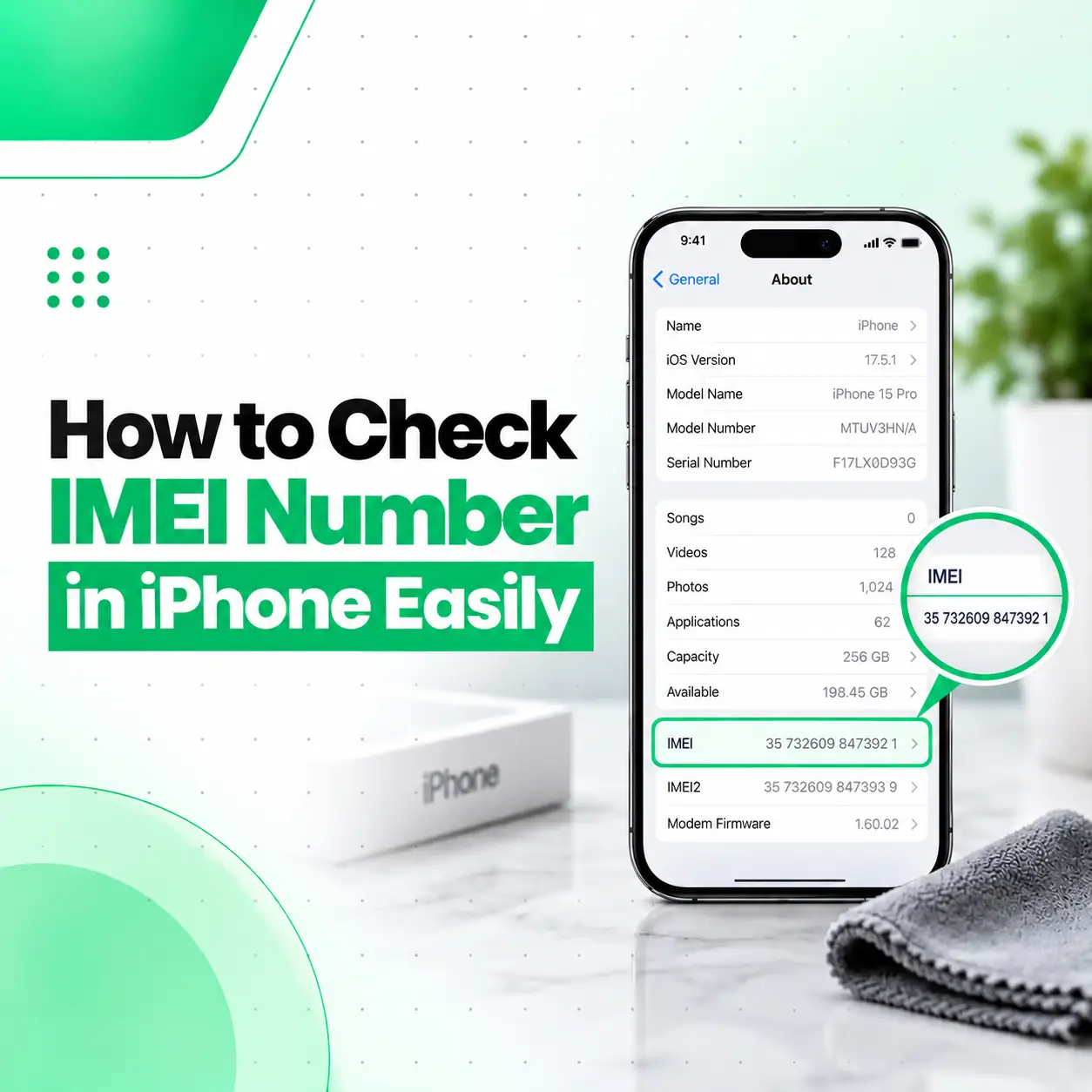
If you need to know how to check IMEI number in iPhone, the easiest method is through Settings → General → About. Scroll down on the About page until you see IMEI/MEID. You can touch and hold the number to copy it. Apple also provides other ways to find the IMEI, including through the SIM tray on supported models, Apple Account, Finder or Apple Devices/iTunes, the original packaging, and the information screen shown before an iPhone is set up.
Your IMEI can be useful when identifying an iPhone, contacting support, dealing with a carrier, or checking device information. This guide explains the different ways to find it, including options for situations where the iPhone screen cannot be accessed.
What Is an IMEI Number on an iPhone?
An IMEI (International Mobile Equipment Identity) is a device identifier associated with a cellular device. On an iPhone, it appears alongside other identifiers such as the serial number, EID, and ICCID.
The IMEI is different from your phone number and different from the iPhone’s serial number. Apple lists the IMEI and other cellular identifiers in the device’s About section.
You may need the IMEI when:
- Contacting Apple or a repair provider
- Speaking with your mobile carrier
- Identifying a specific iPhone
- Checking device information before buying a used iPhone
- Providing device details for certain service processes
- Troubleshooting cellular-related issues
Important: An IMEI is sensitive device information. Avoid publicly posting your complete IMEI in social media posts, public forums, or online advertisements unless there is a legitimate reason to do so.
How to Check IMEI Number in iPhone Settings
The simplest way to check your iPhone IMEI is through the About section in Settings. Apple identifies this as one of the primary locations for the IMEI and other device identifiers.
Follow These Steps
- Open Settings on your iPhone.
- Tap General.
- Tap About.
- Scroll down.
- Find IMEI or IMEI/MEID.
- Touch and hold the number if you want to copy it.
You may also see information such as:
- Model Name
- Model Number
- Serial Number
- EID
- ICCID
- iOS version
- Carrier Lock status
- Modem firmware
- Network information
The exact information displayed can vary depending on the iPhone model and configuration. Where Exactly Is the IMEI in Settings?
The path is:
Settings → General → About → IMEI
If you do not see it immediately, scroll further down the About page.
This is generally the fastest method when your iPhone is working normally.
How to Check IMEI on iPhone Without Opening Settings
If you cannot access Settings, there are several alternatives. Depending on your iPhone model, you may be able to find the IMEI on the SIM tray, the device itself, the original box, your Apple Account, or through a connected computer.
Check the SIM Tray
Some iPhone models with physical SIM trays have the IMEI/MEID printed on the SIM tray.
Apple lists a number of models where the IMEI/MEID can be found on the SIM tray, including various iPhone 7 through iPhone 13 models and several earlier generations.
However, not every iPhone has the IMEI printed on the SIM tray.
The exact location depends on the model.
Check the Back of Older iPhones
Some older iPhone generations have the IMEI engraved on the back of the device.
Apple lists the iPhone 6, iPhone 6 Plus, first-generation iPhone SE, iPhone 5s, iPhone 5c, and iPhone 5 among models where the IMEI/MEID may be found on the back.
For newer iPhones, this method generally does not apply.
Check the Original iPhone Box
If you still have the original packaging, look for the barcode label.
Apple states that the original packaging can contain the device’s serial number, EID, and IMEI/MEID.
This can be particularly useful if:
- The iPhone is not turning on.
- The display is damaged.
- You cannot unlock the device.
- You are preparing information for service.
- You are checking the details of a device you purchased.
Make sure the box actually belongs to the iPhone you are checking before relying on the number.
How to Find iPhone IMEI From Apple Account
If your iPhone is associated with your Apple Account, you may be able to view its device information online.
Apple’s current instructions are:
- Go to your Apple Account website.
- Sign in with the Apple Account used on the iPhone.
- Open the Devices section.
- Select the relevant iPhone.
- Review the available device identifiers, including the IMEI/MEID.
This is useful when you cannot access the iPhone itself but still have access to the account associated with it.
Can I Check the IMEI From Another Apple Device?
Yes. If another compatible Apple device is signed in to the same Apple Account, you can open its Settings, select your name, find the relevant device in the device list, and view its available information. Apple documents this as another way to locate device identifiers.
How to Check iPhone IMEI Using a Computer
You can also find an iPhone’s IMEI through a computer when the device is connected.
On a Mac
For Macs running supported versions of macOS:
- Connect the iPhone to the Mac.
- Open Finder.
- Select the iPhone.
- Open the relevant device information.
- View the IMEI/MEID and other identifiers.
On Windows
Apple says you can use the Apple Devices app or supported versions of iTunes to view device information.
Connect the iPhone, select the device, and access its identifying information.
This method can be helpful when the iPhone is still recognized by the computer but accessing information directly on the phone is inconvenient.
How to Check IMEI on an iPhone Before Setup
If you have a new or reset iPhone that is still on the Hello setup screen, you may be able to view device information without completing the setup process.
Steps
- Turn on the iPhone.
- Wait for the Hello screen.
- Look for the Info button.
- Tap it to view available device identifiers.
Apple specifically provides this option for finding identifiers before the iPhone has been fully set up.
This can be useful when checking a device before activation or completing setup.
Is IMEI the Same as the iPhone Serial Number?
No. IMEI and serial number are different identifiers.
| Identifier | What it generally identifies |
| IMEI | Cellular device identity |
| Serial Number | Apple’s identifier for the individual device |
| EID | Identifier associated with the embedded SIM/eSIM |
| ICCID | Identifier associated with a SIM |
| Model Number | Identifies the particular iPhone model/variant |
The iPhone’s About section can display several of these identifiers together, which is why they can sometimes be confused.
If someone specifically asks for the IMEI, provide the IMEI rather than automatically providing the serial number.
How Many IMEI Numbers Can an iPhone Have?
Some iPhones can display more than one IMEI because they support multiple cellular lines or SIM configurations.
For example, an iPhone configured for dual cellular lines may display separate IMEI information for its supported cellular functions.
Therefore, if your iPhone displays more than one IMEI, do not automatically assume that one is incorrect. Check which IMEI a carrier, service provider, or other organization is requesting.
Can You Check IMEI if Your iPhone Won’t Turn On?
Yes, you may still be able to find the IMEI even when the iPhone cannot be powered on, depending on the model and what information you still have access to.
Possible places include:
- Original iPhone packaging
- Apple Account
- SIM tray on supported models
- Back of certain older iPhones
- Previously connected computer
- Another Apple device associated with the same Apple Account
Apple provides multiple ways to locate device identifiers specifically for situations where the iPhone itself cannot be accessed.
If the phone has suffered physical damage and you need its IMEI for a repair or service request, you may not need to turn the device on just to retrieve the number.
Can You Find the IMEI if the iPhone Screen Is Broken?
Usually, yes. A broken screen does not necessarily prevent you from finding the IMEI.
Try these alternatives:
- Check the original box.
- Check your Apple Account.
- Check the SIM tray if your model has the IMEI there.
- Check another Apple device signed into the same Apple Account.
- Use a previously trusted computer if the iPhone is still recognized.
If the phone has additional hardware damage, a professional repair provider may also be able to help identify the device during an inspection.
Can You Check an iPhone IMEI Before Buying a Used iPhone?
Yes, obtaining the IMEI can be useful when evaluating a used iPhone, but an IMEI alone should not be treated as proof that a used phone is genuine, fully functional, or free from problems.
Before purchasing a used iPhone, consider checking:
- IMEI
- Serial number
- Model name
- Model number
- Activation status
- Carrier Lock status where applicable
- Physical condition
- Battery condition
- Display
- Cameras
- Speakers
- Microphone
- Charging port
- Face ID or Touch ID where applicable
- Cellular connectivity
The IMEI should also correspond appropriately with the device and available documentation.
What If the IMEI on the Box Doesn’t Match the iPhone?
A mismatch deserves attention.
If the IMEI shown on the device does not correspond with the IMEI on its original packaging or documentation, ask the seller for an explanation before completing a purchase.
A mismatch can have legitimate explanations in some situations, but it should not simply be ignored.
For a used-device purchase in Bangladesh, checking the device itself rather than relying only on the seller’s listing or box is a sensible precaution.
Is It Safe to Share Your iPhone IMEI Number?
You should treat your IMEI as private device information.
There may be legitimate reasons to provide it to:
- Your mobile carrier
- Apple or an authorized service process
- A reputable repair provider
- A legitimate device verification service
However, avoid posting the complete IMEI publicly unless necessary.
The IMEI is a device identifier, not a password, but there is little reason to expose it broadly online.
Why Might a Repair Shop Ask for Your iPhone IMEI?
A repair provider may request device identifiers for service documentation, device identification, troubleshooting, or other legitimate service-related purposes.
However, an IMEI is not required to diagnose every iPhone problem.
If you are taking an iPhone to a professional repair service such as iCareFix, provide only the information reasonably necessary for the service process and avoid sharing sensitive account passwords.
Should You Give Your Apple Account Password to a Repair Shop?
Your Apple Account password should be treated as confidential.
A repair technician may need to ask you to perform certain actions on the device, such as disabling a security feature or signing out when appropriate, but you should not casually disclose your account password to another person.
If a repair requires account-related steps, perform them yourself whenever possible.
Does the IMEI Tell You the Exact iPhone Model?
The IMEI is primarily a device identity number. It should not be confused with the model number, which Apple separately provides as part of the device information.
If you need to identify the exact iPhone model, check:
Settings → General → About → Model Name
You can also view the Model Number there. Apple explains that tapping the part number beside Model Number reveals the model number.
For repair or replacement-part decisions, the exact model and variant can be more useful than the IMEI alone.
What If You Cannot Find Your iPhone IMEI?
If the IMEI is not immediately visible, try the methods in this order:
- Settings → General → About
- Apple Account → Devices
- Original iPhone packaging
- SIM tray, if your model supports it
- Connected Mac or Windows computer
- Info screen before completing iPhone setup
- Another Apple device signed into the same Apple Account
The available options depend on your iPhone model and whether you can access the device or its associated account.
When Should You Get Professional iPhone Help?
Finding an IMEI normally does not require repair. However, professional assistance may be useful if you are trying to identify an iPhone because the device has suffered physical damage, will not power on, has a damaged display, or has other hardware problems.
For example, if you cannot access Settings because the screen is broken, a repair professional can help assess the device while also determining the appropriate repair route.
For customers in Bangladesh, iCareFix can assess iPhone hardware problems and recommend the appropriate repair or diagnostic option based on the device’s condition.
Frequently Asked Questions
1. How do I check my IMEI number on an iPhone?
The easiest method is to open Settings → General → About and scroll down to the IMEI or IMEI/MEID field. You can touch and hold the number to copy it. Apple also provides alternative methods through the Apple Account, SIM tray on supported models, computer, and original packaging.
2. Where is the IMEI number located on an iPhone?
On most modern iPhones, the easiest place to find the IMEI is Settings → General → About. Depending on the model, the IMEI may also be available on the SIM tray, original packaging, Apple Account, or through Finder, Apple Devices, or iTunes. Some older iPhones have the IMEI engraved on the back.
3. Can I find my iPhone IMEI if the phone won’t turn on?
Yes. Depending on the model, you may find it on the original packaging, through your Apple Account, on a supported SIM tray, or through another device or computer that has access to the iPhone’s information. Apple specifically provides several alternatives when the iPhone itself cannot be accessed.
4. Is the iPhone IMEI the same as the serial number?
No. They are separate identifiers. The IMEI identifies the cellular device, while the serial number is another device identifier used by Apple. Your iPhone’s About section can display both, along with other information such as the EID and ICCID.
5. Can I check the IMEI of an iPhone before setting it up?
Yes. On an iPhone at the Hello setup screen, Apple provides an Info button that can display device identifiers before the setup process is completed. This can be useful when identifying a new or reset device before activation.
6. Can I check an iPhone IMEI from the original box?
Yes. Apple states that the original packaging can contain the iPhone’s serial number, EID, and IMEI/MEID. If you are checking a used iPhone, compare the packaging information with the actual device rather than assuming the box automatically belongs to that phone.
7. Should I share my iPhone IMEI with anyone?
Only share your IMEI when there is a legitimate reason, such as dealing with your carrier, Apple support, or a reputable service provider. Avoid posting your complete IMEI publicly. Also keep your Apple Account password private; an IMEI should not be treated as a substitute for account credentials.
Conclusion
If you want to know how to check IMEI number in iPhone, the quickest method is Settings → General → About → IMEI. If you cannot access Settings, you can check other available sources such as the Apple Account, original packaging, supported SIM tray, computer, or the pre-setup information screen.
Remember that the IMEI is different from the serial number, model number, EID, and ICCID. For used-device purchases or repair situations, checking the correct identifier can help avoid confusion.
If your iPhone’s screen, power system, or other hardware is preventing you from accessing its information, iCareFix can inspect the device and help determine the appropriate repair or diagnostic option in Bangladesh.