




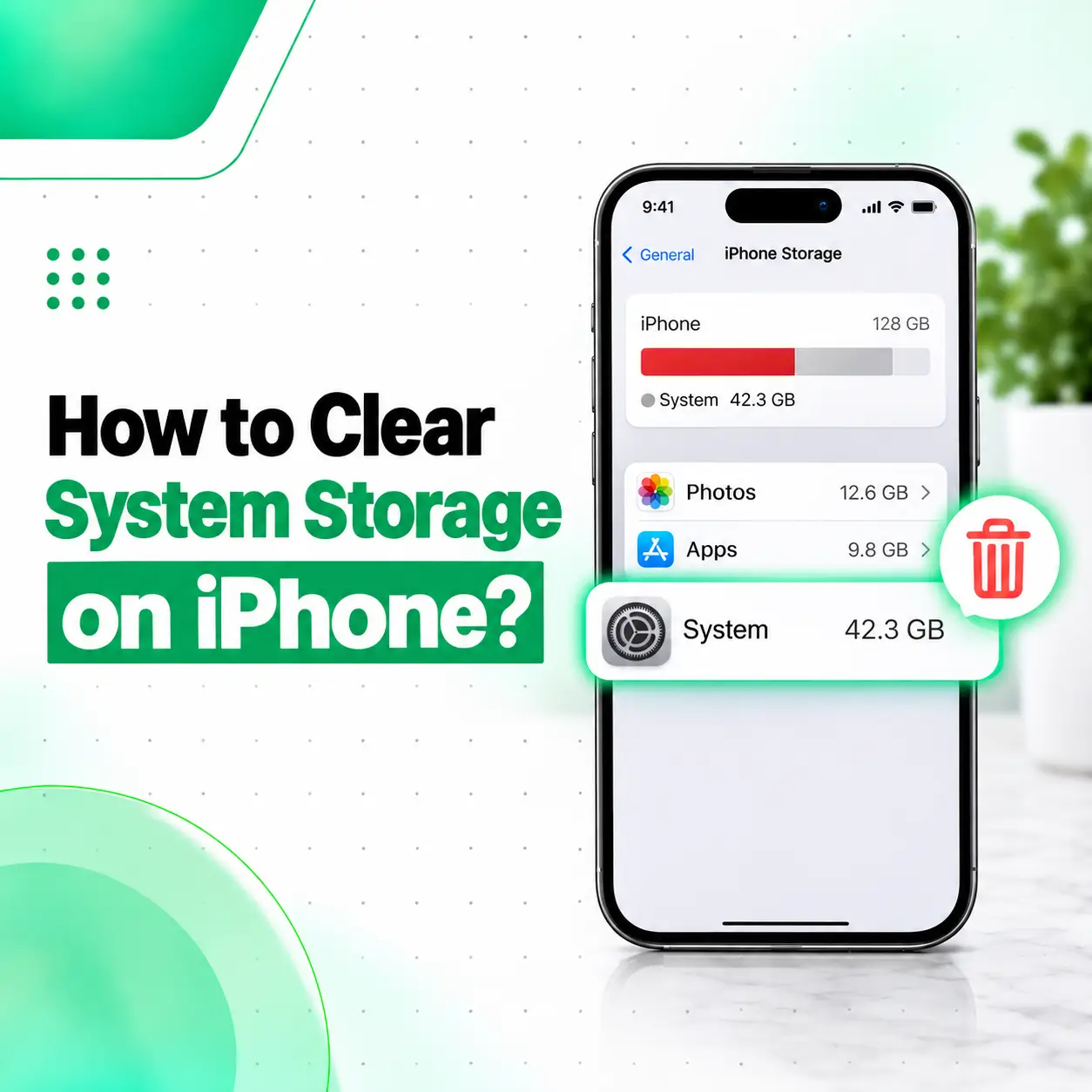
If your iPhone says iPhone Storage is almost full even after deleting photos, videos, or apps, you may notice that System Data or related system storage is using more space than expected. The important thing to understand is that there is no normal “Delete System Data” button on iPhone. iOS manages many system files, caches, logs, temporary files, and other data automatically. Apple explains that some cached and temporary files are removed by the system when additional storage is needed.
However, you can often reduce the amount of storage being used by removing unnecessary downloads, clearing Safari data, offloading unused apps, deleting large attachments, and managing photos and videos. This guide explains what System Data means, what you can safely remove, what you should avoid deleting, and when unusually high system storage may require professional troubleshooting.
What Is System Data on iPhone?
System Data is storage used by iOS for items such as caches, logs, temporary files, system resources, and other data required by the operating system and its services. Apple lists items such as caches, logs, Spotlight index data, Siri voices, fonts, dictionaries, Keychain-related data, and CloudKit database information under system-related storage categories.
The amount of System Data can change over time.
For example, your iPhone may temporarily use additional space while:
- Streaming or viewing content
- Downloading files
- Processing photos and videos
- Installing or preparing software updates
- Using apps that generate cached data
- Indexing content
- Managing system resources
Some of these files are temporary and may be removed automatically when the iPhone needs additional space.
System vs System Data
These two labels are not necessarily the same thing.
System refers primarily to the space required by the operating system itself, while System Data can include various system-managed resources, caches, logs, and other files. The amount of System storage can vary depending on the device and software version.
How Do You Check System Storage on iPhone?
Before trying to free space, check exactly what is consuming your storage.
Go to:
Settings → General → iPhone Storage
At the top, you will see the storage breakdown and available space. Apple also provides recommendations and a list of apps based on their storage usage.
Review the categories carefully instead of assuming that System Data is the main problem.
You may discover that the largest storage users are actually:
- Photos
- Videos
- Apps
- Messages and attachments
- Downloaded files
- Offline media
- iCloud Drive files stored locally
This distinction matters because deleting unnecessary personal content or app data can often free more space than trying to manipulate System Data directly.
Can You Directly Delete System Data on iPhone?
No, there is generally no direct option in iOS to manually select and delete all System Data. iOS manages system files, caches, and temporary data itself.
Apple states that the device removes cached and temporary files when it needs more space, so users do not normally need to manually remove these files.
Instead of looking for a hidden “Clear System Data” button, focus on reducing unnecessary data that contributes to overall storage usage.
How to Clear System Storage on iPhone
The safest approach is to work through the storage-heavy areas one by one.
1. Review iPhone Storage Recommendations
Start with the recommendations shown under:
Settings → General → iPhone Storage
Depending on your device and storage situation, iOS may recommend actions that can free space.
Apple recommends reviewing these storage recommendations when the device is low on space.
Before enabling or deleting anything, read what the recommendation will do.
2. Offload Unused Apps
If you have apps you rarely use, offloading them can free the storage occupied by the app while keeping its documents and data.
Go to:
Settings → General → iPhone Storage
Select an app and choose Offload App where available.
You can also enable automatic offloading through the App Store settings. Apple notes that offloading removes the app itself while retaining its documents and data so you can reinstall the app later.
Offload vs Delete
| Option | What It Does |
| Offload App | Removes the app but keeps its documents and data |
| Delete App | Removes the app and its associated data |
| Keep App | Makes no storage change |
If an app contains important locally stored information, check what will be removed before deleting it.
3. Delete Apps You No Longer Use
Unused apps can consume considerably more storage than the System Data category itself.
Go to:
Settings → General → iPhone Storage
Review the apps listed and remove ones you no longer need.
Apple’s storage management tools show how much space individual apps are using, helping you identify the largest storage consumers.
4. Clear Safari Cache and Website Data
Safari can accumulate browsing history, cookies, and website data.
On current iOS versions, you can go to:
Settings → Apps → Safari → Clear History and Website Data
You can also manage website data separately through Safari’s advanced settings. Apple documents both options for clearing Safari history, cache, cookies, and website data.
Keep in mind that clearing Safari data may:
- Remove browsing history
- Remove cookies
- Remove website data
- Affect website sign-ins
- Remove certain website permissions
So only clear it when you are comfortable with those effects.
5. Remove Unnecessary Downloads
Downloaded files can quietly consume significant storage.
Check:
Files → Browse → On My iPhone / Downloads
Remove files you no longer need.
Also check individual apps that support offline downloads. For example, downloaded videos, music, podcasts, or documents may continue occupying device storage even when you have forgotten about them.
Apple specifically recommends reviewing downloaded videos and files when managing iPhone storage.
6. Delete Large Messages and Attachments
Messages can take up substantial storage when conversations contain:
- Videos
- Photos
- GIFs
- Documents
- Voice messages
- Other attachments
Check the storage section for Messages and review conversations or attachments that you no longer need.
If an attachment is important, save it somewhere safe before deleting it.
7. Manage Photos and Videos
Photos and videos are often among the largest storage categories on an iPhone.
If you have a large library, review:
- Large videos
- Duplicate photos
- Screenshots
- Old recordings
- Unwanted downloads
- Recently Deleted items
If you use iCloud Photos, you can also consider Apple’s storage optimization options.
Apple explains that iCloud Photos can help manage photo and video storage, while the iPhone Storage section shows how much space your photo library uses.
Be Careful Before Deleting Photos
Do not delete important photos simply to make the storage number smaller.
First make sure they are backed up or stored somewhere you can access later.
8. Review iCloud Drive Files Stored on the iPhone
Files stored in iCloud Drive can also occupy local device storage when downloaded.
Review your Files app and remove local downloads that you no longer need offline.
This does not necessarily mean deleting the file from iCloud. The goal is to understand whether a file is downloaded locally and whether it still needs to remain on the device.
9. Restart the iPhone
A restart can sometimes help the device complete background cleanup or refresh storage calculations.
However, restarting should not be treated as a guaranteed way to permanently clear a large amount of System Data.
If System Data remains unusually high after restarting, continue with the other storage-management steps rather than repeatedly restarting the device.
10. Keep iOS Updated
If your iPhone has enough free storage, keeping iOS updated can help maintain normal system operation.
However, an update itself requires available storage, so a nearly full iPhone may need some space cleared first. Apple notes that insufficient storage can prevent an iPhone from installing an iOS update.
Do not delete important personal files simply to force an update without first checking what is consuming your storage.
Why Is System Data Taking So Much Space?
System Data can fluctuate because iOS and apps generate temporary information during normal use.
Possible contributors include:
- Cached content
- Temporary files
- System logs
- Indexing data
- App-related temporary data
- Streaming caches
- Browser data
- System resources
- Downloaded content
Apple explains that cached files can be created when you stream or view content and that the device can remove such files when it needs additional space.
System Data Can Change Without You Manually Adding Files
You may notice that System Data increases after using the phone heavily and later decreases.
That does not necessarily indicate a hardware problem.
Storage categories can also change as iOS processes, caches, and reorganizes data.
What Should You Not Do to Clear System Storage?
Be careful with advice that recommends deleting random system files, using unofficial “cleaner” tools, or modifying iOS system components.
Avoid:
- Deleting unknown system files
- Installing untrusted cleaning applications
- Following instructions that require disabling security protections
- Erasing your iPhone without a backup
- Removing important photos just because System Data is high
- Repeatedly resetting the device without identifying the underlying problem
iOS is designed to manage many temporary and cached files automatically.
The safer strategy is to manage the storage categories Apple exposes to you.
Does Clearing Safari Cache Free System Data?
It can reduce Safari-related website data and cached content, but it does not provide a guaranteed way to remove all System Data.
Safari’s history, cookies, and website data can be cleared from the Safari settings. Apple documents this as a way to remove browsing data and website-related storage.
If your main storage problem is caused by large apps, videos, photos, downloads, or messages, clearing Safari data may have little effect.
What If System Data Is Still Extremely High?
If you have removed unnecessary content and your iPhone still reports unusually high system-related storage, first give iOS some time to recalculate or manage its storage.
Then check:
- Whether the storage breakdown changes after a restart.
- Whether a large app or media category is actually responsible.
- Whether the iPhone has enough free space to operate normally.
- Whether iOS is up to date.
- Whether the problem occurs repeatedly.
Apple recommends maintaining available storage because very low storage can contribute to performance problems; its current guidance recommends keeping at least 1 GB free to avoid slowdowns.
Can a Factory Reset Clear System Data?
A factory reset can erase the contents and settings of an iPhone, but it should not be the first solution to a storage-management problem.
A reset removes your personal data and settings, so it should only be considered after you have a reliable backup and have ruled out simpler solutions.
If System Data appears abnormally large and persists despite normal storage management, professional diagnosis can help determine whether a reset is appropriate.
Before Considering a Reset
Make sure you have:
- A current backup
- Access to your Apple Account
- Important photos and files safely stored
- Important messages backed up where appropriate
- Authentication information needed to restore your accounts
Do not erase the device simply because one storage category looks unusually large.
Does Low iPhone Storage Affect Performance?
It can. Apple recommends keeping some free space available and notes that insufficient storage can contribute to performance issues.
A nearly full iPhone may also have difficulty installing software updates because updates require available storage.
If your phone is constantly showing storage warnings, freeing space is preferable to waiting until the device becomes completely full.
When Should You Get Professional iPhone Repair?
A high System Data reading alone does not necessarily mean your iPhone needs hardware repair.
Professional inspection becomes more relevant if the storage issue occurs alongside other unusual symptoms, such as:
- Frequent freezing or crashing
- Unexpected restarts
- Storage readings that behave abnormally
- Problems after physical or liquid damage
- Failure to update or restore normally
- Severe performance problems that remain after storage cleanup
- Repeated system errors
In these situations, the problem may require more than simply deleting files.
A technician can assess the device and determine whether the issue is related to software, storage management, physical damage, or another component.
How to Prevent iPhone Storage From Filling Up Again
Once you have freed some space, a few habits can help prevent the problem from returning quickly.
Regularly Review iPhone Storage
Check:
Settings → General → iPhone Storage
every so often.
Look for unusually large apps, videos, downloads, and attachments before they consume most of the available space.
Remove Offline Downloads You No Longer Need
Streaming and cloud apps often allow offline content.
Delete completed downloads when you no longer need them.
Manage Photos and Videos
Large videos can consume significant storage.
Move important media to a trusted backup or cloud service before removing it from the iPhone.
Keep Some Free Space Available
Avoid operating permanently at or near full capacity.
Apple recommends keeping at least 1 GB of free space to help avoid slowdowns.
Use iPhone Storage Recommendations
The built-in recommendations can identify practical ways to reclaim storage without manually searching through every file.
Frequently Asked Questions
1. How do I clear System Data on my iPhone?
There is no general button that lets you manually delete all System Data. iOS manages system files, caches, logs, and temporary data automatically. Instead, check Settings → General → iPhone Storage and remove unnecessary apps, downloads, photos, videos, messages, and other content. Apple notes that cached and temporary files can be removed automatically when the device needs more space.
2. Why is System Data taking so much space on my iPhone?
System Data can include caches, logs, indexes, system resources, and other system-managed information. Its size can change depending on how the iPhone is being used. Streaming, browsing, app activity, indexing, and other processes can create temporary data. A high number does not automatically mean the iPhone has a hardware fault.
3. Does restarting an iPhone clear System Data?
Restarting an iPhone may help the system complete normal background processes or refresh its storage calculation, but it is not a guaranteed method for permanently reducing System Data. If storage remains unusually high, review iPhone Storage and remove unnecessary content instead of repeatedly restarting the device.
4. Will clearing Safari cache free up iPhone storage?
Clearing Safari history, cookies, and website data can remove browser-related data, but it may not make a large difference if another category is consuming most of your storage. You can clear Safari data through the Safari settings. Be aware that clearing website data can affect sign-ins, cookies, and website permissions.
5. Can I delete System Data without deleting my photos and apps?
You should not try to manually delete protected system files. Instead, keep your personal content and use Apple’s storage-management options to remove unnecessary downloads, attachments, unused apps, and other content. iOS itself manages many temporary and cached files, including removing some when more space is needed.
6. Should I factory reset my iPhone if System Data is too large?
Not as a first step. A factory reset erases personal information and settings, so you should first try normal storage-management methods and make a reliable backup. If the storage behavior remains abnormal alongside crashes, freezing, update problems, or other system issues, professional diagnosis may help determine whether a reset is appropriate.
7. What should I do if my iPhone storage keeps filling up?
Start by checking Settings → General → iPhone Storage and identify the categories consuming the most space. Remove unnecessary downloads, large media files, unused apps, and attachments, and review Apple’s storage recommendations. If the device repeatedly becomes full despite reasonable storage management or develops other system problems, consider professional inspection.
Conclusion
If you are trying to figure out how to clear system storage on iPhone, the safest approach is not to search for a hidden button to delete System Data. iOS manages many system files, caches, logs, and temporary files automatically, and some cached data is removed when the device needs additional space.
Instead, check Settings → General → iPhone Storage, follow the available recommendations, offload or delete unused apps, remove unnecessary downloads and attachments, manage large photos and videos, and clear Safari data when appropriate.
If your iPhone continues showing unusually high storage alongside freezing, crashes, update problems, or other abnormal behavior, the issue may require closer diagnosis. iCareFix can inspect the device and help determine whether the problem is software-related or requires further repair attention.