




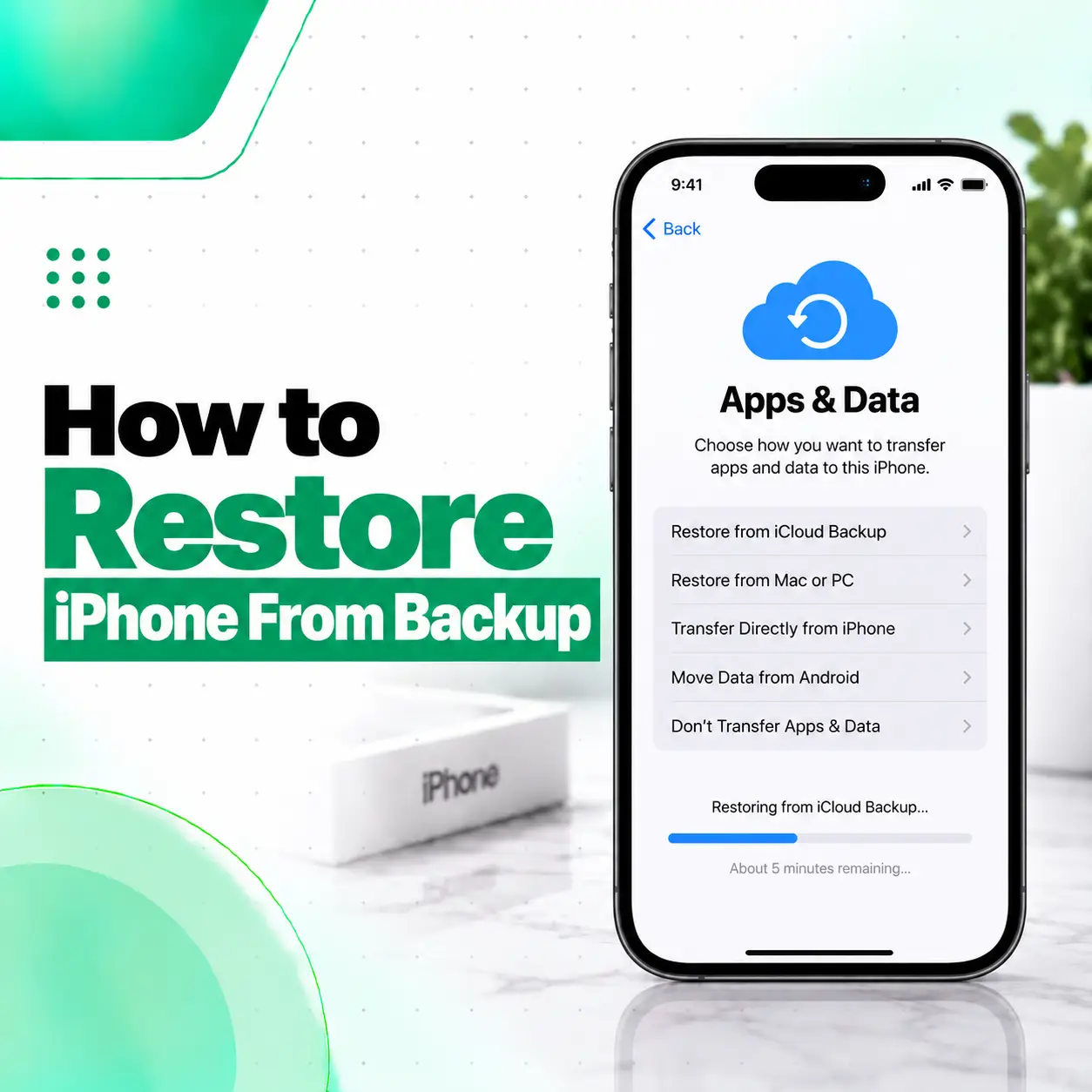
If you have replaced an iPhone, erased your device, or lost information after a software problem, restoring from a backup can bring your saved data and settings back. To restore an iPhone from an iCloud backup, start with the Hello screen, choose “From iCloud Backup” during setup, sign in to your Apple Account, and select the appropriate backup. You can also restore from a backup stored on a Mac or Windows PC using Finder, the Apple Devices app, or iTunes, depending on your computer.
Before starting, check which backup you have, its date and size, and whether your iPhone needs a newer iOS version. This guide explains both restore methods, what happens to your data, common problems, and what to do when a restore does not complete.
How Do You Restore iPhone From Backup?
You can restore an iPhone from either an iCloud backup or a computer backup. The correct method depends on where your backup was created.
| Backup type | Where the backup is stored | Main restore method |
| iCloud backup | iCloud | Restore during iPhone setup |
| Mac backup | Your Mac | Finder |
| Windows backup | Your PC | Apple Devices app or iTunes |
If your iPhone is already fully set up and you want to restore an iCloud backup using Apple’s setup process, Apple says you need to erase the device first. Erasing removes its current content and settings, so make sure anything you still need is backed up before proceeding.
How to Restore iPhone From iCloud Backup
The iCloud method is useful when your previous iPhone was backed up to iCloud and you want to restore that backup to a new or erased iPhone.
Step 1: Start With the Hello Screen
Turn on the iPhone and begin the setup process.
If the device has already been set up and you need to restore through Apple’s setup flow, erase its content first:
Settings → General → Transfer or Reset iPhone → Erase All Content and Settings
The exact wording can vary by iOS version. Erasing the iPhone removes the information currently stored on it.
Step 2: Choose From iCloud Backup
Continue through the setup screens until you reach Transfer Your Apps & Data.
Step 3: Sign In to Your Apple Account
Enter the Apple Account credentials associated with the backup.
Make sure you have access to the correct account before starting. You may also need to sign in again to restore apps and purchases. If content was purchased using more than one Apple Account, Apple says you may be asked to sign in to each relevant account.
Step 4: Choose the Correct Backup
Your iPhone will display available backups.
Look at the date and size of each backup and select the one that best matches the information you want to recover.
Choosing the wrong backup can mean restoring an older version of your data, so do not select one based only on its name.
Step 5: Let the Restore Complete
Keep the iPhone connected to Wi-Fi while the restore process runs.
Apple notes that the initial progress can take from minutes to around an hour depending on backup size and network speed. After setup, apps, photos, music, and other content can continue restoring in the background, potentially for several hours or longer depending on how much data is involved. Keeping the iPhone connected to Wi-Fi and power helps the process continue.
How to Restore iPhone From a Computer Backup
If your backup is stored locally on a Mac or Windows PC, you can restore it through Apple’s computer software.
Restore Using Finder on Mac
On newer versions of macOS, use Finder.
- Connect the iPhone to the Mac with a compatible cable.
- Open Finder.
- Select the iPhone in the Finder sidebar.
- If prompted, enter the iPhone passcode or choose to Trust the computer.
- Select Restore Backup.
- Review the available backup dates.
- Select the appropriate backup.
- Click Restore.
- Enter the password if the backup is encrypted.
- Keep the iPhone connected until the restore and synchronization are complete. Restore Using Apple Devices on Windows
On Windows, Apple currently uses the Apple Devices app for this process on supported systems.
- Connect the iPhone to your PC.
- Open the Apple Devices app.
- Select your iPhone.
- Choose Restore Backup.
- Select the backup you want.
- Click Restore.
- Enter the encrypted-backup password when requested.
- Keep the device connected until the process finishes.
What About iTunes?
On Windows systems that use iTunes instead of the Apple Devices app, the restore process is performed through iTunes. Apple also documents iTunes for older versions of macos
Do You Need to Erase Your iPhone Before Restoring a Backup?
It depends on how you are restoring the backup. For restoring an iCloud backup through the iPhone setup process, Apple says an already configured iPhone must be erased first. The device then returns to the Hello screen so you can select the backup during setup.
For an iPhone you’re setting up as new, you can select the backup during initial setup without first performing a separate erase.
Why Does Apple Require an Erase?
A backup restoration is intended to return the device to a previous backed-up state.
If the iPhone is already configured and you want to replace that setup with the contents of a backup, Apple uses the setup process after erasure rather than simply merging two complete device states together.
Before erasing an existing iPhone, back up any newer information that is not already safely stored elsewhere.
What Happens When You Restore an iPhone From Backup?
Restoring a backup can bring back apps, data, settings, and other information that was included in the backup or synced through Apple’s services. The exact content depends on the type of backup and which services were already syncing your information.
For example, an iCloud backup can include device settings, Home Screen layout, app organization, and app data that is not already being synced to iCloud. Items already synced separately through services such as iCloud Photos or Messages in iCloud are handled through synchronization rather than being duplicated inside the backup.
Does a Backup Restore Apps?
Yes, supported apps can be restored after the backup is selected.
Apple says you may need to sign in to your Apple Account to restore apps and purchases. Some content may then download again from Apple’s services rather than existing as a complete copy inside the backup itself.
What Data Does an iCloud Backup Include?
An iCloud backup generally contains information and settings stored on the device that are not already being synced to iCloud. Apple lists items such as device settings, Home Screen layout, app organization, and app data among the information that can be included.
However, not everything is stored directly inside the backup.
For example:
- Photos may already be stored in iCloud Photos.
- Messages may already be synchronized using Messages in iCloud.
- Contacts, calendars, and notes that are already synced to iCloud do not need to be stored again inside the backup.
- Apple Pay information and Face ID or Touch ID settings are not restored as ordinary backup data.
This is why restoring a backup does not mean every piece of information is necessarily coming from one single backup file.
What Is the Difference Between iCloud and Computer Backup?
Both methods can restore an iPhone, but their storage and behavior differ.
| Feature | iCloud Backup | Computer Backup |
| Storage location | iCloud | Mac or Windows PC |
| Requires computer | No | Yes |
| Restore through setup | Yes | Usually through Finder, Apple Devices, or iTunes |
| Encrypted backup option | Managed through iCloud security | Local backup can be encrypted |
| Internet connection | Needed during iCloud restoration | Mainly used for computer connectivity and syncing |
Apple notes that computer backups contain almost all device data and settings, while some content that comes from Apple services is handled separately. Computer backups can also be encrypted, which is important for certain sensitive data.
What If Your Backup Needs a Newer Version of iOS?
A restore can fail when the backup requires a newer version of iOS than the one currently installed on the iPhone.
If Apple tells you that a newer iOS version is required, update the iPhone before restoring the backup. For iCloud restoration, Apple can guide you through the required software update. For computer backups, you may need to update the device first and then retry the restore.
Example
Suppose your previous iPhone was running a newer iOS release and you are restoring that backup to a device running an older release.
The backup may not be compatible until the destination iPhone is updated.
Do not treat the compatibility message as evidence that the backup is corrupt. It may simply mean the phone needs a newer software version.
What If You Forgot the Encrypted Backup Password?
Computer backups can be encrypted with a password.
If you are restoring an encrypted computer backup, Apple requires that backup password when prompted. Apple states that an encrypted backup cannot be recovered without its password.
This is especially important before choosing a local encrypted backup as your only backup method.
Keep the password somewhere secure and separate from the computer.
Can You Restore an Old iPhone Backup to a New iPhone?
Yes. A backup from a previous iPhone can be used to set up a new iPhone, provided the backup is compatible and available through iCloud or your computer. Apple offers iCloud, computer backup, and Quick Start as methods for transferring information to a new device.
For a completely new iPhone, you can choose the appropriate transfer option during setup.
Is Quick Start the Same as Restoring a Backup?
Not exactly.
Quick Start helps set up a new iPhone using your previous device. Apple supports both direct transfer and downloading data from iCloud during the process.
If your goal is specifically to restore a previously created backup, use the corresponding iCloud or computer backup option.
Can You Restore a Backup After an iPhone Repair?
Yes. After some repair or service procedures, an iPhone may need to be restored from an existing backup.
Apple specifically notes that after a service appointment, you may need to restore from an iCloud backup or a computer backup, or choose to set up the iPhone as a new device.
Why Should You Back Up Before Repair?
A repair process can sometimes involve software procedures, device resets, or circumstances where data cannot be preserved.
For that reason, create a current backup before handing an iPhone over for service whenever the device still works and can be backed up.
This is particularly important if your phone has an intermittent problem and you are not sure whether it will continue operating normally during diagnosis.
What Should You Do Before Restoring an iPhone Backup?
A few checks can prevent common mistakes.
Confirm the Backup Exists
Make sure you actually have a usable iCloud or computer backup before erasing the iPhone.
Check the Backup Date
Choose a backup that is recent enough to contain the information you need. Apple specifically recommends checking backup dates and sizes before selecting one.
Know Your Apple Account Password
You may need your Apple Account credentials during setup and again when restoring apps and purchases.
Keep the Device Connected
For an iCloud restore, maintain a stable Wi-Fi connection and keep the iPhone connected to power when appropriate. Apple explains that content can continue restoring after initial setup.
Do Not Erase Too Early
If you still have access to the old iPhone and have not confirmed a usable backup, avoid erasing it first.
A backup should be verified before the original device is wiped whenever possible.
Why Is My iPhone Not Restoring From Backup?
A failed restore can have several causes, including an incompatible iOS version, an unavailable backup, a computer connection problem, or an issue with the backup itself.
Check the Software Version
If the backup requires newer software, update the iPhone and retry.
Check Wi-Fi for iCloud Restore
An iCloud restore relies on a network connection. If Wi-Fi disconnects, Apple says the progress can pause until the connection is restored.
Check the Computer Connection
For a computer restore, make sure the iPhone is detected by Finder, Apple Devices, or iTunes. Apple recommends updating the computer software and restarting the devices when troubleshooting computer backup and restore problems.
Try the Restore Again
If the restore fails temporarily, repeat the process after checking the software, connection, backup availability, and required passwords.
Avoid repeatedly erasing the device without confirming that the intended backup is available.
What If Some Data Is Missing After Restoring?
A successful restore does not necessarily mean that every item will appear immediately.
For an iCloud restore, apps, photos, music, and other content can continue restoring in the background after setup. Apple says the overall process can continue for hours or longer depending on the amount of data.
Check Whether the Missing Data Was Synced Instead
Some information may not have been part of the backup because it was already syncing with iCloud or another service.
For example, data already synchronized through iCloud services is handled through that synchronization rather than being restored as ordinary backup content.
Check Another Backup
If important information is missing, Apple recommends checking whether another backup exists, including a computer backup that may contain the needed information.
How Long Does iPhone Backup Restore Take?
There is no single restore time for every iPhone.
The time depends on factors such as:
- Backup size
- Internet speed
- Number of apps and files
- Computer connection speed for local backups
- Whether additional content must download after setup
Apple notes that the initial iCloud restore can range from minutes to about an hour in some cases, while additional content can continue restoring in the background for several hours or days depending on the amount of information involved.
A longer restore does not necessarily mean something is wrong.
Can You Use the iPhone During an iCloud Restore?
Yes, after the initial setup completes, some content can continue restoring in the background.
Apple recommends keeping the device connected to Wi-Fi and power to allow apps, photos, music, and other content to finish downloading and restoring.
So, seeing an iPhone that looks usable does not always mean the entire restore process has finished.
Is Restoring From Backup the Same as Factory Reset?
No.
A factory reset or erase removes the current information and settings from the iPhone. Restoring from a backup is the process of putting saved information and settings back onto a new or newly erased device.
Apple’s factory-restore documentation confirms that erasing the device removes its information and settings, while its backup-restore documentation describes restoring saved content afterward.
This is why a restore workflow may involve two separate stages:
Erase the device → Set it up again → Restore the backup
Should You Restore a Backup Yourself or Get Professional Help?
For a normal backup restore, the process is designed for users to perform themselves.
Professional assistance becomes more relevant when the iPhone cannot boot properly, repeatedly fails during restoration, is stuck in a recovery-related state, or has additional hardware symptoms such as charging problems, display faults, liquid damage, or an unresponsive touchscreen.
In those situations, restoring the backup may only be one part of the larger problem.
When Professional Diagnosis May Help
Consider a professional inspection when:
- The iPhone repeatedly fails to start.
- The restore process consistently fails after software troubleshooting.
- The phone disconnects unexpectedly during computer restore.
- The device has suffered liquid or physical damage.
- Several hardware functions stopped working at the same time.
- You are concerned about preserving important data before further repair.
A repair technician can help distinguish a backup problem from a broader device or hardware problem.
For iPhone users in Bangladesh, iCareFix can assess the device when a normal backup restoration does not address the underlying issue.
Frequently Asked Questions
1. How do I restore my iPhone from an iCloud backup?
Turn on the iPhone and begin setup until you reach Transfer Your Apps & Data. Select From iCloud Backup, sign in to your Apple Account, and choose the appropriate backup by checking its date and size. Keep the device connected to Wi-Fi while the restore runs. Apps and other content may continue restoring after the initial setup is complete.
2. Do I have to erase my iPhone before restoring a backup?
If the iPhone is already set up and you want to restore an iCloud backup through Apple’s setup process, yes. Apple requires the device to return to the Hello screen first, which means erasing its current content and settings. If you’re setting up a new or already-erased iPhone, you can choose the backup during setup without performing another erase.
3. Can I restore my iPhone from a backup on a computer?
Yes. Connect the iPhone to your Mac or Windows PC and use Finder, the Apple Devices app, or iTunes, depending on your computer and software version. Select the device, choose Restore Backup, select the backup by date, and confirm the restore. An encrypted backup requires its password before the restoration can proceed.
4. Will restoring an iPhone from backup delete my current data?
Restoring a backup can replace the device’s current setup with information from the selected backup. For an already configured iPhone, Apple requires an erase before restoring an iCloud backup through setup. Therefore, back up any newer information you still need before erasing the device. Do not assume that information created after the selected backup date will be preserved automatically.
5. What if my backup requires a newer version of iOS?
Update the iPhone before attempting the restore again. Apple explains that both iCloud and computer backups can require a newer version of iOS than the destination device currently has. With iCloud restoration, the setup process can guide you through the update. For a computer backup, update the iPhone first and then retry the restore.
6. Why are some apps, photos, or messages missing after the restore?
Some content may still be downloading or syncing after the initial restoration. In addition, information already synchronized with iCloud may not have been stored directly inside the backup. Apple recommends checking whether the missing information is covered by the backup and looking for another available backup when necessary.
7. What should I do if my iPhone won’t restore from backup?
First check the iOS version, backup availability, Wi-Fi connection for iCloud restores, and computer software or cable connection for local restores. Restarting the relevant devices can also help with computer-based restore problems. If the restore repeatedly fails or the iPhone has other symptoms such as physical damage, boot problems, or hardware failures, professional diagnosis may be appropriate.
Conclusion
Learning how to restore iPhone from backup is mainly about choosing the right restoration method and confirming that the backup is compatible with the device. With iCloud, start from the Hello screen, select From iCloud Backup, sign in, choose the correct backup, and keep the iPhone connected to Wi-Fi. With a computer backup, use Finder, Apple Devices, or iTunes and select Restore Backup.
Before erasing an existing iPhone, verify that your backup is available and recent enough to contain the information you need. Also remember that some data is synchronized separately through iCloud and that apps and purchased content may need to download again.
If the restore repeatedly fails or your iPhone has additional hardware or startup problems, a professional diagnosis can help identify whether the issue is software-related, backup-related, or caused by the device itself. iCareFix can assess an iPhone and recommend the appropriate next step when normal restoration does not resolve the problem.