




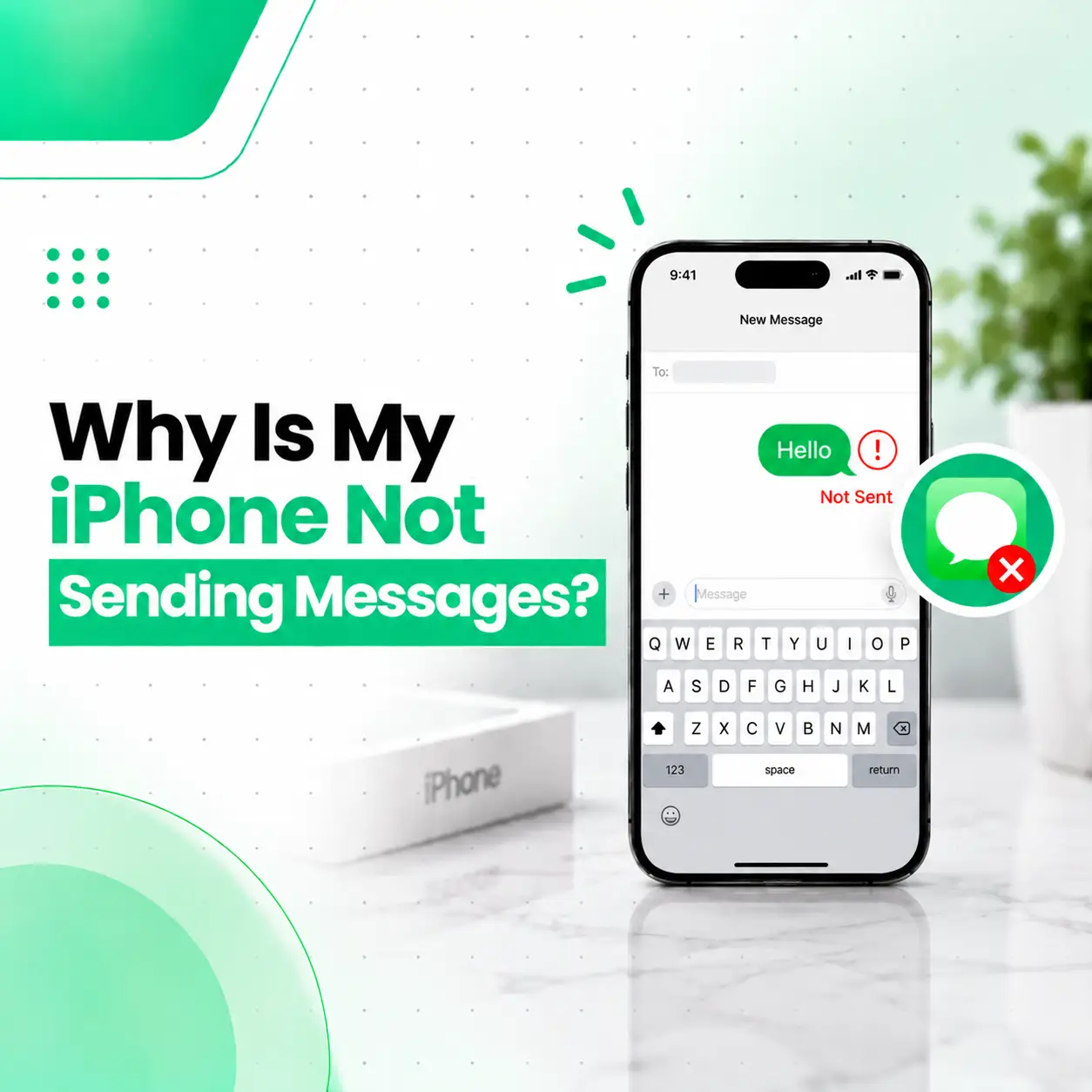
If you are wondering why your iPhone is not sending messages, the problem may be caused by a weak or unavailable network connection, an iMessage issue, incorrect Messages settings, a disabled cellular line, carrier restrictions, or a problem with your SIM/eSIM or device hardware. The exact cause often depends on whether you are trying to send an iMessage, SMS, MMS, or RCS message.
Start by checking your network connection and whether the problem affects one contact or every contact. If a message shows a red exclamation mark with Not Delivered, you can try sending it again or, where available, send it as a text message. If basic troubleshooting does not solve the issue, professional iPhone diagnosis can help determine whether the problem is software-, network-, SIM-, or hardware-related.
Why Is My iPhone Not Sending Messages?
Your iPhone may not send messages because of a network problem, incorrect iMessage settings, a disabled phone line, carrier limitations, an incorrect recipient number, or a problem with the Messages app or device.
The first step is to identify which type of message is failing:
- Blue bubble: Usually an iMessage sent through Wi-Fi or mobile data.
- Green bubble: Uses SMS, MMS, or RCS depending on the conversation and carrier support.
- Red exclamation mark: Indicates that a message was not delivered.
- No service or weak cellular connection: Can prevent SMS and affect other messaging services.
- Messages failing only with one contact: May indicate a recipient, number, or conversation-specific issue.
Apple recommends checking the network connection, retrying a failed message, and contacting the carrier if SMS, MMS, or RCS messages continue to fail.
Common Reasons Your iPhone Is Not Sending Messages
Weak or Unavailable Network Connection
A poor cellular or Wi-Fi connection is one of the first things to check.
iMessage requires Wi-Fi or mobile data. SMS messages normally require a cellular network connection. Depending on the carrier and setup, Wi-Fi Calling can also support SMS over Wi-Fi.
Try:
- Check the Wi-Fi or cellular signal.
- Turn Airplane Mode on for a few seconds.
- Turn Airplane Mode off.
- Try sending the message again.
- If possible, switch between Wi-Fi and mobile data.
If other internet-based services also fail, the issue may be related to connectivity rather than the Messages app.
iMessage Is Not Working
If your iPhone cannot send an iMessage, the issue may involve your internet connection, iMessage activation, or the phone number/email address selected for Messages.
Check:
Settings → Apps → Messages → Send & Receive
Make sure the phone number or email address you intend to use is selected.
If necessary, you can also turn iMessage off and back on and then check your Send & Receive settings.
Your Cellular Line Is Turned Off
If you use multiple SIMs or eSIMs, the phone line associated with your messaging service may not be active.
Check your cellular settings and make sure the correct line is turned on.
This is especially worth checking if the messaging problem started after:
- Setting up a new iPhone
- Adding an eSIM
- Changing SIM cards
- Transferring your number
- Switching carriers
Apple specifically recommends checking that the relevant phone line is enabled when troubleshooting Messages after setting up a device.
The Recipient’s Number Is Incorrect
If messages fail with only one person, check the recipient’s phone number or email address.
A messaging problem affecting a single contact can be different from a problem affecting all outgoing messages.
Try creating a new message and manually entering the recipient’s number instead of using an old conversation.
Your Carrier Does Not Support the Message Type
SMS, MMS, and RCS depend partly on carrier support.
If ordinary texts work but picture messages, group messages, or certain RCS features do not, the issue may be related to carrier support or messaging configuration.
Contact your mobile carrier if you cannot send or receive SMS, MMS, or RCS messages after checking your iPhone settings.
Software or Settings Problems
Temporary iOS or Messages-related problems can sometimes affect messaging.
Before assuming there is a hardware fault:
- Restart the iPhone.
- Check for an available iOS update.
- Check your Messages settings.
- Check your cellular line.
- Check your network connection.
- Try another recipient.
- Try another message type.
If the issue remains across different contacts and networks, further diagnosis may be necessary.
What Does the Red Exclamation Mark Mean on an iPhone Message?
A red exclamation mark usually means the message was not delivered.
Tap the red exclamation mark to see the available options. Depending on the situation, you may be able to:
- Tap Try Again.
- Check your network connection.
- Choose Send as Text Message if the option is available.
Apple also provides a Send as Text Message setting that can allow the iPhone to attempt SMS delivery when iMessage is unavailable.
How to Fix an iPhone That Is Not Sending Messages
Try these troubleshooting steps in order.
Step 1: Check Your Internet or Cellular Connection
Open a website or another internet-based app to check whether your connection is working.
For SMS, make sure your iPhone has cellular service.
If you see no cellular connection, messaging problems may be related to the mobile network or SIM/eSIM rather than the Messages app.
Step 2: Restart Your iPhone
A restart can clear temporary software or connectivity problems.
Turn the iPhone off, wait briefly, and turn it back on. Then try sending the message again.
Step 3: Check iMessage Settings
Go to:
Settings → Apps → Messages
Check that iMessage is enabled if you want to use iMessage.
Then open:
Send & Receive
Confirm that the correct phone number or email address is selected.
Step 4: Turn on Send as Text Message
If iMessage is unavailable, SMS may provide another way to send the message.
Go to:
Settings → Apps → Messages → Send as Text Message
Turn it on if the option is available and appropriate for your carrier plan.
Remember that SMS availability depends on cellular service and carrier support.
Step 5: Check Your Phone Line
If you use Dual SIM or eSIM, make sure the line associated with your phone number is active.
Check your cellular settings and confirm that the correct number is selected.
Step 6: Try Another Contact
Send a short message to another contact.
This helps determine whether:
- One conversation is affected.
- One recipient’s number may be incorrect.
- All outgoing messages are failing.
Step 7: Update iOS
Check whether an iOS update is available.
Keeping the operating system current can also help rule out problems related to outdated software.
Step 8: Check Carrier Support
If SMS, MMS, or RCS messages still cannot be sent, contact your carrier.
Ask whether:
- Your account is active.
- Messaging is enabled.
- There is a network outage.
- SMS/MMS/RCS is supported on your plan.
- There is a problem with your SIM or mobile line.
Apple recommends contacting the network provider when SMS, MMS, or RCS messaging continues to fail.
Why Can I Receive Messages but Not Send Them?
If you can receive messages but cannot send them, the problem may involve your outgoing messaging configuration, network connection, carrier service, phone number settings, or iMessage activation.
Try sending a message to several contacts.
If only iMessages fail, check iMessage and Send & Receive settings.
If SMS messages also fail, check your cellular connection, SIM/eSIM, phone line, and carrier service.
If both types fail despite a working network connection, professional diagnosis may be appropriate.
Why Is My iPhone Not Sending Messages to One Person?
If your iPhone sends messages normally to other people but not one particular contact, check the recipient information first.
Possible explanations include:
- Incorrect phone number
- Incorrect email address for iMessage
- A problem with the existing conversation
- The recipient’s device or service being unavailable
- A carrier or messaging compatibility issue
Try starting a new conversation with the correct phone number.
If messages still fail only with that recipient, the issue may not be a hardware problem with your iPhone.
Why Are My iPhone Messages Green Instead of Blue?
Green messages are generally sent using SMS, MMS, or RCS rather than iMessage.
Blue bubbles indicate iMessage.
A green bubble does not automatically mean that your iPhone is broken. It can simply mean that iMessage is unavailable or that the recipient is not using iMessage.
For example, Apple explains that messages to non-Apple devices can use SMS, MMS, or RCS and appear as green bubbles.
Why Is My iPhone Not Sending Group Messages?
Group messaging can involve different technologies depending on the participants and carrier support.
If individual messages work but a group conversation does not, check:
- Your network connection
- Messages settings
- Send as Text Message
- Group Messaging settings, where available
- Carrier support for group MMS or RCS
- Whether you accidentally left the group
If you cannot send group messages but individual messages work normally, the problem may be related to group messaging configuration rather than the iPhone’s entire messaging system.
What If My iPhone Has Signal but Still Cannot Send Messages?
Having signal bars does not necessarily mean every messaging service is working correctly.
If your iPhone has cellular signal but messages still fail:
- Restart the iPhone.
- Test mobile data.
- Try sending an iMessage.
- Try sending an SMS.
- Check your phone line.
- Check Messages settings.
- Contact your carrier if SMS/MMS/RCS continues to fail.
If the carrier confirms that your account and network are working normally, further device-level diagnosis may be appropriate.
When Is an iPhone Messaging Problem a Hardware Issue?
Most messaging problems should be checked for network, carrier, and software causes before assuming the phone needs repair.
However, professional inspection can become more relevant when:
- Cellular service repeatedly disappears.
- The phone shows persistent SIM/eSIM problems.
- The device has suffered liquid damage.
- The problem started after physical damage.
- Cellular connectivity fails across multiple locations.
- Messaging, calls, and mobile data fail together.
- Network-related functions remain unreliable after software troubleshooting.
A technician may need to inspect the device’s SIM-related components, cellular connectivity hardware, antenna connections, or other internal components.
Hardware repair should be based on diagnosis rather than symptoms alone.
How iCareFix Can Diagnose an iPhone That Cannot Send Messages
A professional repair technician can separate a messaging problem into different possible causes instead of immediately replacing a component.
A typical diagnostic process may include:
Software and Settings Check
The technician can review relevant Messages, cellular, and network settings and determine whether the problem appears software-related.
SIM or eSIM Check
The cellular line and SIM/eSIM behavior can be assessed when the problem involves mobile service.
Network and Connectivity Testing
The device can be tested for cellular connectivity and related symptoms.
Hardware Inspection
If there is evidence of physical or liquid damage, the device may require additional hardware inspection.
The goal is to identify the actual source of the problem before recommending a repair.
iPhone Message Repair Cost in Bangladesh
There is no single repair price for an iPhone that cannot send messages because the cause may range from a simple settings problem to a carrier issue or a hardware fault.
Potential cost factors include:
- iPhone model
- Type of fault
- SIM/eSIM-related issue
- Software versus hardware problem
- Damaged internal component
- Part availability
- Replacement versus component-level repair
- Labor and diagnostic requirements
- Part quality
A device that only needs a settings correction may not require hardware repair at all. A phone with physical or liquid damage may require more extensive diagnosis.
For this reason, a professional inspection is more useful than estimating a repair price from the symptom alone.
Can You Fix an iPhone Messaging Problem Yourself?
Yes, many messaging problems can be addressed with basic troubleshooting.
Start with:
- Checking Wi-Fi and cellular service.
- Restarting the iPhone.
- Checking iMessage.
- Checking Send & Receive.
- Confirming the phone line is active.
- Checking Send as Text Message.
- Updating iOS.
- Contacting the carrier when SMS/MMS/RCS is affected.
Avoid opening the iPhone or replacing internal components without proper diagnostic experience.
Incorrect hardware repair can create additional problems, particularly if the original issue was caused by software or carrier service.
Can a Messaging Problem Delete My Messages?
Troubleshooting messaging settings does not necessarily mean your existing conversations will disappear, but you should still be careful when changing accounts, resetting settings, or performing major software procedures.
If your messages are important, make sure you have an appropriate backup before performing significant device changes.
For a persistent messaging problem, professional diagnosis can help reduce unnecessary changes to the device.
How to Prevent Future iPhone Messaging Problems
You cannot prevent every messaging problem, but several habits can reduce avoidable issues.
- Keep iOS reasonably up to date.
- Maintain a working cellular or Wi-Fi connection.
- Make sure your active phone line is correct.
- Check Messages settings after changing SIMs or eSIMs.
- Keep your carrier account active.
- Avoid unnecessary physical damage to the phone.
- Protect the device from liquid exposure.
- Do not install questionable configuration profiles or software.
- Address recurring cellular problems early.
If messaging problems repeatedly return, investigate the underlying cause instead of repeatedly restarting the phone.
When Should You Visit a Professional iPhone Repair Service?
Consider professional inspection when basic troubleshooting does not resolve the issue and the problem appears to involve the device itself.
Professional diagnosis is particularly useful when:
- Messages, calls, and mobile data are all affected.
- Cellular service repeatedly disappears.
- The phone has been dropped or exposed to liquid.
- SIM-related problems continue.
- Network problems persist despite a confirmed working carrier account.
- The device has a history of previous repair.
- The problem continues after software and settings troubleshooting.
A technician can determine whether the issue is related to the carrier, software, SIM/eSIM, or internal hardware before recommending a repair.
Frequently Asked Questions
1. Why is my iPhone not sending messages?
Your iPhone may not send messages because of a weak network connection, iMessage settings, an inactive cellular line, carrier restrictions, an incorrect recipient number, or a software problem. Check your connection first, then review Messages and Send & Receive settings. If SMS also fails, contact your carrier.
2. Why does my iPhone message say Not Delivered?
“Not Delivered” means the message was not successfully sent to the recipient. Check your internet or cellular connection and tap the red exclamation mark to retry. If available, you may also see an option to send the message as a text message.
3. Why is iMessage not sending but SMS works?
If SMS works while iMessage does not, the issue may involve iMessage activation, your internet connection, or the phone number/email selected under Send & Receive. Check your Wi-Fi or mobile data and verify your iMessage settings.
4. Why can I receive messages but not send them?
Receiving messages while outgoing messages fail can point to an outgoing messaging configuration, carrier, network, or iMessage issue. Test different contacts and message types. If SMS and iMessage both fail despite working connectivity, professional diagnosis may be necessary.
5. Can I fix an iPhone that is not sending texts myself?
Many software and settings-related messaging problems can be troubleshot yourself. Check your connection, restart the iPhone, verify your phone line and Messages settings, and check for iOS updates. Avoid opening the device unless you have appropriate repair experience.
6. How much does it cost to fix an iPhone that cannot send messages in Bangladesh?
The cost depends on the actual cause. A settings or carrier issue may not require hardware repair, while physical damage or a cellular-related hardware fault can require further diagnosis and potentially component repair. A technician should inspect the device before quoting a hardware repair.
7. When should I take my iPhone to a repair technician?
Consider professional inspection when messaging problems continue after basic troubleshooting, especially if calls and mobile data are also affected or the phone has experienced physical or liquid damage. A technician can determine whether the problem is software-, SIM/eSIM-, network-, or hardware-related.
Conclusion
If you are asking why your iPhone is not sending messages, start with the simplest possibilities: check your Wi-Fi or cellular connection, restart the phone, verify iMessage and Send & Receive settings, confirm that your cellular line is active, and check whether SMS, MMS, or RCS is supported by your carrier.
If the problem affects multiple messaging services or continues despite normal network and account service, the issue may require deeper diagnosis. In Bangladesh, a professional phone