




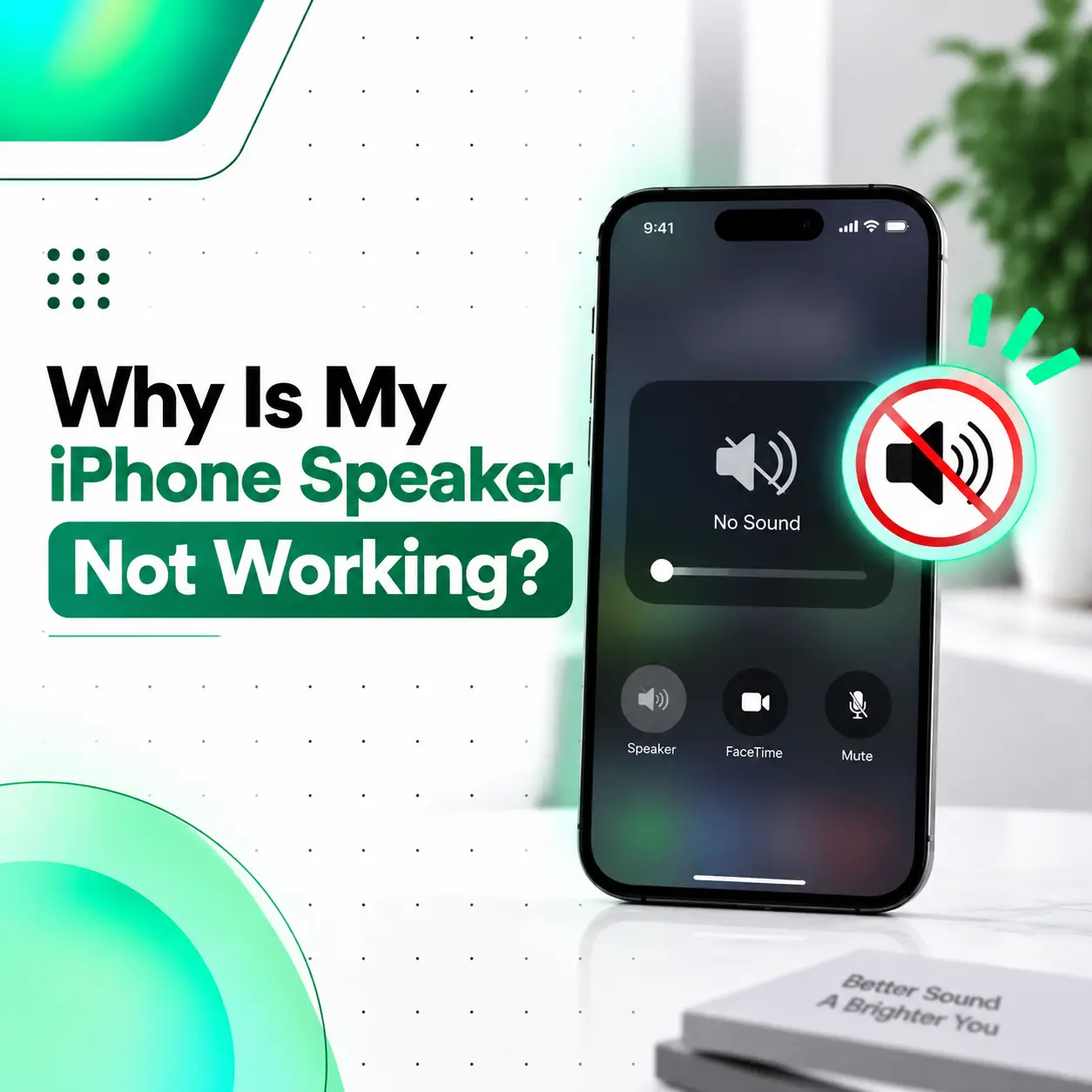
If your iPhone speaker is not working, the cause could be something simple such as Silent Mode, low volume, an incorrect audio output, or dirt blocking the speaker opening. It can also be caused by software problems, liquid exposure, physical damage, a faulty speaker module, or an internal audio-related component.
The symptoms can vary. You may hear absolutely no sound, very low volume, muffled audio, crackling, static, or sound that works through headphones but not through the built-in speaker. Apple recommends checking settings, removing obstructions, cleaning the speaker opening carefully, and testing sound before seeking service.
This guide explains why your iPhone speaker is not working, how to troubleshoot the problem safely, how technicians diagnose speaker faults, what can affect repair cost in Bangladesh, and when professional inspection from iCareFix Phone Repair may be appropriate.
Why Is My iPhone Speaker Not Working?
An iPhone speaker may stop producing sound because of incorrect sound settings, a blocked speaker opening, Bluetooth audio routing, a temporary software issue, liquid or impact damage, or a fault in the speaker or related audio hardware.
Common causes include:
- Silent Mode being enabled
- Focus or Do Not Disturb settings affecting alerts
- Volume being set too low
- Audio being routed to a Bluetooth device
- Dust or debris blocking the speaker opening
- A case or screen protector interfering with the speaker or receiver
- A temporary iOS software problem
- Liquid or moisture damage
- Physical impact
- A damaged speaker module
- A damaged internal connector
- A problem with audio-related circuitry or the motherboard
The first step is to determine whether all iPhone sound is missing or only one particular type of audio is affected.
What Does an iPhone Speaker Problem Sound Like?
An iPhone speaker fault does not always mean complete silence. Different symptoms can point toward different areas of the device.
You may experience:
- No sound from music or videos
- No ringtone or alert sound
- Very low speaker volume
- Muffled or unclear audio
- Crackling or static
- Distorted sound at higher volume
- Speakerphone not working during calls
- Earpiece or receiver sound being too quiet
- Sound working through headphones but not the built-in speaker
- Intermittent sound that cuts in and out
- Sound disappearing after water exposure or a drop
No Sound at All
If there is no sound from music, videos, ringtones, or speakerphone, check the basic settings and audio output before assuming the speaker is damaged.
Low or Muffled Sound
Low or muffled sound can occur when the speaker opening is blocked by dust, debris, a case, or another obstruction. A damaged speaker can also produce weak or distorted audio.
Crackling or Distorted Sound
Crackling, static, or distortion can indicate a problem with the speaker itself, an obstruction, physical damage, or another audio-related issue. If the sound remains distorted after basic troubleshooting, the device may need service.
How to Fix an iPhone Speaker That Is Not Working
Before taking the phone apart, work through these basic checks.
1. Check the Volume
Start by increasing the volume while playing music or a video.
You can also open Control Center and adjust the volume slider. Apple provides volume controls through Control Center and the Sounds & Haptics settings.
Test the sound again after increasing the volume.
2. Turn Off Silent Mode
Silent Mode can prevent certain calls, alerts, and notification sounds from playing through the built-in speaker.
On iPhones with a Ring/Silent switch, check whether the switch is showing orange. On supported models with an Action button, check the current Silent Mode setting.
Apple notes that Silent Mode affects ringing, alerts, and sound effects, although some audio apps and games may continue to play through the built-in speaker.
If music or videos still have no sound even when Silent Mode is off, continue troubleshooting.
3. Check Focus and Do Not Disturb
Focus settings can affect incoming calls, messages, and notification sounds.
To check:
- Open Control Center.
- Tap Focus.
- Check whether Do Not Disturb is active.
- Turn it off temporarily.
- Test the sound again.
This is particularly useful if music works but ringtone or notification sounds do not. Apple specifically recommends checking Do Not Disturb when troubleshooting iPhone speaker sound problems.
4. Check the Audio Output
Your iPhone may be sending audio to another device instead of its built-in speaker.
For example, audio may be playing through:
- Bluetooth headphones
- Wireless earbuds
- A Bluetooth speaker
- A car audio system
- Another connected audio accessory
While audio is playing, check the playback destination through the relevant audio controls and select the iPhone if necessary. Apple explains that audio can be routed to Bluetooth accessories from the playback destination controls.
If sound returns after disconnecting a Bluetooth device, the iPhone speaker itself may not be faulty.
5. Remove the Case or Screen Protector Temporarily
Cases, films, and other accessories can sometimes interfere with speaker or receiver openings.
Remove the case and any accessory that could be covering the speaker area, then test the sound again.
Apple recommends removing screen protectors, films, or cases when troubleshooting speaker problems.
6. Check and Clean the Speaker Opening
Look closely at the speaker opening for visible dust or debris.
If necessary:
- Turn the iPhone off if practical.
- Use a small, clean, dry, soft-bristled brush.
- Gently brush the speaker opening.
- Avoid pushing debris deeper into the opening.
- Test the speaker again.
Apple specifically recommends a small, soft-bristled brush that is clean and dry when the speaker or receiver opening needs cleaning.
Avoid using sharp objects, excessive pressure, or liquids inside the speaker openings.
7. Test the Ringtone and Alerts Slider
Apple recommends checking the Ringtone and Alerts slider in Settings > Sounds & Haptics.
Move the slider back and forth several times.
If you hear no sound and the speaker control associated with the slider is dimmed, Apple indicates that the speaker may need service.
This is a useful test because it helps determine whether the problem affects the system’s built-in speaker output rather than only one application.
8. Restart the iPhone
A temporary software problem can sometimes affect audio output.
Restart the iPhone and then test:
- A ringtone
- A YouTube or other video
- Music
- Speakerphone
- Notification sounds
If sound returns after restarting but disappears again later, there may be an intermittent software or hardware issue that deserves further investigation.
If the phone is unresponsive and requires a force restart, the exact button combination depends on the iPhone model.
9. Update iOS
If basic troubleshooting does not help, check whether an iOS update is available.
Go to:
Settings → General → Software Update
Apple’s current iPhone documentation recommends keeping the device updated and provides automatic and manual update options.
If the speaker problem began after a software change, note when it started. This information can be useful during diagnosis.
Why Is My iPhone Speaker Still Not Working After These Fixes?
If the speaker remains silent after checking settings, audio output, accessories, the speaker opening, restarting, and updating iOS, the problem may be hardware-related.
Potential causes include:
- Damaged speaker module
- Internal connector problem
- Liquid damage
- Physical impact
- Corrosion
- Damaged audio circuitry
- Previous repair-related damage
- Motherboard-level fault
At this stage, repeatedly changing settings is unlikely to solve a physically damaged component. A technician should diagnose the device before replacing parts.
Why Is My iPhone Speaker Muffled or Very Quiet?
A muffled or unusually quiet iPhone speaker is often associated with an obstruction, accessory, or speaker hardware problem.
Dust and Debris
Dust, lint, and other debris can accumulate around the speaker opening and affect sound output.
Do not use pins, needles, SIM tools, or other sharp objects to clean the grille. They can damage the speaker mesh or push debris further inside.
Case or Accessory Obstruction
A poorly fitted case or screen-related accessory may partially cover an opening. Remove the accessory temporarily and compare the sound.
Liquid Exposure
Moisture can affect speaker performance and may produce muffled or distorted sound.
If the phone was recently exposed to water or another liquid, avoid repeatedly charging or testing it if there are other signs of liquid damage. Professional inspection can help determine whether moisture has affected internal components.
Damaged Speaker
If cleaning and basic troubleshooting do not improve the sound, the speaker module itself may be damaged.
A technician can test the speaker and determine whether cleaning, component repair, or replacement is appropriate.
Why Is My iPhone Speaker Crackling or Making Static Sounds?
Crackling or static can result from an obstruction, damaged speaker hardware, liquid exposure, or another audio-related fault.
First, test several audio sources. Play a ringtone, music, and a video at moderate volume.
If every source produces the same crackling sound, the problem is less likely to be limited to one particular app.
If the distortion began after a drop or liquid exposure, hardware inspection becomes more important.
Apple advises that persistent static, crackling, or sound-quality problems may require service after basic troubleshooting.
Why Is My iPhone Call Speaker Not Working?
If you cannot hear the other person during a normal phone call but music and videos play normally, the issue may involve the receiver/earpiece, rather than the main loudspeaker.
The receiver opening can become blocked or dirty. Apple recommends checking that the receiver is not obstructed when troubleshooting iPhone sound problems.
Try:
- Increasing call volume.
- Checking the receiver opening.
- Removing the case or screen protector temporarily.
- Testing a call using speakerphone.
- Testing another call if network conditions may be involved.
If speakerphone works but the normal receiver remains silent, the receiver or its related hardware may need inspection.
How Can You Tell If the iPhone Speaker Has Hardware Damage?
A hardware problem becomes more likely when the speaker stops working after a physical event or remains faulty despite basic troubleshooting.
Look for these signs:
- Speaker failure immediately after a drop
- Sound problems after water exposure
- Crackling that persists across different apps
- No sound from the Ringtone and Alerts test
- Speakerphone failure
- Receiver and speaker problems occurring together
- Intermittent audio
- A visible crack or housing deformation near the speaker area
- A problem that began after another repair
A phone does not always show visible damage when an internal component has failed. Diagnosis may require testing the speaker, connectors, and audio circuitry.
How Do Technicians Diagnose an iPhone Speaker Problem?
Professional diagnosis should start with testing rather than immediately replacing the speaker.
Visual Inspection
The technician may inspect:
- Speaker openings
- Receiver opening
- Phone housing
- Signs of impact
- Signs of liquid exposure
- Previous repair work
Audio Testing
Different audio sources may be tested to determine whether the issue affects:
- Ringtones
- Media playback
- Speakerphone
- Receiver audio
- Notification sounds
- Other system sounds
Speaker and Connector Testing
If software and external causes have been eliminated, the speaker assembly and relevant connectors can be inspected.
Board-Level Diagnosis
If replacing or testing the speaker does not resolve the issue, the fault may involve audio circuitry or the motherboard.
Board-level diagnosis is more complex and should be performed using appropriate repair equipment and model-specific procedures.
What Are the iPhone Speaker Repair Options?
The appropriate repair depends on what the diagnosis finds.
Speaker Cleaning
If debris is blocking the speaker opening, careful professional cleaning may restore normal sound without replacing the speaker.
Speaker Module Replacement
If the speaker itself is physically damaged or no longer performs correctly, replacement may be recommended.
Receiver or Earpiece Repair
If only call audio is affected, the receiver/earpiece assembly may require separate inspection.
Connector Repair
A damaged or disconnected internal connection may require the device to be opened and the connection repaired.
Board-Level Repair
If the problem originates in audio circuitry or the motherboard, specialized repair may be necessary.
The correct solution should be based on diagnosis rather than replacing multiple parts through trial and error.
How Much Does iPhone Speaker Repair Cost in Bangladesh?
There is no single repair price for every iPhone speaker problem.
The cost can depend on:
- iPhone model
- Speaker or receiver component involved
- Severity of physical damage
- Liquid exposure
- Required replacement part
- Part quality and availability
- Labor
- Connector or board-level work
- Repair versus replacement
- Any applicable service warranty
A simple cleaning or software issue may require little or no replacement hardware, while a damaged speaker assembly or motherboard-related fault can require more extensive work.
For accurate iPhone speaker repair cost in Bangladesh, the device should be diagnosed first rather than relying on a generic price.
How Long Does iPhone Speaker Repair Take?
Repair time varies according to the cause.
A settings or software issue may be resolved quickly. Cleaning or a straightforward speaker replacement may require less time than liquid damage or board-level diagnosis.
If a specific replacement component is unavailable, additional time may be needed to source a compatible part.
A repair provider should give a realistic time estimate after inspecting the device rather than promising a fixed turnaround before diagnosis.
Can You Fix an iPhone Speaker Yourself?
Basic troubleshooting is generally appropriate for users, but opening an iPhone to repair its internal speaker is more complicated.
You can safely try:
- Adjusting volume
- Turning off Silent Mode
- Checking Focus settings
- Disconnecting Bluetooth audio devices
- Removing an obstructive case
- Carefully cleaning the speaker opening
- Restarting the iPhone
- Updating iOS
Avoid opening the phone without suitable tools and experience.
Do not:
- Push needles or pins into speaker openings
- Pour liquid into the speaker grille
- Use aggressive compressed-air techniques
- Apply direct heat
- Pry open the phone unnecessarily
- Replace the speaker without confirming the diagnosis
Improper DIY repair can damage other components and make the original problem harder to diagnose.
What Should You Do If Your iPhone Speaker Gets Wet?
If the speaker problem began after liquid exposure, treat it as a potential internal hardware issue rather than simply a dirty speaker.
Avoid repeatedly charging or aggressively testing the device if there are additional signs of liquid exposure.
Do not use direct heat or insert objects into the speaker opening.
If the phone continues to show audio problems after exposure to water or another liquid, professional inspection can determine whether the speaker, connectors, or other internal components have been affected.
What Should You Check Before Sending Your iPhone for Repair?
Before taking your iPhone to a repair provider:
- Back up important data if the device is functioning normally.
- Note when the speaker problem started.
- Record whether the issue affects music, calls, ringtones, or all audio.
- Mention any recent drop, liquid exposure, update, or repair.
- Ask what diagnostic testing will be performed.
- Ask what type of replacement part would be used if necessary.
- Confirm whether the repair includes any warranty or after-repair testing.
- Avoid sharing unnecessary account passwords.
Clear information about the symptoms can help the technician narrow down the cause more efficiently.
How Can You Prevent iPhone Speaker Problems?
You cannot prevent every speaker failure, but sensible device care can reduce avoidable problems.
- Keep the speaker openings free from heavy debris.
- Avoid exposing the iPhone to liquids.
- Use a properly fitted case.
- Avoid dropping or crushing the device.
- Do not insert sharp objects into speaker openings.
- Keep software reasonably up to date.
- Have unusual sound distortion checked before it worsens.
- Avoid using damaged accessories that may physically obstruct openings.
If the speaker becomes muffled immediately after an accident or liquid exposure, early inspection may help identify the affected component before additional problems develop.
When Should You Get Professional iPhone Speaker Repair?
Professional inspection is appropriate when the speaker remains silent or distorted after basic troubleshooting.
You should particularly consider professional repair if:
- There is no sound from multiple audio sources.
- The Ringtone and Alerts test produces no sound.
- The speaker problem started after a drop.
- The iPhone was exposed to liquid.
- The speaker crackles or distorts consistently.
- The receiver also stops working.
- The issue is intermittent and keeps returning.
- The phone had a previous repair before the problem appeared.
For customers looking for professional phone repair in Bangladesh, iCareFix Phone Repair can assess the device, identify whether the problem is related to the speaker, receiver, connector, or another component, and explain the appropriate repair option before work is authorized.
Frequently Asked Questions
1. Why is my iPhone speaker not working but headphones work?
If headphones produce sound but the built-in iPhone speaker does not, the problem may be related to the speaker itself, an obstruction, audio routing, or another hardware issue. First check Bluetooth output, volume, Silent Mode, and the speaker opening. If headphones work consistently while the built-in speaker remains silent, professional speaker diagnosis may be appropriate.
2. Why is my iPhone speaker so quiet even at full volume?
A very quiet speaker can result from debris around the speaker opening, an obstructive case or accessory, audio settings, or a damaged speaker. Carefully check and clean the opening using a clean, dry soft-bristled brush. If the sound remains unusually quiet across music, calls, and ringtones, the speaker may need professional inspection.
3. Why does my iPhone speaker sound muffled?
Muffled sound can occur when the speaker opening is blocked by dust, debris, or an accessory. Liquid exposure can also affect sound quality, while a damaged speaker may produce consistently weak or unclear audio. Remove the case, inspect the opening, and clean it carefully. If the muffled sound persists, have the speaker and internal components checked.
4. Why is my iPhone speaker crackling?
Persistent crackling may indicate speaker damage, an obstruction, liquid exposure, or another audio-related hardware problem. Test different audio sources at moderate volume to determine whether the distortion occurs everywhere. If music, videos, ringtones, and speakerphone all produce crackling, or the problem began after physical damage, professional diagnosis is recommended.
5. Can an iPhone speaker be repaired instead of replaced?
Sometimes the problem can be resolved without replacing the speaker. Cleaning, correcting an audio setting, resolving a software issue, or repairing a connector may solve certain faults. If the speaker module itself is damaged, replacement may be more appropriate. The correct approach depends on the diagnosis, iPhone model, component availability, and extent of damage.
6. How much does iPhone speaker repair cost in Bangladesh?
There is no universal price because the repair may involve cleaning, a speaker or receiver replacement, connector work, or a more complex board-level fault. Model, part availability, labor, and damage severity also affect the total. A repair provider should inspect the device and explain the required work before giving the final repair cost.
7. Should I repair my iPhone speaker myself?
Basic troubleshooting is reasonable, but opening the iPhone or replacing an internal speaker is not recommended without appropriate tools and repair experience. Avoid inserting sharp objects, liquids, or excessive force into the speaker opening. If the issue follows a drop, liquid exposure, or previous repair, professional diagnosis is safer and can prevent additional component damage.
Conclusion
An iPhone speaker that is not working does not necessarily mean the speaker itself has failed. The cause may be Silent Mode, Focus settings, low volume, Bluetooth audio routing, an obstructed speaker opening, a temporary software problem, liquid exposure, physical damage, or a faulty internal component. Apple recommends checking settings, removing obstructions, carefully cleaning the speaker opening, testing sound, and seeking service if the problem continues.
Start with the simple checks before considering hardware repair. If your iPhone still has no sound, produces persistent crackling or distortion, or developed the problem after a drop or liquid exposure, professional diagnosis can help identify the actual cause.
iCareFix Phone Repair can assess the device and explain whether the issue involves the speaker, receiver, connector, or another audio-related component, helping you choose an appropriate repair option in Bangladesh.