




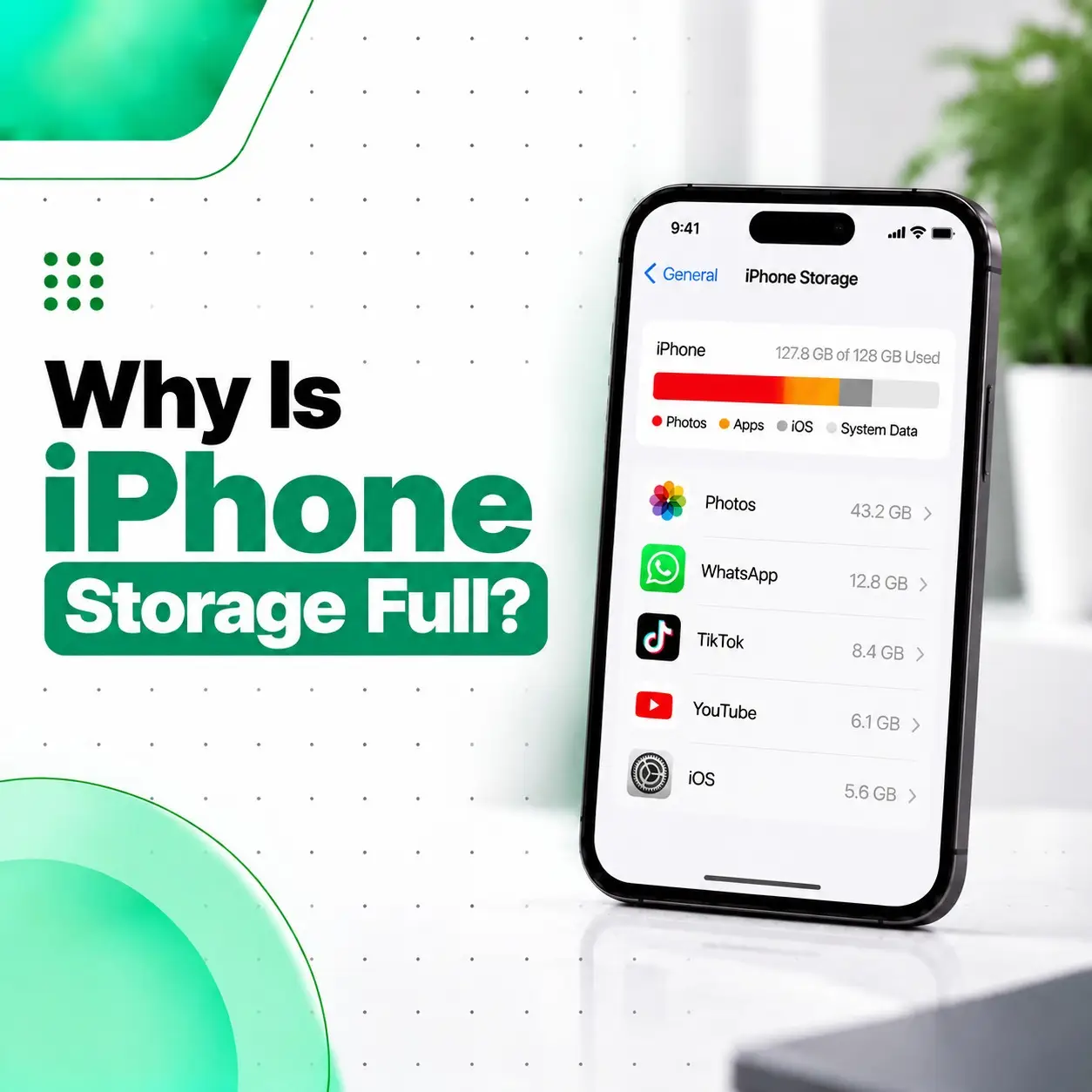
Running out of storage space on an iPhone can be frustrating, especially when you receive the “Storage Almost Full” notification even though you regularly delete photos, videos, or apps.
If you are searching why is iPhone storage full, the reason is usually not only photos or applications. Your iPhone storage can also be occupied by system files, app data, downloaded content, messages, temporary files, and cached information.
In this guide, we will explain what fills your iPhone storage, how to identify the biggest storage users, practical ways to free up space, and when professional iPhone inspection may be needed.
Why Is My iPhone Storage Full?
Your iPhone storage may become full because of large photos and videos, installed apps, downloaded files, message attachments, cached data, and iOS system files.
Unlike external storage devices, iPhones have fixed internal storage capacity. Once that space becomes limited, your device may experience:
- Slow performance
- Difficulty installing updates
- Apps crashing unexpectedly
- Camera problems while capturing photos or videos
- Reduced overall responsiveness
How to Check What Is Using iPhone Storage
Before deleting anything, you should first understand what is consuming your storage.
Follow these steps:
Settings → General → iPhone Storage
Your iPhone will show storage usage categories such as:
- Apps
- Photos
- Messages
- iOS System Data
- Media files
Understanding iPhone Storage Categories
Photos and Videos
Photos and videos are among the biggest storage consumers on most iPhones.
High-resolution photos and 4K videos can take significant space, especially if you frequently record:
- Travel videos
- Social media content
- Long recordings
- Screenshots
Applications and App Data
Apps do not only use space for installation.
Many applications store additional data such as:
- Downloaded videos
- Offline files
- Cached images
- Documents
- User data
For example, social media and streaming apps may gradually increase storage usage over time.
Messages and Attachments
The Messages app can consume large storage because conversations may contain:
- Photos
- Videos
- Voice messages
- Documents
- Stickers
Old conversations with large attachments can occupy several GB of space.
iOS System Data
Many iPhone users notice that “System Data” takes a surprisingly large amount of storage.
System Data may include:
- Temporary system files
- Logs
- Software caches
- Safari data
- System resources
The size can change depending on device usage and iOS activities.
Common Reasons Why iPhone Storage Keeps Filling Up
Too Many Photos and Videos
The most common reason for full iPhone storage is a large photo and video library.
Modern iPhones capture high-quality images, which means every file can require more storage compared to older devices.
How to Manage Photos Storage
You can:
- Delete duplicate photos
- Remove unnecessary screenshots
- Transfer old photos to another storage location
- Use optimized photo storage options
Too Many Installed Apps
Many users install apps temporarily but forget to remove them later.
Unused applications continue occupying storage space.
To review apps:
Settings → General → iPhone Storage
Check:
- Large apps
- Apps you rarely use
- Apps with excessive documents and data
App Cache and Temporary Files
Apps often create temporary files to improve loading speed and user experience.
Over time, some apps may store large amounts of cached information.
Examples:
- Browsers
- Social media apps
- Video streaming apps
- Editing applications
Downloaded Content Taking Space
Offline downloads can quietly consume storage.
Examples include:
- Netflix downloads
- Music downloads
- Podcast episodes
- Offline maps
- Documents
How to Free Up Storage on iPhone
Delete Unnecessary Apps
Removing unused apps is one of the easiest ways to recover storage.
You can either:
- Delete apps completely
- Enable automatic app offloading
Offloading removes the app but keeps related documents and data for future use.
Remove Large Files and Attachments
Review large files stored in:
- Messages
- Mail attachments
- Files app
- Downloads folder
Check Large Attachments
Go to:
Settings → General → iPhone Storage → Messages
You can review and remove large attachments.
Clean Up Your Photo Library
Managing photos regularly helps prevent storage problems.
Useful actions:
- Remove duplicate images
- Delete unwanted screenshots
- Review old videos
- Empty Recently Deleted folder
Restart Your iPhone
Restarting your iPhone does not permanently delete storage, but it can clear temporary processes and refresh system operations.
This can help when storage-related warnings appear because of temporary system behavior.
Update iOS
Keeping iOS updated helps maintain proper device performance and security.
Software updates may also improve storage management and fix system-related issues.
Check:
Settings → General → Software Update
Can Full iPhone Storage Slow Down Your Device?
Yes, extremely limited storage can affect iPhone performance.
When your device has very little available space, iOS may have fewer resources available for temporary operations.
Possible symptoms include:
- Slower app opening
- Lag while switching apps
- Camera delays
- Problems installing updates
What Is iPhone System Data and Why Does It Take Space?
iPhone System Data contains files required for iOS operation and temporary information generated during device usage.
It may include:
- System caches
- Logs
- Temporary files
- Update-related files
The amount can increase temporarily and may reduce after restarting, updating software, or clearing unnecessary data.
Should You Factory Reset an iPhone With Full Storage?
A factory reset can remove personal data and restore the device to a clean software state.
However, it should not be the first solution.
Before resetting:
- Create a backup
- Save important files
- Confirm Apple ID access
A reset may help only when software-related issues contribute to storage problems.
Can iPhone Storage Be Upgraded?
No, iPhone storage cannot normally be upgraded like a computer hard drive.
The internal storage chip is built into the device.
If your storage capacity is insufficient, your options include:
- Managing existing files
- Using cloud storage
- Moving files to another device
- Choosing a higher-storage iPhone model in the future
When Should You Visit a Professional iPhone Repair Service?
Most storage problems are solved through proper file management.
However, professional inspection may be useful if:
- Storage fills up unusually quickly
- Your iPhone freezes frequently
- Apps crash repeatedly
- The device restarts unexpectedly
- Storage information appears incorrect
- The phone has previous water or physical damage
A technician can check whether the issue is related to software, internal components, or another hardware problem.
iPhone Storage Problem Repair Cost in Bangladesh
There is no fixed repair cost for iPhone storage-related issues because the solution depends on the actual cause.
Factors affecting cost include:
- iPhone model
- Type of problem
- Required troubleshooting
- Hardware condition
- Parts involved
- Data recovery requirements
Simple storage management may not require repair, while hardware-related problems may need professional diagnosis.
DIY Storage Management vs Professional Diagnosis
| DIY Storage Cleaning | Professional Diagnosis |
| Delete unused apps | Hardware inspection |
| Remove unnecessary files | Identify technical faults |
| Clear photos/videos | Check device condition |
| Manage downloads | Software troubleshooting |
| Update iOS | Repair recommendations |
For normal storage problems, users can manage storage themselves. But repeated issues may require expert inspection.
How to Prevent iPhone Storage From Becoming Full Again
Follow these habits to maintain better storage management:
Regularly Check Storage
Review storage every few months:
Settings → General → iPhone Storage
Identify large files before they become a problem.
Backup Important Photos
Regular backups help you safely remove old files.
Options include:
- iCloud backup
- Computer backup
- External storage
Remove Unused Apps
Delete applications that you no longer need.
Manage Downloads
Review downloaded:
- Videos
- Music
- Documents
- Offline files
Keep iOS Updated
Software updates help maintain security and system stability.
iPhone Storage Full Checklist
When your iPhone storage is full:
- Check storage usage.
- Find the largest storage categories.
- Remove unused apps.
- Delete unnecessary photos and videos.
- Clear large message attachments.
- Review downloaded files.
- Update iOS.
- Restart the device.
- Backup important data.
- Seek professional diagnosis if problems continue.
Frequently Asked Questions
1. Why does my iPhone storage keep filling up?
Your iPhone storage may keep filling because of photos, videos, app data, cached files, downloads, and system data. Regularly reviewing storage usage and removing unnecessary files can help prevent repeated storage problems.
2. What is taking up most of my iPhone storage?
Photos, videos, apps, message attachments, and system data are usually the biggest storage users. You can check the exact breakdown from Settings → General → iPhone Storage.
3. Does deleting apps free iPhone storage?
Yes. Deleting unused apps removes the application and its stored data, which can recover significant storage space depending on the app size.
4. Why is iPhone System Data taking so much space?
System Data includes temporary files, caches, logs, and other iOS-related resources. Its size can change depending on device usage, software updates, and installed applications.
5. Can full iPhone storage damage my phone?
Full storage does not usually damage the hardware, but it can affect performance and prevent some functions such as updates, downloads, or smooth app operation.
6. Should I reset my iPhone if storage is full?
A factory reset is usually not the first step. Try cleaning storage, removing unnecessary files, and managing apps first. Always create a backup before resetting.
7. When should I contact an iPhone repair service?
If your iPhone storage problem continues despite cleaning files, or if you experience freezing, crashes, restart issues, or unusual behavior, professional inspection can help identify the cause.
Conclusion
Understanding why is iPhone storage full is the first step toward solving the problem. In most cases, storage becomes full because of large media files, apps, cached data, downloads, and system files.